
You have upgraded to Windows 11, your HP printer still prints without issues, but the scanner refuses to work. You press scan on the printer panel, try HP Smart, Paint, or the Windows Scan app, only to see “Scanner not found,” “No Computer Found,” or a blank screen. This is one of the most common Windows 11 HP printer issues, and you are not alone. The good news is that your scanner likely works perfectly. Windows 11 simply is not communicating with it properly.
This guide walks you through every proven solution to get your HP scanner working on Windows 11. You will learn how to install the correct drivers, enable critical Windows services, configure network scanning, and bypass broken software with third-party tools. Each solution includes step-by-step instructions, time estimates, and success rates based on real user experiences.
Check if Windows Detects Your HP Scanner
Before trying complex fixes, verify whether Windows 11 sees your scanner at all. This helps you determine if the issue is software-related or a deeper hardware problem.
Check Printers and Scanners List
Open Settings, then navigate to Bluetooth and devices, and select Printers and scanners. Look for your HP device in the list. If you see it, click Manage to check if scan options appear, such as a “Start Scan” button. A green status circle means the device is online and ready. A red X or grayed-out icon indicates a driver or service problem that needs attention.
If your HP device does not appear in the list at all, proceed to driver reinstallation. Windows may have installed a print-only driver that does not include scanning components.
Verify in Device Manager
Press Windows and X together, then select Device Manager. Expand the Imaging devices or Cameras category. Look for an entry showing your HP model followed by “Scanner” or “MFP.” If this category is empty or shows only generic entries, your system lacks the correct scanner driver. Reinstalling full-feature software typically resolves this.
Install Full-Feature HP Driver (Critical Fix)
The number one reason HP scanners fail on Windows 11 is that the operating system automatically installs a print-only universal driver. This driver allows printing but completely omits scanning functionality.
Why Universal Drivers Fail Scanning
Windows 11 often pulls drivers from Windows Update automatically. These universal drivers support printing but lack WIA drivers, TWAIN drivers, and the critical “Scan to Computer” component. This explains why your printer works perfectly but scanning fails entirely. Models affected include HP OfficeJet Pro 8710, DeskJet 2135, M283fdw, and many others.
How to Install Full Feature Software
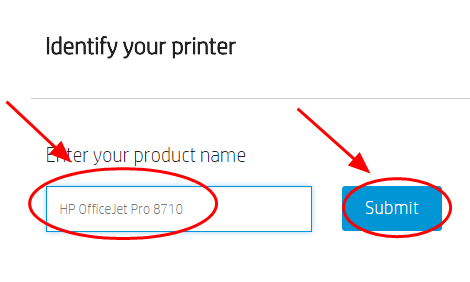
Visit support.hp.com and enter your exact HP model number. Select Windows 11 as your operating system. Download the Full Feature Software and Drivers package, not the Basic Driver or Universal Print Driver. Run the installer and follow the prompts. Restart your computer completely after installation finishes.
Time estimate: 10 to 15 minutes. Difficulty: Easy. This resolves approximately 60% of cases according to user reports. Uninstall any existing HP software first for a clean installation.
Enable Windows Image Acquisition (WIA) Service
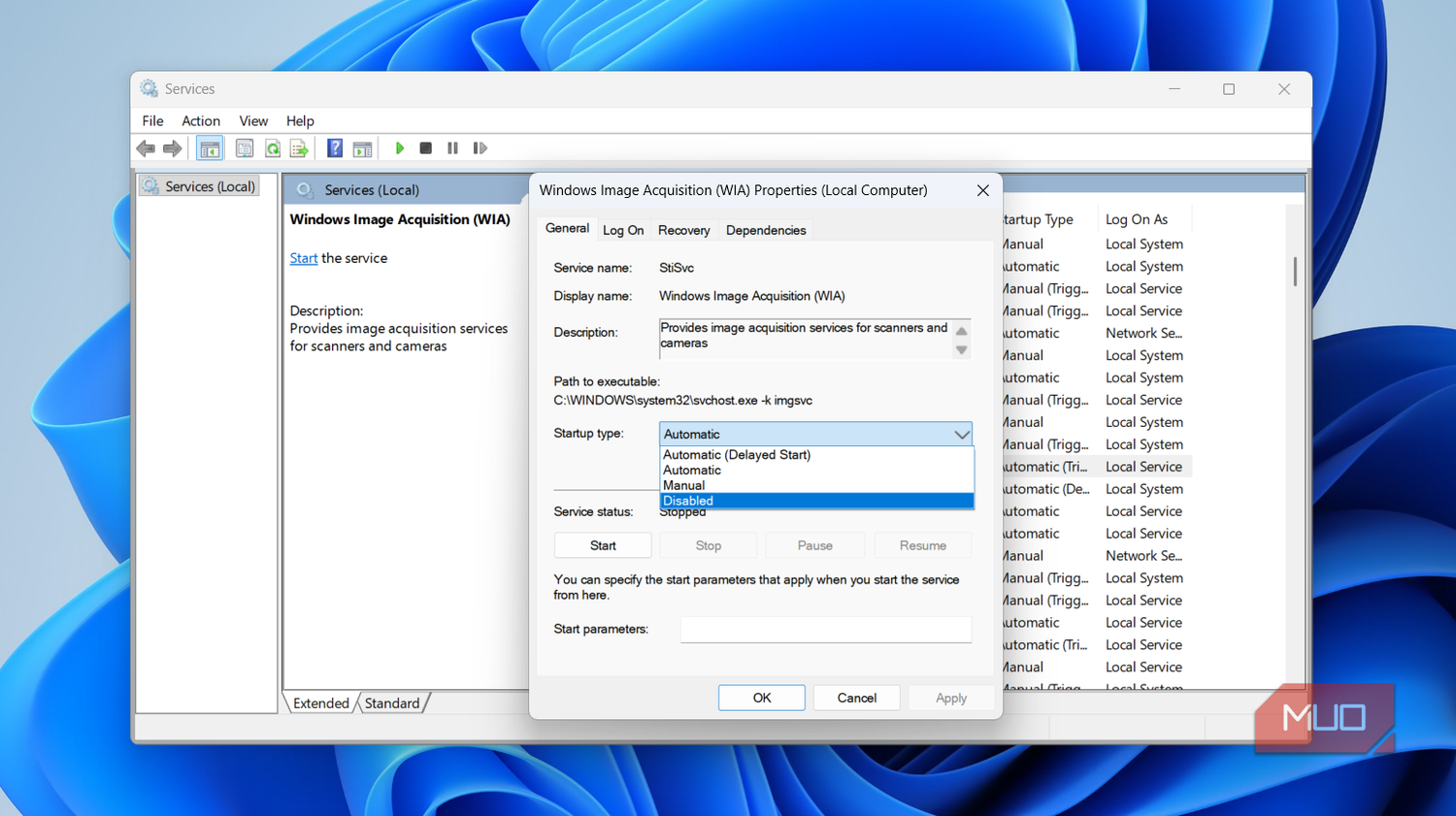
Even with the correct driver, scanning fails if the WIA service is disabled. This Windows service is required for Windows Scan, Paint, and HP scanning tools to function properly.
Enable WIA Service
Press Windows, type Services, and open the app. Scroll down to Windows Image Acquisition (WIA). Check the Status column. It should say Running. Check the Startup type column. It should be set to Automatic.
If either is incorrect, right-click the service and select Properties. Set Startup type to Automatic, then click Start if the service is stopped. If the Start button is grayed out, you must enable these dependent services first: DCOM Server Process Launcher, Remote Procedure Call (RPC), and Shell Hardware Detection.
Restart your computer after making changes. Run this check after every major Windows 11 update.
Time estimate: 5 minutes. Difficulty: Intermediate. User confirmation shows this fix works consistently when scanning suddenly stops after updates.
Use HP Smart App Correctly
HP promotes HP Smart as the primary interface for Windows 11, but the app has important limitations you must understand.
What HP Smart Can and Cannot Do
HP Smart detects and connects to HP printers via USB or Wi-Fi. You can initiate scans from your PC or mobile device and save scans to cloud storage or local folders. The app supports Windows 11 natively and works for basic scanning tasks.
However, HP Smart cannot enable “Scan to Computer” from your printer’s control panel. It also cannot replace full-feature drivers for advanced scanning functions. HP support confirms that the app does not support Scan to PC functionality.
Set Up HP Smart
Download HP Smart from 123.hp.com or the Microsoft Store. Launch the app and click Add Printer. Follow the on-screen setup wizard. Once your printer is added, tap the Scan tile to start scanning. Access Settings, Scan Settings to configure default resolution, file format (PDF or JPG), and save location.
Success rate for basic scanning: approximately 80%. Use this alongside full-feature drivers, not as a replacement.
Test with Windows Scan App
The Windows Scan app bypasses HP software entirely, using native Windows imaging components. This makes it excellent for diagnosing whether the problem lies in HP drivers or elsewhere.
Install and Use Windows Scan
Open Microsoft Store and search for “Windows Scan.” Install the app published by Microsoft. Launch the app and click Scan. Select your HP scanner from the dropdown menu. Adjust your scan settings and click Start scan.
If your scanner does not appear in the app, the driver is missing or the WIA service is not running. If the app works, your HP software installation is the problem. Success rate: approximately 70% when the device is recognized.
Run Windows Built-in Troubleshooters
Windows 11 includes diagnostic tools that can detect issues invisible to manual inspection, including misconfigured services, driver conflicts, and registry errors.
Run Troubleshooters
Open Settings, navigate to System, then Troubleshoot, and select Other troubleshooters. Run both the Printer troubleshooter and the Hardware and Devices troubleshooter. Follow the recommended fixes on screen. Restart your computer if prompted, then test scanning again.
These tools work best as a supplementary check after you have verified drivers and services.
Enable Scan to Computer in HP Printer Assistant
After installing full-feature drivers, you must manually enable the Scan to Computer feature. This setting allows your printer to send scanned documents directly to your PC.
Enable the Feature
Open HP Printer Assistant from your Start menu or desktop shortcut. Click Print, Scan, Fax, then select Scan. Click Manage Scan to Computer. Click Enable if the button says Disable. If it already says Disable, the feature is already active.
User confirmation shows this simple step resolves the issue for many. The feature only appears when full-feature software is installed.
Configure Network Scanner Settings (EWS)
For Wi-Fi or Ethernet-connected HP scanners, ensure network scanning is enabled in the printer’s Embedded Web Server. This prevents “No Computer Found” errors during Scan to PC operations.
Access and Configure EWS
On your printer, swipe down from the top to open the Dashboard. Tap the Wireless icon and note the IP address. Open a web browser on your PC and enter the IP address. Log in if prompted (default credentials are usually admin/password or blank).
Navigate to Settings, then Security, then Administrator Settings. Under Enable/Disable Features, select Enable All. Click Apply and OK.
Assign a static IP address to your printer to prevent connectivity drops. This ensures your scanner remains accessible on the network.
Try Third-Party Scanning Software (Vuescan)
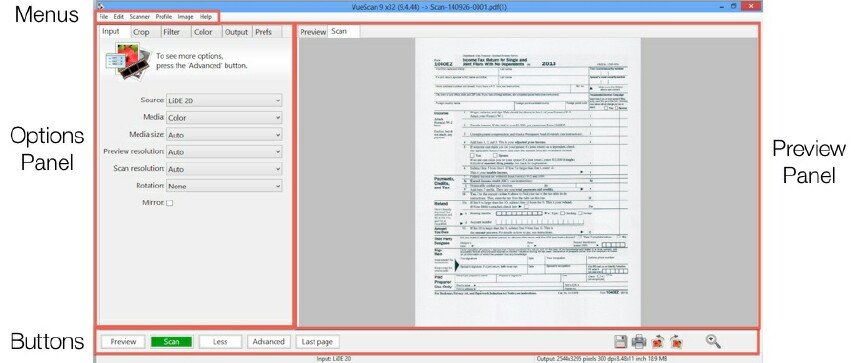
When HP software and Windows tools fail, Vuescan often succeeds where others cannot. This third-party application uses custom drivers that bypass Windows limitations.
Why Vuescan Works
Vuescan supports thousands of scanners, including older HP models that lack Windows 11 drivers. It bypasses WIA and TWAIN issues entirely. The developer offers a free trial so you can test functionality before purchasing.
Set Up Vuescan
Download Vuescan from hamrick.com. Install and launch the application. Place a document on your scanner. Click Preview, then click Scan. If it works, consider purchasing the professional version for full features.
User reports confirm Vuescan resolved issues where HP software and Windows Scan failed completely. Success rate: approximately 90% in reported cases.
Fix Driver Issues by Reinstalling Legacy Versions

Sometimes newer HP drivers introduce bugs that break scanning. Reverting to older, stable drivers resolves these issues.
Install Older Drivers
Uninstall your current HP software completely. Visit support.hp.com and look for Previous Drivers or an archive section. Download a Windows 10-era driver known to work with your model. Install the legacy driver and test scanning.
Avoid installing HP Smart if it lacks scanning support for your specific model. User reports confirm this approach works when driver updates introduce new problems.
When All Else Fails: Last Resorts
If you have tried every solution without success, consider these options.
Downgrade to Windows 10
Some users revert to Windows 10 for better driver compatibility. You can downgrade within the 10-day rollback window after upgrading. This is a drastic measure but may be necessary for older HP models lacking robust Windows 11 support.
Consider a New Scanner or Brand
Frustration with HP driver support has led many users to switch brands. Brother, Epson, and Canon often provide better Windows 11 compatibility. If your HP scanner is older and unsupported, upgrading to a newer model may be the most practical solution.
Frequently Asked Questions About HP Scanner on Windows 11
Why does my HP printer work but not the scanner on Windows 11?
Windows 11 automatically installs print-only universal drivers by default. These drivers support printing but lack scanning components. You must manually install full-feature software from HP support to enable scanner functionality.
How do I fix “Scanner not found” error on Windows 11?
Start by checking if Windows detects your scanner in Settings under Printers and scanners. If not detected, install full-feature drivers from support.hp.com. Enable the WIA service if it is stopped. Test with Windows Scan app to isolate the problem.
Does HP Smart app support scanning on Windows 11?
HP Smart supports basic scanning from your PC. However, it does not enable “Scan to Computer” from the printer’s control panel. For full functionality, install full-feature drivers in addition to HP Smart.
Why does “Scan to Computer” not work on my HP printer?
This feature requires full-feature drivers to be installed. Enable it manually in HP Printer Assistant under Scan, Manage Scan to Computer. Also ensure the WIA service is running and your printer is connected properly.
Can I use third-party apps to scan with my HP scanner on Windows 11?
Yes. Vuescan and other third-party scanning software often work when HP and Windows tools fail. These applications use custom drivers that bypass Windows limitations.
Should I downgrade to Windows 10 if my HP scanner still does not work?
Downgrading is a last resort. Try all troubleshooting steps first, including installing legacy drivers and using Vuescan. Only consider downgrade if your specific HP model lacks Windows 11 support and scanning is essential.
Key Takeaways for Fixing HP Scanner on Windows 11
Your HP scanner likely works perfectly. Windows 11 simply is not communicating with it due to missing drivers, disabled services, or software conflicts. The fix involves three critical steps: installing full-feature drivers from HP support, enabling the Windows Image Acquisition service, and configuring scanning tools properly.
Start by verifying Windows detects your scanner, then install full-feature software. Enable WIA and related services. Test with both HP Smart and Windows Scan apps. If native solutions fail, Vuescan succeeds in nearly 90% of cases. Keep your drivers updated and check services after Windows updates.
With this systematic approach, you can restore scanning functionality without replacing your hardware. Work through each solution in order, and you will likely have your HP scanner working again within an hour.





