If your Brother printer scanner won’t connect to your PC, you are facing one of the most common issues with Brother all-in-one devices. This problem typically occurs when printing works fine but scanning fails completely. The root cause is almost always missing or misconfigured software, not hardware failure. Unlike printing, scanning requires the full Brother software suite, specific network settings, and open firewall ports. In this guide, you will find proven troubleshooting steps that work for popular models like the DCP-L2540DW, MFC-J995DW, and MFC-7360N on Windows 10 and 11.
Power Cycle Your Devices First
Before diving into complex fixes, start with the simplest solution. Many temporary glitches resolve with a simple reboot.
Restart Brother Printer, PC, and Router
Turn off your Brother printer-scanner and wait 30 seconds before powering it back on. Allow 45 seconds for full startup. Repeat this process for your PC and router if scanning issues persist. This resets the network stack, clears DHCP errors, and reinitializes USB or Wi-Fi connections.
Check for Error Messages on the Printer Display
Look at your Brother machine’s LCD screen for alerts such as paper jam, cover open, ink empty, or check connection. Resolve any hardware issues first, as a scanner will not connect if the machine detects an open cover or jam. Some models enter deep sleep mode. Press any button and wait up to 1 minute for full wake-up.
Test Physical Connections
Check your connection type carefully. For wired Ethernet connections, use a known-good cable and plug directly into your router rather than a switch. Try different LAN ports. For wireless connections, ensure signal strength is at least 2 bars. Reconnect via Settings, Network, WLAN, Setup Wizard. For USB connections, try a different cable and different USB port. Avoid hubs and connect directly to your PC.
Verify Network and IP Configuration

Your Brother scanner must be on the same network as your PC with a valid IP address for scanning to work.
Print Network Configuration Report
Print a network configuration report directly from your Brother machine. Press Menu or Settings, then go to Print Reports, Network Configuration. Review the IP address, subnet mask, gateway, and WLAN signal strength. A printed report confirms the device is functional and network-enabled.
Validate the IP Address
Check if the IP address is valid. Good addresses start with 192.168.x.x, 10.x.x.x, or 172.16.x.x to 172.31.x.x. Bad addresses include 0.0.0.0 or addresses starting with 169.254.x.x, which indicate APIPA failure. If the IP starts with 169.254, the printer failed to get an address from your router.
Fix DHCP Issues
Restart your router and reconnect the Brother machine to the network. Alternatively, switch to a static IP address. Assign an IP outside your router’s DHCP range, for example, if DHCP is 192.168.1.100 to 199, use 192.168.1.50. Set matching subnet mask and gateway. Save under Settings, Network, TCP/IP, IP Address Setting. A static IP prevents disconnections after router reboots.
Install Full Brother Software Suite
Printing may work with basic drivers, but scanning requires the full software package from Brother.
Download and Install Full Driver Package
Go to support.brother.com and enter your model number. Select your operating system (Windows 10 or 11, 64-bit) and download the Full Driver and Software Package, not the Driver Only option. Windows Update often installs incomplete drivers that enable printing but disable scanning.
Run Installer as Administrator
Right-click the installer and choose Run as administrator. Select Network Connection when prompted. When asked about firewall settings, select the option to change firewall port settings to enable network connection. Allow all components to install, including ControlCenter4, iPrint&Scan, Scan Button Manager, and TWAIN/WIA drivers. Users have confirmed that MFC-J995DW units on Windows 11 could print but not scan until the full software was installed.
Run ControlCenter4 Update Tool
Even with software installed, ControlCenter4 can become outdated or corrupted, especially after Windows updates.
Download and Execute the Tool
Search for ControlCenter4 Update Tool on Brother’s support site and download version 4.2.461.1. Run the executable. The tool runs silently with no visible progress. Reboot your PC after running the tool. Real-world cases show that MFC-7360N users who could not scan for over a month recovered full functionality immediately after running this tool and rebooting.
Configure Scanner IP Manually
The scanner driver may still point to an old or incorrect IP address, causing connection failures.
Set Correct Network Address
Open Control Panel, Devices and Printers. Right-click your Brother device and select Scanner Properties. Go to the Network Setting tab. Select Specify your machine by address and enter the current IP address from your network report. Click OK. Pair this with a static IP on the printer to avoid future mismatches.
Test Scanning with iPrint&Scan
Verify scanning works end-to-end using Brother’s native tool before moving to more complex fixes.
Perform a Test Scan
Open Brother iPrint&Scan from the Start Menu. Click Scan and set destination to Computer (via network), file type to PDF or JPEG, color mode to Color or Black and White, and resolution to 200 dpi. Click Scan. If it succeeds, your issue is resolved. If it fails, move to firewall and security checks.
Fix Firewall and Antivirus Blocks
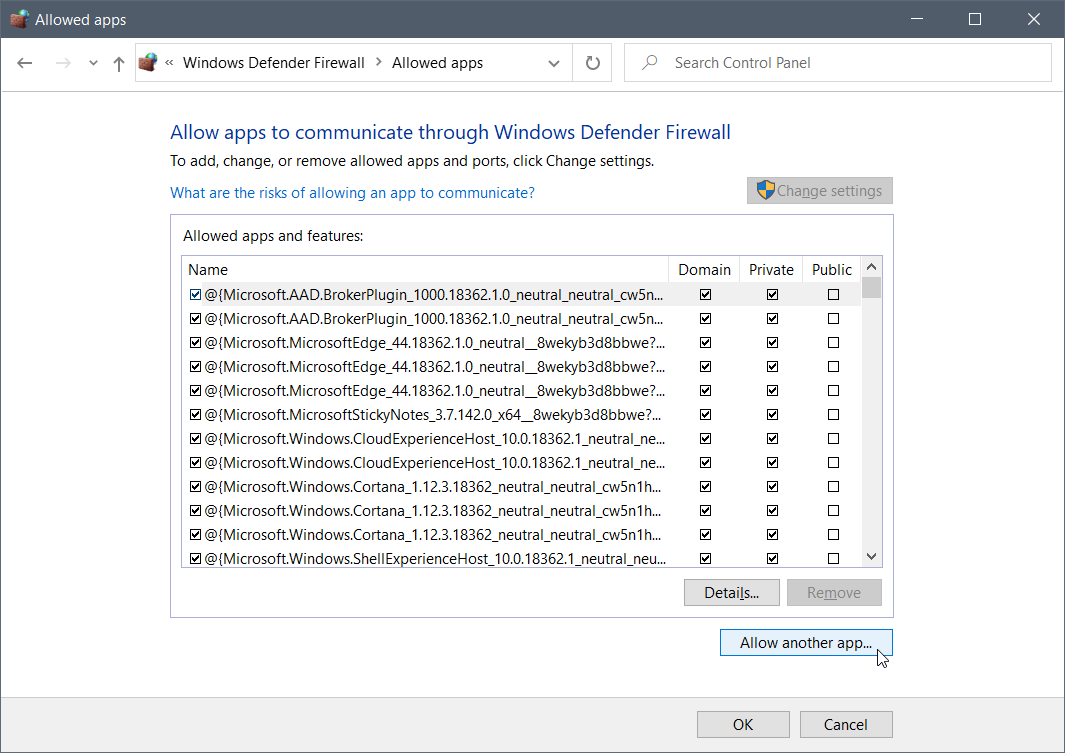
Firewalls often block scanning ports even when printing works perfectly through the same network.
Temporarily Disable Firewall
Open Windows Security and go to Firewall and network protection. Turn off Microsoft Defender Firewall temporarily and try scanning. If scanning works, your firewall is blocking communication.
Add Brother to Firewall Allowlist
Re-enable the firewall and create rules for specific applications and ports. Applications to allow include BrStMonWnd.exe (Status Monitor), ScanKeyMngr.exe (Scan Button Manager), iPrintScan.exe, and ControlCenter4.exe. Ports to allow include 54925 (primary scanning port), 137 (NetBIOS), and 161 (SNMP). Open Windows Defender Firewall, Advanced settings, and create inbound and outbound rules for each item.
Check Third-Party Security Software
Antivirus tools like Norton, McAfee, and Kaspersky frequently block Brother processes. Temporarily disable real-time protection and add Brother executables to your allowlist. Look for network I/O monitoring features and whitelist the necessary applications.
Update Scanner Driver in Device Manager
Ensure Windows recognizes the scanner component properly through Device Manager.
Locate and Update the Driver
Press Win plus X and open Device Manager. Expand Imaging devices and find your Brother scanner. Right-click and select Update driver. Choose Browse my computer for drivers, then Let me pick from a list. Select the correct TWAIN or WIA driver and click Next. Restart your PC. If the scanner is missing, uninstall any grayed-out entries first, then reinstall the full software.
Run Windows Printer Troubleshooter
Use Microsoft’s built-in diagnostic tool to catch hidden issues.
Launch the Tool
Press Win plus I, go to Update and Security, then Troubleshoot. Select Printer and run the troubleshooter. Apply all recommended fixes. This tool detects service conflicts, driver registration failures, and permission issues that may not be obvious.
Clean Device List and Set Default
Avoid conflicts from old or duplicate installations that can interfere with scanning.
Remove Stale Devices
Go to Settings, Bluetooth and devices, Printers and scanners. Remove duplicate Brother entries, offline or grayed-out devices, and incorrect names like Copy 1. Restart your PC after cleanup.
Set as Default Scanner
Click your Brother device and select Set as default. This prevents Windows from routing scan requests to invalid devices.
Test on Another Computer
Isolate whether the issue is PC-specific or affects the entire network.
Steps to Isolate the Problem
On a second PC connected to the same network, install the Full Driver and Software Package. Open iPrint&Scan and try scanning. If it works, the original PC has an OS, driver, or firewall issue. If it fails, the problem lies with the printer or network configuration.
Handle Network Limitations
Scanning has strict network requirements that differ from printing.
Understand Peer-to-Peer Restrictions
Scan to PC from the control panel only works in peer-to-peer networks. It fails in domain or enterprise environments (client-server setups). Use iPrint&Scan from the PC instead of the control panel scan button as a workaround.
Disable IPv6 If Needed
Some users fixed discovery issues by disabling IPv6. Open Network and Sharing Center, click your connection, go to Properties, and uncheck Internet Protocol Version 6 (TCP/IPv6). Click OK and reboot. Try this if the scanner is invisible despite correct IP and firewall settings.
Reset Printer to Factory Defaults
Use this as a last resort when settings are corrupted or troubleshooting has failed.
Perform the Reset
On your Brother machine, go to Settings, All Settings, Initial Setup, Reset. Choose Network Reset (keeps basic settings) or Factory Reset (erases all settings including Wi-Fi and contacts). Reconfigure your network and reinstall the full software on your PC after resetting.
Prevent Future Scanning Issues
Keep scanning reliable with regular maintenance.
Reinstall After Windows Updates
Some Windows updates break scanning functionality. If scanning stops after an update, reinstall the Full Driver and Software Package and run the ControlCenter4 Update Tool. Use System Restore if needed to return to a working state.
Enable Startup Tools
Ensure Scan Button Manager and ControlCenter4 run at startup. Check Task Manager, Startup tab, and enable these tools if they are disabled.
Schedule Regular Maintenance
Every 6 months, check support.brother.com for driver and firmware updates. Monthly, clean the scanner glass and ADF rollers. Annually, run the ControlCenter4 Update Tool to maintain optimal performance.
Frequently Asked Questions About Brother Printer Scanner Connection Issues
Why does my Brother printer print but not scan?
Printing uses basic drivers that Windows can install automatically, but scanning requires the full Brother software suite including ControlCenter4, iPrint&Scan, and specific scanner drivers. Install the Full Driver and Software Package to enable scanning.
How do I find my Brother printer’s IP address?
Print a network configuration report from your Brother machine by pressing Menu or Settings, then Print Reports, Network Configuration. You can also view the IP address through the LCD menu under Settings, Network, TCP/IP.
What ports does Brother scanning use?
Brother scanning primarily uses TCP port 54925, along with ports 137 (NetBIOS) and 161 (SNMP). Ensure your firewall allows these ports for scanning to work.
Does Windows 11 work with Brother scanners?
Yes, Windows 11 works with Brother scanners, but you must install the full driver package from support.brother.com rather than relying on Windows Update drivers. Some users report needing to reinstall after Windows updates.
Why is my Brother scanner not detected in Device Manager?
This usually means the full software package is not installed. Uninstall any grayed-out entries, reinstall the Full Driver and Software Package, and restart your PC. The scanner should appear under Imaging devices.
Key Takeaways for Fixing Brother Scanner Connection Issues
The most common cause of Brother printer scanner not connecting to PC is missing or incomplete software installation. Always install the Full Driver and Software Package from support.brother.com rather than relying on Windows Update drivers. Network configuration matters significantly. Ensure your Brother device has a valid static IP address on the same network as your PC and that firewall ports 54925, 137, and 161 are open. If scanning still fails after software installation, run the ControlCenter4 Update Tool and reboot. For persistent issues, test on another computer to isolate whether the problem is PC-specific or network-wide. With the right software, correct IP configuration, and open firewall ports, your Brother scanner will connect reliably for years.