If your Autel scanner not working, you’re not alone. Thousands of technicians face sudden power loss, communication errors, or unresponsive screens, especially with popular models like the MS906, MK808, and MP808TS. The good news? Most issues stem from simple causes like dead batteries, outdated firmware, loose cables, or blown fuses. This guide gives you step-by-step fixes based on real user reports and technical specs.
Whether your scanner won’t turn on, won’t connect to your vehicle, or is stuck in a boot loop, you’ll learn how to diagnose and resolve it fast.
No Power, No Lights, No Response
When your Autel scanner not working means no screen, no LED, no vibration, it’s usually a power system failure. Don’t assume it’s dead. Try these fixes first.
Check Battery and Charging System
Start simple. Plug the scanner into the original Autel charger and a wall outlet, not a USB hub. Wait 30 minutes or more because some units take time to wake from deep discharge. Look for flickers, LED glows, or charging indicators.
If nothing happens, test with a different power adapter and cable. Ensure 5V/2A output. Try a known-good USB port on a PC. If detected on PC, the internal battery may be dead or the charging circuit damaged.
Pro Tip: Lithium-ion batteries degrade. If your scanner is over a year old and stored at 0% charge, the battery may need replacement.
Perform a Hard Reset
Even dead units can respond to a forced reset. Unplug all cables including USB, OBD-II, and charger. Remove the battery if accessible. Hold the power button for 30 seconds to drain residual power.
Reinsert the battery, plug in the charger, and wait 30 minutes. Press and hold the power button for 10 to 15 seconds. This often revives scanners stuck in low-power states.
Test for Hardware Failure
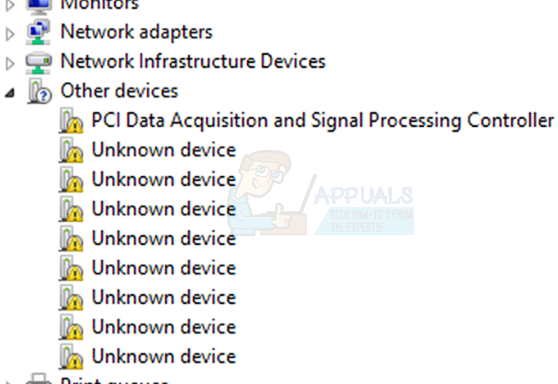
If still no response, connect to a Windows PC via USB. Open Device Manager. If the scanner appears as an unknown device, firmware may be corrupted. Use Autel Software Suite to reflash the firmware.
If no device is detected, suspect power IC failure, broken USB port, or mainboard damage. If all else fails, contact support or initiate an RMA, especially if under warranty.
Device Unable to Communicate with Control Unit
This is one of the most common Autel scanner not working messages. It means the tool cannot talk to your vehicle’s modules like ECM, TCM, or ABS.
Verify Basic Connection Conditions
Before diving deeper, confirm these essentials. Ignition must be in the ON or RUN position, and the engine may need to run. The OBD-II cable must be fully seated in the DLC. Scanner battery must be above 80%.
You must select the correct year, make, model, and VIN. The VCI icon should show a green checkmark in the interface. Missing any of these? That’s likely your issue.
Test DLC Voltage with Multimeter
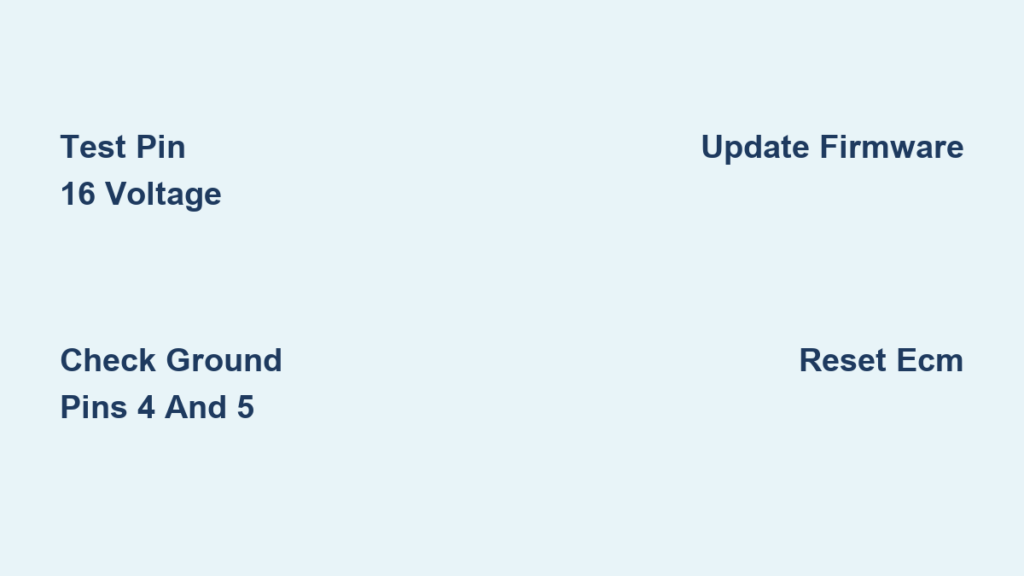
Use a multimeter to check the OBD-II port. Pin 16 (Power) should read 12 to 14V with ignition on. Pins 4 and 5 (Ground) should show continuity to chassis.
Zero volts on Pin 16? That’s the root cause. Possible reasons include a blown fuse in the vehicle’s OBD or ECU fuse, a faulty ignition switch circuit, or damaged DLC wiring. Replace the fuse using the same amperage rating. Common locations are under the dash or in the engine bay fuse box.
Update or Re-Pair VCI Firmware
Outdated VCI firmware is a top cause of communication failure. Connect scanner to Wi-Fi. Go to Settings, System Update, VCI Firmware Update. Download and install the latest version. Restart both scanner and VCI.
For recovery via PC when the scanner won’t connect, connect VCI to a Windows PC using USB. Install Autel Software Suite. Run firmware update directly on the VCI. After the update, go to Bluetooth settings on the scanner, unpair the old VCI, and re-pair as a new device.
Unresponsive Power Button on MS906, MK808
If the scanner powers on randomly or only when jiggled, the power button is likely failing. Symptoms include no response when pressing the button, intermittent power, and the device turning on when dropped or tapped.
Possible causes are a worn-out button mechanism, a disconnected or damaged ribbon cable, or corrosion or debris under the button.
Replace the Power Button
You can fix this yourself in about 20 minutes. You’ll need a plastic pry tool, a precision screwdriver set, and a replacement power button (OEM or compatible).
Power off and remove the battery. Insert the pry tool into the seam and gently separate the case. Locate the front panel with the power button. Disconnect the ribbon cable from the ZIF connector.
Remove the old button, which may be clipped or glued. Install the new button and reconnect the ribbon cable. Reassemble and test.
Visual Cue: Ensure the ribbon cable lies flat with no tension. A pinched cable causes future failures.
Scanner Stuck on Logo or Boot Loop
If your Autel scanner not working properly means it’s freezing, rebooting, or stuck on the Autel screen, it’s likely a software issue. A factory reset clears corrupted files and restores stability.
Perform a Factory Reset
Back up scan reports to an SD card or USB drive first. Remove the SD card if it contains critical data. Connect to power because reset takes about two minutes.
Go to Home, Settings, Reset. Select Factory data reset. Confirm “Erase all personal data.” Wait for full reboot, which takes about one minute and 45 seconds.
After the reset, saved scan reports remain. Hidden update files used for auto-updates are preserved. Subscription status stays intact on current models. However, Google accounts, apps, and Wi-Fi settings are wiped and must be reconfigured.
Post-Reset Tip: Wi-Fi is disabled by default. Re-enable it in Settings and reconnect to your network.
VCI Keeps Disconnecting or Not Detected
A VCI that drops connection ruins diagnostics. Fix it with these proven steps.
Swap the USB Cable
A common but overlooked cause is a bad USB cable. Cables can charge but fail to transmit data. Use a high-speed USB 2.0 or 3.0 cable or the original Autel cable. Test with a different port on the scanner or PC.
User Tip: “Tried a different USB cable, fixed my VCI detection issue instantly.” — User report
Re-Pair Bluetooth Connection
Bluetooth glitches cause disconnections. On the scanner, go to Bluetooth settings. Delete the existing VCI pairing. Power off both scanner and VCI. Turn them back on.
Re-pair within 3 feet. Enter the passkey if prompted, which is usually 0000 or 1234.
Pro Tip: Avoid metal-heavy environments because interference disrupts Bluetooth.
Prevent Future Failures
Avoid recurring Autel scanner not working issues with these habits.
Keep Firmware Updated
Update scanner software monthly. Go to Settings, System Update, Software Update. Update VCI firmware separately by going to Settings, System Update, VCI Firmware.
New updates fix bugs, improve compatibility, and patch security flaws.
Maintain Cables and Ports
Avoid sharp bends in OBD-II and USB cables. Unplug by the connector, not the cord. Store loosely coiled in a case. Clean the DLC port with compressed air, never liquids.
Store Properly
Keep away from moisture, dust, and extreme heat. Don’t leave in hot vehicles because it damages the battery. For long storage, charge to about 50% and power off.
Model-Specific Fixes at a Glance
| Model | Common Issue | Quick Fix |
|---|---|---|
| MS906 | Unresponsive power button | Replace button assembly |
| MK808 / MP808 | Cannot communicate | Update VCI firmware |
| MK900-BT / V150 VCI | No power, no lights | Hard reset, check battery |
| 906P | Won’t power on | Charge 30+ minutes, forced restart |
When to Contact Support
Try these steps first, but if your Autel scanner not working persists, contact support.
Warranty and RMA Options
Warranty is typically 12 months, so check with your reseller. Covered are defective parts and manufacturing flaws. Not covered are drops, liquid damage, and unauthorized repairs.
Best Support Channels
DiagMart offers email at sales@diagmart.com and is known for faster response. Autel Official Support may take days, so include your model, serial, and error logs. Facebook Groups like “Autel Scantool Users Group” offer real-time help from pros.
Submit a Data Log: Reproduce the error, save the log, and send it with your support request.
Frequently Asked Questions About Autel Scanner Not Working
Why does my Autel scanner show no power or lights?
This usually indicates a power system failure. Start by charging with the original adapter for 30 minutes. Test with a different cable. If still nothing, perform a hard reset by holding the power button for 30 seconds. If the problem persists, the battery may be dead or the mainboard damaged.
How do I fix the “Device Unable to Communicate with Control Unit” error?
First verify ignition is ON, the OBD-II cable is seated, and battery is above 80%. Check DLC voltage at Pin 16, which should read 12 to 14V. Update VCI firmware via Settings, System Update. Re-pair the VCI if needed.
What should I do if my Autel scanner is stuck on the logo or boot looping?
Perform a factory reset by going to Home, Settings, Reset, Factory data reset. Back up important data first. This clears corrupted files and usually resolves boot issues within two minutes.
Why does my VCI keep disconnecting during diagnostics?
Try swapping the USB cable with a high-speed one. Delete the existing Bluetooth pairing and re-pair the VCI within 3 feet of the scanner. Update VCI firmware to the latest version.
Can I replace the power button on my Autel MS906 myself?
Yes. Use a plastic pry tool to open the case, disconnect the ribbon cable from the ZIF connector, remove the old button, and install a replacement. The process takes about 20 minutes.
How often should I update my Autel scanner firmware?
Update scanner software monthly and VCI firmware separately whenever a new version is available. Regular updates prevent communication errors and improve vehicle compatibility.
Key Takeaways for Fixing Your Autel Scanner Not Working
A non-responsive Autel scanner is rarely beyond repair. Over 90% of not working cases are fixed by power, cable, fuse, or firmware fixes. Start with the simplest solutions: charge for 30 minutes, test different cables, and check DLC voltage.
For communication errors, verify ignition position, update VCI firmware, and re-pair Bluetooth. For boot loops or frozen screens, perform a factory reset after backing up data. For hardware issues like a bad power button, replacement is straightforward with basic tools.
Don’t replace your scanner before trying these fixes. Bookmark this guide, share it with your team, and get back to diagnosing with confidence.