Your fingerprint scanner stops working, and now you’re stuck entering passwords every time. This frustrating issue affects thousands of Windows laptop and Android phone users daily. Whether it failed after a recent update, the sensor won’t read your finger, or the fingerprint option is missing entirely, most problems are fixable without replacing hardware. This guide provides proven troubleshooting steps for both Windows Hello and Android biometric systems. You will learn how to diagnose the real cause and get your fast, secure login back in minutes.
Quick Fixes That Work for Most Fingerprint Scanner Issues
Before diving into complex repairs, try these universal steps. They resolve the majority of fingerprint scanner problems quickly.
Restart Your Device
A simple restart clears temporary software glitches that often disable sensors. On Windows, click Start, then Power, then Restart. On Android, hold the power button and select Restart. Wait 30 seconds after shutdown before turning it back on. Test the scanner immediately after boot.
Clean the Sensor Surface
Dirt, oil, or moisture blocks fingerprint detection. Use a microfiber cloth, the kind used for cleaning glasses. Dampen slightly if needed, then dry thoroughly. For in-display sensors, clean the entire screen area. Wipe gently in circular motions. Avoid alcohol-based cleaners unless specified by your manufacturer.
Check for System Updates
Outdated software causes compatibility issues with biometric sensors. On Android, go to Settings, then System, then Software Update, and download any available updates. On Windows, go to Settings, then Windows Update, and check for updates. Install all pending updates, especially optional driver updates under Advanced options.
Fix Android Fingerprint Scanner Not Working
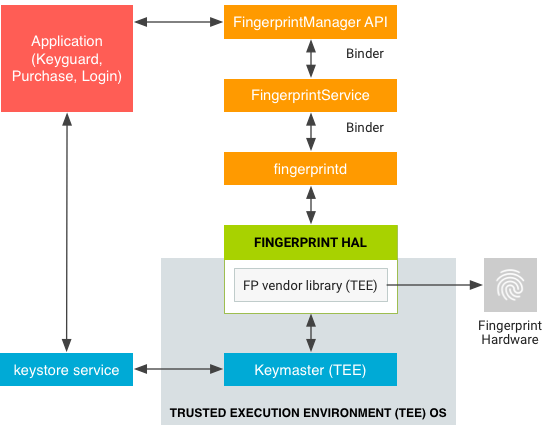
If your Samsung, Xiaomi, or Pixel phone will not recognize your fingerprint, follow these targeted fixes.
Re-Enroll All Fingerprints
Corrupted templates cause recognition failure. Start fresh by going to Settings, then Security, then Biometrics, then Fingerprint. Delete every saved fingerprint. Register each finger again slowly by placing your finger fully on the sensor and not lifting until prompted. Use slight pressure if your fingers are dry. Add at least two fingers, such as both thumbs.
Pro Tip: Enroll fingers at different angles to improve recognition success.
Disable Conflicting Features
Some settings override biometric authentication. Turn off One-handed mode, Smart View on Samsung devices, Blue light filter or Night mode, and Screen magnification. Try unlocking after disabling each one. If it works, re-enable them one by one to find the culprit.
Remove Screen Protector Interference
Non-OEM screen protectors disrupt optical and ultrasonic sensors. Remove the current protector and inspect for air bubbles or scratches. Replace with a Samsung-certified or ultra-thin tempered glass protector. After replacement, delete and re-register all fingerprints.
Test in Safe Mode
Third-party apps can block sensor access. Boot into Safe Mode to check. Press and hold the power button, then long-press “Power off” and tap “OK” on the Safe Mode prompt. If the scanner works in Safe Mode, uninstall recent apps, especially battery savers, screen overlays, or security tools. Reboot normally and test.
Run Samsung Diagnostic Tool
Galaxy users can run a built-in test. Open the Samsung Members app. Tap Support, then Device Care, then Self Diagnosis. Select Fingerprint Recognition and follow the on-screen instructions. This tool detects hardware issues and suggests fixes directly from Samsung.
Factory Reset as Last Resort
If nothing works, back up your data first using Google Drive, Samsung Cloud, or another method. Go to Settings, then System, then Reset, then Erase all data. After the reset, set up your device and test the fingerprint before restoring your backup. If it works, the issue was software-related.
Fix Windows Fingerprint Scanner Not Working
For HP, Dell, Lenovo, and other Windows laptops with fingerprint login problems, these steps restore functionality.
Set Up Windows PIN First
Fingerprint login requires a PIN even if you use a password. Press Win plus I, then go to Accounts, then Sign-in options. Under PIN, click Add and enter your Microsoft or local account password. Create a 4-digit or longer PIN. After setup, go back and re-enable fingerprint registration.
Run Hardware Troubleshooter
Windows includes a built-in diagnostic tool. Press Start and type Command Prompt. Right-click and select Run as administrator. Paste this command: msdt.exe -id DeviceDiagnostic. Follow the guided steps and restart after completion. This tool automatically detects and fixes common device issues.
Reset Biometric Driver Without Deleting Files
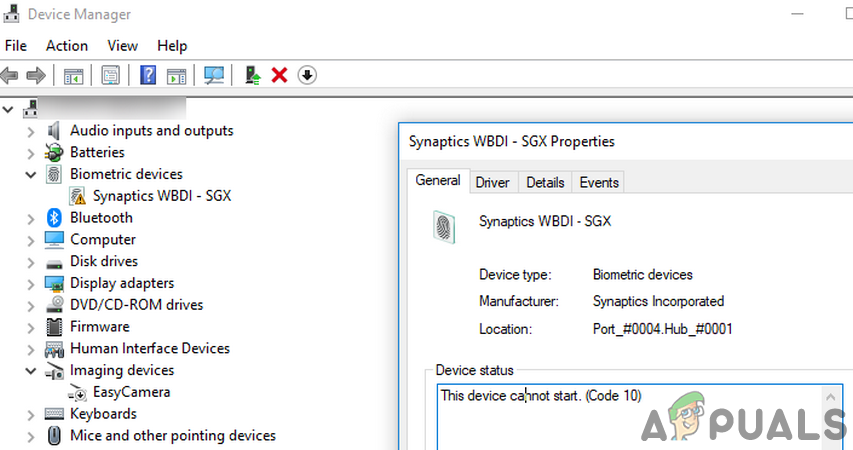
Fixes temporary driver corruption without deleting your files. Press Win plus X and open Device Manager. Expand Biometric devices. Right-click your sensor, such as Validity Sensors WBF, and select Uninstall device. Make sure to uncheck “Delete the driver software.” Click Action, then Scan for hardware changes. Or simply restart, and the system will reinstall the driver.
Reinstall Driver Completely
Use when the scanner shows a Code 43 error or disappears from Device Manager. First, create a System Restore Point through Control Panel, then System, then System Protection, then Create. In Device Manager, uninstall the biometric device and check “Delete the driver software.” Restart your computer. Log in with your PIN or password. Download the correct driver from your manufacturer is site. Search by your model number, then go to Drivers, then Keyboard, Mouse, or Input Devices. Right-click the installer and select Run as administrator. Restart and test.
Example: HP EliteBook 840 G3 uses driver sp99759.exe
Roll Back to Previous Driver
If the scanner failed after a Windows update, open Device Manager. Right-click the sensor and select Update driver. Choose Browse my computer for drivers. Select Let me pick from a list. Check Show compatible hardware and pick the older driver version. Click Next, then restart.
Restart Biometric Services
Critical services may stop running. Press Win plus R, type services.msc, and press Enter. Find and restart the Windows Biometric Service and the Windows Hello Logon Service. Double-click each and set Startup type to Automatic. Click Start if the status shows “Stopped.” Restart your PC.
How to Tell If Your Fingerprint Scanner Has Hardware Failure
Not all issues are fixable with software. Learn to tell the difference between hardware and software problems.
Check Device Manager for Detection
If the sensor is not detected, open Device Manager and look under Biometric devices. If the sensor is listed, the issue is likely software-related. If no device is listed, you may have a hardware or firmware problem. Enable hidden devices by clicking View, then Show hidden devices. Look for grayed-out biometric entries. Right-click, select Properties, then Details, then Hardware Ids to match the PID for correct driver downloads.
Test with New User Account
Rule out profile corruption by creating a new local admin account. Go to Settings, then Accounts, then Family and other users, then Add someone else. Log into the new account and try setting up fingerprint login. If it works, your original profile is damaged. If it fails, the issue is system-wide or hardware-related.
Perform Power Reset on Laptops
Clears embedded controller errors. Shut down your PC and unplug the AC adapter. If possible, remove the battery on some HP or Dell models. Hold the power button for 60 seconds. Reconnect power and turn on. This method has reported success on HP ENVY 13-d100 and similar models.
How to Prevent Fingerprint Scanner Problems
Avoid repeat issues with these maintenance habits.
Keep Fingers and Sensor Clean
Wipe the sensor weekly with a dry microfiber cloth. Moisturize dry fingers and dry wet or oily hands before use. Avoid using hand sanitizer right before scanning.
Re-Register Fingerprints Regularly
Skin changes over time. Re-enroll every 3 to 6 months for best accuracy.
Update BIOS and Firmware
Old firmware blocks sensor initialization. Visit your manufacturer is support site, enter your laptop model, and download the latest BIOS update. Run as administrator and follow the prompts. Restart when complete. Some HP models also require Client Security Software for full functionality.
Use Genuine Accessories
Only use OEM-certified screen protectors on phones. Avoid thick cases that press against the sensor. On ultrasonic devices like Samsung, disable wireless charging before unlocking.
When Your Fingerprint Scanner Needs Professional Repair
If all steps fail, hardware damage may be the cause.
Signs of Hardware Failure
The sensor is physically cracked or scratched. There is no response even after a clean install. Device Manager shows no detection despite BIOS updates. The scanner never worked since purchase, indicating a factory defect.
Repair Options
Android phones may need screen or sensor module replacement, costing around $80 to $150. Windows laptops may need top cover replacement, which includes the keyboard, touchpad, and sensor, costing around $150 to $300. Check your warranty status first. HP, Dell, and Lenovo offer 1-year limited hardware warranties. Samsung covers defects under standard warranty. Contact authorized service centers with your diagnostic evidence, including screenshots of Device Manager, System Information, and failed setup attempts.
Frequently Asked Questions About Fingerprint Scanner Not Working
Why does my fingerprint scanner suddenly stop working?
Sudden failures are usually caused by software glitches, driver corruption, or recent system updates. Try restarting your device first. If that does not work, check for updates or reset the biometric driver through Device Manager on Windows or re-enroll fingerprints on Android.
Can a dirty sensor cause fingerprint recognition to fail?
Yes, dirt, oil, moisture, or debris on the sensor surface blocks fingerprint detection. Clean the sensor gently with a microfiber cloth. For in-display sensors, clean the entire screen area. Avoid using alcohol-based cleaners unless the manufacturer specifies otherwise.
Does a screen protector affect fingerprint scanner performance?
Non-OEM screen protectors can disrupt optical and ultrasonic sensors. Air bubbles, scratches, excessive thickness, or incorrect cutouts reduce accuracy or cause complete failure. Use manufacturer-certified screen protectors and re-register your fingerprints after replacing the protector.
Why does my Windows laptop need a PIN for fingerprint login?
Windows Hello requires a PIN as a fallback authentication method. Even if you use a password, you must set up a PIN before enabling fingerprint login. Go to Settings, then Accounts, then Sign-in options to add a PIN.
How do I know if my fingerprint scanner has hardware failure?
If the sensor is not detected in Device Manager, shows a Code 43 error, or physically appears damaged, it may be a hardware issue. Try all software fixes first, including driver reinstalls, BIOS updates, and power resets. If nothing works, the sensor likely needs professional repair or replacement.
Can I fix fingerprint scanner issues after a Windows update?
Yes, Windows updates sometimes cause driver incompatibility. Roll back the driver through Device Manager by selecting an older version, or reinstall the manufacturer-specific driver. Restart the Windows Biometric Service and Hello Logon Service after making changes.
Key Takeaways for Fixing Your Fingerprint Scanner
Most fingerprint scanner issues are not hardware failures. Over 80 percent resolve with cleaning, driver resets, or re-enrollment. Always start with the simplest fixes first, such as restarting your device and cleaning the sensor. For Windows users, ensure a PIN is set before configuring fingerprint login. For Android users, remove and re-register all fingerprints if recognition fails. Use the diagnostic steps in this guide to determine whether the issue is software-related or a true hardware problem. This saves you time, money, and frustration. If your scanner still will not work after trying all steps, contact your manufacturer is support with diagnostic evidence, or seek professional repair if hardware damage is suspected.