Is your Epson scanner not working? You’re not alone. Whether it’s not being detected, freezing during scans, or showing error lights, Epson scanner not working issues affect users across Windows and macOS, especially after system updates or driver conflicts. The good news: most problems aren’t hardware failures, they’re fixable with the right steps. This guide cuts through the noise, giving you a clear, step-by-step path to restore your scanner.
From flashing orange lights to missing scan buttons and driver crashes, we’ll cover every symptom, solution, and workaround so you can get back to scanning fast. You’ll learn how to diagnose the status light, fix connections, reinstall drivers properly, enable critical Windows services, and use alternative software when needed.
Check the Status Light First
The scanner’s status light tells you exactly what’s wrong before you even open software. Understanding these signals is the first step in troubleshooting.
Green Light (Steady)
Your scanner is powered and ready. If it still won’t scan, the issue is likely software or connection-related rather than a power problem.
Green Light (Flashing)
The scanner is warming up or in use. Wait 10 to 30 seconds. If it never stabilizes, restart the device and check again.
Orange Light (Flashing)
An error has occurred. Common causes include loose USB connection, incomplete software install, or internal hardware fault.
Immediate fix:
- Unplug the USB cable from both ends.
- Hold the Power button for 3 seconds to shut down the scanner.
- Wait 10 seconds, then power on the scanner.
- Watch for a solid green light.
If orange light persists, move to connection and driver checks outlined in the next sections.
No Light (Scanner Off)
Your scanner isn’t receiving power. Confirm the AC adapter is plugged in and the outlet works by testing it with another device. Bypass surge protectors and connect directly to the wall outlet.
Note: Models like V300, V600, and ET series require AC power. They don’t run on USB alone.
Fix Power and USB Connection Issues
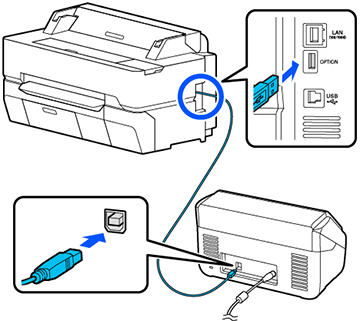
A faulty power or USB connection is the most common cause of scanner failure. These issues are often overlooked but easy to fix.
Scanner Won’t Turn On
Use the original AC adapter. Third-party units may not deliver the correct voltage. Try a different wall outlet to rule out power issues. Some Epson scanners won’t power on if the USB cable is disconnected, even when plugged into AC power.
Scanner Won’t Turn Off
Hold the Power button for 3 seconds. If it stays on, check Task Manager (Windows) or Activity Monitor (Mac) for running Epson processes. Close Epson Scan, Scanner Monitor, and EpsonNet apps before powering down.
USB Connection Problems
Even if the scanner powers on, it may not communicate with your PC. Use the original USB cable. Cheap cables often charge but don’t transfer data properly.
Quick fixes:
- Plug directly into the computer, not through a hub.
- Try a different USB 2.0 or 3.0 port.
- Avoid USB hubs unless powered, and use only one if needed.
Critical: Epson often doesn’t include a USB cable. If yours is missing, buy a high-quality USB 2.0 A-to-B cable (printer cable).
Verify System and OS Compatibility
Your operating system must support your scanner model and Epson’s drivers. Mismatched OS versions cause many detection failures.
Check OS Support
Visit Epson’s Support Site, enter your model, and confirm driver availability for your OS. Older models like Perfection V300 and V600 are no longer supported on Windows 10 and 11, but they may still work with workarounds.
USB Support in Windows
If your PC doesn’t recognize USB devices:
- Press Win + X and select Device Manager.
- Expand Universal Serial Bus controllers.
- Look for USB Universal Host Controller and USB Root Hub.
If these are missing, update motherboard drivers or check BIOS settings.
Mac OS X Notes
Do not run in Classic mode. The scanner won’t work. Only the user who installed the software can use the scan button. Other users must manually open Epson Scanner Monitor in Applications before scanning.
Scanner Not Detected? Diagnose in Device Manager
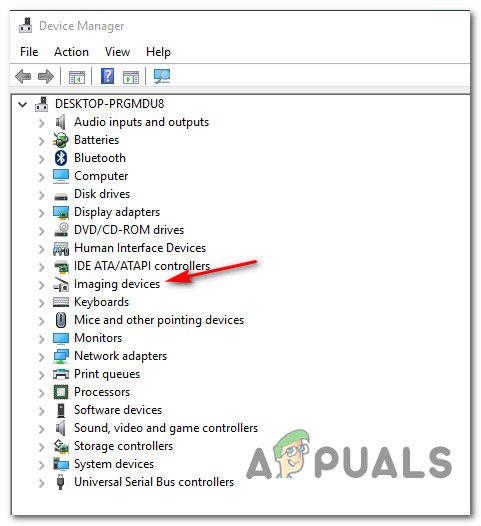
When your scanner doesn’t appear in software, check Device Manager to identify driver issues.
Find the Scanner in Device Manager
- Press Win + X and select Device Manager.
- Expand Imaging devices.
- Look for your Epson scanner.
If it’s missing:
- Check Other devices for an Unknown device.
- Look for a yellow exclamation mark or question mark.
These indicate driver issues that need fixing.
Reinstall Drivers Correctly
Do not skip this step. Partial installs fail repeatedly.
-
Uninstall all Epson software:
– Go to Settings > Apps > Installed apps.
– Remove every Epson entry including Epson Scan, Epson Printer Software, and EpsonNet. -
Download the full driver package:
– Go to Epson’s official site.
– Enter your model (e.g., ET-2810, V600).
– Download the Drivers and Utilities Combo Package, not the basic driver. -
Run Setup NAVI:
– This installer includes both printer and scanner drivers.
– Let it auto-detect your model.
– Allow internet access for full download. -
Restart your computer. This is required for driver registration.
Enable Windows Image Acquisition (WIA) Service
Even with drivers installed, your scanner won’t work if WIA service is disabled. This critical service handles communication between Windows and your scanner.
Start WIA Service
- Press Win + S, type Services, and open it.
- Scroll to Windows Image Acquisition (WIA).
- Double-click it:
– Set Startup type to Automatic.
– If Stopped, click Start.
– Click Apply, then OK. - Restart your PC.
Tip: If WIA fails to start, run sfc /scannow in Command Prompt (Admin) to repair system files.
Fix Scanner After Windows 10/11 Update
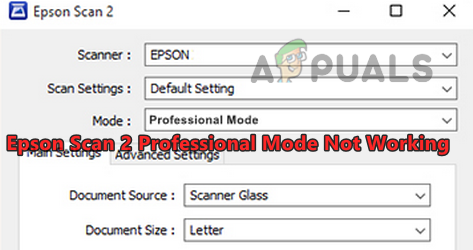
Many users report Epson scanners stop working after a Windows update, especially V300, V600, and older Perfection models. This is a known issue with software support.
Common Symptoms
- Epson Scan launches but Preview and Scan buttons are missing.
- Scanner not detected in any software.
- NAPS2 or VueScan also fail.
Root Cause
Epson discontinued support for older photo scanners. Windows updates broke legacy WIA drivers. The hardware is fine. The software is the problem.
Workarounds That Work
Use Professional Mode in Epson Scan:
- Open Epson Scan.
- Switch to Professional Mode.
- Click the gray bar above the Help button. This often reveals the Preview button.
- After preview, the Scan button may appear.
Press ALT to Reveal Hidden UI:
- In Epson Scan, press the Alt key.
- This forces menu bars and buttons to appear, fixing DPI scaling bugs.
Reset Epson Scan Settings:
- Open Epson Scan.
- Click Configuration > Other > Reset.
- Confirm to restore defaults.
Run Epson Scan as Administrator
Permission issues can block access to the scanner. Running as administrator often resolves this.
Enable Admin Mode
- Search for Epson Scan in Start.
- Right-click and select Open file location.
- Right-click the Epson Scan.exe file and select Properties.
- Go to the Compatibility tab.
- Check Run this program as an administrator.
- Click Apply and OK.
- Launch and test.
Bonus: Try Windows 7 compatibility mode if it still fails. Some legacy drivers need it.
Install Microsoft Visual C++ Redistributable
Epson software depends on Microsoft runtime files. Missing components cause crashes and failures.
Fix Missing Components
- Download Microsoft Visual C++ Redistributable.
- Get both x64 (64-bit) and x86 (32-bit) versions.
- Install x64 first, then x86.
– If Repair appears, click it. - Restart your computer.
Warning: Skipping the restart means the fix may not take.
Fix Scan Button Not Working
Pressing the hardware scan button does nothing? Here’s how to fix it.
Windows: Configure Button Events
- Open Control Panel > Devices and Printers.
- Right-click your Epson device and select Printer properties.
- Go to the Hardware tab, select scanner, and click Properties.
- Go to the Events tab:
– Under Select an event, choose Scan.
– Set Action to Start this program.
– Browse to Epson Scan.exe (usually in C:\Program Files\Epson). - Click OK.
Mac: Manual Launch Required
Only the installing user can use the scan button. Other users must open Applications > Epson Scanner Monitor before pressing the button.
Use Alternative Scanning Software
When Epson’s software fails, switch to reliable third-party tools. These often work better than the manufacturer’s own applications.
NAPS2 (Free and Effective)
A lightweight, no-cost scanner app that works when Epson Scan doesn’t.
Why NAPS2 Works:
- Bypasses broken Epson drivers.
- Uses WIA directly, the same protocol as Windows.
- No ads, no bloat, no accounts.
Install NAPS2:
- Download from naps2.com (official site).
- Run installer.
- Click Yes on UAC prompt.
- Open NAPS2 and click + Scan.
- Select your Epson scanner as Source.
Features:
- Scan to PDF, JPEG, PNG, TIFF
- Batch scan multiple pages
- Reorder, crop, or delete pages
- Email or print directly
Pro Tip: If NAPS2 detects your scanner, the hardware is fine. Epson’s software is the issue.
Windows Built-in Scan App
- Open Microsoft Store.
- Search for Windows Scan.
- Install and open.
- Click Add a device if scanner isn’t detected.
- Start scanning.
This app uses WIA and TWAIN and often works when Epson’s fails.
Handle Discontinued Scanner Models
Epson has stopped supporting older photo scanners like V300 and V600. This doesn’t mean they’re broken.
What This Means
- No new drivers for Windows 10/11.
- Official downloads may be unavailable.
- Service centers may claim the scanner is defective, but it’s likely not.
Can You Still Use It?
Yes, with workarounds:
- Use NAPS2 or VueScan.
- Run Epson Scan in Professional Mode with ALT key workaround.
- Keep an older PC with Windows 7/8 as a dedicated scanning machine.
Community Verdict: These scanners are optically excellent (6400 dpi) and worth keeping, even without official support.
Follow the 9-Step Fix Protocol
Use this checklist to fix any Epson scanner issue fast.
Step 1: Check Physical Connections
- Use original USB cable
- Plug scanner into AC power
- Connect directly to PC
Step 2: Power Cycle Everything
- Turn off scanner (hold power 3 sec)
- Restart computer
- Power on scanner and wait for green light
Step 3: Enable WIA Service
- Open Services
- Set Windows Image Acquisition (WIA) to Automatic
- Start the service
- Restart PC
Step 4: Run Windows Printer Troubleshooter
- Go to Settings > System > Troubleshoot > Other troubleshooters
- Run Printer troubleshooter
- Let it fix connection issues
Step 5: Reinstall Epson Software
- Uninstall all Epson apps
- Download Drivers and Utilities Combo Package
- Run Setup NAVI
- Restart
Step 6: Test in Professional Mode
- Open Epson Scan
- Switch to Professional
- Click gray bar or press ALT to reveal buttons
Step 7: Run as Administrator
- Right-click Epson Scan and select Run as administrator
- Or set permanently in Compatibility settings
Step 8: Try NAPS2 or Windows Scan
- Install NAPS2. If it works, hardware is fine
- Test with Windows Scan app
Step 9: Contact Support (Last Resort)
If scanner still not detected, provide model number, OS version, firmware version, and full troubleshooting history.
Final Tips to Prevent Future Issues
- Always restart after driver or service changes.
- Avoid third-party driver tools. They install malware or wrong versions.
- Keep firmware updated via Epson software when available.
- Use NAPS2 as a backup. It’s faster and more reliable than Epson Scan.
- For V300 and V600 users: Preserve your scanner. It’s a high-end device being abandoned by software.
Frequently Asked Questions About Epson Scanner Not Working
Why is my Epson scanner not being detected by my computer?
This usually happens due to driver issues, loose USB connections, or disabled WIA service. Start by checking Device Manager for unknown devices, verify the USB cable is connected properly, and ensure Windows Image Acquisition service is running and set to Automatic.
How do I fix the orange flashing light on my Epson scanner?
Unplug the USB cable, hold the Power button for 3 seconds to shut down, wait 10 seconds, then power back on. Watch for a solid green light. If orange persists, check all cable connections and reinstall the scanner drivers.
Can I use my old Epson V600 scanner with Windows 11?
Yes, but with workarounds. Epson no longer provides official drivers for Windows 11. Use NAPS2 or Windows Scan as alternatives, or run Epson Scan in Professional Mode and press ALT to reveal hidden buttons.
What should I do if Epson Scan opens but has no Scan button?
Switch to Professional Mode in Epson Scan. Click the gray bar above the Help button, or press ALT to reveal hidden menu items and buttons. This fixes DPI scaling bugs in newer Windows versions.
Why does my scanner work with NAPS2 but not Epson Scan?
If NAPS2 detects your scanner, the hardware is functioning properly. The issue is specifically with Epson’s software and drivers. This commonly happens with older scanners after Windows updates break legacy WIA driver support.
How do I reinstall Epson scanner drivers properly?
Uninstall all Epson software from Settings > Apps. Download the Drivers and Utilities Combo Package from Epson’s official website. Run Setup NAVI to install both printer and scanner drivers. Restart your computer after installation.
Key Takeaways for Fixing Your Epson Scanner Not Working Issue
Your Epson scanner not working doesn’t mean it’s broken. In most cases, the hardware is perfect. It’s the software, drivers, or settings that failed. By following this guide, you’ve diagnosed the status light, fixed connections, reinstalled drivers correctly, enabled WIA, bypassed UI bugs, and tested alternatives.
Now, whether you’re scanning photos, documents, or film, your Epson should be back in action. If not, NAPS2 is your best friend. It bypasses broken Epson software and communicates directly via WIA. Keep this guide handy. You’ll never need to panic over a scanner again. For discontinued models like V300 and V600, remember that these are optically excellent devices being abandoned by software, not defective hardware.