
You press the scan button on your Konica Minolta device, but nothing happens. No file arrives in your folder. No email is sent. The job disappears marked “Deleted Due to Error.” Yet printing works fine. This frustrating experience is common across models like the Bizhub 360, C3850, and Di2010f. But you are not alone: thousands of users face Konica Minolta scanner not working issues due to network changes, authentication failures, or misconfigured settings.
The root cause is often simple, an outdated IP address, missing SMB share, or expired password, but diagnosing it requires a systematic approach. This guide delivers step by step fixes for scan-to-folder, scan-to-email, and network detection problems. You will learn how to reset configurations, verify permissions, and bypass common pitfalls that stall scanning.
Power Cycle the Device First
Before diving into complex settings, perform a quick reset. This simple step resolves many intermittent failures and should be your first action when troubleshooting Konica Minolta scanner not working issues.
Why It Works
A power cycle clears temporary memory, resets stuck scan jobs, and reloads network configurations. It resolves intermittent scanning failures, especially when the scanner shows “Job Not Completed” or “Deleted Due to Error.”
How to Do It
Locate the main power switch, often on the side or behind a front panel, marked with an orange border. Turn off the machine. Wait 10 to 20 seconds. Some users report better results after a full 2 minute wait. Power the device back on.
Many users report restored scanning after this simple step. This does not fix configuration errors, but it is essential before deeper troubleshooting.
Fix IP Address Mismatch
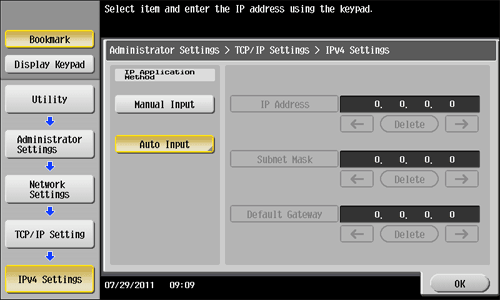
Scanning fails when the Konica Minolta MFP sends data to an outdated or unreachable IP. This is one of the most common causes of Konica Minolta scanner not working problems in office environments.
Find the Copier IP Address
On the device, tap Utility, then Administrator Settings. Enter the default password 12345678. Go to Network Settings, TCP/IP Settings, and IPv4 Settings. Note the IP address displayed.
Access Remote UI Web Interface
Open a browser on a connected PC. Type http:// followed by the copier IP address. Log in as Administrator with password 12345678. Click the FTP icon to manage scan destinations.
Update Host IP in Scan Settings
In FTP Settings, locate Host Address. On your PC, open Command Prompt and run ipconfig. Note your IPv4 Address. Return to Remote UI and update Host Address to this new IP. Click OK. You should hear a confirmation beep.
Test the scan. If successful, the IP mismatch was the issue. Pro tip: assign a static IP to your PC or set a DHCP reservation on your router to prevent future mismatches.
Resolve Scan-to-Folder Errors

Error 67, “The network name cannot be found,” means the MFP cannot reach the shared folder. This is a frequent symptom of Konica Minolta scanner not working when scanning to network locations.
Verify SMB Share Exists
On the host PC as Administrator, run Get-SmbShare -Name ‘Scans-Konica’. If nothing appears, the share is missing and must be recreated.
Recreate the SMB Share
Use Command Prompt to create the share. Or use PowerShell with the New-SmbShare command. Both methods require specifying the share name, path, and appropriate permissions.
Set NTFS Permissions
Allow write access using icacls. The command grants Modify permissions to the scanner account. Verify the permissions with icacls to confirm proper configuration.
Test Connectivity from Another PC
Run net use followed by the share path and credentials. If error 67 persists, confirm the double backslash in the UNC path. Ensure the host PC is reachable. Check if the Server service is running.
Check SMB Service and Port 445
Run sc query lanmanserver to verify the service status. Run Test-NetConnection to verify port 445 is open. Both must show running and open for scanning to work.
Firewall tip: enable File and Printer Sharing in Windows Firewall to allow SMB traffic.
Fix Authentication Errors
Error codes E73000 and EA21C6 indicate the MFP cannot authenticate with the destination. These are common triggers for Konica Minolta scanner not working issues in domain environments.
Check Username Format
Use one of these formats in the MFP settings. The format PATRE-DESKTOP\Scanner includes the computer name. The format Scanner works if using a local account.
Set Default Domain Name
In Remote UI, go to Network and SMB Client Settings. Enter the Default Domain Name as PATRE-DESKTOP. This ensures proper authentication flow.
Avoid Special Characters in Passwords
Some MFPs fail to parse passwords with @, &, or !. Use alphanumeric only if possible to avoid authentication failures.
Test Credentials in Outlook
Create a temporary Outlook profile using the same credentials. If login fails, the password may be expired. The account may be locked. The authentication protocol may have changed. Reset the password and re-enter it in the MFP.
Ensure SMB and NTLM Compatibility

Older MFPs only support SMB1 or NTLMv1, but modern Windows blocks them by default. This mismatch is a major cause of Konica Minolta scanner not working after Windows updates.
Check SMB Version Support
Run Get-SmbConnection on the host PC. Look at the Dialect column. SMB2 or SMB3 is required for modern Windows systems.
Enable SMB2/NTLMv2 on MFP
In SMB Client Settings, set Authentication Method to NTLMv2. If unsupported, try NTLMv1/v2 as a fallback.
Never enable insecure guest logons unless isolated and temporary. This creates security risks.
Update Firmware
Check Konica Minolta support site for updates. Look for SMB2/SMB3 support, NTLMv2 compatibility, and TLS 1.2+ for email. Older firmware on models like Bizhub C3350 and Di2010f may require updates to work with Windows 10 or 11.
Fix Scan-to-Email Failures
Error E72217 means email transmission failed. This usually stems from outdated SMTP settings and is a common reason for Konica Minolta scanner not working when using email scan features.
Office 365 Settings
For incoming POP3, use server outlook.office365.com on port 995 with SSL encryption. For outgoing SMTP, use smtp.office365.com on port 587 with TLS encryption.
Use Client SMTP Submission as per Microsoft MFD guide for best compatibility.
Enable SSL/TLS in MFP
In Administrator Settings, go to Network and Security Settings. Enable SSL for both admin and user access. This is required for secure email transmission.
Test Email Account via Outlook
Create a temporary Outlook profile with the same credentials. If login fails, the password may be expired or incorrect. The ISP may have changed authentication requirements.
Make Scanner Visible on macOS
Konica Minolta devices often appear only as printers on Mac systems. This is a frequent cause of Konica Minolta scanner not working for macOS users.
Install Full MFP Driver
Download the complete driver package from Konica Minolta website. Ensure it includes scanner components. Install even if the printer already works.
Check Scanner Detection
Open Image Capture in Applications. Go to System Settings and select Printers and Scanners. Open Preview and use File Import from Scanner.
If the scanner does not appear, reinstall with the scanner utility included.
Use Universal Scan Tools
Try PageScope Mobile or Universal Scan Utility for better macOS compatibility with Konica Minolta devices.
Perform a Troubleshooting Reset
When standard fixes fail, reset the scanning module to resolve persistent Konica Minolta scanner not working issues.
How to Reset
Hold down the Utility/Counter button. Power off the machine but do not unplug. Wait 10 seconds. Power back on while still holding the button. When a white screen appears, press OK.
Network and scanning modules reset. Reconfigure scan destinations afterward.
This is effective for persistent “Job Not Completed” errors or authentication loops.
Diagnose with Windows Commands
Use these diagnostic tools to verify connectivity and permissions when troubleshooting Konica Minolta scanner not working issues.
Essential Diagnostic Commands
Test SMB access using net use. List shares with Get-SmbShare. Show share permissions with Get-SmbShareAccess. Show NTFS permissions with icacls. Check SMB service status with sc query. Test port 445 with Test-NetConnection. Check network profile with Get-NetConnectionProfile. List firewall rules with Get-NetFirewallRule.
Fix Public Network Profile
If the network shows as Public, scanning may be blocked. Go to Settings, Network and Internet. Click your connection. Set Network Profile to Private.
Prevent Future Failures
Implement these best practices to avoid recurring Konica Minolta scanner not working problems.
Best Practices for Reliable Scanning
Use IP addresses instead of hostnames in scan destinations. Assign static IPs to scanning PCs or use DHCP reservations. Update firmware regularly, especially for older models. Monitor Event ID 4625 in Windows Event Viewer for failed logons. Avoid SMB1 and upgrade MFP firmware if needed. Reboot the MFP monthly to clear memory and stuck jobs.
Security Recommendations
Create a dedicated Scanner user account. Set password to never expire if policy allows. Use gMSA in enterprise environments. Enable TLS 1.2+ and disable weak protocols.
Frequently Asked Questions About Konica Minolta Scanner Not Working
Why does my Konica Minolta scanner work for printing but not scanning?
This typically indicates a network configuration issue rather than a hardware problem. The scanner relies on network connectivity for scan-to-folder and scan-to-email functions. Check IP address settings, SMB shares, and authentication credentials.
How do I fix Error 67 on my Konica Minolta scanner?
Error 67 means the network name cannot be found. Verify the SMB share exists on your PC. Confirm the UNC path uses double backslashes. Ensure port 445 is open in your firewall. Test connectivity using the net use command.
What causes intermittent scanning failures?
Intermittent failures usually stem from dynamic IP address changes. The host PC IP changes after DHCP lease renewal, breaking the MFP configuration. Assign a static IP or configure DHCP reservation to resolve this.
How do I restore scan-to-email functionality after it stops working?
Update your SMTP settings to use TLS encryption on port 587. Verify credentials are correct and not expired. Enable SSL/TLS in the MFP security settings. Test the account in Outlook first to confirm authentication works.
Why is my Konica Minolta scanner not visible on Mac?
The scanner may not appear because only the print driver was installed. Download the full MFP driver package from Konica Minolta that includes scanner components. Use Image Capture or Preview to verify scanner detection.
How do I reset my Konica Minolta scanner to fix persistent errors?
Hold the Utility/Counter button while powering on the machine. Wait for the white screen and press OK. This resets network and scanning modules. Reconfigure your scan destinations after the reset completes.
Key Takeaways for Fixing Your Konica Minolta Scanner
Most Konica Minolta scanner not working issues stem from network drift, authentication lapses, or outdated protocols. Start with a power cycle, then verify IP address alignment between the MFP and your PC. Check SMB shares and permissions for scan-to-folder problems. Update SMTP settings and enable TLS for email failures.
For persistent issues, check Windows Event Viewer for authentication failures and consider firmware updates from Konica Minolta. Document your settings before making changes and test incrementally after each adjustment. With proper configuration, your scanner should deliver reliable performance across all scan functions.





