
You hear the crackle of a dispatch call, officers responding to an incident, firefighters rolling out, EMS en route. It is real-time, unfiltered public safety communication, and with the right setup, you can monitor it from your home, car, or computer. Whether you are a prepper, hobbyist, or just want early warnings during emergencies, learning how to set up a police scanner puts you ahead of the news cycle. This guide walks you through every step, from choosing the right scanner to programming live talk groups, using only verified methods. You will learn how to access local frequencies legally, avoid common pitfalls, and build a reliable monitoring system that works when it matters most.
Choose the Right Scanner Type for Your Area
Not all scanners are created equal. Your location and local public safety systems determine what kind of scanner you need. The outdated analog models will not work in most urban and suburban areas today.
Digital vs. Analog Scanners
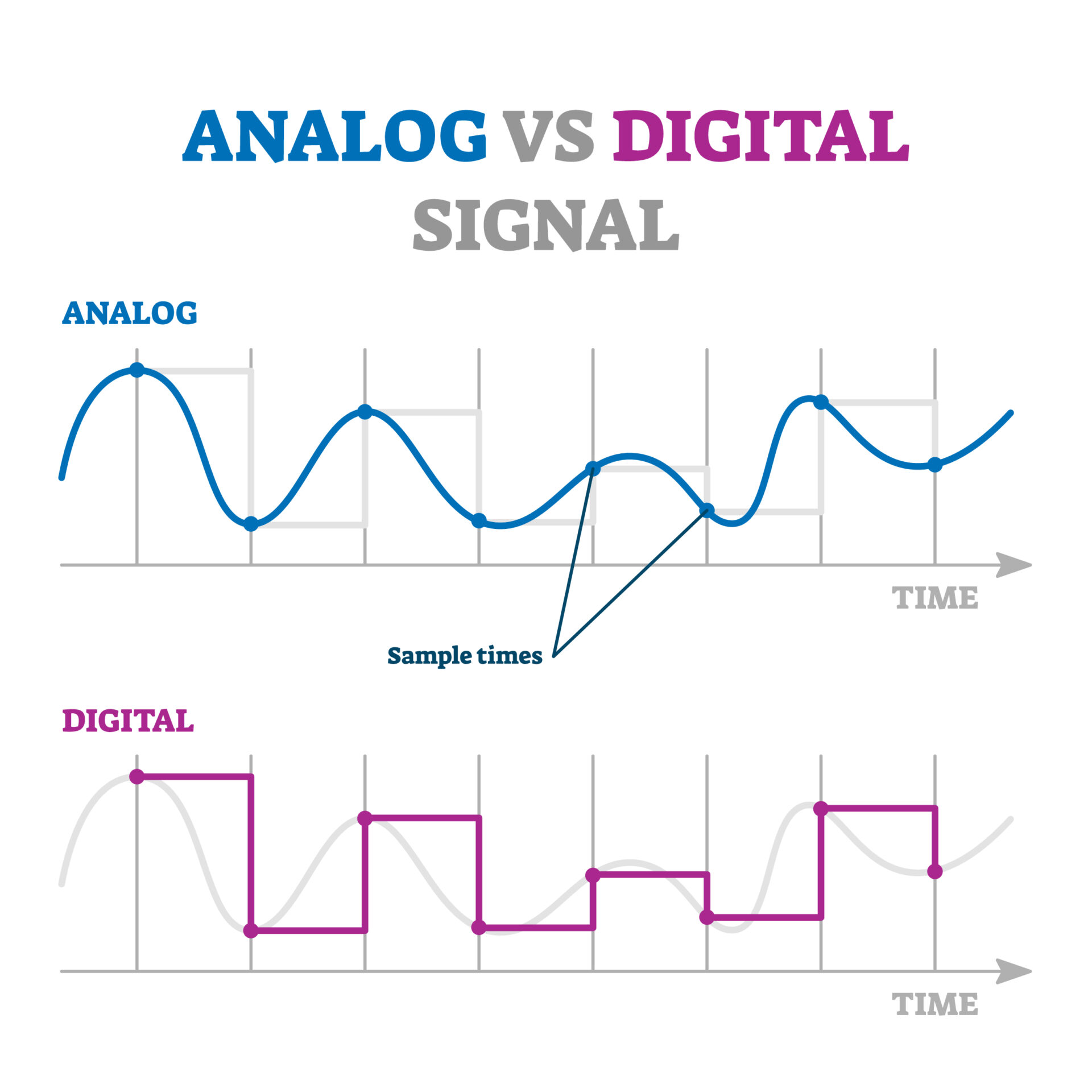
If your city or county uses digital trunked radio systems, and most do, you must have a digital scanner with P25 support. Analog scanners only receive FM signals on fixed frequencies. They are useless for modern law enforcement networks that dynamically assign channels via a control channel.
Digital scanners decode protocols like Project 25 (P25), DMR, and NXDN, allowing them to follow conversations across multiple frequencies. Without this capability, your scanner may show signal activity but produce no audio.
Pro Tip: Even if you program the correct frequency range, a non-P25 scanner will miss all traffic on trunked systems. Always verify your area is system type before buying.
Dedicated Radios vs. Computer-Based SDR
You have two main paths. Buy a dedicated handheld or desktop scanner, or build a software-defined radio system using a computer and low-cost hardware.
| Option | Best For | Key Advantage |
|---|---|---|
| Uniden SDS200 or BCD996P2 | Serious users, long-term monitoring | Full P25 Phase II, remote access, Broadcastify-ready |
| Whistler TRX-2 | Mobile and home use | Excellent trunking support, portable |
| RTL-SDR plus SDRTrunk | Tech-savvy users, multi-county monitoring | Cost-effective, scalable, records and streams |
While dedicated scanners are plug-and-play, SDR systems offer unmatched flexibility. A single PC with multiple RTL-SDR dongles can monitor dozens of talk groups across several counties simultaneously.
Warning: Avoid entry-level models like the Uniden Bearcat BC250P or SDS100 for serious use. The SDS100 has known VHF performance issues and proprietary battery limitations.
Find Local Frequencies Using RadioReference
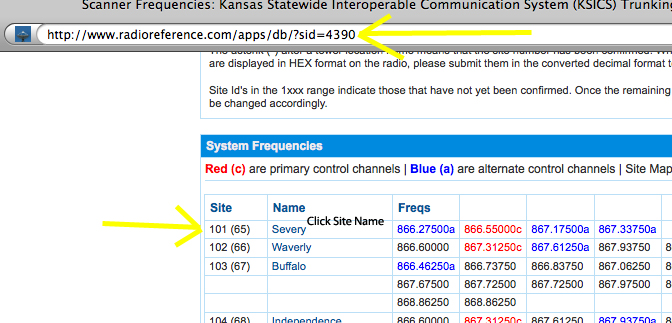
You cannot scan what you do not know. RadioReference.com is the definitive source for public safety frequency data across North America.
Locate Your County System
- Go to radioreference.com
- Click Databases then Browse
- Select Country, State, then County
- Look for Public Safety, Law Enforcement, or Fire/EMS systems
Check the system details. Is it analog, P25, or trunked? Are there control channels listed? Do any talk groups show DE (encrypted)? These are inaccessible.
Critical: If your area uses encryption, you cannot legally decode those transmissions. No scanner or software bypasses this.
Identify Key Components
For trunked systems, you need the control channel, talk groups, and frequency band. The control channel tells your scanner where to find active calls. Talk groups are logical units like Patrol, SWAT, or Fire Dispatch. The frequency band is usually 700 MHz, 800 MHz, or VHF/UHF.
Write down the control channel frequencies, common talk group IDs, and whether the system uses simulcast, which can cause reception issues.
Program Your Scanner With Sentinel or EZ Scan
Manufacturer software makes programming fast and error-free. Never rely solely on manual entry. Mistakes mean missed calls.
Set Up Uniden Scanner With Sentinel
Uniden Sentinel software works with SDS100, SDS200, BCD536HP, and HomePatrol models.
- Download Sentinel from uniden.com
- Connect your scanner via USB or SD card
- Open Sentinel and click Search Database
- Enter your zip code or browse to your county
- Select systems like Police, Fire, EMS
- Click Send to Scanner
- Choose USB or SD Card transfer method
- Wait for sync to complete
Once done, power on the scanner and press Menu, then Set Scan Selection, then List to Monitor. Choose your imported system and press Scan to start.
Backup Tip: Insert SD card into PC, open Sentinel, go to Scanner, Read from Scanner, then File, Save. Repeat monthly.
Program Whistler Scanner With EZ Scan
Whistler EZ Scan software supports TRX-1 and TRX-2 scanners.
- Download EZ Scan from whistlergroup.com
- Connect scanner via USB or SD card
- Open EZ Scan, click Search Database
- Enter location and select systems
- Drag desired talk groups into a Scan List
- Click Send to Scanner
- Confirm transfer
To activate, power on the TRX-2, press Main Menu, Browse Objects, Scan Lists. Press SEL to enable your list, then press Scan.
Pro Tip: Use Object Browser to rename talk groups, for example, Police Tactical instead of ID 8452.
Build a Computer-Based SDR Scanner
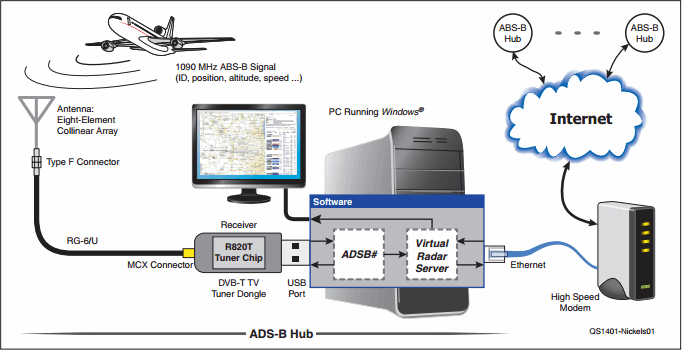
For maximum capability at lower cost, use SDRTrunk with an RTL-SDR V3 dongle.
Required Hardware
You need an RTL-SDR V3 dongle (about $45, includes dual-band antenna), a computer with quad-core CPU and 12+ GB RAM running Windows, Linux, or macOS, an antenna (use included telescopic or upgrade to outdoor omni or Yagi), and optionally a USB splitter for multiple SDRs.
Note: One Airspy R2 (about $200) covers wider bandwidth and may replace three to four RTL-SDRs.
Install and Configure SDRTrunk
- Download SDRTrunk from official repository
- Extract ZIP file
- On Windows, double-click SDRTrunk.jar
- On macOS, right-click, Open to bypass Gatekeeper
For first-time setup, plug in the RTL-SDR, launch SDRTrunk, click System View, Create New System. Select P25 Phase I or II depending on your area.
Import Frequencies From RadioReference
- In SDRTrunk, go to Playlist Editor, RadioReference
- Log in (requires premium account for full export)
- Navigate to your county
- Select control channels (marked red)
- Create an Alias List like Local Public Safety
- Import talk groups and assign aliases
Why Premium? Free accounts can view data but cannot export full system configurations.
Optimize Reception
- Position antenna near window or high point
- Extend both sections. The shorter rod works for 800 MHz systems. The longer rod works for VHF (150 to 174 MHz).
- Avoid metal surfaces, routers, or microwaves
- Rotate antenna to improve signal strength
Watch the waterfall display. Stronger signals appear as bright lines.
Expert Note: Simulcast systems may cause garbled audio. Try diversity reception (two SDRs) or reposition antenna.
Manually Program a Scanner Without Computer
If you lack software access, manual programming works, but only for basic systems.
General Steps for Any Scanner
- Power on device
- Press Prog or PGM
- Enter 3-digit channel number (like 001)
- Input frequency (like 154.500)
- Press Enter or E to save
Repeat for common frequencies. Police use 155.190 MHz. Fire uses 154.025 MHz. NOAA Weather uses 162.400 to 162.550 MHz.
To scan, press VFO to enter channel mode, then hold Star (*) to start scanning.
Keep a Log: Write down each channel and its purpose. Mistakes are hard to debug later.
Baofeng UV-5R: Limited Use Only
While cheap, Baofeng radios cannot decode P25 or trunked systems. They are only useful for monitoring analog FM in rural areas or temporary listening on known frequencies.
Programming steps are complex and limited. Press Menu, 40, Yes three times to reset. Set language via Menu, 14, English. Enter frequency mode by pressing VFO. Dial in the frequency. Press Menu, 27 (Save to Memory), Channel 1, Save. Then hold Star (*) to scan programmed channels.
Warning: Baofengs lack filtering and sensitivity. Not recommended for serious scanning.
Customize Scan Lists and Priority Monitoring
Avoid missing critical calls by organizing your scanner for efficiency.
Create Scan Lists by Category
Group channels into logical lists. Police Patrol. Fire/EMS. NOAA Weather. Highway Patrol. Enable or disable entire lists based on need.
On Uniden, press Menu, Scan Lists, Edit List. Add or remove systems or talk groups. Save as custom list.
On Whistler, use EZ Scan, Object Browser. Build list, assign name, send to scanner.
Benefit: Prevents irrelevant alerts during emergencies, for example, utility crews during a storm.
Enable Priority Scanning
Ensure vital channels are checked every few seconds.
On Uniden, while scanning, press E/Yes. Save to Favorites List. Go to Manage Favorites, Set Priority. Enable Priority Scan in main menu.
On Whistler, pause on active frequency. Press Menu, Priority, Enable. Press SEL to confirm.
Use Case: Set 911 Dispatch as priority during severe weather.
Understand Legal Limits and Restrictions
Owning a scanner is legal in the U.S., but misuse is not.
Federal Laws You Must Follow
Owning and operating a receive-only scanner is legal. Decoding encrypted transmissions (marked DE) is illegal. Using scanner to aid criminal activity is illegal.
There is no legal way to decode encrypted public safety systems. Claims otherwise are false.
State-Specific Rules
Some states restrict scanner use in vehicles. New York prohibits it unless you are a licensed amateur radio operator. Minnesota bans scanners in moving vehicles. Utah and Florida allow with restrictions.
Tip: Mount your scanner only when parked in restricted states.
Streaming unencrypted audio, for example, to Broadcastify, is generally permitted and supports public transparency.
Troubleshoot Common Scanner Issues
Even well-set scanners fail. Here is how to fix frequent problems.
No Audio or Static
Possible causes include antenna disconnected or damaged, wrong frequency or system programmed, or weak signal.
Fix by reconnecting antenna, verifying control channel is correct, and moving scanner near window.
Visual Cue: Check signal meter. If it is below 30%, reception is poor.
Missed Calls on Trunked System
Your scanner hears bursts but cuts out.
Cause is control channel not properly programmed or weak signal.
Solution is to re-import system via Sentinel or EZ Scan, ensure control channel is active, and use outdoor antenna.
Fact: Without a valid control channel, the scanner cannot follow talk group movement.
Scanner Will Not Connect to PC
Common fixes include trying SD card method instead of USB, reinstalling drivers (available on manufacturer site), and using different USB cable or port.
Workaround: Always back up via SD card. It avoids driver conflicts.
Poor Reception in Urban Areas
Buildings block signals, especially UHF.
Improvements include using LMR-400 coax with outdoor antenna, installing amplified masthead preamp, and trying Yagi directional antenna pointed toward towers.
Pro Tip: Mount antenna on roof or attic for clearest line-of-sight.
Maintain and Update Your Scanner
A scanner is only as good as its data. Systems change. Yours must too.
Monthly Maintenance Routine
- Check RadioReference for rebanding or new talk groups
- Update scanner firmware via manufacturer site
- Re-sync databases in Sentinel or EZ Scan
- Test all scan lists for audio clarity
- Backup configuration to SD card or PC
Alert: Some counties shift frequencies during upgrades. Data can be outdated within weeks.
Antenna Best Practices
Use high-gain omnidirectional for general monitoring. Switch to Yagi for distant or weak systems. Keep coax runs short or use low-loss cable like LMR-400. Ground outdoor antennas to prevent lightning damage.
Performance Gain: Outdoor antennas often double usable range.
Power Management Tips
Keep spare batteries for handhelds. Use AC adapter for base stations. Connect desktop units to UPS for outage resilience.
Prepper Tip: Store a battery-powered scanner in your emergency kit.
Final Setup Recommendations by Use Case
Your needs dictate the best setup.
For Beginners: Start Simple
Use Uniden HomePatrol-2 or Whistler TRX-1. Use Sentinel or EZ Scan. Program via RadioReference. Focus on local police, fire, NOAA.
Avoid SDR until you understand basics.
Cost: About $300 to $400 fully functional.
For Advanced Users: Maximize Coverage
Use 2 to 4 RTL-SDR V3 dongles plus SDRTrunk. Use outdoor omni with splitter. Goal is to monitor multiple counties, record, stream.
Ideal for contributing to Broadcastify or emergency networks.
Cost: About $500 with multi-system access.
For Preppers: Reliability Over Features
Use battery-powered scanner like Whistler TRX-2. Pre-program Police, Fire, EMS, NOAA. Store in bug-out bag or storm shelter. Test monthly during drills.
Works when cell towers fail.
Bonus: Pair with hand-crank weather radio.
Frequently Asked Questions About Setting Up a Police Scanner
What is the best scanner for beginners?
The Uniden HomePatrol-2 or Whistler TRX-1 are ideal for beginners. They feature simple programming via computer software, pre-loaded databases, and intuitive menus. Both support P25 digital systems used by most modern public safety agencies.
Do I need a license to operate a police scanner?
No federal license is required to own or operate a receive-only scanner in the United States. However, some states restrict vehicle-mounted scanner use. Always check local regulations before mounting a scanner in your car.
Can I listen to encrypted police communications?
No. Encrypted communications, marked as DE on RadioReference, cannot be legally decoded by any scanner or software. Federal law prohibits decoding encrypted public safety transmissions.
Why does my scanner only produce static?
This usually means you are using an analog scanner on a digital trunked system, or your control channel is incorrectly programmed. Verify your area uses P25, then ensure your scanner supports P25 and that control channels are correctly entered.
How often should I update my scanner frequencies?
Check RadioReference monthly for changes. Systems undergo rebanding, upgrades, and new talk group additions. Update your scanner configuration immediately if you notice missed calls or changed frequencies.
Can I stream scanner audio online?
Yes, you can stream unencrypted scanner audio to platforms like Broadcastify. This is legal and supports public transparency. Ensure all monitored channels are unencrypted before streaming.
Key Takeaways for Setting Up Your Police Scanner
A properly configured police scanner delivers real-time awareness that news and apps cannot match. Start by choosing P25-capable hardware that matches your local system type. Use RadioReference to find accurate frequencies and control channels. Program your scanner using manufacturer software like Sentinel or EZ Scan for best results.
Maintain your system by checking for updates monthly and backing up configurations regularly. Understand the legal limits, especially regarding encryption. Whether you are tracking a wildfire, monitoring local events, or preparing for emergencies, the right setup ensures you never miss a call.
Take action today. Research your local system type, select appropriate hardware, and program your first scan list. The knowledge you gain could prove invaluable when it matters most.





