
Reading user input is a fundamental part of interactive Java programs. The Scanner class, part of the java.util package, provides a simple and effective way to capture data from the keyboard, files, or strings. Whether you’re building a console application or processing text input, mastering Scanner is essential for any Java developer. This guide walks you through everything you need to know about how to use Scanner in Java, from basic setup to advanced features.
You’ll learn how to handle real-world issues like buffer conflicts, invalid entries, and locale-specific number formats, ensuring your programs run smoothly no matter what users type.
Importing the Scanner Class in Java
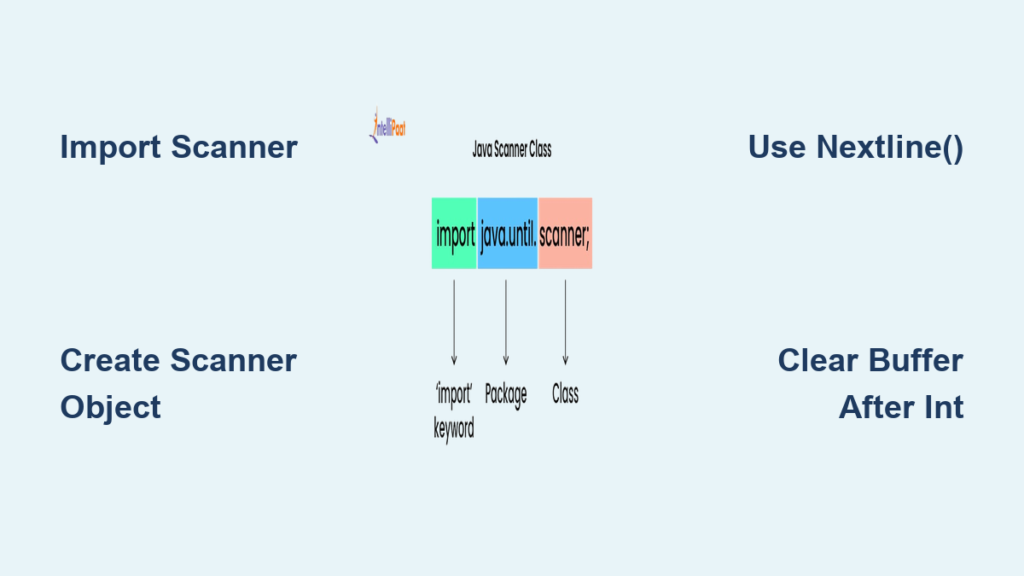
Before using Scanner, you must import it at the top of your Java file. This directive tells the Java compiler that the program will use the Scanner class from the java.util package.
Add this import statement at the beginning of your Java file, outside any class definition:
java

import java.util.Scanner;
Without this import, the compiler will throw a “cannot find symbol” error when you try to create Scanner objects. The import statement is the first step in learning how to use Scanner in Java effectively.
Creating a Scanner Object for Input
To begin reading input, instantiate a Scanner object linked to an input source. For keyboard input, use System.in as the source.
Create the Scanner object with this code:
java

Scanner scanner = new Scanner(System.in);
Here, scanner is the variable name (you can use any valid identifier like input, sc, or reader). The new Scanner(System.in) creates a new instance connected to standard input from the keyboard. This object can now call various nextXYZ() methods for reading different data types.
Remember to reuse a single Scanner instance throughout your program rather than creating multiple Scanner objects for System.in, as this prevents resource conflicts and unexpected behavior.
Reading Strings with Scanner Methods
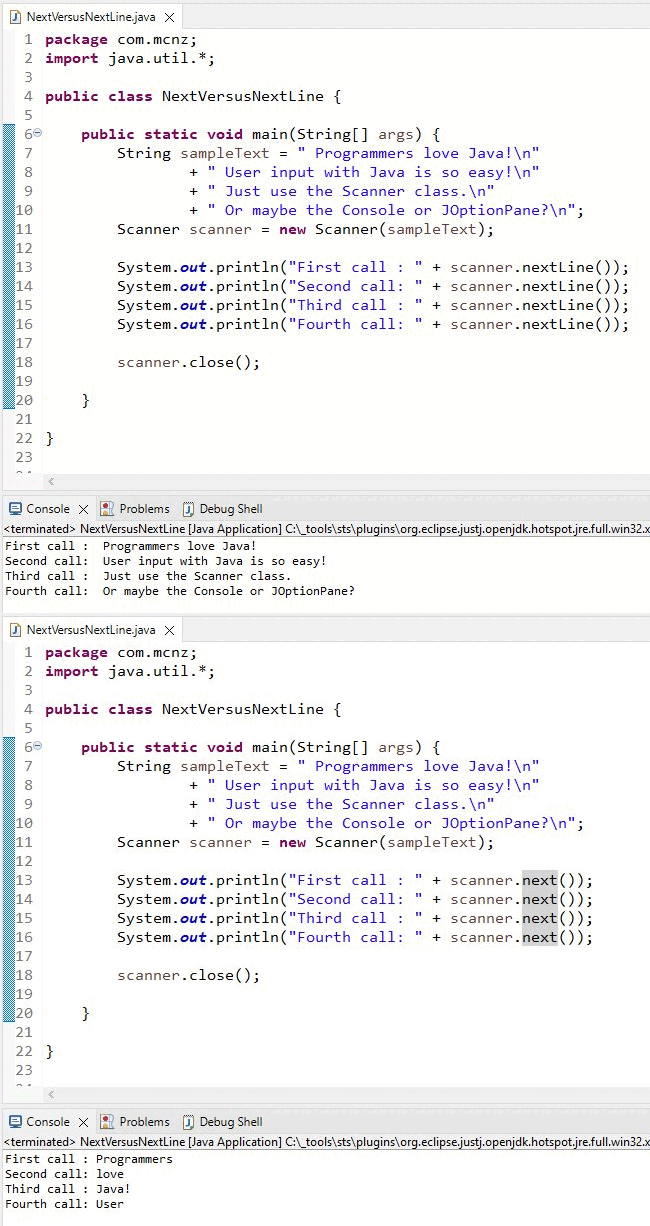
The Scanner class provides two main methods for reading string input: next() and nextLine(). Understanding the difference between these methods is crucial for proper string handling.
Reading Full Lines with nextLine()
Use nextLine() when you need to read full names, sentences, or any input containing spaces:
java

Scanner scanner = new Scanner(System.in);

System.out.print("Enter your name: ");

String name = scanner.nextLine();

System.out.println("Hello, " + name + "!");
This method reads the entire line of input, including spaces, until the user presses Enter.
Reading Single Words with next()
Use next() when only a single word is expected. It stops reading at the first space:
java

Scanner scanner = new Scanner(System.in);

System.out.print("Enter your first name: ");

String firstName = scanner.next();

System.out.println("Hi, " + firstName);
This method reads the next token as a String up to the next whitespace.
Reading Numbers: Integer and Decimal Types
Scanner provides specific methods for reading numeric data types. Each method handles a particular numeric format and throws InputMismatchException if the input does not match the expected type.
Reading Integer Values
To read integer input, use nextInt():
java

Scanner scanner = new Scanner(System.in);

System.out.print("Enter your age: ");

int age = scanner.nextInt();

System.out.println("You are " + age + " years old.");
Scanner also supports nextByte() for byte values and nextShort() for short integers, and nextLong() for larger integers.
Reading Decimal Numbers
For floating-point numbers, use nextDouble() or nextFloat():
java

Scanner scanner = new Scanner(System.in);

System.out.print("Enter your GPA: ");

double gpa = scanner.nextDouble();

System.out.println("Your GPA is " + gpa);
Use nextDouble() for double values and nextFloat() for float values.
Reading Boolean Values
Read boolean input with nextBoolean():
java

Scanner scanner = new Scanner(System.in);

System.out.print("Are you a student? (true/false): ");

boolean isStudent = scanner.nextBoolean();

System.out.println("Student status: " + isStudent);
This method only accepts “true” or “false” (case-sensitive). Any other input causes an InputMismatchException.
Handling the Input Buffer Problem
A common issue arises when mixing nextInt() with nextLine(). After reading a number, the newline character remains in the input buffer, causing nextLine() to read it immediately and appear to skip user input.
The Buffer Problem in Action
java

Scanner scanner = new Scanner(System.in);

System.out.print("Enter your age: ");

int age = scanner.nextInt();  // User types 25 and presses Enter

System.out.print("Enter your name: ");

String name = scanner.nextLine();  // This reads the leftover '

' — name is empty!
In this example, the name variable will be empty because nextLine() consumed the leftover newline instead of waiting for user input.
Solution: Clear the Buffer
Insert an extra scanner.nextLine() after reading numeric data to clear the buffer:
java

int age = scanner.nextInt();

scanner.nextLine();  // Clears the newline left in the buffer

System.out.print("Enter your name: ");

String name = scanner.nextLine();  // Now works correctly
This is one of the most important best practices when learning how to use Scanner in Java.
Input Validation Best Practices

Never assume user input is valid. Validate input before processing to prevent crashes and improve user experience.
Using hasNextXYZ() Methods
Validate input using hasNextInt(), hasNextDouble(), and similar methods:
“`java
Scanner scanner = new Scanner(System.in);
System.out.print(“Enter your age: “);
while (!scanner.hasNextInt()) {
System.out.println(“Invalid input. Please enter a valid number.”);
scanner.next(); // Discard invalid token
}
int age = scanner.nextInt();
“`
This loop continues prompting until the user enters valid integer input.
Modular Input Methods
For better code organization, encapsulate input logic in separate methods:
“`java
private static Scanner scanner = new Scanner(System.in);
public static int getAge() {
System.out.print(“Enter your age: “);
while (!scanner.hasNextInt()) {
System.out.println(“Invalid input. Please enter a number.”);
scanner.next();
}
int age = scanner.nextInt();
scanner.nextLine();
return age;
}
“`
Using a static Scanner allows reuse across methods without passing it as a parameter.
Advanced Scanner Features

Once you master basic Scanner usage, explore these advanced features for more complex input scenarios.
Custom Delimiters
By default, Scanner uses whitespace as a delimiter. Change this using useDelimiter():
“`java
Scanner scanner = new Scanner(“apple,banana,orange”);
scanner.useDelimiter(“,”);
while (scanner.hasNext()) {
System.out.println(scanner.next());
}
“`
This is useful for parsing CSV-like input or fixed-format data.
Reading from Files
Scanner can read input from files by passing a File object:
java

Scanner fileScanner = new Scanner(new File("data.txt"));

while (fileScanner.hasNextLine()) {

    System.out.println(fileScanner.nextLine());

}

fileScanner.close();
Always handle FileNotFoundException and close the scanner after file operations.
Locale Considerations for Decimal Input
In some regions, decimal numbers use commas instead of dots. Set the locale explicitly:
java

Scanner scanner = new Scanner(System.in).useLocale(java.util.Locale.US);

double price = scanner.nextDouble();
This ensures consistent parsing regardless of the system’s regional settings.
Common Scanner Mistakes and Fixes
Understanding common errors helps you avoid debugging frustration.
Forgetting the Import
Error: cannot find symbol
Fix: Add import java.util.Scanner; at the top of your file.
Not Initializing the Scanner
Incorrect: Scanner scanner; causes NullPointerException
Correct: Scanner scanner = new Scanner(System.in);
Skipping Input After nextInt()
As discussed, failing to consume the newline after nextInt() causes nextLine() to skip. Fix this by adding scanner.nextLine() after numeric reads.
Input Mismatch Exceptions
When users enter text instead of numbers, the program crashes. Prevent this by validating with hasNextInt() before calling nextInt().
Frequently Asked Questions About Scanner in Java
What is the difference between next() and nextLine() in Scanner?
The next() method reads a single word (token) up to the first whitespace, while nextLine() reads the entire line including spaces until the user presses Enter. Use next() for single words and nextLine() for full sentences or names with spaces.
How do I read multiple values from one line in Java Scanner?
Read multiple values by calling different next methods sequentially:
java

String name = scanner.next();

int age = scanner.nextInt();
This reads two tokens from the same line: a string followed by an integer.
Why does Scanner skip input after using nextInt()?
After nextInt() reads a number, the newline character remains in the input buffer. The next nextLine() call consumes this newline instead of waiting for new input. Fix this by calling scanner.nextLine() immediately after nextInt() to clear the buffer.
Should I close the Scanner in Java?
Close Scanner when reading from files to release resources. However, avoid closing Scanner that reads from System.in unless the program is terminating, as this also closes the underlying input stream.
Can Scanner handle decimal numbers with commas?
By default, Scanner expects dots as decimal separators. For locale-specific formats (like European commas), use scanner.useLocale(Locale.US) to force consistent parsing.
Key Takeaways for Using Scanner in Java
Mastering Scanner requires understanding several core concepts. First, always import java.util.Scanner before using the class. Second, create a single Scanner object with new Scanner(System.in) and reuse it throughout your program. Third, choose the right method for your data type: nextLine() for full lines, next() for single words, and nextInt() or nextDouble() for numbers.
Fourth, handle buffer issues by calling scanner.nextLine() after reading numeric input if you plan to use nextLine() afterward. Fifth, validate all user input using hasNextInt() and similar methods to prevent crashes. Finally, use Console for passwords since Scanner echoes typed characters.
By following these guidelines, you can build robust, user-friendly Java applications that safely and efficiently handle input using the Scanner class. Start with simple console inputs and gradually incorporate validation and advanced features as you become more comfortable with how to use Scanner in Java.





