
QR codes are everywhere—on restaurant menus, product packaging, event tickets, and digital ads. Knowing how to use a QR code scanner can save time, avoid typing long URLs, and unlock instant access to information. Whether you’re using an iPhone or Android, most modern smartphones can scan QR codes instantly with just a few taps. This guide shows you how to use a QR code scanner effectively, avoid common issues, stay safe online, and take advantage of advanced tools like Google Lens and Circle to Search.
No extra apps needed for most users. Your phone already has the built-in tools to scan QR codes in seconds.
Scan QR Code with Camera App
The fastest way to scan a QR code is using your phone’s native camera app. Both iOS and Android support this out of the box, with no additional downloads required.
How to Scan: Step-by-Step
- Open your camera app by swiping up from the lock screen (iPhone) or tapping the camera icon (Android). Use the rear camera for best results.
- Point your phone at the QR code, holding it 6 to 12 inches away. Center the code in the frame and make sure it is flat and fully visible.
- Keep the phone steady and wait for detection. Recognition usually takes 1 to 2 seconds, so avoid moving too fast.
- Tap the notification banner that appears. On iPhone, a banner shows at the bottom. On Android, a pop-up appears at the top or bottom.
- You will be redirected to a website, Wi-Fi login, contact card, payment page, or digital menu depending on what the QR code contains.
Pro Tip: No need to press a shutter button. Simply aim and wait. The camera detects QR codes automatically.
What to Look For
A scannable QR code has these characteristics.
- Full square shape with smaller squares in three corners
- No smudges, tears, or reflections on the surface
- Bright, high-contrast design. Black on white works best
If nothing happens after scanning, check that your OS supports native scanning. iOS 11 and Android 9 and later include this feature.
iPhone: Use Control Center Scanner
On iPhones, you can scan QR codes faster using the built-in Code Scanner in Control Center. This method skips the step of opening the camera app.
Add Scanner to Control Center
- Open Settings and tap Control Center.
- Scroll down and tap the plus sign next to Scan Code.
- Open Control Center by swiping down from the top-right corner (or up from the bottom on older models).
- Tap the square-with-dots icon to launch the scanner.
Scan with Code Scanner
- Tap the Scan Code button in Control Center.
- Point the camera at the QR code.
- Wait for detection. No extra tap is needed.
- Tap the result banner to open the link.
This tool works on iPhone 7 and later with iOS 11 or higher. It is slightly faster than the camera app for frequent scanning.
Android: Access QR Scanner Shortcut
Many Android phones include a QR Scanner tile in Quick Settings for one-tap access. This lets you scan codes without opening the camera app.
Enable QR Scanner in Quick Settings
- Swipe down from the top of the screen twice to expand Quick Settings.
- Look for the QR Scanner icon, which looks like a square with a dot pattern.
- If the icon is missing, long-press the Quick Settings panel and tap Edit or Add tile.
- Drag the QR Scanner into the active panel.
Scan Using the Tile
- Tap the QR Scanner icon in Quick Settings.
- Point the camera at the QR code.
- Wait for automatic detection.
- Tap the result to open the linked content.
Not all Android brands support this feature. Samsung, Pixel, and OnePlus devices typically include it. Older models may require third-party apps.
Scan On-Screen QR Codes (Android Only)
You cannot scan a QR code displayed on your phone’s screen using its own camera. The camera cannot focus on the display properly. However, Android offers a smart workaround.
Use Circle to Search
Circle to Search lets you scan QR codes directly from your display without needing a second device. This feature works on Pixel 8 and later, Galaxy S24 and later, and select Android 14 devices.
Enable Circle to Search
- Open the Settings app.
- Search for Circle to Search in the search bar.
- Turn on the feature if it is available on your device.
Scan On-Screen QR Code
- Press and hold the navigation button (or home button if using button navigation).
- Draw a circle around the QR code with your finger.
- Wait 1 to 2 seconds for detection.
- Tap the action prompt to open the link.
Alternative method: Take a screenshot of the QR code, open Google Photos, and use Google Lens to scan the image.
Use Google Lens for Advanced Scanning
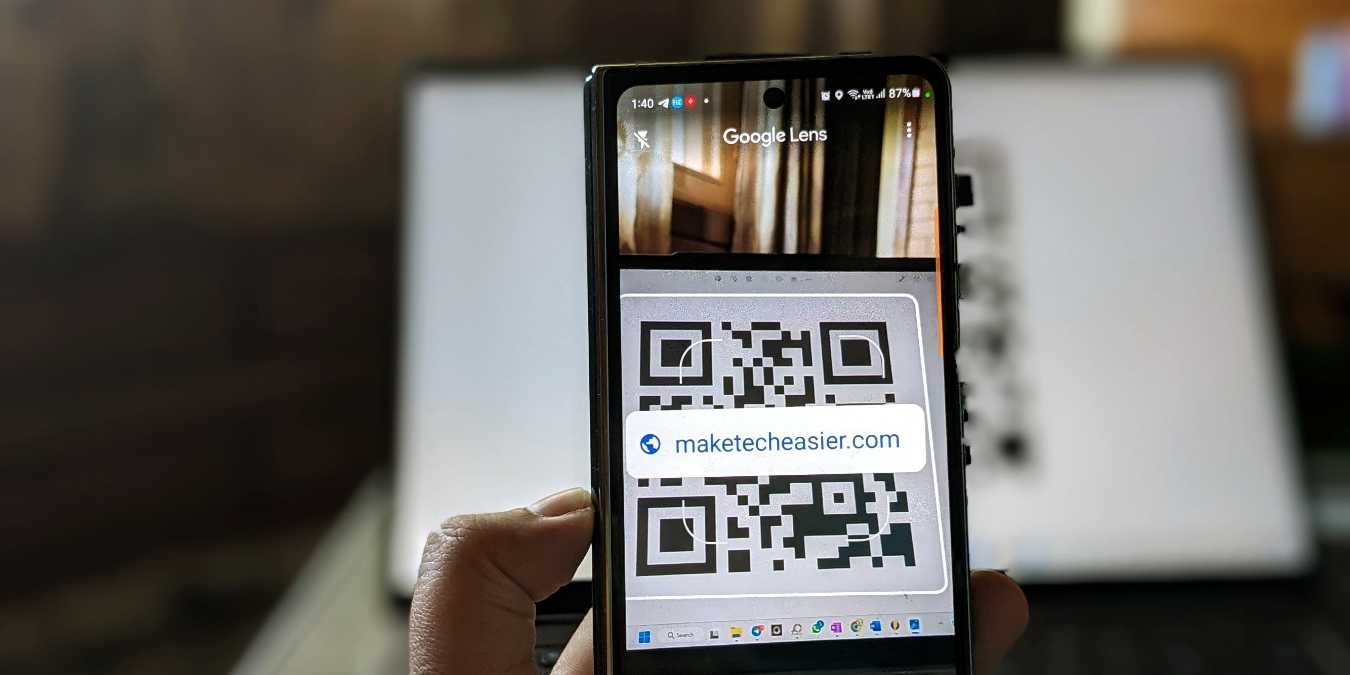
Google Lens goes beyond basic scanning. It can read blurry, partial, or low-res QR codes that regular cameras miss.
How to Use Google Lens
- Open Google Photos on your phone.
- Select an image that contains a QR code.
- Tap Lens at the bottom of the screen.
- Wait for detection.
- Tap the result to open the link.
You can also open the Google app, switch to Camera search mode, and point the camera directly at a QR code.
Why Use Google Lens?
Google Lens offers several advantages over standard camera scanning.
- Scans damaged or wrinkled codes that standard cameras cannot read
- Reads on-screen QR codes from videos, PDFs, and websites
- Detects multiple codes in a single image
- Extracts text and identifies objects beyond QR codes
This tool is best for tricky scans or digital content. It is available on both Android and iOS devices.
Fix Common QR Scanning Problems

Even with built-in tools, scanning can fail. Here is how to fix the most common issues.
QR Code Won’t Scan? Try These Solutions
Fix Blurry Detection
- Clean your camera lens with a soft, dry cloth
- Avoid glare by not scanning under bright sunlight or near reflective surfaces
- Tap on the QR code to force manual focus
Improve Poor Lighting
- Move to a well-lit area with even lighting
- Turn off the flash. It causes reflections on glossy codes
- Use indoor lighting instead of direct sunlight
Handle Damaged or Partial Codes
- Use Google Lens for better recognition of damaged codes
- Find a cleaner copy of the code if possible
- Avoid scanning from crumpled paper or curved surfaces like bottles
Fix No Pop-Up After Scanning
- Check camera permissions in your phone settings
- Restart your phone
- Update your operating system. Older versions lack native QR support
Handle On-Screen Codes That Won’t Scan
- On Android, use Circle to Search or take a screenshot and use Google Lens
- On iPhone, take a screenshot and use Google Lens from the Photos app
Stay Safe When Scanning QR Codes
Not all QR codes are safe. Malicious ones can lead to phishing sites, malware downloads, or fraudulent payment pages.
Avoid QR Code Scams
Watch for these red flags.
- Code on a random sticker placed over existing signage (common on gas pumps, ATMs, and parking meters)
- Code posted in unsolicited emails or text messages
- Redirects to a suspicious URL with misspellings or unusual characters
- Asks for passwords, credit card numbers, or personal information
Safety Tips
- Preview the URL before opening if your scanner shows a preview
- Only scan codes from trusted sources you recognize
- Use Google Safe Browsing, which is built into Chrome
- Never enter sensitive data unless you recognize and trust the website
Pro Tip: Use a QR scanner app with link preview if you scan codes frequently. Apps like QR Code Reader by Scan or Kaywa show the destination URL before you visit.
When to Use Third-Party QR Apps
Most users do not need extra apps. However, dedicated QR apps help in specific situations.
Use a Dedicated App If You
- Have an older phone without native scanning capability
- Need to generate your own QR codes
- Want scan history or batch scanning features
- Work in retail, logistics, or events where you scan many codes
- Need to read encrypted or offline codes
Top Features to Look For
Choose an app with these capabilities.
- Fast and accurate detection
- Support for multiple formats including Data Matrix, Aztec, and PDF417
- URL preview and security check features
- Ability to save or export scan history
- Dark mode and accessibility options
Recommended options include QR Code Reader by Scan for iOS and Android, Kaywa QR Code Reader, or NeoReader.
Best Practices for Reliable Scanning
Follow these tips for quick, consistent results every time.
Optimal Scanning Conditions
- Hold the phone 6 to 18 inches (15 to 45 cm) from the code
- Ensure the code is at least 2 cm by 2 cm (0.8 inches) in size
- Use bright, even lighting with no shadows
- Keep the phone parallel to the code without tilting
- Scan from flat surfaces, not curved or reflective ones
Speed Up the Process
- Use Control Center (iPhone) or Quick Settings (Android) for instant access
- Keep your camera lens clean
- Use pinch-to-zoom for distant or tiny codes
- Avoid scanning from screens unless using Circle to Search or Google Lens
Real-World Uses of QR Codes
QR codes are not just for websites. Here is how people use them every day.
Personal Use
- Scan to auto-connect to Wi-Fi networks without typing passwords
- Save contact information by scanning vCards
- Access digital menus at restaurants
- Redeem coupons and loyalty cards in stores
- Follow social media profiles on Instagram, LinkedIn, and other platforms
Business and Retail
- Process mobile payments through services like Alipay, UPI, or PayPal
- Track products for origin, ingredients, or recall information
- Check in at events, board flights, or enter concerts
- Receive digital receipts via email instead of paper
Healthcare and Education
- Check in at clinic kiosks by scanning
- Access digital vaccination records and health certificates
- Link to course materials, syllabi, or videos
- Check out library books by scanning barcodes
Device Compatibility Overview
| Platform | Native Scan Support | Minimum OS Version |
|---|---|---|
| iPhone | Yes (Camera app) | iOS 11 and later |
| iPad | Yes | iPadOS 13 and later |
| Android (most brands) | Yes | Android 9 and later |
| Samsung | Yes (Camera or Internet) | One UI 2.0 and later |
| Google Pixel | Yes plus Google Lens | Android 10 and later |
As of 2025, 98 percent of smartphones support QR scanning without additional apps.
Final Tips for Every User
- No internet is needed to scan, but internet is required to open linked content
- Scanning is free and built into your phone
- Update your OS regularly for better performance
- Clear cache if third-party apps slow down
- Disable unused scanner tiles to reduce clutter
For the best results, use your camera app first, Google Lens for tough scans, and Circle to Search for on-screen codes. Always verify the source before scanning. A simple scan can lead to big risks if you are not careful.
With these steps, you can confidently use a QR code scanner in seconds, anytime, anywhere.
Frequently Asked Questions About QR Code Scanners
How do I scan a QR code with my phone camera?
Open your phone’s camera app and point it at the QR code. Hold the phone steady 6 to 12 inches away. A notification banner appears when the code is detected. Tap it to open the linked content. No extra apps needed on modern iPhone and Android devices.
Do I need an app to scan QR codes?
No. Most smartphones released after 2018 have built-in QR scanning in the camera app. iOS 11 and Android 9 and later support this feature natively. You only need a third-party app if your phone is older or you need advanced features like scan history.
Why won’t my QR code scan?
Common reasons include a dirty camera lens, poor lighting, the code being damaged or too small, or camera permissions being disabled. Try cleaning the lens, moving to better lighting, or using Google Lens for damaged codes. Restart your phone if nothing else works.
Can I scan a QR code on my phone screen?
Not with the regular camera. On Android, use Circle to Search to scan on-screen codes. On iPhone, take a screenshot and use Google Lens to scan the image. Both methods let you scan digital QR codes without a second device.
Are QR codes safe to scan?
Most QR codes are safe, but some can lead to malicious sites. Only scan codes from trusted sources. Check for suspicious URLs, avoid entering personal information, and use built-in security features like Google Safe Browsing to stay protected.
Key Takeaways for Using QR Code Scanners
QR code scanning is a free, fast, and widely supported feature on modern smartphones. Your camera app is the quickest way to scan most codes. Use Control Center on iPhone or Quick Settings on Android for faster access. Google Lens handles difficult scans, and Circle to Search solves the problem of scanning on-screen codes. Always verify the source before scanning to stay safe online.





