
Is your Epson scanner failing to connect, producing lower-quality scans, or not working with the latest operating system? These frustrating symptoms often point to outdated software. Updating your Epson scanner is the simplest solution, and Epson provides multiple easy ways to do it. This guide covers every method, from using the official Epson Software Updater to manual downloads, so you can get your scanner working like new again.
You’ll learn exactly how to check for updates, install them safely, troubleshoot common problems, and keep your scanner running optimally for years to come. Whether you own a Perfection, FastFoto, Expression, or WorkForce model, these steps work for all Epson scanners.
Update Epson Scanner Using Epson Software Updater
The Epson Software Updater is the fastest, most reliable method to update your scanner. This official tool automatically detects your device and delivers the correct firmware, drivers, and utilities.
Download the Updater Tool
Visit the official Epson support website at epson.com/support and search for “Epson Software Updater.” Select your operating system (Windows or macOS), then click Download and save the installer file. Make sure your scanner is powered on and connected via USB or Wi-Fi before proceeding.
Install and Run the Application
Locate the downloaded file and double-click to launch the installer. Follow the on-screen prompts, noting that administrator rights may be required on Windows. Once installed, open the Epson Software Updater application from your start menu or applications folder.
Check for Available Updates
The tool automatically scans your connected Epson device and displays detected models with their current software status. Available updates appear in a list showing firmware upgrades, driver updates (TWAIN, WIA), Epson Scan 2 or ScanSmart applications, and the Epson Printer Connection Checker. Updates are labeled as Required or Optional, with required updates fixing critical bugs or security flaws.
Install the Updates
Select the updates you want to install and click Install. Accept any license agreements that appear, then wait while files download. Do not close the window or disconnect the scanner during this process. The entire update typically takes 5 to 15 minutes depending on your internet speed and the update size.
Verify Update Success
After installation completes, reopen the Epson Software Updater and let it scan again. If no new updates appear, your scanner is fully current. For additional confirmation, open Epson Scan 2 or ScanSmart and check the version under Help About.
Update Epson Scanner via Windows Control Panel
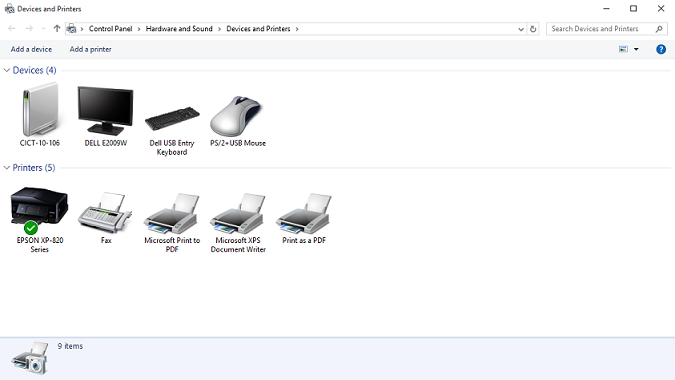
If the automatic updater isn’t working or you prefer using native Windows tools, you can update your scanner through the Control Panel. This method works well even for scanner-only models that Windows lists under printers.
Access Devices and Printers
Press the Windows key, type “Control Panel,” and open it. Change the view to Large icons in the top-right corner, then click Devices and Printers. Find your Epson scanner in the device list and right-click on it, selecting Printing preferences.
Navigate to Maintenance Options
In the Printing Preferences window, look for the Maintenance tab at the top. Click it to access software update options. If the Maintenance tab is missing, reinstall the base driver from Epson’s website first, then return to these steps.
Run the Update
Click the Software Update option and select Yes when prompted to check for updates. Ensure your internet connection is active. Windows contacts Epson servers and retrieves available updates, displaying a list of firmware patches, driver upgrades, and optional apps like ScanSmart. Select the updates you want and click Yes to begin installation.
Manual Update: Download Directly from Epson

When automatic tools fail due to network issues or detection errors, manually downloading updates from Epson’s support site gives you full control.
Find Your Scanner on Epson Support
Open your browser and go to epson.com/support. Enter your full scanner model number exactly (for example, Perfection V600 or Expression Home X7150). Select your operating system carefully from the dropdown menu, matching it to your current Windows or macOS version.
Download Firmware and Drivers
On the download page, locate these key sections: Firmware Update for hardware stability, Drivers for TWAIN, WIA, and scanner utilities, and Software for Epson Scan 2, ScanSmart, and OCR tools. Download these files in order: firmware first, then drivers, then applications. Installing incorrect firmware can damage your scanner, so double-check that your model number and operating system match exactly.
Install Files in Sequence
Run each installer one at a time, starting with the firmware updater. Follow on-screen instructions carefully and never unplug the scanner during the flash process. After each installation completes, restart your scanner before proceeding to the next installer. Once finished, test a scan to confirm everything works properly.
Fix Common Epson Scanner Update Problems
Even with careful steps, updates can fail. These targeted fixes resolve the most frequent issues.
Scanner Not Detected During Update
If your scanner isn’t being found, try using a different USB cable or port. Switch from Wi-Fi to a wired USB connection for more stable detection. Restart both your scanner and computer, then attempt the update again. Also verify that your operating system is current, as older systems like Windows XP may no longer receive updates.
Update Freezes or Fails Mid-Process
Power off your scanner completely and shut down your computer. Wait 30 seconds, then reboot both devices and retry the update. On Windows, right-click the updater and select Run as Administrator to bypass permission blocks. Temporarily disable antivirus software during installation, as security programs can interrupt the process. Clear temporary files by pressing Win + R, typing %temp%, and deleting the contents.
Updater Won’t Launch
Check that your operating system is supported (Windows 11 or macOS 14 and newer). If you’re on an older Mac, you may need Rosetta 2 for Apple Silicon compatibility. Reinstall the updater by uninstalling it through Settings Apps, then download a fresh copy from Epson’s website. Your firewall may be blocking the connection, so temporarily disable it or allow EpsonUpdater.exe through Windows Defender.
Supported Epson Scanner Models
These popular Epson scanner lines all use the same update methods described in this guide.
Perfection Series
The Perfection series includes the V600, V800, V850, V39, and 4430 models. These scanners are ideal for photo and film scanning, with firmware updates routinely improving OCR accuracy and color fidelity.
FastFoto Series
The FastFoto FF-640 and FF-680W feature high-speed document feeders. Updates consistently enhance batch processing capabilities and cloud synchronization features.
Expression and WorkForce Series
The Expression Home XP-4100 and Photo XP-8600, along with WorkForce Pro WF-4820 and WF-7720, are multifunction models with scanning capabilities. Regular driver updates ensure compatibility with office software and the latest operating systems.
Maintain Your Scanner After Updating
Keep your scanner running smoothly with these expert habits.
Set Update Reminders
Schedule checks every 3 to 6 months, or check after major operating system updates like Windows 11 23H2 or macOS Sonoma. Catching updates early prevents compatibility breakdowns and keeps your scanner functioning optimally.
Backup Your Settings
Before major firmware updates, write down any custom scan profiles, export settings if available in ScanSmart, and note network credentials. This saves significant time if you need to reset the device afterward.
Stick to Official Sources
Only download drivers and updates from epson.com or authorized regional equivalents. Third-party sites may host outdated or infected files that could damage your scanner or compromise your computer.
Frequently Asked Questions About Updating Epson Scanners
How do I know if my Epson scanner needs an update?
If your scanner isn’t being recognized by your computer, producing poor scan quality, not working with your current operating system, or lacking features you expected, an update likely resolves the issue. You can also check your current software version in Epson Scan 2 under Help About.
Can I update my Epson scanner without a computer?
No, all Epson scanner updates require a computer connection. The scanner must be powered on and connected via USB or Wi-Fi with an active internet connection to receive updates.
Will updating my scanner delete my scanned documents?
No, the update process only modifies software and firmware. Your existing scanned documents and settings remain untouched. However, backing up custom scan profiles before major updates is still recommended.
What happens if I interrupt an update?
Interrupting an update can leave your scanner in an unstable state or potentially brick the device. Always ensure a stable power connection and avoid disconnecting the scanner during the update process. If an interruption occurs, try restarting both devices and running the update again.
How often should I check for Epson scanner updates?
Check for updates every 3 to 6 months, or immediately after your computer’s operating system updates. Epson releases firmware and driver updates periodically, especially following major OS releases from Microsoft or Apple.
Key Takeaways for Updating Your Epson Scanner
Updating your Epson scanner takes just minutes but delivers lasting benefits. The Epson Software Updater is the easiest method, automatically detecting your device and installing correct updates. For Windows users, the Control Panel provides a reliable backup option. Manual downloads from epson.com work when automatic tools fail, though you must carefully match your model number and operating system.
Remember to check for updates every 3 to 6 months, always use official Epson sources, and never interrupt the update process. Following these practices keeps your scanner running at peak performance with the latest features, security patches, and operating system compatibility.





