
You’re on the warehouse floor, ready to scan inventory, but your Zebra scanner won’t connect to WiFi. No network means no data syncing, delayed workflows, and frustrated teams. You’re not alone. This guide delivers immediate solutions and step-by-step troubleshooting for the zebra scanner not connecting to WiFi problem, covering models like MC3300, TC52, TC72, and more.
This article covers everything from basic WiFi access to advanced network diagnostics. You’ll learn how to diagnose connection issues, fix common problems, and prevent future WiFi failures using verified Zebra Android procedures.
Access WiFi Settings the Right Way
Before troubleshooting, confirm you’re accessing WiFi settings correctly. Zebra Android devices use standard Android interfaces, but users often miss key navigation steps.
Quick Settings Panel Access
Swipe down from the top of the screen to open the Quick Settings panel. Look for the WiFi icon. If connected, it shows signal strength and network name. If disconnected, it displays “No WiFi connection.”
Press and hold the WiFi icon to jump directly to the full WiFi settings. This bypasses the app drawer and prevents accidental taps on restricted menus.
Wait 10-15 seconds for the scanner to scan and list available networks. Then tap your network and enter the password.
Settings Menu Navigation
If Quick Settings does not respond, swipe up to open the app drawer. Tap Settings. Go to Network and Internet, then WiFi.
The scanner will refresh the network list. Select your network, enter credentials, and tap Connect.
A spinning progress indicator appears after tapping Connect. If it disappears instantly, the password is likely wrong or the network is unreachable.
Connect to Hidden or Enterprise Networks
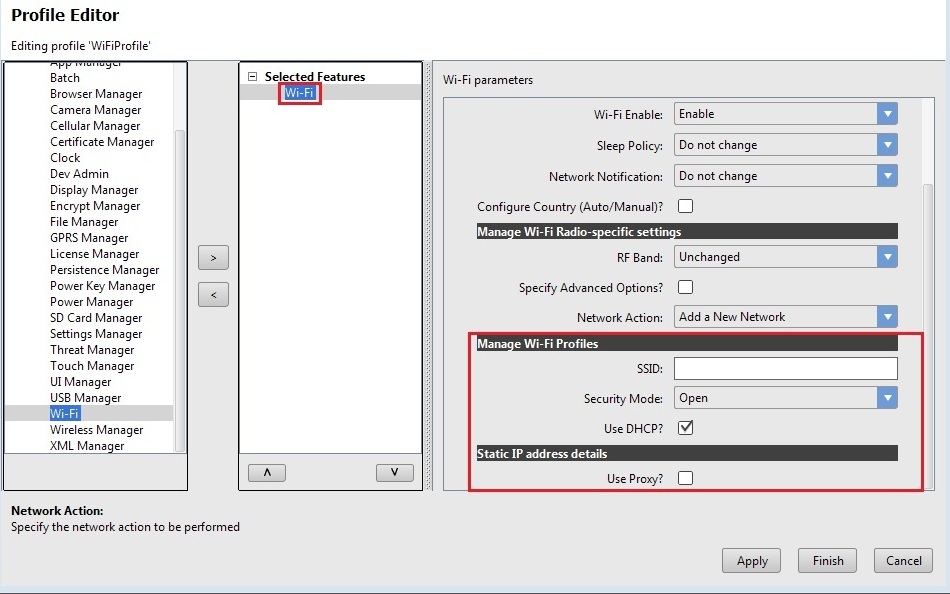
Standard networks appear automatically. But many warehouses and hospitals use hidden SSIDs or enterprise security, which require manual setup.
Add Network Manually
When your network does not show up, scroll to the bottom of WiFi settings and tap Add Network. Enter these details exactly.
- SSID (case-sensitive, for example “WAREHOUSE-2.4GHz”)
- Security type (WPA2, WPA3, or as required)
- Password
For static IP environments, tap Advanced options. Change IP setting from DHCP to Static. Enter the IP address, subnet mask, gateway, and DNS servers if provided.
Tap Save and wait 20 seconds. The device should connect and show a checkmark next to the network.
Handle Enterprise Authentication
Some Zebra scanners fail to join 802.1X-secured networks due to missing certificates or incorrect EAP settings.
If prompted for enterprise settings, choose the correct options.
- EAP method: Choose PEAP or EAP-TLS as required
- Phase 2 authentication: Usually MSCHAPv2
- Identity: Your username
- Password: Corporate login or token-generated password
Devices without installed certificates cannot authenticate on WPA2-Enterprise networks. Contact your IT department to push required profiles via MDM.
Confirm Successful Connection
A successful join is not always obvious, especially if the app you are using does not refresh automatically.
Check Visual Indicators
After connecting, look for these confirmation signs.
- A WiFi icon appears in the top-right status bar
- Signal bars show strength (1-3)
- In WiFi settings, the network shows Connected beneath the SSID
Tap the network name to view detailed info including IP address assigned, signal strength (RSSI), gateway, and DNS.
If the IP starts with 169.254.x.x, the scanner failed DHCP and self-assigned an address, meaning no real network access.
Signal strength below -70 dBm means weak signal. Move closer to the access point or request additional coverage.
Troubleshoot Common WiFi Connection Failures
When the scanner will not connect despite correct settings, dig deeper. Most issues stem from one of six root causes.
Fix Incorrect Password or SSID
Even one wrong character blocks connection. Forget the network by long-pressing the network name and selecting Forget. Re-enter SSID and password carefully. Double-check caps lock and keyboard layout.
Passwords are case-sensitive. Retype even if it looks correct.
Resolve Hidden SSID Issues
Hidden networks do not broadcast, so scanners will not find them unless manually added. Use Add Network. Enter SSID exactly as configured on the router.
If still failing, test with a visible version of the same network to isolate the issue.
Bypass IP Address Conflicts
In static IP setups, two devices with the same IP cause connection drops. Assign a unique IP outside the DHCP range. For example, if DHCP ends at 192.168.1.50, use 192.168.1.100 or higher.
Use network scanning tools to check for duplicates.
Address Weak Signal Areas
Zebra scanners drop WiFi in metal-heavy warehouses or between floors. Check the RSSI value in network details. Below -80 dBm equals poor signal. Check distance from access point and physical obstructions.
Fix weak signal by installing mesh access points. Stick to 2.4 GHz band for better range if 5 GHz is spotty. Use directional antennas where needed.
TC52 and MC3300 models support dual-band. Ensure both bands are enabled on your access point.
Disable MAC Filtering
Some networks block unknown devices using MAC address filtering. Find your scanner’s MAC address in Settings, About, Status, WiFi MAC Address. Send it to IT to whitelist.
Without whitelisting, the scanner sees the network but cannot join, even with perfect credentials.
Overcome MDM Restrictions
In supervised environments, MDM profiles can disable WiFi or enforce incorrect policies. Watch for these signs.
- WiFi grayed out in settings
- Missing Add Network option
- Automatic disconnects after 5 seconds
Contact your admin to review MDM policy. Push updated network configuration via AirWatch, SOTI, or Zebra StageNow.
Restart and Reset When Stuck

When all else fails, reboot or reset. These steps clear temporary glitches that prevent connection.
Soft Reset: Restart the Scanner
Press and hold the Power button for 3-5 seconds. Tap Restart.
Wait 60 seconds for full boot. Then open WiFi settings and try connecting again.
Seventy percent of intermittent WiFi issues resolve after a reboot.
Clear Network Settings
If saved networks are corrupted, go to Settings, Network and Internet, WiFi. Tap the three-dot menu and select Forget all networks.
Then re-add your network from scratch.
Hard Reset: Factory Reset
Only use if nothing works and the device is not MDM-enforced.
Warning: This erases all data.
To factory reset, power off the scanner. Press and hold Volume Down plus Power until the logo appears. Use volume keys to select Wipe Data/Factory Reset. Confirm with Power button.
After reset, reconfigure WiFi and restore apps and data as needed.
Prevent Future WiFi Connection Issues
Avoid repeat outages with proactive measures.
Update Firmware Regularly
Old OS versions have WiFi driver bugs. Check for updates in Settings, System, System Updates. Install any pending patches.
Zebra releases quarterly updates that fix connectivity regressions, especially for TC72 and MC2700 models.
Use StageNow for Batch Configuration
Deploying 10 or more scanners? Use Zebra StageNow to push identical WiFi profiles via barcode.
Benefits include eliminating typing errors, applying static IPs automatically, and enforcing security settings. Scan one barcode per device.
Monitor Signal Health
Train staff to check WiFi icon presence, signal strength before shift start, and IP address format (not 169.254.x.x).
Add a daily connectivity checklist to standard operating procedures.
Supported Zebra Models for WiFi Connection
All these scanners follow the same Android-based WiFi procedures.
- MC3300: Warehouse use
- MC9300: Logistics use
- TC52: Retail use
- TC72: Field service use
- TC8000: Manufacturing use
- TC8300: Distribution use
- MC2200: Light duty use
- MC2700: Healthcare use
All support WPA2, DHCP, and manual network entry. For EAP-TLS or certificate-based login, verify firmware supports it.
Frequently Asked Questions About Zebra Scanner WiFi Connection
Why is my Zebra scanner not connecting to WiFi after entering the correct password?
The password may still be incorrect due to case sensitivity or keyboard layout differences. Forget the network and re-enter the password carefully. Check for caps lock and verify you are using the correct keyboard layout (QWERTY vs AZERTY).
How do I connect my Zebra scanner to a hidden WiFi network?
Hidden networks do not appear automatically. Go to WiFi settings, scroll to the bottom, tap Add Network, and enter the SSID exactly as configured on your router. Ensure you select the correct security type and enter the password.
What does it mean when my Zebra scanner has a 169.254 IP address?
A 169.254.x.x IP address means the scanner failed to get a proper IP from the DHCP server and self-assigned an address. This indicates no real network access. Check your DHCP server, router settings, or switch to a static IP configuration.
Can MDM policies prevent my Zebra scanner from connecting to WiFi?
Yes. Mobile Device Management profiles can disable WiFi, restrict network access, or enforce incorrect policies. If WiFi is grayed out or you cannot add networks, contact your IT administrator to review and update the MDM policy.
How do I find the MAC address on my Zebra scanner?
Go to Settings, About, Status, and look for WiFi MAC Address. You will need this MAC address if your network uses MAC filtering or requires whitelisting.
What should I do if my Zebra scanner keeps disconnecting from WiFi?
First, check signal strength and move closer to the access point. If the issue persists, forget the network and reconnect. Update firmware to the latest version. For recurring issues, check for IP address conflicts or MDM restrictions.
Key Takeaways for Fixing Zebra Scanner WiFi Connection
A Zebra scanner not connecting to WiFi is rarely a hardware failure. Most issues stem from incorrect settings, network restrictions, or environmental factors. Start with basic steps like verifying the password and checking WiFi is enabled. Move to advanced troubleshooting only if needed.
Use this systematic approach: confirm WiFi access, manually add hidden or enterprise networks, verify successful connection, then troubleshoot root causes like weak signal or MDM restrictions. For persistent enterprise issues, involve IT to verify certificates and access point logs.
Keep this guide bookmarked for your team. Consider creating a printed quick-reference sheet with common fixes to minimize downtime when WiFi issues arise.





