
If your Zebra scanner is not charging, productivity comes to a halt across warehouses, hospitals, and retail stores. Models like the DS2200, DS8100, LI3678, and RS6000 commonly experience charging failures, leaving workers unable to scan barcodes and managers facing costly replacements. The good news: most charging problems stem from simple causes like dirty contacts, faulty cables, or incompatible cradles, and you can resolve them without buying new equipment. This guide walks you through every diagnostic step and proven fix used by field technicians.
Check Power Source and Outlet
Before assuming your scanner is broken, confirm power is reaching the cradle. Electrical issues often masquerade as device failures.
Test Wall Outlet First
Plug a lamp or phone charger into the same outlet. If nothing powers on, the issue is electrical, not your Zebra device. Move to a different outlet on a separate circuit.
Verify Adapter Output
Use a multimeter to check voltage at the adapter tip. Set to DC volts and measure between center positive and outer ring negative. Reading should be 5V ±5% (4.75–5.25V). Replace the adapter if below 4.5V.
Pro Tip: Always use Zebra-approved power supplies like ADP-45120-02R. Third-party adapters often underdeliver current or spike voltage, damaging cradles.
Swap with Known-Good Adapter
Try a working Zebra power supply from another station. If charging resumes, the original adapter was faulty.
Inspect and Replace USB Cable
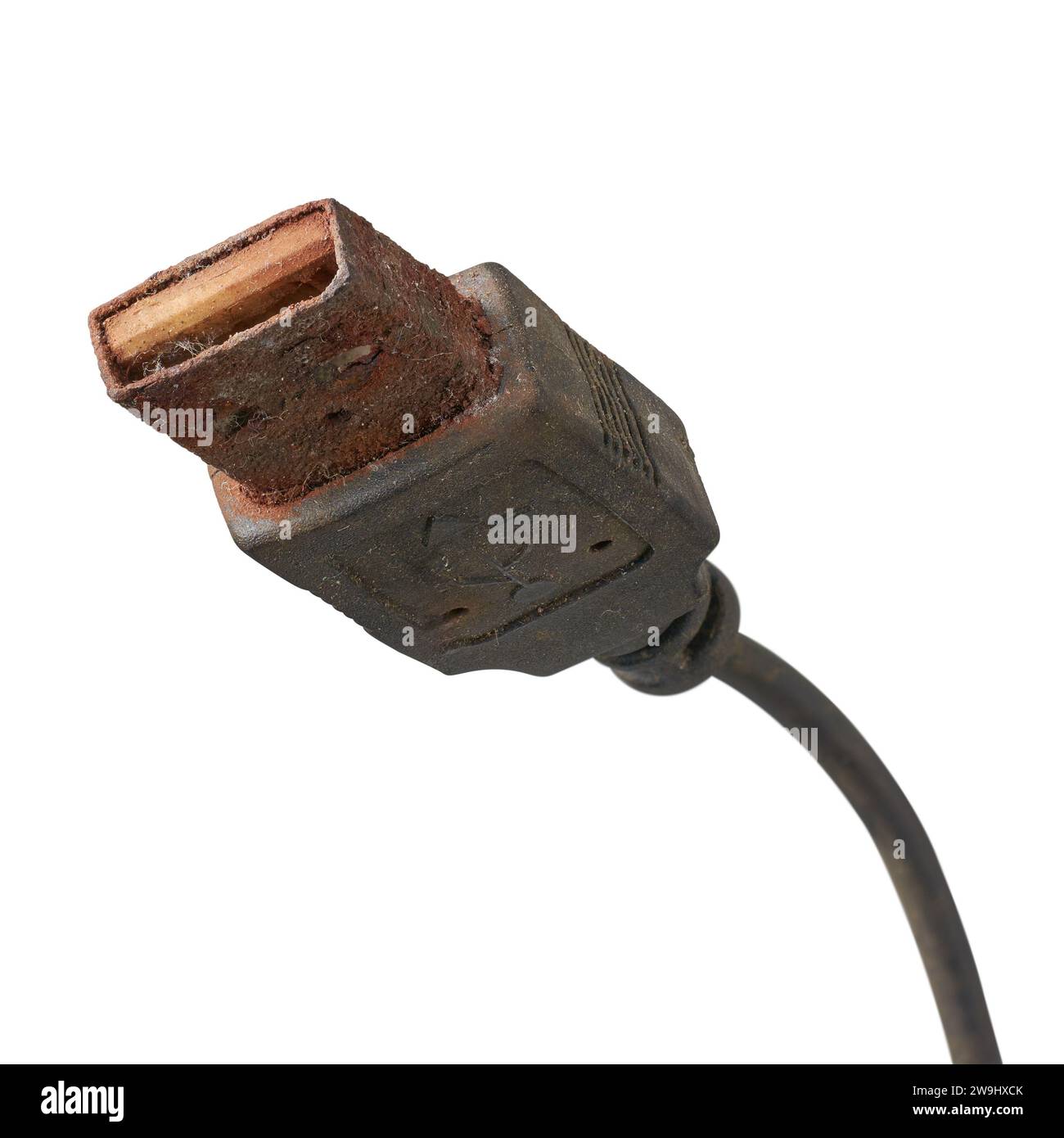
A damaged or low-quality USB cable ranks among the top reasons for failed charging.
Look for Physical Damage
Check for frayed wires, bent connectors, or kinks near the ends. Even minor internal breaks block power flow.
Use High-Power Cable Only
Many USB cables transmit data but cannot handle full charging current. Use only Zebra P100055-001 or equivalent 5V/2A-rated cables.
Avoid long cables exceeding 2 meters. Voltage drops over distance reduce charging efficiency.
Bypass Hubs and Docks
Connect directly to a powered USB port on a PC or wall adapter. USB hubs, especially unpowered ones, may not supply enough current.
Clean Charging Contacts
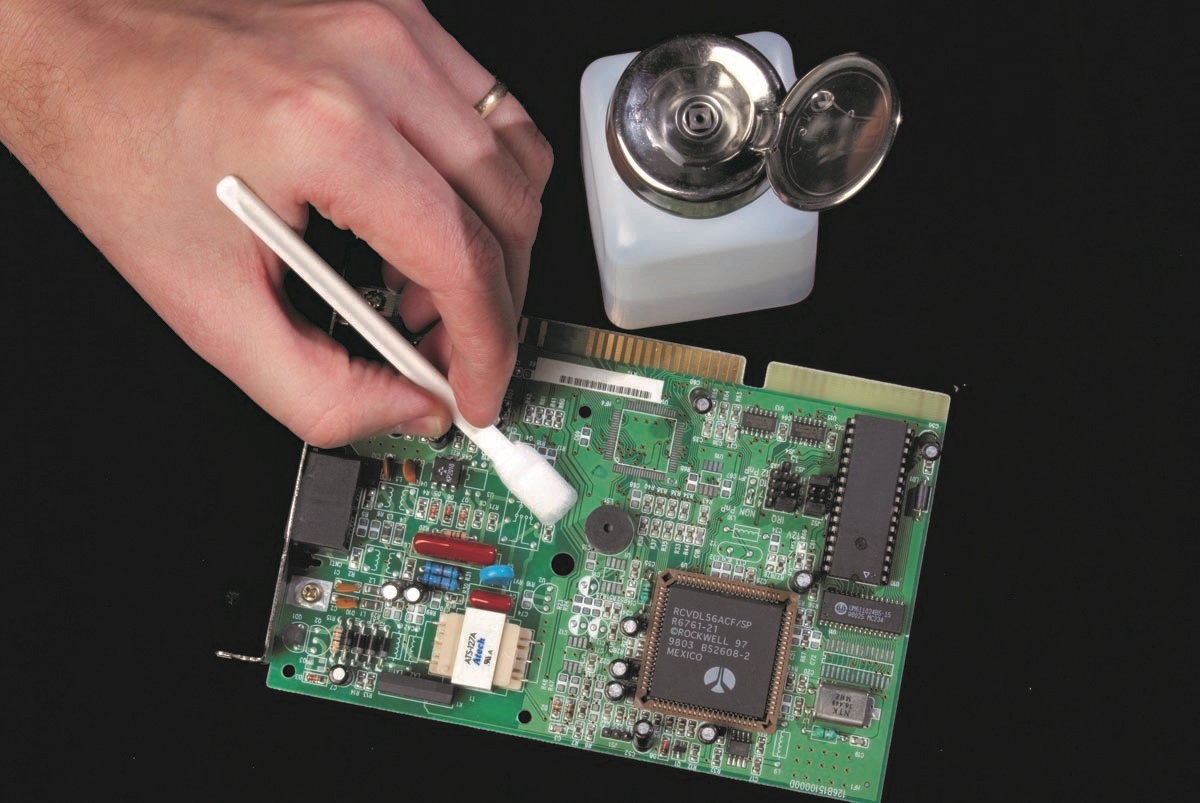
Dirt, corrosion, or oxidation on metal contacts prevents proper electrical connection.
Power Down Everything
Unplug the cradle and remove the scanner battery before cleaning.
Use Isopropyl Alcohol
Dip a cotton swab in 90%+ isopropyl alcohol. Gently wipe the scanner charging pins, cradle contact points, and battery terminals. Let dry completely for 1–2 minutes before reassembly.
Do: Use plastic tools only. Do not: Scratch or bend contacts with metal objects.
Check for Corrosion in Harsh Environments
In humid, dusty, or chemical-exposed areas like warehouses or clinics, contact corrosion is common. Inspect monthly and apply protective contact guards if needed.
Confirm Cradle Compatibility

Using the wrong cradle is a silent killer. It fits physically but will not charge.
Match Model Numbers Exactly
| Scanner | Compatible Cradle |
|---|---|
| DS2278 | CRD-2200-1001ZS, CRD-2200-4001ZS |
| DS8178 | CRD-8100-4001ZS (magnetic only) |
| LI3678 | CRD-LI3678-4001ZS |
| RS507 | CRD-RS507-4001ZS |
Plugging a DS2278 into a CRD-4200 cradle may seem to fit, but charging fails due to pin layout mismatch.
Warning: Incompatible cradles can cause permanent damage. Always verify part numbers.
Test with Alternate Cradle
Borrow a known-working cradle from another station. If the scanner charges, your original cradle is faulty or misconfigured.
Diagnose Battery Failure
Even with perfect power delivery, a bad battery will not hold a charge.
Signs of a Failing Battery
The scanner dies suddenly at 30–50% charge, shows bulging or warm casing during charge, runs for half the time of a new battery, or is over 2 years old with daily use.
Swap in a Known-Good Battery
Insert a healthy battery into the scanner. If it charges and works, the original battery is dead.
Zebra Battery Part Numbers: BT2200-4000R (1950 mAh for DS2200), BT2200-4001R (3000 mAh extended shift), BT8100-4000R (medical-grade for DS8100-HC).
Replace Every 2–3 Years
Batteries degrade over time. Proactively rotate them in high-use environments.
Decode LED Indicator Patterns

LED lights on the scanner or cradle reveal what is wrong.
Solid Red Light
Charging is in progress. This is normal.
Solid Green Light
Battery is fully charged. This is normal.
No Light
No power is reaching the device. Check the outlet, adapter, cable, and cradle contacts.
Flashing Red Light
An error has been detected. Possible causes include overtemperature, short circuit, or faulty battery. Unplug the cradle for 5 minutes to reset protection circuits.
Alternating Red/Green
Scanner is in communication mode, not charging mode. This may happen if cradle firmware is corrupted or scanner settings are misconfigured.
Update Firmware and Reset Settings
Software issues can disable charging even with perfect hardware.
Enable Charging via Barcode Menu
Some deployments disable charging via configuration. Scan the “Charging Enable = Yes” barcode from Zebra support site to re-enable.
Reset to Factory Defaults
Scan the DEFAULT barcode (downloadable from Zebra 123Scan2 tool). This clears misconfigurations that may block power management.
Update Scanner Firmware
Outdated firmware causes power bugs. Use 123Scan2, Zebra Scanner Management Service (SMS), or Zebra Update Service (ZUS) for enterprise fleets.
Always back up custom profiles before updating.
Test with Another Host Device
If charging via USB to PC or POS terminal, the host may not supply enough power.
Plug Into a Powered Laptop Port
Avoid USB hubs. Connect directly to a laptop or desktop with its own power supply.
Use Scanner Visibility Tool (SVT)
Download Zebra free Scanner Visibility Tool. It detects scanner presence and shows power status in real time.
Check Windows Device Manager
Open Device Manager, then Universal Serial Bus controllers. If the scanner appears as Unknown Device or disappears when plugged in, USB power delivery is failing.
Perform Multimeter Diagnostics
For IT and technical teams, use a multimeter to isolate faults.
Measure USB Cable Voltage
Set multimeter to DC volts. Touch red probe to VBUS (pin 1) and black probe to GND (pin 4). Should read approximately 5V. If below 4.7V, replace cable or adapter.
Test Cradle Output Under Load
Place scanner in cradle and measure voltage at contact points. A drop below 4.5V indicates internal cradle failure.
Avoid Common Mistakes
Even experienced users make errors that prevent successful charging.
Using Non-Zebra Accessories
Generic cables, adapters, or cradles may fit but lack proper voltage regulation. Stick to Zebra-certified parts only.
Ignoring Temperature Limits
Charging below 0°C or above 40°C triggers battery protection. Let scanner acclimate for 30+ minutes after cold storage.
Forcing Scanner Into Cradle
Misaligned placement damages delicate contacts. Align carefully and let magnetic docks snap into place.
When to Seek Repair or Replacement
If all else fails, the issue may be internal hardware failure.
Signs of Internal Damage
No response after component swaps, burnt smell near charging port, visible impact or water damage, or swollen battery or warped housing indicate serious problems.
Warranty and RMA Options
Zebra offers a 12-month standard warranty covering charging circuit defects. You can initiate RMA process via Zebra Support Portal. Out-of-warranty repair costs approximately $75–$150, or exchange programs are available.
Always register your device and keep proof of purchase.
Prevent Future Charging Issues
Simple habits keep scanners charging reliably.
Use Only Zebra-Certified Parts
Cables, adapters, and cradles must be genuine Zebra accessories.
Schedule Quarterly Maintenance
Clean contacts monthly, inspect cables, rotate batteries, and update firmware quarterly.
Train Staff on Proper Docking
Teach users to align scanner gently, avoid yanking cables, and report issues early.
Deploy in Controlled Environments
Avoid extreme heat, moisture, or static-prone areas. Use protective sleeves in harsh conditions.
Frequently Asked Questions About Zebra Scanner Not Charging
Why won’t my Zebra scanner charge after being dropped?
Impact can disconnect internal wiring or damage the charging port. Test with known-good battery and cradle. If no fix, seek repair.
Can I charge via car adapter?
Yes, with a regulated 5V USB vehicle charger. Avoid cheap inverters that cause voltage spikes.
Does Zebra offer fast charging?
Some cradles (e.g., CRD-2200-4001ZS) support 2A input with high-capacity batteries. Not all models qualify.
How long should charging take?
3–4 hours for standard battery. High-capacity (3000 mAh) may take up to 6 hours.
Is it safe to leave on cradle all day?
Yes. Zebra cradles auto-switch to trickle charge or stop when full.
Key Takeaways for Fixing Zebra Scanner Not Charging Issues
Most zebra scanner not charging problems stem from simple causes you can fix without replacement. Start by testing power source and adapter output with a multimeter, then swap USB cables for Zebra-certified P100055-001 cables. Clean charging contacts with isopropyl alcohol and verify cradle compatibility by matching exact model numbers. If those steps fail, try a known-good battery, reset firmware using 123Scan2, and update to the latest version. For persistent problems, Zebra warranty and RMA processes cover charging circuit defects. Keep this guide handy for quick troubleshooting and minimal downtime.





