
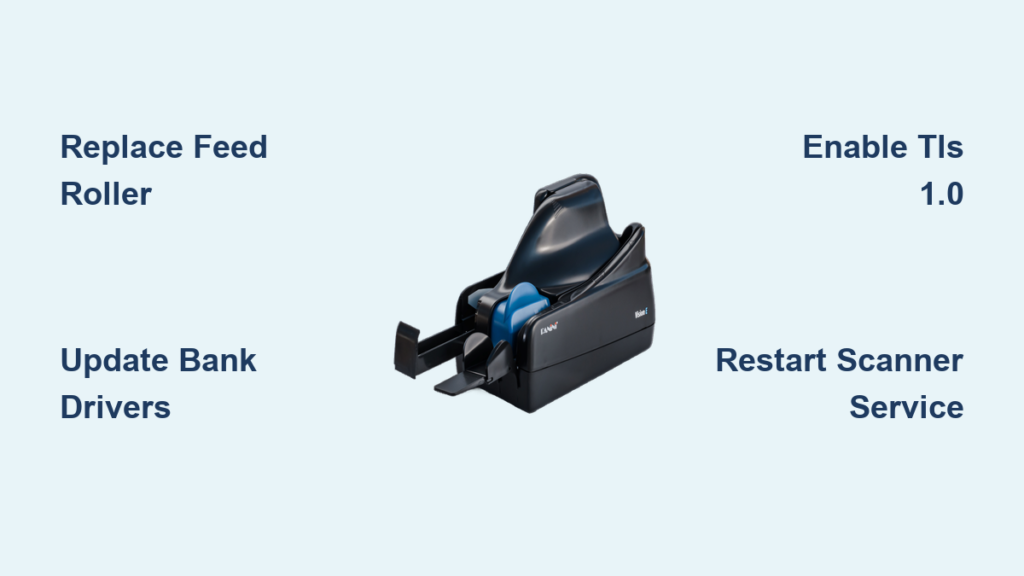
If your Panini scanner stops working, you’re not alone. Thousands of businesses relying on remote deposit capture face this issue daily. Checks jam, the device isn’t detected, or your banking portal shows “initializing” forever. The good news? Most Panini scanner not working problems are fixable without replacing the hardware. Whether it is a mechanical jam, driver conflict after a Windows update, or initialization failure with your bank portal, this guide delivers step-by-step solutions based on real user experiences and technical diagnostics.
You will learn how to diagnose the root cause in minutes, apply verified fixes for common OS and software conflicts, replace worn parts affordably, and avoid costly replacements. By the end, you will know exactly what to do when your Panini scanner will not scan, is not recognized, or fails to initialize.
Fix Check Feeding Problems
Why Checks Jam or Won Feed
When your Panini scanner will not pull checks through, jams frequently, or only feeds partway, the culprit is usually mechanical wear, not software. High-volume use over years degrades internal components, especially the feed roller. This is the rubber wheel that grips and moves checks through the device.
Over time, this roller becomes glazed, cracked, or slippery, losing traction. After five to six years of regular use, performance drops sharply. Even slight misalignment can cause skewing or multi-feed errors.
If checks slide but do not advance, or stall mid-scan, suspect the feed roller as the problem.
Replace the Feed Roller for Under 20

Replacing the feed roller is a low-cost, high-impact fix that restores full function without buying a new scanner.
Steps to Replace the Roller
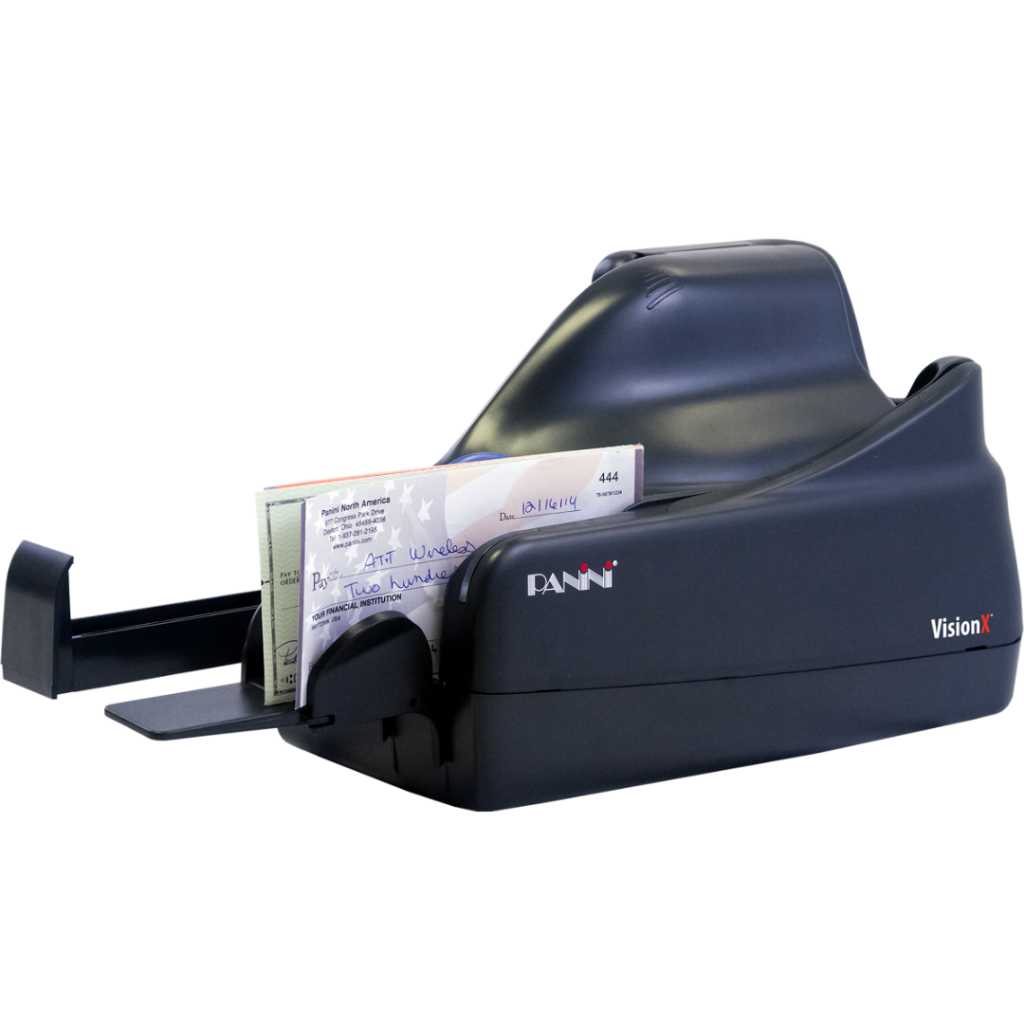
- Identify your model by checking the label on the back or bottom of the scanner. Look for numbers like Vision X or mI:deal.
- Buy a compatible roller by searching your exact model number on supplier websites. Expect to pay ten to twenty dollars.
- Install the new roller by opening the cover, removing the old roller, and snapping in the new one. Ensure proper seating with no gaps.
- Test the feed by running checks through the scanner to verify smooth operation.
Run a test feed via the scanner web interface after replacement to verify smooth operation.
| Fix Option | Cost | Effectiveness |
|---|---|---|
| Replace feed roller | 10 to 20 dollars | High |
| Buy new scanner | About 1000 dollars | Overkill if only roller is bad |
Before calling support or replacing hardware, inspect and replace the feed roller. It solves most feeding issues.
Resolve Driver and OS Compatibility Issues
Scanner Stopped Working After Windows Update
Many users report their Panini scanner worked fine until a Windows 10 or 11 update broke it. Common triggers include the Windows 10 Anniversary Update, migration from Windows 7 or 8 to 10 or 11, and 64-bit system incompatibility with 32-bit drivers.
Symptoms include the scanner being visible in Device Manager but not detected by the banking site, “initializing” hanging indefinitely, and needing to restart the PC or service after every scan. This is a known compatibility gap between legacy bank software and modern OS versions.
Install Updated Bank-Specific Drivers
Banks like Wells Fargo, Chase, and Western Alliance use custom drivers that may not support newer Windows builds. For Wells Fargo users, driver version 2.0 supports Windows 10 build 1604 and later. The older version 1.4 fails on newer builds.
This driver is not publicly listed. You must request it from your bank tech support. Always confirm the version before and after installation.
To check your driver version, open Services by typing services.msc in the Run dialog. Find WFDTDScannerService, right-click, and select Properties. Check the path and version there.
Enable TLS 1.0 for Banking Portals
Some banks, especially Wells Fargo, rely on TLS 1.0 for secure communication between the browser and local scanner service. If TLS 1.0 is disabled, you will see HTTP 500 errors, initialization failure, or service unreachable on port 11000.
To re-enable TLS 1.0, press Win plus R, type inetcpl.cpl, and press Enter. Go to the Advanced tab. Under Security, check the box for Use TLS 1.0. Click Apply and restart your browser.
TLS 1.0 is deprecated but still required by some legacy RDC systems.
Install TWAIN API on Windows 11
Starting with Windows 11, TWAIN support is no longer installed by default. Even if your scanner appears in Device Manager, it will not initialize without TWAIN.
To fix this, open Settings, then Apps, then Optional Features. Click View features and search for Windows Scanner and Camera Wizard or TWAIN Support. Install the package, then reconnect the scanner and test.
Open any TWAIN-compatible app like Paint and try to scan to verify the installation worked.
Fix Scanner Service Failures
Why the Service Will Not Start Automatically
The scanner depends on a local Windows service to bridge the browser and hardware. If it crashes or fails to start, the scanner appears offline even if physically connected. Common causes include the service crashing after a scan, no auto-restart policy, and missing admin rights.
Run Scanner Service as Administrator
Banking portals require elevated permissions to access local services. Without admin rights, the browser cannot launch or communicate with the scanner service.
To fix this, add your user account to the Administrators group. Log out and back in, then test scanning again. Some IT policies block admin access, but this is often the root cause of detection failures.
Restart Scanner Service with a Script
Manually restarting the service each time is tedious. Automate it with a simple batch file.
Create a file named restart_scanner.bat and add these two lines.
NET STOP WFDTDScannerService
NET START WFDTDScannerService
Save the file, right-click it, and run as Administrator. Assign it to your desktop for quick access. Replace the service name as needed by checking services.msc.
This is a temporary but effective workaround when the service hangs after a scan.
Resolve Initialization and Connection Problems
Scanner Shows Initializing But Fails
Users report the scanner appears online in Device Manager and the web interface, but the banking site shows “Initializing” and never completes. The Webscan client connects but no image is captured.
This happens with models like Panini mI:deal on Windows 11 23H2 with Western Alliance banking sites.
Perform a Physical Reset
Leaving the scanner unplugged for 30 seconds before reconnecting can reset the internal state. This allows the firmware to reinitialize cleanly and is more effective than quick replugging.
Test Feed Via Web Interface
Access the scanner web interface at its default IP address, typically 192.168.4.1. Navigate to printer or scanner settings and run a test check feed. Success here confirms the hardware is operational.
Verify Profile and IP Settings
If switching between scanners, ensure the correct scanner model is selected in the dropdown and the correct IP address is entered in your profile. Some banks require unique user profiles per scanner. Using one profile for multiple scanners may cause conflicts.
Consider creating separate profiles if using backup scanners.
Restore Lost Configuration Settings
Settings Revert After Reinstallation
After reinstalling scanning software, configuration settings revert to defaults. This leads to incomplete check processing, skipped documents, and endorsement or MICR reading failures.
Critical Configuration Parameters
Document your current working settings before any reinstallation. Store them in a secure location. The following parameters may need adjustment based on bank requirements.
| Setting | Typical Value | Description |
|---|---|---|
| Hole filter length | 7 | Filters perforations or punched holes |
| Delay to start endorsement | 0 | Time before endorsement prints in milliseconds |
| Max symbols in MICR code-line | 80 | Maximum characters in MICR line |
| Min document length | 80 | Minimum document length in millimeters |
| Max document length | 240 | Maximum document length in millimeters |
These values are bank-specific. Contact your financial institution tech support for approved ranges.
Optimize Browser and Security Settings
Legacy Browser Requirements
Banking portals often rely on Internet Explorer compatibility modes or embedded plugins. Add your banking URL to Trusted Sites. Enable Compatibility View for the site. Run the site in Internet Explorer 11 mode if using Edge.
This helps legacy plugins and ActiveX controls load correctly.
Use Compatible Browser Mode
Configure your browser settings to ensure the banking site loads with the proper compatibility. Check your browser documentation for specific steps to enable IE mode or compatibility view.
Handle Multiple Scanner Configurations
Profile Conflicts With Multiple Devices
Using one user profile for multiple scanners may cause detection and initialization failures. Each scanner should have its own dedicated profile in the banking system.
Create separate user profiles for each scanner to prevent conflicts. This ensures proper communication and prevents initialization errors when switching between devices.
Frequently Asked Questions About Panini Scanner Not Working
Why Does My Panini Scanner Keep Jamming?
Frequent jamming is usually caused by a worn feed roller. After five to six years of regular use, the rubber roller loses grip and can crack or become glazed. Replace the roller for ten to twenty dollars to restore proper feeding.
My Scanner Works But Is Not Detected By the Banking Site
This is typically a driver or permissions issue. Ensure you have the latest bank-specific driver, run the scanner service as administrator, and verify that TLS 1.0 is enabled if required by your bank.
How Do I Fix Initialization Failure on Windows 11?
First, try unplugging the scanner for 30 seconds to reset the firmware. Then ensure TWAIN support is installed via Settings, Apps, Optional Features. Finally, verify your browser is using the correct compatibility mode for your banking portal.
Can I Use My Panini Scanner Without Webscan?
For newer models like Panini mI:deal, Webscan is not always required. Direct integration with the banking site may suffice. Older models like Panini Vision X still require Webscan.
Why Do Settings Keep Reverting After Reinstallation?
This is normal behavior when reinstalling scanning software. Always document your working configuration before reinstallation. Store settings in a secure location and reapply them after the software reinstalls.
Where Do I Get Updated Drivers for My Bank?
Contact your bank tech support directly. Drivers like the Wells Fargo version 2.0 are not publicly listed. Request the latest compatible driver for your operating system version.
Key Takeaways for Fixing Your Panini Scanner

Most Panini scanner problems are solvable without hardware replacement. Start by inspecting the feed roller if checks jam or will not feed. A ten to twenty dollar roller replacement restores years of functionality.
For recognition and detection issues, verify your Windows version supports the bank driver, enable TLS 1.0 if required, and run the scanner service as administrator. These three steps resolve the majority of software-related failures.
When initialization hangs, perform a 30-second power reset, test the feed via the web interface, and verify your scanner IP and model selection in the banking profile. Document your working settings before reinstalling any software.
Contact your bank tech support as a last resort, but have documented evidence of what you have tried. Banks often have internal tools or undocumented fixes that are not available through standard support channels.





