
Is your Netum barcode scanner beeping but not sending data? Or does it power on with no response when scanning barcodes? You’re not alone. Many users face the “netum barcode scanner not working” issue across models like NT-1228BL, C750, and W8-X. The problem often stems from simple causes: low battery, failed pairing, or misconfigured settings. This guide walks you through proven troubleshooting steps using verified information from official Netum documentation.
By the end, you’ll know exactly how to diagnose, fix, and prevent scanner failures so you can get back to scanning with confidence.
Charge Scanner Fully
A depleted battery is one of the most common reasons a Netum scanner appears to not work. Before attempting any advanced fixes, ensure your scanner has sufficient power.
Confirm Power and Charging Status
If your scanner shows no light or emits weak, repeated beeps, the battery is likely drained. A fully charged scanner displays a steady red light during charging and turns green or off when complete, depending on your model. Plug the scanner into a 5V or lower power source using the included USB cable.
Avoid high-voltage chargers like fast-charging adapters, as they may damage internal circuitry. Connect to a computer USB port, power bank, or wall adapter rated at 5V or lower for safety.
Follow Proper Charging Procedure
Insert one end of the USB cable into the power source and the other into the scanner’s charging port. Allow 4 to 5 hours for a full charge, even if the scanner appears to power on sooner. Do not attempt to use the scanner while charging unless necessary, as this can extend charge time.
After charging, test the scanner on a blank text field like Notepad to confirm it powers on and responds to triggers. If still unresponsive, proceed to pairing checks, as many scanners won’t transmit data until properly connected.
Re-Pair Wireless Connection
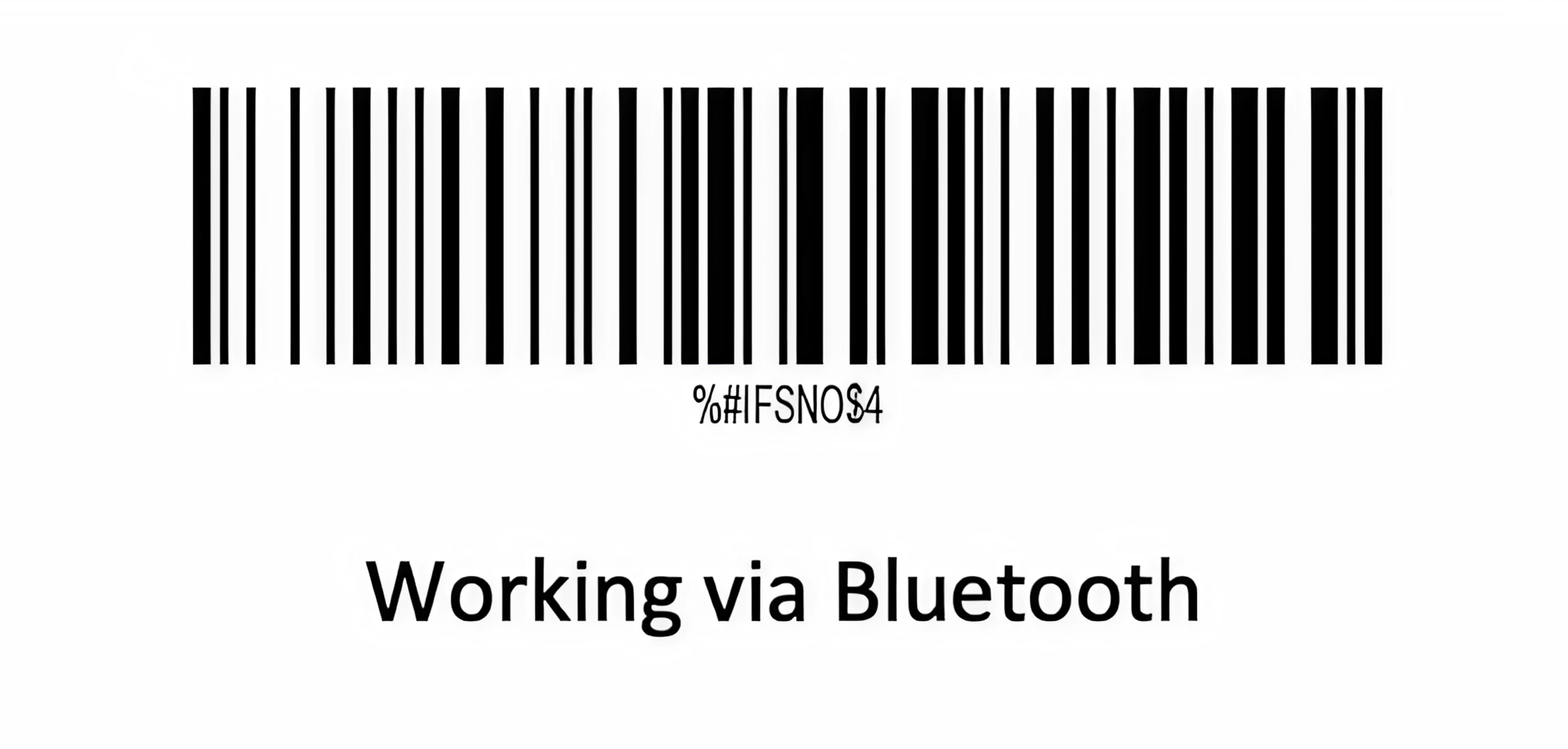
A lost wireless connection is a common reason your Netum scanner may seem broken. If your scanner beeps once, pauses, then emits “beep beep beep,” it’s signaling a pairing failure.
Use Pairing Barcode Method
To fix this, retrieve the Quick Start Manual that came with your scanner. Locate the Wireless Pairing Barcode, usually found in the first few pages. Scan this barcode with your Netum device. You should hear a confirmation tone, often “beep beep beep.”
Immediately after, plug the USB wireless receiver into your host computer. The receiver is typically stored under the scanner body or in its cradle. Wait for a single beep indicating successful pairing.
Try Bluetooth App Pairing for Mobile Devices
For Bluetooth models like NT-1228BL or C750, use the NetumApp available on Android and iOS if the barcode method fails. Turn on your scanner and enable Bluetooth on your phone or tablet. Open the NetumApp, select your scanner model, and follow the on-screen pairing instructions.
The app also allows you to configure advanced settings like data prefixes, suffixes, and enabled barcode types. This method is especially useful if the physical manual is missing or the pairing barcode is damaged.
Enable Required Barcode Types

Even if your scanner powers on and beeps, it may not recognize certain barcodes, especially 2D codes like QR or Data Matrix. This happens because factory settings disable non-essential symbologies by default.
Scan Symbology Enable Barcodes
To fix this, open your model-specific manual. Find the “Enable All Symbologies” barcode or individual barcodes for QR Code, Code 128, EAN-13, and others. Scan them in sequence to activate support. Test immediately with a known barcode to confirm recognition.
Avoid Misconfigured Data Output
Sometimes the scanner is working, but the data isn’t appearing where expected. This often occurs when suffix keys like ENTER or TAB are disabled. Without an ENTER suffix, scanned data won’t submit in forms or inventory systems, making it seem like nothing happened.
To fix this, scan the “SUFFIX: ENTER” command barcode from your manual. You can also use the NetumApp to set suffixes manually. If unsure, perform a factory reset first, then reconfigure with the correct output format.
Adjust Scanning Technique
Scanning too far or too close reduces success rates. Optimizing your technique often resolves “netum barcode scanner not working” issues that aren’t actually hardware problems.
Optimize Distance and Angle
For best results, hold your scanner at the correct distance based on its type. Red-light LED scanners work best at approximately 2 cm from the barcode. Laser 1D scanners use 6 to 25 cm distance. 2D imagers like NT-1228BL and C750 can scan up to 30 cm, depending on barcode size and lighting.
Hold the scanner perpendicular or slightly tilted, 10 to 45 degrees, to the barcode surface. Avoid pointing straight down at 90 degrees, as reflections from the scanner window can interfere with decoding. Sweep slowly across the code if the first attempt fails.
Test Barcode Quality and Lighting
Poor barcode quality is a frequent culprit. Check for faded, smudged, or wrinkled labels. Low contrast between bars and spaces causes scanning failures. Insufficient quiet zone, which is the white space around the barcode, also creates problems.
Pixelated or blurry printing, common with low-DPI thermal printers, prevents successful scans. Scan a known good barcode like one from the manual to isolate the issue. Also avoid direct sunlight or bright overhead lights, which can saturate the scanner’s sensor. Move to a shaded area or shield the barcode with your hand.
Perform Factory Reset
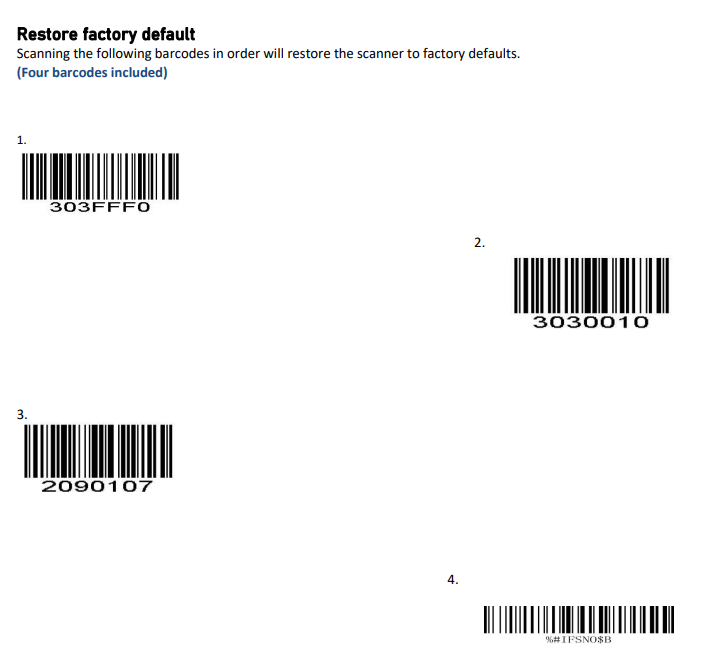
If the scanner still isn’t working, a factory reset clears all custom configurations that may be causing conflicts. This is especially helpful if you’ve changed prefixes, suffixes, or disabled essential symbologies.
Restore Default Settings
Open your manual and locate the Factory Reset Barcode. Scan it with your device. You’ll hear a triple beep followed by a reboot. After reset, the scanner returns to default settings with all barcode types enabled, suffix set to ENTER, and pairing cleared.
This procedure is available for C740, C750, W8-X, and other models. Check your specific manual for the correct barcode location.
Re-Pair After Reset
Immediately after resetting, re-pair the scanner using the Wireless Pairing Barcode. Insert the USB receiver into your host device after scanning the pairing barcode. Wait for the single beep confirmation. Then test scanning in a text editor.
If successful, reconfigure only the settings you need, such as a custom prefix. Avoid over-customizing unless necessary, as this often leads to the “netum barcode scanner not working” problem returning.
Verify Host Device Input
Before assuming the scanner is broken, confirm your host device is receiving input. This simple check saves time on unnecessary repairs.
Test in Text Editor First
Open Notepad on Windows, TextEdit on Mac, or any plain text application. Scan a barcode. If data appears, the scanner works, and your software may be blocking input. Check for incorrect keyboard layout settings like non-English language configurations. Disabled Num Lock or function keys can also cause problems.
Ensure Compatibility Mode
Netum scanners emulate a USB keyboard by default, sending scanned data as keystrokes. Some systems or apps block external keyboard input for security reasons. Check your device settings to ensure USB HID mode is allowed.
On POS or inventory systems, verify that the input field is active and not locked. Tap inside the field before scanning to ensure it can receive input.
Update Firmware and Software

Outdated firmware can cause pairing drops, slow decoding, or unresponsiveness. Keeping your scanner updated prevents many common issues.
Use NetumApp for Updates
Check for updates via the NetumApp. Open the app, connect your scanner, and look for a firmware update notification. Follow prompts to install. Updates often include improved Bluetooth stability, expanded barcode compatibility, and bug fixes for freezing or beeping issues.
Access Developer Tools for Advanced Diagnostics
For IT teams or developers, Netum provides SDKs for Android, iOS, and Windows. These allow deep diagnostics, remote configuration, and integration with warehouse management systems. Use the Android Bluetooth SPP SDK or iOS Bluetooth SDK to monitor scan logs and detect transmission errors.
For WiFi scanners, tools like Netum WiFi TCP Client enable network-based data routing and centralized monitoring.
Prevent Future Issues
Regular maintenance keeps your Netum scanner working reliably and avoids the “netum barcode scanner not working” frustration.
Maintain Scanner and Environment
Charge your scanner regularly and never let the battery fully drain. Store it in a dry, cool place and avoid temperatures below 0°C or above 40°C. Clean the scanning window regularly with a soft, lint-free cloth.
Use high-quality barcodes printed at 300 DPI or higher with black bars on white background. Poor-quality barcodes cause most unnecessary troubleshooting attempts.
Use Industrial Models for Tough Conditions
If you’re using the scanner in a warehouse, factory, or outdoor setting, standard models may struggle. Upgrade to industrial-grade scanners like NT-1200 or NT-1950. These offer enhanced resistance to dust, water, and drops. They provide better ambient light rejection and longer battery life with extended scan range.
These models are built for durability and perform consistently in challenging environments.
Frequently Asked Questions About Netum Barcode Scanner Not Working
Why does my Netum scanner beep but not send data?
This usually indicates a pairing failure or low battery. Recharge the scanner fully and re-pair using the Wireless Pairing Barcode from your manual. If beeping continues, check if the USB receiver is properly inserted and recognized by your computer.
How do I enable all barcode types on my Netum scanner?
Open your model-specific manual and locate the Prefix and Suffix Command Barcodes section. Scan the “Enable All Symbologies” barcode to activate support for all common barcode types, including QR Code, Code 128, and EAN-13.
Why does scanned data not appear in my software?
This typically happens when the ENTER suffix is missing. Scan the “SUFFIX: ENTER” command barcode from your manual to ensure data submits properly in forms and inventory systems.
What is the proper scanning distance for Netum scanners?
Red-light LED scanners work best at approximately 2 cm. Laser 1D scanners use 6 to 25 cm. 2D imagers can scan up to 30 cm away, depending on barcode size and lighting conditions.
How do I factory reset my Netum scanner?
Scan the Factory Reset Barcode from your manual. You’ll hear a triple beep, and the scanner will restart with default settings. Re-pair the scanner immediately after resetting.
Can sunlight affect my Netum scanner’s performance?
Yes, direct sunlight causes optical sensor saturation and prevents decoding. Use the scanner indoors or in shaded areas. For outdoor use, consider industrial models with enhanced ambient light resistance.
Key Takeaways for Fixing Your Netum Scanner
The “netum barcode scanner not working” issue is usually fixable with simple steps. Start by charging the scanner fully for 4 to 5 hours using a 5V power source. Re-pair the wireless connection using the barcode from your Quick Start Manual. Enable required barcode types and ensure the ENTER suffix is configured.
Most problems stem from configuration rather than hardware failure. Test in a text editor first to verify the scanner is working. Adjust scanning distance, angle, and lighting conditions for optimal performance. Perform a factory reset if all else fails, then reconfigure only necessary settings.
Keep your firmware updated via the NetumApp and maintain the scanner by charging regularly and cleaning the scanning window. If issues persist, contact Netum’s lifetime expert support or use the 365-day warranty for repair or replacement. Get back to scanning with confidence by keeping this guide handy for quick reference.





