
You rely on your Honeywell barcode scanner to keep operations running smoothly in warehouses, retail stores, and healthcare settings. When your Honeywell scanner is not charging, it disrupts workflows and slows productivity. This guide delivers fast, actionable solutions to get your device back online quickly.
You will learn how to diagnose the root cause, whether it is a dirty contact point, failing battery, or faulty charger, and apply proven fixes in minutes without guesswork.
Check Charging Indicator Lights
The first clue to your charging issue lies in the scanner LED behavior. Observe the light pattern carefully when placing the scanner in the cradle.
No Light When Docked
If no LED illuminates, the scanner is not receiving power. Start troubleshooting here.
• Confirm the cradle is plugged in and the outlet is live
• Try a different USB wall adapter (minimum 5V/2A)
• Swap the USB cable with a known-working, high-amperage version
Pro Tip: Use a phone charger that supports fast charging. Many low-power computer USB ports cannot initiate charging.
Solid Red vs. Flashing Red
Solid red means charging normally. Wait 30 minutes or more before testing.
Flashing red indicates a possible connection error or battery fault. Clean the contacts and reseat the scanner.
Green Light Issues
Solid green should mean fully charged. If the scanner dies quickly, the battery may be degraded.
Rapid green flash indicates configuration mode. Scan the exit barcode to return to normal operation.
Warning: Never force a firmware update unless directed. Interrupting it can cause boot failure.
Clean Charging Contacts
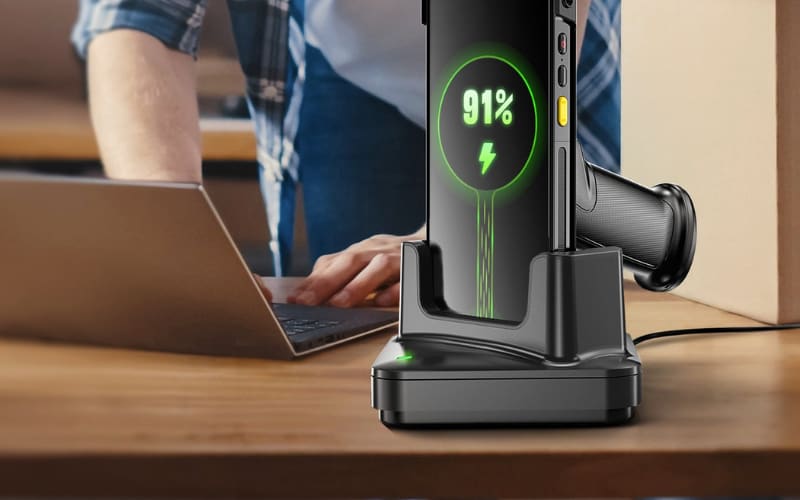
Dirt, corrosion, or misalignment prevents proper electrical contact between scanner and cradle.
Clean Scanner Terminals
Remove the scanner from the cradle and locate the metal charging contacts on the base of the device.
- Dampen a cotton swab with isopropyl alcohol
- Gently wipe each contact
- Dry thoroughly with a lint-free cloth
Clean Cradle Pogo Pins
Many models like the Voyager 1202g use spring-loaded pogo pins.
• Inspect for bent or corroded pins
• Clean with a dry brush or compressed air
• Avoid poking or pressing pins. They are delicate.
Expert Note: In dusty environments, clean contacts weekly to prevent buildup.
Test Power Source and Cable
Even with a perfect cradle, poor power delivery stops charging before it starts.
Replace USB Cable
• Use only certified, high-current cables (2A+)
• Avoid data-only cables. They look identical but will not charge
• Test with a cable known to work with smartphones or tablets
Use Wall Charger, Not Computer Port
USB ports on keyboards or older PCs often deliver less than 0.5A, which is insufficient for scanners. Plug the cradle into a wall-mounted USB adapter (5V/2A recommended).
Verify Adapter Output
Check the label on the power adapter for output specs: “5V⎓1A” or higher. If using a multi-port hub, ensure it is powered and not overloaded.
Quick Fix: Try charging your scanner with a phone charger. If it works, your original power source was inadequate.
Try a Different Charging Cradle
Cradles fail more often than scanners, especially after repeated use.
Swap with Known-Good Cradle
Test your scanner on another compatible cradle. If it charges, your original cradle is faulty and needs replacement.
Check for Secure Fit
The scanner should sit flush without wobbling. Misalignment means pogo pins are not making full contact.
Model Match Alert: Cradles are model-specific. A Voyager 1202g cradle will not work with a Xenon 1900.
Replace or Test the Battery

Battery failure is common after 1 to 2 years of heavy use.
Is the Battery Replaceable?
| Model | Replaceable? |
|---|---|
| Voyager 1202g | Yes |
| Granit 1910i | No (sealed) |
| Xenon 1900 | No (internal) |
| N6603 | Yes |
For user-replaceable models, power off the scanner, open the battery compartment, insert a genuine Honeywell replacement battery, and close and retest charging.
Avoid Third-Party Batteries: They may not meet voltage specs and can damage circuitry.
Diagnose Battery Health
Does the scanner die within minutes of removal from the cradle? Does it show full charge but drop to zero suddenly? These are signs of battery degradation.
Pro Tip: For fleets, track battery cycles using Honeywell Remote MasterMind (RMM).
Reset and Update Firmware
Software glitches can mimic hardware charging problems.
Perform Factory Reset
Reset all settings using a barcode from the user manual.
- Go to Honeywell support site
- Search your model User Manual or Programming Guide
- Find and scan the Restore Factory Defaults barcode
After reset, re-pair Bluetooth scanners to the host system.
Update Scanner Firmware
Outdated firmware may cause power management errors.
- Download Honeywell Update Utility or Enterprise Browser
- Connect scanner via cradle to PC
- Follow prompts to install latest firmware
Best Practice: Schedule quarterly firmware checks for mission-critical devices.
Diagnose Hardware Damage
Physical issues often go unnoticed until they stop working completely.
Inspect for Visible Damage
Look for these warning signs.
• Bent or broken charging contacts
• Cracks near the base
• Corrosion or discoloration (sign of liquid exposure)
• Loose parts when gently shaken
Check for Overheating
If the scanner gets hot during charging, unplug immediately. Overheating suggests an internal short or failing battery.
Safety First: Do not charge a swollen or leaking battery. Dispose of it properly.
Use Diagnostic Tools
For enterprise environments, leverage Honeywell advanced monitoring tools.
Honeywell Remote MasterMind (RMM)
Monitors battery health across multiple scanners. Alerts for abnormal charge cycles or rapid drain. Ideal for warehouses and distribution centers.
Honeywell Sentinel (Cloud Platform)
Tracks device performance in real time. Generates reports on battery lifespan and failure trends. Helps plan preventive replacements.
EZConfig Software
Diagnoses communication and power issues. Can force charging mode or disable power-saving features.
Note: These tools require network setup and admin access.
Prevent Future Charging Problems
Avoid downtime with proactive maintenance.
Weekly Maintenance Routine
• Clean scanner and cradle contacts
• Inspect cables for fraying
• Test backup cradle and battery
Optimize Charging Habits
Recharge when battery drops below 20%. Avoid full discharges. Lithium-ion batteries last longer with partial cycles. Store long-term at 50% charge in a cool, dry place.
Use Genuine Accessories Only
Honeywell-certified cradles, cables, and batteries ensure compatibility. Third-party chargers may underpower or overvoltage the scanner.
Cost-Saving Tip: Keep a spare battery and cradle on hand for critical operations.
Contact Honeywell Support
If nothing works, it may be time for professional help.
When to Call Support
• Scanner still will not charge after all troubleshooting
• Battery swelling or signs of internal damage
• Under warranty and need RMA (Return Merchandise Authorization)
What to Prepare
Before contacting support, gather this information.
• Model number (e.g., 1202g-3USB1)
• Serial number (found on bottom or inside battery tray)
• Proof of purchase
• List of steps already tried
Support Options
• Phone: Regional support via Honeywell AIDC website
• Online Portal: honeywellaidc.com/support
• Email/Chat: For non-urgent cases
Warranty Info: Most scanners include a 3-year warranty covering battery and charging components.
Final Troubleshooting Checklist
• No lights? Test outlet, cable, and cradle
• Dirty contacts? Clean with isopropyl alcohol
• Wrong power source? Use a 5V/2A wall charger
• Bad cradle? Swap with a working one
• Dead battery? Replace if model allows
• Software glitch? Reset and update firmware
• Hardware damage? Inspect for corrosion or impact
• Still not working? Contact Honeywell Support
Frequently Asked Questions About Honeywell Scanner Not Charging
Why is my Honeywell scanner not charging even when placed in the cradle?
This usually happens because of dirty charging contacts, a faulty cradle, or insufficient power delivery. Start by cleaning the contacts on both the scanner and cradle with isopropyl alcohol. Then test with a different power source (5V/2A wall charger) and try a known-good cradle if available.
How do I know if my Honeywell scanner battery is dead?
If your scanner dies within minutes of removal from the cradle, or shows full charge but drops to zero suddenly, the battery is likely degraded. For models with replaceable batteries (like Voyager 1202g), try swapping with a new genuine Honeywell battery to confirm.
Can I use a phone charger to charge my Honeywell scanner?
Yes, provided the charger outputs at least 5V/2A. Many computer USB ports and unpowered hubs do not deliver enough current for reliable charging. Using a phone fast charger is often the quickest fix for charging issues.
What do the LED lights mean on my Honeywell scanner?
Solid red means charging in progress. Flashing red indicates a connection error or low battery. Solid green means fully charged. No light means no power is being detected. Rapid green flash means the device is in configuration mode.
How often should I replace my Honeywell scanner battery?
Most lithium-ion batteries in Honeywell scanners degrade after 300 to 500 charge cycles, which typically means 1 to 2 years of heavy use. Monitor battery performance and replace proactively in mission-critical environments.
Does Honeywell offer warranty coverage for charging issues?
Yes, most Honeywell scanners include a 3-year standard warranty covering defects in materials and workmanship, including battery and charging components. Contact Honeywell support with your model and serial number to verify coverage.
Key Takeaways for Fixing Your Honeywell Scanner Not Charging Issue
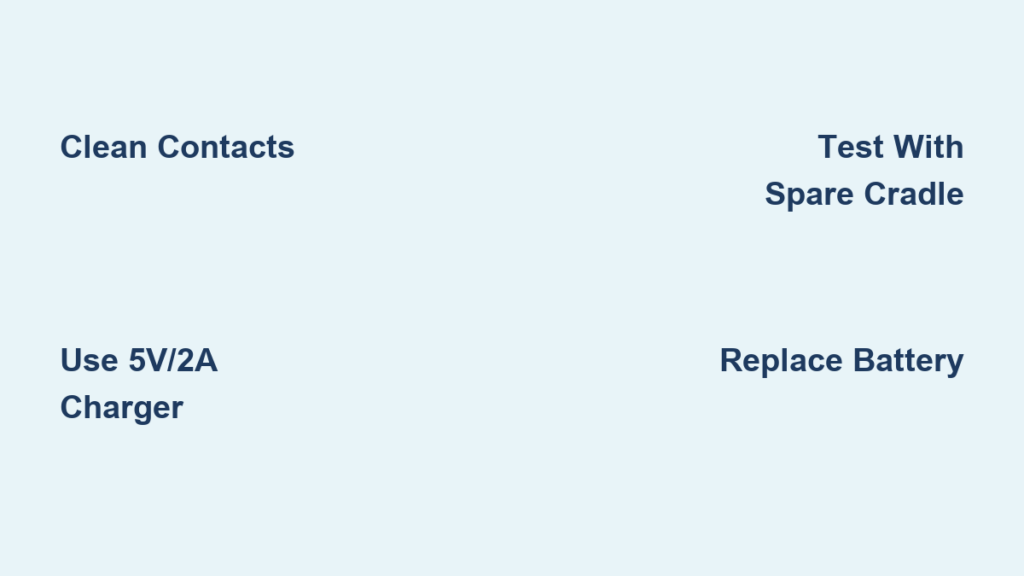
Most Honeywell scanner charging issues resolve through three simple fixes: cleaning dirty contacts with isopropyl alcohol, using a proper 5V/2A wall charger instead of computer USB ports, or replacing a worn battery. Always test with known-good accessories to isolate whether the problem is the scanner, cradle, or power source.
For enterprise deployments, use diagnostic tools like Honeywell Remote MasterMind to monitor battery health across fleets and replace batteries before they fail. Keep genuine spare batteries and cradles on hand for critical operations to minimize downtime.
If troubleshooting all steps fails, contact Honeywell support with your model number, serial number, and proof of purchase to pursue warranty coverage or professional repair.





