You press “Scan” on your Canon printer, but nothing happens. The screen shows “Set the PC to start scanning,” followed by “Select PC” — and only “Local (USB)” appears. You’re not alone. Thousands of Canon PIXMA and imageCLASS users face this exact issue: printing works fine, but scanning fails, especially after a Windows update or driver reinstall.
The root cause is that Canon printers use a push-scan protocol requiring specific software running on your PC. Without Canon IJ Scan Utility or MF Scan Utility, your computer simply won’t appear as a scan destination. This guide covers all models, connection types, and Windows versions including the problematic Windows 11 24H2.
Install Full Canon Driver Package with Scanning Software
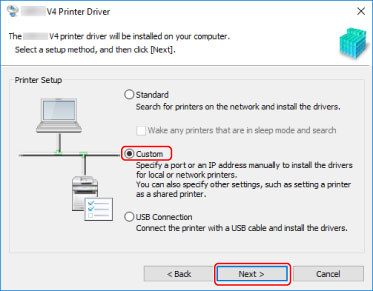
Canon printers need more than a basic driver to scan. If you only installed a minimal driver from Windows Update, your printer can print but not scan. You must install the full feature package that includes scanning software.
Check If Canon Utilities Are Installed
Open the Start Menu and look for a Canon Utilities folder. If it’s missing, your scanning software was never installed. Many users assume Windows Update provides everything, but Canon scanning utilities are not included.
Download Drivers from Canon Support
Go to Canon Support and enter your printer model. Select your operating system. If you’re on Windows 11 24H2 and no driver appears, choose Windows 10 (64-bit) instead. The Windows 10 scan patch often works perfectly despite no native 24H2 driver.
Look for file names like mp68-win-mg5300-101-ejs.exe for MG5300 series or cnijsetup.exe for newer models. Download the Network Scan, USB Scan patch if available.
Install All Driver Components
Run the installer and manually select every component. Do not skip any items, even if printing works. You need the Printer Driver, Scanner Driver, IJ Scan Utility for PIXMA models or MF Scan Utility for imageCLASS models, and MP Navigator EX if available.
After installation, restart your computer. This ensures all Canon services launch correctly.
Launch IJ Scan Utility Before Scanning from Printer
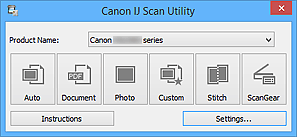
The scanning software must be running before you press “Scan” on the printer. This is the most common mistake users make. If IJ Scan Utility or MF Scan Utility is closed, your PC won’t appear in the “Select PC” list.
Open the Utility Manually
Press the Windows key, type “IJ Scan Utility” or “MF Scan Utility,” and click to launch. Once open, try scanning again from the printer. The PC should now appear as a wireless option.
Set Scanner Utility to Auto-Start
To prevent this issue in the future, enable auto-launch. Press Ctrl + Shift + Esc to open Task Manager, go to the Startup tab, find IJ Scan Utility or CanonIJScan, and click Enable.
Now the utility starts automatically when you log in, so scanning always works without manual intervention.
Fix Canon Scanner on Windows 11 24H2
The Windows 11 24H2 update breaks scanning for many Canon models. Users report that MF Scan Utility fails to launch and network scanning stops working, even if it worked perfectly before the update.
Use Windows 10 Scan Patch
Canon hasn’t released official drivers for all models on 24H2. But the Windows 10 (x64) scan patch often works perfectly. Visit Canon support, select Windows 10 (64-bit) for your model, download and install the Network Scan, USB Scan patch, then reboot.
A user with an MF212W on HP Notebook restored full scanning in under 2 minutes using this method.
Install .NET Framework Update KB5050577
This optional Windows update resolves compatibility issues with legacy Canon apps. Open Settings, go to Windows Update, click Optional Updates, check for KB5050577, install it, and restart your computer.
Without this update, MF Scan Utility may crash or fail to initialize.
Add TWAIN Path for Legacy Canon Scanners

Legacy Canon scanners like the MF6500 and MF6530 rely on TWAIN drivers stored in a specific system folder. If Windows can’t find them, scanning fails with errors like “device in use” or “cannot communicate.”
Update System PATH Variable
Press Windows + R, type sysdm.cpl, and press Enter. Click Advanced, then Environment Variables. Under System Variables, select Path and click Edit. Click New and add the path to your scanner’s TWAIN folder.
For MF6500 models, add: C:\Windows\twain_32\MF6500
Ensure you include the semicolon at the start to separate it from other entries. Click OK and restart your computer.
Resolve Network Scanner Connection Issues
Even with stable Wi-Fi, scanning may fail if the printer and computer aren’t properly configured for network discovery. This affects both wireless and Ethernet connections.
Verify Both Devices Are on the Same Network
Check that your Canon printer and computer are on the same subnet. If your printer is on a guest network while your PC is on the main network, they won’t communicate. Log into your router and ensure both devices share the same network segment.
Assign Static IP to Network Scanner
Dynamic IP assignment causes the scanner’s address to change, breaking saved connections. Access your router’s admin panel, locate the DHCP reservation section, find your Canon scanner by MAC address, and assign a static IP address like 192.168.1.100.
Save and restart the scanner. This prevents IP changes that break network scanning.
Use Alternative Scanning Methods
If software issues persist, bypass them entirely using these alternative methods that don’t require the Canon PC utilities.
Scan Using Canon PRINT Mobile App
Download the Canon PRINT Inkjet/SELPHY app on your iPhone or Android device. Ensure your printer and mobile are on the same Wi-Fi network. The app lets you scan directly to your phone, edit the images, save them, or upload to cloud services like Google Drive and Dropbox.
This method completely bypasses PC software issues and works reliably.
Use USB Direct Connection
Connect your printer to the PC using a USB cable. On the printer screen, select “Local (USB)” instead of wireless scanning. Use IJ Scan Utility or the Windows Scan app to initiate the scan.
This is useful for troubleshooting or temporary use when network scanning fails.
Complete Driver Reinstallation Procedure
When other fixes fail, a clean reinstallation often resolves the issue. This removes corrupted files and ensures a fresh start.
Uninstall All Canon Software
Open Control Panel, go to Programs, and uninstall every Canon entry. This includes IJ Scan Utility, MF Scan Utility, drivers, and any Canon utilities. Also remove Canon devices from Device Manager.
Disconnect the USB cable if connected. Restart your computer completely.
Reinstall from Canon Website
After restarting, download the full driver package from Canon Support for your specific model. Install all components again, reconnect your printer, and test scanning.
This process resolves issues caused by corrupted installations or conflicting files.
Test Scanner With Windows Troubleshooter
Windows includes a built-in troubleshooter that can detect and resolve common printer and scanner issues automatically.
Run the Printer Troubleshooter
Open Windows Search, type “troubleshoot,” and select Printer from the options. Click Run the troubleshooter and follow the prompts to detect and resolve issues.
This tool checks for common problems and may restore scanning functionality without manual intervention.
Frequently Asked Questions About Canon Printer Scanner Not Working
Why does my Canon printer show “Set the PC to start scanning” but no PC appears?
This means Canon scanning software isn’t installed or running on your computer. You need IJ Scan Utility (PIXMA) or MF Scan Utility (imageCLASS) installed and launched before scanning from the printer panel.
Can I use Windows Fax and Scan with my Canon printer?
No. Canon uses a proprietary push-scan protocol that Windows Fax and Scan cannot receive. You must use Canon’s dedicated scanning utility for panel-initiated scans.
Why does scanning work on one computer but not another?
This is usually caused by missing scanning software on the failing computer, a different network subnet, or firewall blocking Canon utilities. Install the full driver package and ensure both devices are on the same network.
How do I fix Canon scanner not working after Windows 11 24H2 update?
Download the Windows 10 (64-bit) scan patch from Canon support for your model. Install KB5050577 optional update. If issues persist, reinstall the full driver package after the update.
Do I need to keep Canon utilities installed permanently?
Yes. Unlike standard TWAIN scanners, Canon printers require the scanning utility to be present and running. Do not uninstall Canon utilities unless replacing the printer.
Key Takeaways for Fixing Canon Printer Scanner Issues
The Canon printer scanner not working problem stems from three main causes: missing scanning software, incompatible drivers after Windows updates, or network configuration issues. Always install the full driver package from Canon’s official website, not just what Windows Update provides. Keep IJ Scan Utility or MF Scan Utility running or set to auto-start before attempting panel scans.
For Windows 11 24H2 users, the Windows 10 scan patch is the most reliable fix. Legacy MF6500 and MF6530 models require adding TWAIN paths to system variables. If all else fails, the Canon PRINT mobile app provides a reliable alternative that bypasses PC software entirely.