
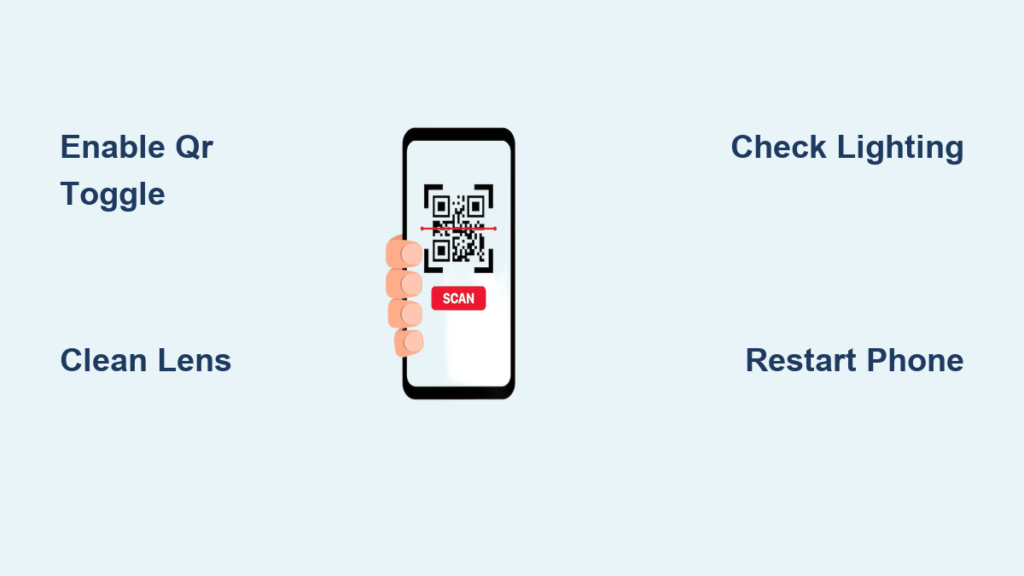
Your phone’s camera used to scan QR codes instantly. Now, nothing happens. No pop-up. No error. Just silence. You’re not alone. Millions face this issue weekly, and the good news is that 95% of “phone scanner not working” cases are software or setting issues, not broken hardware. Whether you’re using a Samsung Galaxy, Google Pixel, or budget Android, the fix is likely just a few taps away.
This guide cuts through the noise. No fluff. No guesswork. Just step-by-step troubleshooting based on real user reports and technical testing. You’ll learn how to diagnose if the problem is your phone, the QR code, or the environment, and how to fix it fast.
Enable QR Scanning in Camera Settings
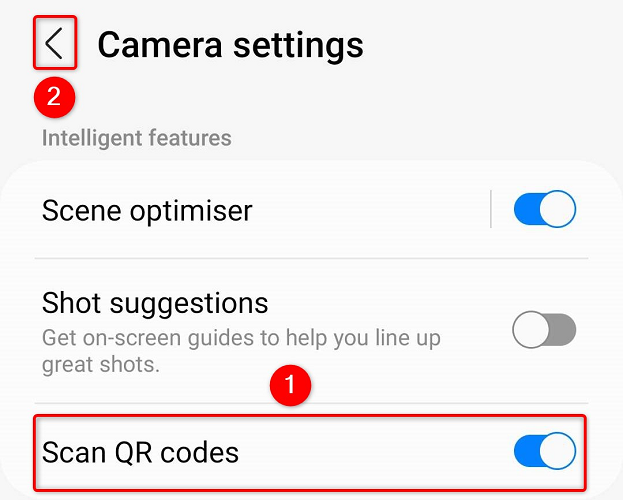
The most common cause of phone scanner not working issues is a hidden toggle that gets accidentally disabled. This is especially prevalent on Samsung Galaxy devices.
Find the Hidden QR Toggle on Samsung
On Samsung Galaxy phones, QR scanning can be silently turned off without any warning. Even if your camera works perfectly, the scanner won’t trigger unless this setting is enabled.
Steps to enable:
- Open the Camera app
- Tap the four-dot icon in the top-right corner
- Tap the gear icon to access settings
- Scroll to “Scan QR codes” and toggle it ON
The result is immediate scanning activation. Test with any QR code right away.
No visual cue shows when this is off, which is why many users waste time assuming hardware failure.
Locate the Setting on Other Android Devices
Not all phones place this toggle in the same location. Here’s where to look based on your device.
For OnePlus devices, go to Settings, then Apps, then Camera, and look for Advanced Features where you can enable “Scan codes.”
For Xiaomi devices, check the Quick Ball or use the Search Bar, as the scanner may be built into different areas of MIUI.
For general Android devices, try Settings, then Apps, then Camera, then Camera Settings, and look for “Barcode scanner” or “Smart scanning.”
Pro tip: Search “QR” or “scan” in your phone’s settings search bar to find the option faster.
Clean Lens and Optimize Lighting

A dirty camera lens is the number two cause of failed scans, right after disabled settings. Fingerprints, oil, and dust reduce clarity significantly.
Wipe the Camera Lens Properly
Smudges and debris make it hard for the camera to focus on the QR pattern.
How to clean:
Use a microfiber cloth, the kind used for eyeglasses.
Gently wipe both the front and rear cameras.
Avoid paper towels or your fingers, as these can leave residue or cause micro-scratches.
Testing shows that dirty lenses can cut scan success rates by up to 60%.
Fix Poor Lighting Conditions
Bad lighting tricks your camera into thinking the code isn’t scannable.
Ideal conditions include:
Bright, even lighting without direct sunlight, which causes glare.
Avoiding shadows or flickering lights from fluorescent fixtures.
Quick fixes:
Move to a well-lit area indoors.
Enable the flashlight if your phone supports manual activation.
Use matte surfaces instead of glossy paper or glass when scanning.
For screen-based codes, increase your phone’s brightness and reduce ambient light to minimize flicker.
Adjust Distance and Angle Correctly
Even perfect codes fail if you hold your phone wrong.
Hold Your Phone at the Right Distance
The optimal scanning range is 6 to 18 inches, which is 15 to 45 centimeters.
Hold the phone too close and the camera cannot focus. Hold it too far and the code appears blurry.
Get the Perfect Angle
Hold your phone flat and perpendicular to the QR code.
Avoid tilting the phone at steep angles, as this distorts the corners and makes detection difficult.
Keep your hands steady. Shaking or movement during scanning causes blur.
Do not use zoom unless the code is very large, like on a billboard.
A good rule of thumb is one inch of code size per foot of scanning distance.
Restart and Reset Camera App
Simple reboots fix temporary glitches, especially after software updates.
Reboot Your Device
A restart clears temporary system conflicts and memory issues.
Methods:
Press and hold the Power button and tap Restart.
Use the button combination: Volume Down plus Power until the device reboots.
Say “Hey Google, restart the phone” if you have Google Assistant enabled.
This takes less than 30 seconds. Test scanning immediately after your phone restarts.
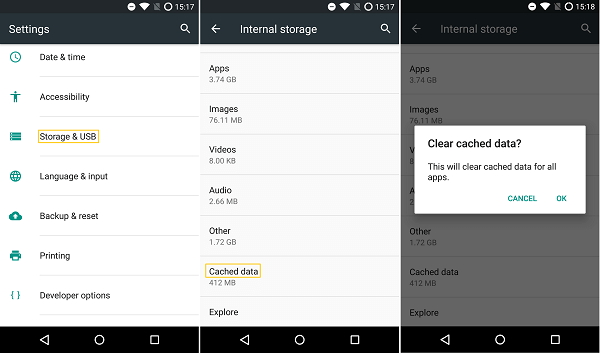
Clear Camera App Cache
Corrupted cache files can block scanning functions entirely.
Steps:
Go to Settings, then Apps, then Camera, then Storage.
Tap Clear Cache. This is safe and won’t delete your photos.
For a deeper reset, tap Clear Data, but be aware this resets all camera settings to default.
This clears corrupted temporary files and often restores QR detection capabilities.
Use Alternative Scanning Methods
When native scanning fails, these alternatives often work immediately.
Try Google Lens
Google Lens is your best backup when the native camera scanner fails. It has more advanced AI and better low-light performance, and it ignores disabled scanner settings.
Steps:
Open Google Lens through Google Photos, Google Assistant, or the standalone app.
Point your camera at the QR code.
Tap the detected link to open it.
Verified user feedback confirms that Google Lens scans what the regular camera ignores.
Install a Third-Party Scanner App
Free, reliable scanner apps bypass built-in issues entirely.
Top recommended apps from Google Play Store:
QR Code Reader by Scan
NeoReader
Kaspersky QR Scanner
These apps support all barcode types, keep scan history, and work on older Android versions.
Only install from trusted developers, and grant camera permission when prompted.
Use Quick Settings QR Tile
Many Android devices have a dedicated QR scanner tile in the notification shade.
How to access:
Swipe down from the top of your screen.
Look for the “Scan QR code” tile.
If it’s missing, tap the pencil icon to edit, add the tile, and save.
This gives you one-tap scanner access without opening the camera app.
Diagnose QR Code Design Flaws
Sometimes the scanner works fine, but the QR code itself has problems.
Check for Adequate Quiet Zone
A quiet zone is the blank margin around the QR code. Without it, scanners cannot detect the corner position markers.
The requirement is at least 4 modules wide, which means the smallest square in the grid.
Common mistake: placing text, logos, or borders too close to the code.
Always leave a white border around all sides. Never overlay graphics on or near the code.
Test Color Contrast
Low contrast between the code and background causes scanning to fail.
Best combinations:
Black on white is the most reliable.
Dark blue on white also works well.
White on deep red can work but test first.
Combinations to avoid:
Light gray on white fails.
Navy on black often fails.
Yellow on beige has insufficient contrast.
Take a screenshot and zoom in. If edges look fuzzy or indistinct, the code will likely fail.
Verify Size and Resolution
Blurry or tiny codes won’t scan, regardless of how good your phone camera is.
The minimum size for handheld use is 2 centimeters by 2 centimeters, which is about 1 inch by 1 inch.
For printing, use vector formats like SVG or EPS to avoid pixelation.
For raster images, use 300 DPI at the final print size.
A blurry 1-centimeter-squared code has a 70% lower success rate than a sharp one.
Fix Backend Link Issues
The scanner might work perfectly, but the destination URL might be broken.
Check for Broken or Expired Links
Symptoms include the QR code scanning successfully but opening a browser showing “404 Not Found” or “Page Unavailable.”
This happens when the landing page was deleted, the website was restructured without redirects, or there was a typo in the original URL.
Prevention involves using dynamic QR codes, which allow you to edit the destination URL later.
Shorten Long URLs
Long URLs with tracking parameters create dense, hard-to-scan codes.
A 150-character URL increases module density by approximately 40% compared to a shorter link.
Use URL shortening services like Bitly, TinyURL, or Rebrandly, or generate a dynamic QR code with built-in shortening.
Test Across Devices and Environments
If your QR code works on one phone but not another, the issue is compatibility.
Why Some Phones Scan and Others Don’t
Camera quality matters. Flagship phones like Samsung S23 Ultra and iPhone 15 Pro have better autofocus and low-light sensors.
Software differences also play a role. Android 9 and above support native scanning, while older versions need third-party apps.
Some users disable scanning for privacy reasons in their settings.
Test with multiple devices including the latest iPhone, a Samsung Galaxy, and a budget Android device like Nokia or Motorola before publishing any QR code.
Prevent Future Failures
Follow this checklist before printing or sharing any QR code.
Best practices checklist:
Ensure high contrast between modules and background.
Maintain a 4-module quiet zone with no overlapping elements.
Test the URL manually and confirm it loads properly.
Scan with both iOS and multiple Android models.
Test under real-world lighting and angles.
Match code size to expected scanning distance.
Use dynamic QR codes instead of static ones for editable destinations.
Monitor Published Codes Long-Term
QR codes require ongoing maintenance.
Track scans using dynamic code analytics if available.
Test quarterly or after any website updates.
Replace codes that are faded, torn, or water-damaged.
Set up alerts for sudden drops in scan volume, which often indicates a broken link.
The recommended frequency is testing all published codes every 3 to 6 months.
When Hardware Failure Is the Real Problem
True hardware failure is rare. Look for these signs before pursuing repair.
Signs of Camera Damage
The camera app crashes consistently when opening.
Images are blurry even in bright daylight.
Other camera modes like portrait and video also fail.
Next Steps for Hardware Issues
Try a third-party scanner app. If it also fails, your camera hardware may be damaged.
Contact your manufacturer support if you’re still under warranty.
Visit an authorized service center for assessment.
Remember that most issues are not hardware-related. Only pursue repair after ruling out all software and environmental causes.
Key Takeaways for Fixing Phone Scanner Not Working Issues
The vast majority of phone scanner not working problems stem from three simple causes. First, the QR scanning toggle is disabled in camera settings, especially common on Samsung devices. Second, the camera lens is dirty or lighting conditions are poor. Third, software glitches after updates need a simple restart or cache clear.
For users, always check the QR scanning toggle first, then clean your lens, then try Google Lens as a backup. For QR code creators, design for compatibility by using high contrast, vector formats, adequate quiet zones, and always test across multiple devices before publishing.
With these steps, you’ll restore scanning functionality fast and keep it working long-term.
Frequently Asked Questions About Phone Scanner Not Working
Why does my phone scanner suddenly stop working?
The most common reasons are that the QR scanning toggle got disabled in your camera settings, your camera lens became dirty, or a recent software update caused a temporary glitch. Try enabling the scanner toggle, cleaning your lens with a microfiber cloth, and restarting your phone.
Do QR codes expire or stop working?
The QR code pattern itself never expires. However, static QR codes become useless if the linked website deletes the landing page or changes their URL structure. Use dynamic QR codes if you need to update the destination URL later without reprinted codes.
Why can some phones scan a QR code but not others?
This happens due to differences in camera quality, operating system versions, and scanning algorithms. Flagship phones have better autofocus and low-light sensors. Older Android versions may not have native scanning built in. Always test your QR code across multiple devices before publishing.
Can a dirty lens cause scanning to fail?
Yes. A smudged or dusty camera lens reduces image clarity significantly, making it hard for the camera to focus on the QR pattern. Cleaning with a microfiber cloth can improve scan success rates by up to 60%.
Is hardware damage usually the cause of scanning issues?
No. Hardware failure is rare. Over 95% of scanning issues are caused by software settings, dirty lenses, poor lighting, or QR code design flaws. Only suspect hardware damage if your camera app crashes consistently and other camera modes also fail.





