
You’ve just finished printing an important document, but now you need to digitize a contract, photo, or school assignment. Whether you’re using a desktop, laptop, or smartphone, knowing how to use an HP scanner efficiently saves time and streamlines your workflow. This guide walks you through every method, from using the HP Smart app to Windows built-in tools and legacy software, so you can scan documents quickly and accurately.
Verify HP Scanner Setup Before Scanning
Before initiating any scan, ensure your HP printer is properly configured and ready to go.
Check Physical Components
Power on your HP printer and verify the scanner lid opens and closes smoothly without any resistance. Inspect the flatbed glass for smudges, dust, or debris, and clean with a lint-free cloth if needed. If your model includes an Automatic Document Feeder, confirm there are no paper jams and the rollers are clean and free of debris.
Confirm Connectivity
For wired connections, ensure the USB cable is securely plugged into both the printer and your computer. For wireless setups, verify the printer and your device are on the same Wi-Fi network. Look for a solid or blinking blue Wi-Fi light on the printer control panel. If pairing fails, press the Wi-Fi button once to initiate connection.
Install Required Software
Download the latest HP drivers from hp.com/support using your specific model number. Install the HP Smart app for full functionality across all devices. Older models may require HP Printer Assistant or HP Scan and Capture for Windows.
Scan Documents Using HP Smart App
The HP Smart app delivers the most intuitive and feature-rich scanning experience across any device, making it the recommended method for most users.
Install HP Smart
On Windows or Mac, visit hp.com/go/smart to download and install the app. On Android, search for “HP Smart” in the Google Play Store. On iOS, find “HP Smart” in the App Store and install it.
Add Your HP Printer
Open HP Smart and tap Add Device. Select Set up a new printer and choose Wi-Fi as your connection method. Tap Continue and select your specific model from the list. Enter your Wi-Fi password when prompted, then press the Wi-Fi button on your printer once. Wait for confirmation in the app that setup is complete.
Start a Basic Scan
Place your document face-down on the flatbed, aligning the top-right corner with the scanner’s corner mark. Close the lid gently. In HP Smart, tap your printer and select Scan. Adjust settings including paper size (Letter, A4, or Legal), resolution (200 dpi for text, 300 dpi for photos), color mode (Color, Grayscale, or Black and White), and file format (PDF recommended for documents, JPEG for photos). Tap Scan and wait approximately 12 seconds for processing.
Edit and Save Your Scan
After scanning, crop borders by dragging corners to adjust the scan area. Tap Rotate to correct orientation if needed. Use the OCR feature to extract editable text from your scan if supported by your model. Add annotations with highlights, arrows, or drawings as required.
Share or Save Your File
Tap Next after scanning to access save and share options. Choose Save to pick a location like Photos or Documents on your device. Choose Share to send files via email, WhatsApp, Google Drive, or iCloud. Rename your file before saving to keep documents organized.
Multi-Page Scanning Made Easy

Digitize multi-page contracts, reports, or books efficiently using these methods.
Manual Multi-Page Scanning
Scan your first page using the basic scan process. Remove the sheet and insert the next page on the flatbed. Tap Add in HP Smart to scan another page. View all pages as thumbnails in the app. Reorder, delete, or rotate individual pages as needed. Combine all pages into one PDF file before saving.
Use ADF for Hands-Free Scanning
Models like HP ENVY 7791C1 and OfficeJet series include Automatic Document Feeder capability. Load up to 10 to 35 sheets into the ADF tray depending on your model. In HP Smart, select Use ADF before scanning. Choose Duplex for two-sided scanning if available. Tap Scan and the printer feeds and scans automatically without intervention.
Scan Using Windows Built-In App
No extra software required. Use Microsoft’s native Scan app for basic scanning functionality.
Install the Windows Scan App
Open Microsoft Store and search for “Scan”. Install the Scan app by Microsoft, which is free to download.
Start Scanning with Windows Scan
Launch the Scan app from your Start menu. Under Scanner, select your HP printer from the dropdown. Set your preferences including file type (PDF, JPEG, or PNG), page size, resolution (150 to 600 dpi), and color mode. Place your document face-down on the scanner glass and click Scan.
Save the Scanned File
A preview appears automatically after scanning completes. Click Save As and choose your preferred folder like Desktop or Documents. Enter a filename and click Save to complete the process.
Legacy Options for Older Systems
For older HP models or enterprise environments, these legacy tools remain available.
HP Printer Assistant
Press Start and type “HP Printer Assistant” to open the application. Click Scan a Document or Photo to access scanning features. Choose your scan type, destination folder, file format, and resolution settings. Click Scan and save when complete.
HP Scan and Capture
Download HP Scan and Capture from hp.com/support if available. Install and launch the program. Select your HP scanner from the device list. Set your preferences for resolution, file type, and output folder. Click Scan to begin and save or export your file when finished.
Fix Common HP Scanner Problems
Quick solutions to get your HP scanner working again when issues arise.
Scanner Not Appearing in App
Restart both your printer and computer to refresh the connection. Reinstall HP Smart or update your printer drivers from hp.com/support. Disable firewall or antivirus software temporarily to test whether security settings are blocking communication.
Blurry or Dark Scans
Clean the scanner glass with a dry, lint-free cloth to remove smudges and debris. Increase your resolution setting to 300 dpi for clearer results. Avoid angled placement and ensure documents align precisely with the corner marks. Adjust brightness and contrast in the scan settings if available.
Wi-Fi Connection Fails
Confirm your printer and computer are connected to the same network. Reconnect through the printer control panel using Settings, Network, and Wireless Setup Wizard. Reset network settings by holding the Wi-Fi button for 5 seconds until the light blinks.
ADF Paper Jams or Skips
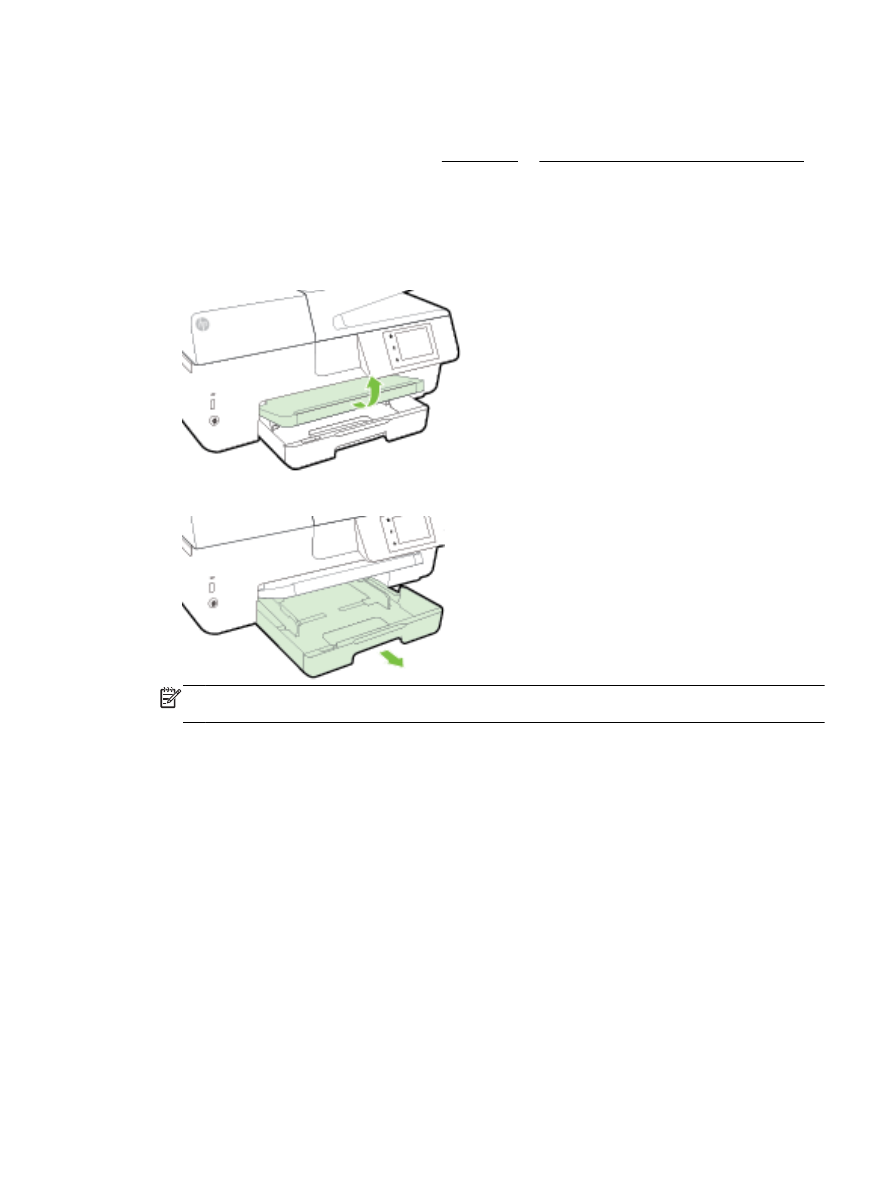
Remove any jammed paper carefully from the ADF tray. Fan your pages before loading to prevent sheets from sticking together. Clean ADF rollers with a dry cloth to remove dust and residue. Reduce your stack size to 10 or fewer sheets to prevent overload issues.
Optimize Scan Settings for Quality Results
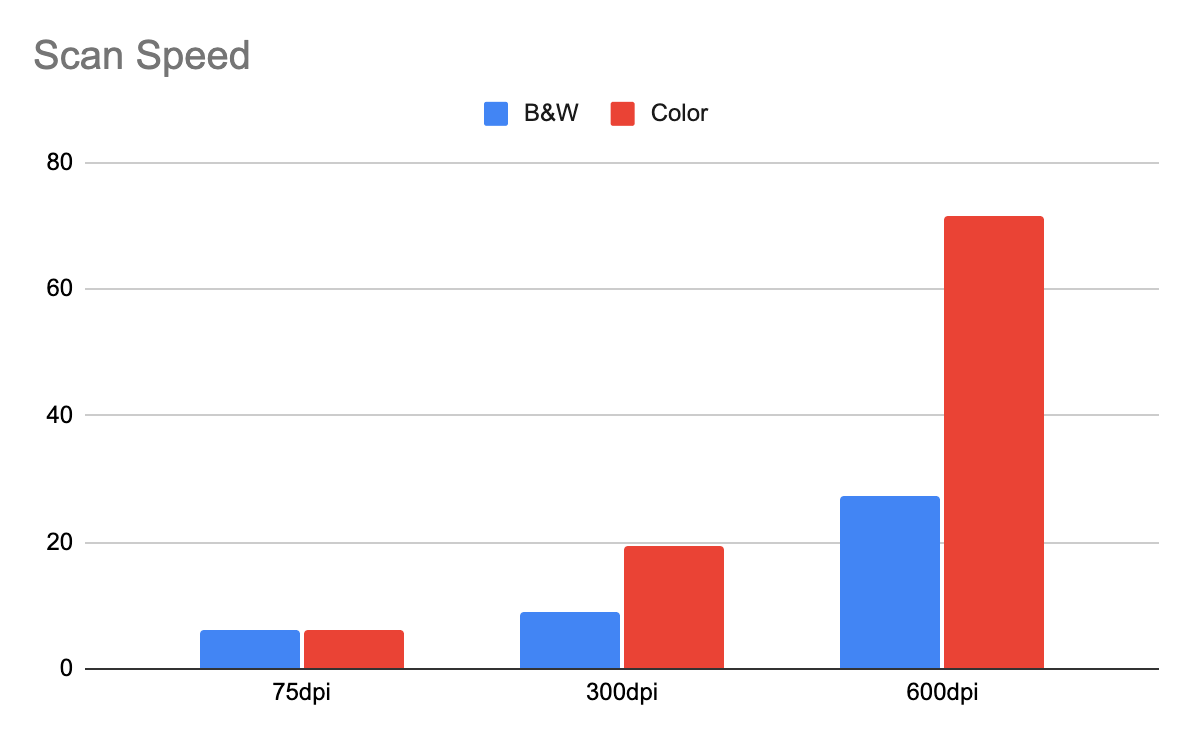
Choose the right settings for crisp, usable scans every time.
Recommended Settings by Use Case
| Use Case | Resolution | Color Mode | Format |
|---|---|---|---|
| Text Document | 200 dpi | Black and White | |
| Photo Scan | 300 dpi | Color | JPEG |
| Archival Document | 600 dpi | Color | |
| Fax or Email | 150 dpi | Grayscale |
File Format Tips
PDF format works best for documents and multi-page files that need to preserve layout and be easily shared. JPEG format is ideal for photos and images intended for social media or web use. Use PNG or TIFF formats for high-detail images or files requiring further editing in graphic software.
Maintain Your HP Scanner for Long-Term Use
Keep your device performing at its best with regular maintenance.
Cleaning Routine
Wipe the scanner glass weekly with a microfiber cloth to prevent streaks and spots. Apply glass cleaner to your cloth rather than spraying directly on the glass. Clean ADF rollers monthly with a dry paper towel to maintain proper feed functionality.
Software Maintenance
Open HP Smart regularly and check for firmware updates to keep your printer running optimally. Use HP Support Assistant on Windows to enable automatic driver updates. Reinstall HP Smart if the app becomes unresponsive or crashes frequently.
File Management Tips
Create a dedicated folder named Scanned Documents on your desktop or in cloud storage. Name files clearly using a consistent format like Invoice_CompanyName_Date.pdf. Back up important scans to Google Drive, Dropbox, or an external drive to prevent data loss.
Mobile Scanning: Scan from Your Phone
Turn your smartphone into a portable scanner without needing a computer.
Steps to Scan Remotely
Ensure your HP printer is powered on and connected to Wi-Fi. Open the HP Smart app on your phone. Tap Scan and select your printer to use it as the scanner. Follow the on-screen prompts to scan via flatbed or ADF depending on your document type. Save directly to your phone or send to cloud storage instantly.
Key Takeaways for Using Your HP Scanner
Always power on your printer and verify the scanner glass is clean before scanning. Connect via USB or ensure your device is on the same Wi-Fi network as your printer. Install HP Smart for the most feature-rich scanning experience across all your devices. Place documents face-down and align with the corner mark for accurate scanning. Adjust resolution, color mode, and file format based on your specific needs. Save or share scans immediately to prevent losing your work.
Frequently Asked Questions About HP Scanners
Can I scan documents without installing HP software?
Yes, you can use the Windows Scan app from Microsoft Store for basic scanning without HP software. However, the HP Smart app offers more features including OCR, editing tools, and cloud sharing options.
Why is my HP scanner not connecting to Wi-Fi?
Ensure both your printer and computer are on the same Wi-Fi network. Restart your printer and router, then try reconnecting through the control panel. Reset network settings by holding the Wi-Fi button for 5 seconds until the light blinks.
What resolution should I use for scanning documents?
Use 200 dpi for standard text documents and 300 dpi for photos or high-quality images. For archival purposes or detailed graphics, use 600 dpi for the best results.
How do I scan multiple pages into one PDF?
Using HP Smart, scan your first page, then tap Add to scan additional pages. Arrange the thumbnails in order, then combine them into a single multi-page PDF before saving.
Can I scan from my phone to my HP printer?
Yes, download HP Smart on your iOS or Android device, add your printer, and use the Scan feature to send documents directly from your phone to the printer.





