
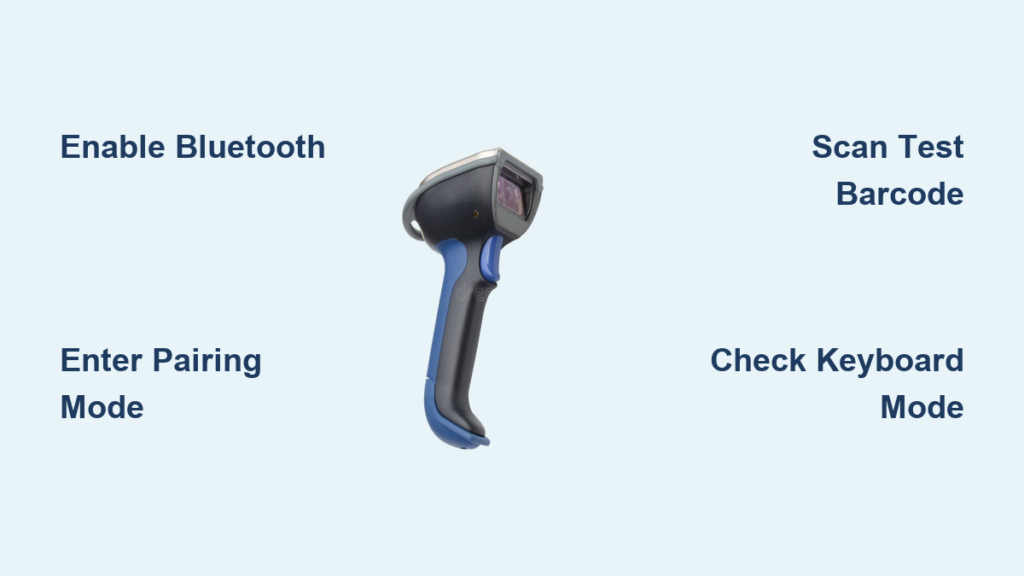
You’ve just purchased a Bluetooth barcode scanner and need to get it working right away. Whether you’re managing inventory, processing sales at a retail counter, or tracking assets in a warehouse, knowing how to use a Bluetooth scanner properly can dramatically improve your workflow efficiency. This guide walks you through every step from unboxing to daily use, covering pairing, configuration, troubleshooting, and maintenance.
Most modern Bluetooth scanners work as wireless keyboards, meaning they type scanned data directly into any text field without requiring special software. This plug-and-play functionality makes them incredibly versatile, but getting the most out of your device requires understanding how to pair it correctly, customize its output, and keep it running reliably. By the end of this guide, you’ll be able to connect your scanner to any device, configure it for your specific needs, and resolve common issues independently.
Pair Your Bluetooth Scanner

Enable Bluetooth on Your Host Device
Before pairing your scanner, you must turn on Bluetooth and make your device discoverable. The process varies slightly depending on your operating system, but the core steps remain the same across platforms.
On Windows, navigate to Settings, then Devices, and select Bluetooth & other devices. Click “Add Bluetooth or other device” and ensure Bluetooth is turned on. On Android, go to Settings, tap Connections or Network & Internet, and enable Bluetooth in the Bluetooth settings menu. iOS users should open Settings and toggle Bluetooth on. Your device is now ready to discover nearby Bluetooth devices, including your scanner.
Wait briefly for available devices to populate the list. Your scanner should appear within a few seconds after you activate its pairing mode.
Activate Scanner Pairing Mode
To make your scanner discoverable, you need to put it into pairing mode. This is typically done by pressing and holding the trigger button for approximately 5 seconds until a red LED illuminates or you hear an audible beep confirmation.
Some scanner models require scanning a specific “Enter Pairing Mode” barcode from the user manual rather than using a button press. If your scanner has a dedicated Bluetooth button, a single press usually initiates broadcasting. A flashing red or blue light indicates the scanner is now discoverable and ready to pair with your host device.
Select and Confirm the Connection
Once your scanner appears in the Bluetooth device list, tap or click its name to initiate pairing. Scanner names vary by manufacturer and model, commonly appearing as “Bluetooth Keyboard,” “Barcode Scanner,” or a specific model name like “Tera HW0009.”
Most HID-mode scanners do not require a PIN code for pairing. Upon successful connection, you’ll hear a confirmation beep from the scanner. If your scanner doesn’t appear in the list, ensure it is within 3 feet of your device and not already paired to another device.
Test the Scanner Immediately
Scan Into a Text Field
After pairing, verify that your scanner is functioning correctly before using it in your actual workflow. Open a simple text application such as Notepad on Windows, Notes on iOS, or any text input field on your device.
Scan a test barcode. The decoded data should appear instantly in the text field with no additional steps required. This immediate appearance confirms successful data transmission and indicates your scanner is properly configured as a keyboard input device.
A successful scan typically triggers an automatic Enter or Tab character if your scanner is programmed to do so, allowing seamless integration with forms and applications.
Verify Real-World Functionality
Once basic testing is complete, test your scanner in your actual work environment. Scan a product barcode into your POS system, enter an asset tag into a spreadsheet or inventory application, or input a serial number into your asset management software.
If data doesn’t appear as expected, check for common issues such as disabled keyboard emulation or keyboard language mismatches, both of which are covered in the troubleshooting section later in this guide.
Configure Scanner Settings
Customize Output Format
Most Bluetooth scanners allow you to modify how scanned data is transmitted using configuration barcodes from the user manual. Common adjustments include adding prefix or suffix characters to your scans, such as location codes or inventory identifiers.
You can also configure your scanner to append Enter, Tab, or Carriage Return characters after each scan, which automatically submits data in forms. Additional formatting options include removing leading zeros or converting text to uppercase for consistent data entry.
To program these settings, scan the appropriate configuration barcodes from your manual in sequence. Some manufacturers also provide software tools for generating custom configurations.
Adjust Inactivity Timeout
By default, many scanners enter sleep mode after 20 seconds of inactivity to conserve battery life. During busy work shifts, frequent re-pairing can become inconvenient.
Scan the 60-second sleep mode configuration barcode from your manual to extend the inactivity timeout. This adjustment reduces the need for repeated reconnection during lulls in scanning activity.
Match Keyboard Language
A common issue that causes garbled output is a mismatch between the scanner’s emulated keyboard language and your host device’s keyboard layout. For example, you might see “@” characters appearing instead of “2” when scanning.
Ensure your host device uses the standard US QWERTY keyboard layout, then reprogram your scanner to match using the language configuration barcode from your manual. Avoid switching between different national layouts like UK and US, as this creates persistent character mapping problems.
Switch Scanning Modes
Your scanner likely supports multiple scanning modes suited to different use cases. In trigger mode, you press the scan button for each barcode, which provides precise control and is ideal for accuracy-critical applications.
Continuous mode automatically scans whenever a barcode enters the scanner’s field of view, making it suitable for high-volume sorting operations. Scan the appropriate mode configuration barcode to switch between these options.
Connect to Specific Devices
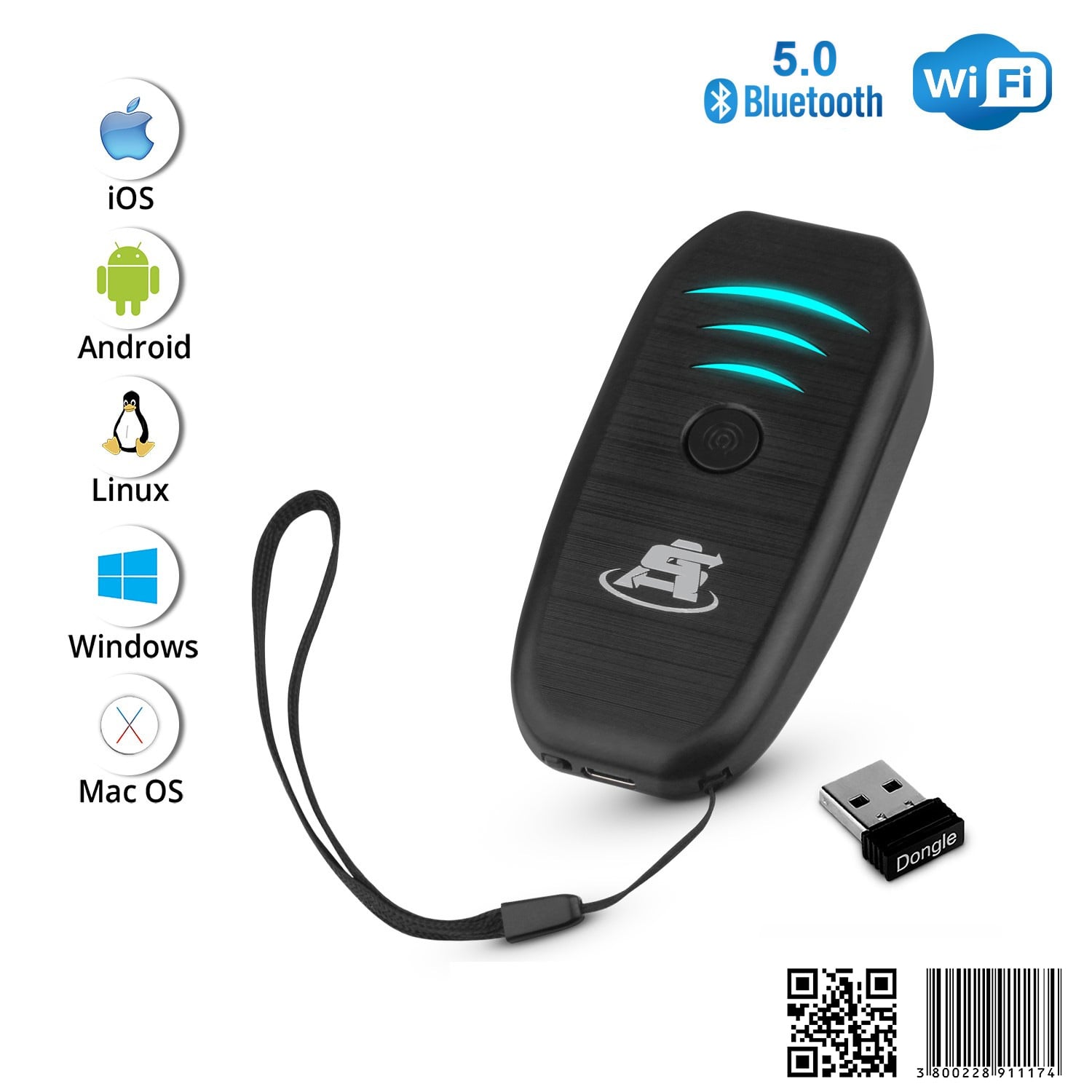
Pair With Windows Computers
Open Settings, then Devices, and select Bluetooth & other devices. Click “Add Bluetooth or other device,” choose Bluetooth, and put your scanner in pairing mode. When the scanner appears in the list, select it to complete pairing.
After connecting, test the scanner by scanning barcodes into Notepad or Excel. Windows devices recognize the scanner as a keyboard input device, so it works with virtually any application that accepts text input.
Pro tip: Disable Windows “typing assistance” features in your settings to prevent interference during rapid scanning sessions.
Connect to Android Devices
Navigate to Settings, then Connections or Network & Internet, and enable Bluetooth. Wait for your scanner to appear in the available devices list, then tap to pair.
If scanned data doesn’t appear after pairing, tap the gear icon next to your scanner in the Bluetooth settings. Look for an option called “Pause Scanning” or “Keyboard” and ensure it is enabled. This step allows the scanner to function as a keyboard input device on Android.
The scanner should work with inventory applications like Asset Vue, Sortly, Zoho Inventory, and similar apps that accept keyboard input.
Pair With iOS Devices
Open Settings and enable Bluetooth. Put your scanner in pairing mode and select it from the available devices list when it appears.
Critical consideration: iOS supports BLE and HID Bluetooth profiles but does not support SPP unless the scanner is MFi-certified. Ensure your scanner uses BLE or HID mode for reliable iPhone and iPad performance. Using an SPP-mode scanner on iOS will result in connection failures.
Use With POS Systems
Most modern POS terminals including Square, Shopify, Toast, and similar systems accept Bluetooth HID input natively. Enable Bluetooth on your POS device, put your scanner in pairing mode, select the scanner from the device list, and test by scanning a product barcode.
This plug-and-play functionality means no additional configuration is typically required for retail POS environments.
Integrate With Software Systems
Use Plug-and-Play HID Mode
The HID (Human Interface Device) profile allows your scanner to function as a keyboard, transmitting scanned data directly into any text field. This approach requires no SDK installation or special software, making it perfect for small businesses and quick deployments.
Common applications include spreadsheets like Excel or Google Sheets, web forms, inventory management systems, and ERP or WMS software. Any application that accepts keyboard input can receive scanned data without modification.
Enable Advanced API Integration
For enterprise environments requiring structured data capture, manufacturer SDKs provide programmatic control over scanner functions. These tools allow you to capture metadata including scan timestamps and user IDs, trigger specific actions within custom applications, and validate scans against databases in real time.
SDKs are available for Android, iOS, Windows, and web platforms. This approach is recommended for organizations with custom software requirements or those needing audit trails for scanned data.
Sync Data to the Cloud
Scanned data typically flows through a two-step process. First, the scanner transmits data via Bluetooth to your host device. Second, your host application pushes that data to cloud platforms such as Google Sheets, Salesforce, Oracle NetSuite, or custom ERP systems.
For reliable cloud sync, ensure your scanner uses HID or BLE profiles, your application supports background data transmission, and your scanner firmware is current. Regular firmware updates improve compatibility and add new features.
Choose the Right Scanner Features
Know Your Barcode Type
Different scanners handle different barcode types. 1D scanners read traditional linear barcodes like UPC and Code 128, which are common in retail environments.
2D imagers handle QR codes, DataMatrix codes, and PDF417, plus barcodes displayed on phone screens. If you need to scan digital tickets, PDFs, or damaged codes, a 2D imager is essential.
DPM (Direct Part Marking) scanners read etched or laser-marked codes on metal parts, plastic components, and irregular surfaces. These specialized scanners are used in aerospace, automotive, and medical device manufacturing.
Check Wireless Performance
Bluetooth HID provides universal keyboard emulation compatibility across all major platforms. BLE (Bluetooth Low Energy) offers lower power consumption, making it ideal for mobile devices and extended scanning sessions.
SPP (Serial Port Profile) enables custom serial communication but is not supported on iOS unless the scanner is MFi-certified. Some scanners include a 2.4GHz USB dongle as a backup option for environments with significant Bluetooth interference.
To minimize wireless congestion, keep scanners away from Wi-Fi routers and consider upgrading to 5GHz Wi-Fi to reduce interference in busy environments.
Verify Device Compatibility
Before purchasing, confirm your scanner supports your operating system (Android, iOS, Windows), your specific inventory or POS software application, and the necessary Bluetooth profile (HID or BLE for plug-and-play functionality).
Review the model specifications carefully to ensure compatibility with your existing systems.
Maximize Battery Life
Battery life varies significantly across models, typically ranging from 8 to 35 hours depending on usage patterns and model design. Recharge your scanner via the included USB cable.
For demanding environments, consider models like the Tera 8100 Industrial 2D, which offers up to 35 hours of battery life. Always charge fully before first use and avoid deep discharges to maximize battery longevity.
Prioritize Durability
For challenging environments, look for scanners with appropriate protection ratings. IP65 or higher provides dust and water resistance. Drop testing to 1.5m or 2m ensures survival of accidental falls.
Wide operating temperature ranges make scanners suitable for cold storage facilities and outdoor locations. These durability features are essential for warehouse, manufacturing, and field service applications.
Maintain Your Scanner
Clean the Lens Weekly
Regular cleaning prevents scan failures and performance degradation. Use a soft, lint-free cloth to clean the scanning window. For stubborn residue, lightly dampen the cloth with isopropyl alcohol.
Avoid abrasive cleaners, paper towels, or harsh chemicals that could damage the lens coating. Weekly cleaning is particularly important in dusty or dirty environments.
Update Firmware Regularly
Firmware updates improve decoding speed, fix known bugs, and add compatibility with new software and barcode types. Updates are typically managed through manufacturer software or your host application.
Check for updates quarterly or whenever you upgrade your POS, ERP, or WMS software. Keeping firmware current ensures optimal performance and compatibility.
Manage Battery Health
Recharge your scanner before the battery drops below 20%. Avoid leaving the device fully discharged for extended periods, as this can permanently reduce battery capacity.
For high-usage environments, maintain spare batteries or a backup scanner to avoid workflow interruptions. If storing the scanner unused for weeks, leave it at approximately 50% charge.
Store Properly
When not in use, store your scanner in a dry, dust-free environment. Use a protective case during transport to prevent damage from impacts.
Avoid leaving scanners in vehicles or damp basements, as extreme temperatures and moisture can damage electronic components. Optimal storage temperatures range from 0°C to 40°C.
Troubleshoot Common Issues
Scanner Not Showing in Bluetooth List
If your scanner doesn’t appear in available devices, it may not be in pairing mode or could be already connected to another device. Hold the trigger button for 5 seconds until the red light flashes to enter pairing mode. If previously paired, forget the device from your host device and attempt pairing again. Reset the scanner to factory defaults if problems persist.
Connection Fails Repeatedly
Persistent connection failures are often caused by wireless interference or conflicting saved Bluetooth profiles. Move away from Wi-Fi routers, microwaves, and other Bluetooth devices. Forget the device from your Bluetooth settings and re-pair from scratch to clear conflicting profile data.
No Text Appears After Scanning
When scanned data doesn’t appear in your application, keyboard emulation is likely disabled. Check for a physical “Keyboard Off” switch on your scanner and toggle it to the on position. On Android, tap the gear icon next to your paired scanner and ensure pause scanning is disabled. On iOS, verify the scanner uses BLE or HID mode rather than SPP.
Garbled Characters in Output
Garbled output typically indicates a keyboard layout mismatch between the scanner and host device. Change your host device keyboard to US QWERTY, then reprogram the scanner with the corresponding language configuration barcode. Avoid switching between different national keyboard layouts.
Slow or Missed Scans
Performance issues can stem from a dirty scanning window, poor lighting conditions, or incorrect scanning mode. Clean the lens thoroughly and improve ambient lighting in your scanning area. Disable unused barcode symbologies in your scanner configuration if performance remains poor.
Lag in Data Transmission
Bluetooth congestion in busy wireless environments causes noticeable input lag. Move to a less crowded area or use the 2.4GHz USB dongle if your scanner includes one. Upgrading nearby Wi-Fi to 5GHz can also reduce wireless interference.
Optimize for Industry Use
Warehousing and Logistics
Bluetooth scanners enable real-time inventory updates and pallet tracking. Workers scan items and update warehouse management systems from anywhere on the floor, reducing mispicks and accelerating cycle counts. Industrial-grade scanners with long battery life excel in these demanding environments.
Retail and Point of Sale
Retail staff can check prices, verify stock levels, and process sales from anywhere on the sales floor without walking back to a register. Consumer-grade scanners handle standard retail barcodes effectively, while integration with Square, Shopify, and similar platforms provides seamless POS functionality.
Healthcare
Patient wristbands scanned at bedside ensure accurate medication administration. Medical equipment and supplies are trackable throughout facilities. DPM scanners read implanted device identifiers for precise tracking in clinical environments.
Manufacturing
Assembly line workers verify parts using scanners that read DPM codes on engine components and other manufactured items. Industrial scanners with precision reading capabilities prevent costly errors in production environments.
E-Commerce Fulfillment
High-volume fulfillment operations benefit from rapid picking, packing, and shipping workflows. Scanners confirm orders in real time and update status across order management systems, reducing errors during peak seasons.
Follow Compliance Standards
Before deploying scanners in your organization, verify compliance with relevant standards. RoHS compliance ensures no hazardous materials are present in the device. CE marking indicates compliance with European safety standards. FCC certification confirms the scanner meets US wireless emission regulations.
IP ratings should match your environmental requirements, such as IP67 for wet zones. Matching certifications to your region and industry ensures legal operation and worker safety.
Frequently Asked Questions About Using Bluetooth Scanners
How do I pair my Bluetooth scanner with a Windows computer?
Enable Bluetooth in Windows Settings, put your scanner in pairing mode by holding the trigger for 5 seconds, select the scanner from the available devices list, and confirm the connection. No PIN is typically required for HID-mode scanners.
Why does my scanner show connected but not type any data?
This usually means keyboard emulation is disabled. Check for a “Keyboard On/Off” switch on your scanner and ensure it’s turned on. On Android, verify that pause scanning is disabled in your Bluetooth settings.
Can I use a Bluetooth scanner with an iPhone or iPad?
Yes, but only if your scanner uses BLE or HID profiles. iOS does not support SPP unless the scanner is MFi-certified. Check your scanner specifications before purchasing for iOS use.
How do I configure my scanner to add a prefix or suffix to scanned data?
Scan configuration barcodes from your user manual to program prefixes, suffixes, and other output settings. Most scanners include setup barcodes for common configurations like adding Enter or Tab after scans.
What should I do if my scanner reads barcodes slowly or misses scans?
Clean the scanning window, improve ambient lighting, and ensure you’re using an appropriate scanning mode for your environment. Disable unused barcode types in your configuration to improve performance.
Key Takeaways for Using Your Bluetooth Scanner
Successfully using a Bluetooth scanner requires understanding three core areas: proper pairing, appropriate configuration, and regular maintenance. Most scanners work as HID devices, meaning they function as wireless keyboards across all major platforms without requiring special software.
When configuring your scanner, match keyboard layouts between the scanner and host device to avoid garbled output. Customize scan modes and output formats using configuration barcodes from your manual to match your specific workflow requirements. For iOS devices, ensure your scanner supports BLE or HID profiles rather than SPP.
Maintain your scanner by cleaning the lens weekly, updating firmware regularly, and managing battery health by avoiding deep discharges. Keep spare batteries or a backup scanner in high-usage environments to prevent workflow interruptions.
For troubleshooting, most issues stem from three causes: keyboard emulation being disabled, keyboard language mismatches, or Bluetooth interference. Addressing these common factors resolves the majority of problems users encounter. With proper setup and care, your Bluetooth scanner will provide reliable, error-free scanning for years to come.





