
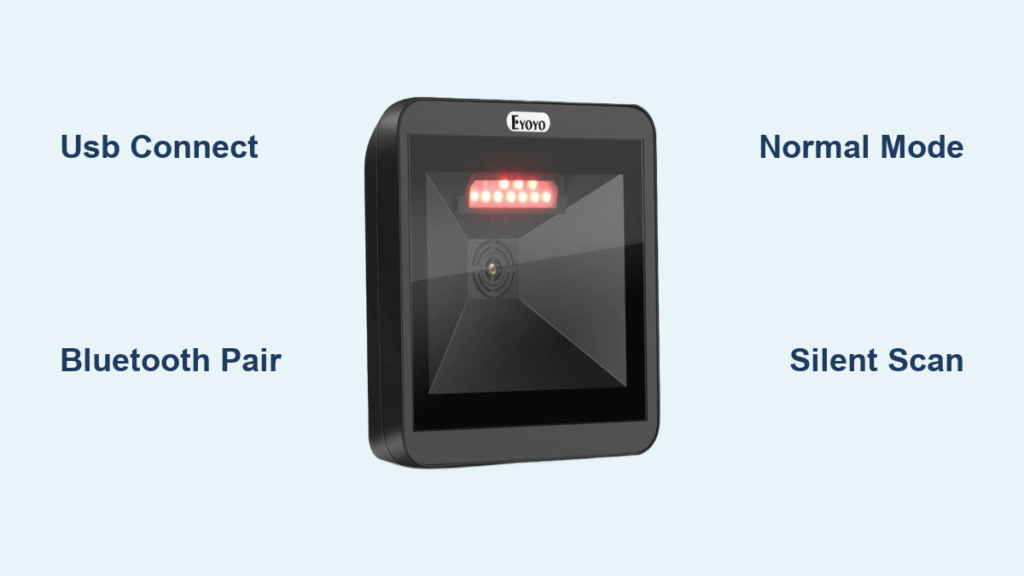
You just got your EYOYO barcode scanner and need to start scanning in minutes. Whether you’re managing inventory, running a retail checkout, or organizing personal items, this guide walks you through every step to get your scanner connected, configured, and ready to use fast. The EYOYO scanner acts like a keyboard, so once it’s plugged in or paired, scanning barcodes sends data directly to your active text field instantly.
In this guide, you’ll learn how to connect via USB and Bluetooth, set up the right scanning mode, silence beeps for quiet environments, troubleshoot common issues, and customize settings. Everything here comes from verified setup procedures and real-world testing, so you can scan confidently right away.
Connect via USB for Plug-and-Play Setup
The fastest way to use your EYOYO barcode scanner is through a wired USB connection. This method requires zero drivers and works immediately.
Set Up USB Connection in 30 Seconds
Plug the USB cable into the scanner and your computer, tablet, or other compatible device. The scanner is detected automatically as a keyboard input device. No software installation is needed for Windows, macOS, Linux, or Android. Open any text field like Excel, Google Sheets, or a web form, then scan a barcode to test.
Make sure the input field is active before scanning. Just like typing on a keyboard, the scanner cannot send data if your app isn’t ready to receive it.
What Happens After a Successful Scan
A beep confirms each successful scan, and the scanned data appears instantly as typed text in your active field. This works with any application that accepts keyboard input, including POS systems, inventory software, spreadsheets, and databases.
If nothing appears after scanning, unplug the USB cable and reconnect it. Check that no other keyboard or USB device is causing a conflict with the scanner.
Pair via Bluetooth for Wireless Operation

Use Bluetooth to scan without cables on smartphones, tablets, or computers. The wireless range reaches up to 10 meters in open areas.
Enter Bluetooth Pairing Mode
Turn on the scanner by pressing the top power button. Activate pairing mode by scanning the Bluetooth HID Pairing Mode barcode from your manual, or press and hold the bottom scan button for 8 seconds until the LED blinks blue. Two flashing blue lights mean pairing mode is active and ready.
Connect to Your Device
On Android or iOS, open Bluetooth settings and wait for EYOYO to appear in the device list. Tap to pair. You’ll hear a confirmation beep and see a solid blue light on success.
On Windows, go to Settings, then Devices, then Bluetooth and other devices. Click Add Bluetooth or other device, select Bluetooth, and choose EYOYO from the list. Wait for the pairing confirmation.
If pairing fails, restart Bluetooth on your device and ensure the scanner is blinking blue. Move closer during pairing, ideally within 3 feet.
Set Up Normal Scanning Mode
Normal Mode is the best choice for most users. It transmits scanned data immediately to your device without delay.
Activate Scan Normal Mode
Scan the Enter Operator Mode barcode from your manual, then scan the Scan Normal Mode barcode. The scanner beeps to confirm it’s now in normal mode and ready for real-time scanning.
Use Normal Mode for retail checkout, warehouse inventory, libraries, and any situation where instant data transmission matters. Only use Storage or Data Upload Mode if you need to scan without a connected device and upload the data later.
Turn Off Beep and Vibration
Need silence? Disable sound and vibration in seconds for libraries, meetings, or quiet office work.
Disable Audible Feedback
Scan the Turn Off Sound Mode barcode from your manual. The scanner beeps once to confirm, then goes completely silent.
Stop Vibration Feedback
Scan the Disable Vibration barcode to turn off tactile feedback. The scanner now operates without any sound or vibration.
Without audio or vibration cues, you must rely entirely on visual confirmation. Watch for the data appearing on your screen to verify each scan was successful.
Hide LED Lights for Discreet Scanning
Block the indicator lights if you need to scan without drawing attention.
Cover the LED Indicators
Cut a small piece of black electrical tape and place it directly over the LED lights on the scanner’s face. Press down firmly to secure.
Test a scan after taping to ensure the laser lens remains unobstructed. Full scanning function stays intact while the lights stay hidden.
Scan Barcodes Like a Pro
With your scanner set up, follow these steps for reliable scans every time.
Step-by-Step Scanning Process
Point the laser at the barcode from 2 to 6 inches away. Press and hold the bottom scan button. Wait for the beep or screen input confirming the scan. Release the button, and the data appears in your active field.
What Types of Barcodes Work
The EYOYO scanner reads printed labels on boxes, books, and products. It also scans barcodes displayed on phone and tablet screens with high accuracy. Even faded or damaged barcodes have a strong success rate thanks to the reliable laser scanning technology.
Hold the scanner perpendicular to the barcode for best results. Angled or tilted positions reduce reading accuracy.
Compatible Devices and Systems
The EYOYO scanner works with any device that accepts keyboard input.
Supported Devices and Connections
Windows PCs and Macs connect via USB or Bluetooth and are auto-detected as keyboards. Android phones and tablets use Bluetooth only. iPads and iPhones pair like wireless keyboards. POS systems including Square and Shopify work through USB or Bluetooth. Linux machines connect via USB or Bluetooth when HID support is enabled.
Since the scanner emulates a keyboard, no special software, SDK, or API is required for integration.
Customize Settings with Configuration Barcodes
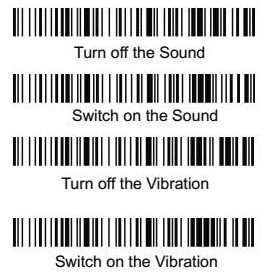
Change how your scanner behaves using barcodes from the user manual.
Access Operator Mode for Settings
Scan Enter Operator Mode to access the configuration menu. From there, you can add prefixes or suffixes like tab or enter keys after each scan. You can enable or disable specific barcode types, adjust transmission speed, and set power-saving mode.
For example, to auto-press Enter after every scan, scan Enter Operator Mode, then scan the Add Suffix Carriage Return barcode. Every scan now ends with an Enter key press, perfect for fast data entry between fields.
Fix Common Problems Fast

Most issues resolve quickly with simple steps.
Scanner Not Typing Data
The most common cause is an inactive input field. Click inside your text box or application window before scanning. Reconnect the USB cable or re-pair the Bluetooth connection if needed.
Bluetooth Won’t Connect
Ensure the scanner is in pairing mode with a blinking blue light. Restart Bluetooth on your device and move closer during the pairing process.
No Beep After Scan
Sound may be disabled. Scan the Turn On Sound Mode barcode to restore audio feedback. Low battery can also cause this issue.
Scanned Data Looks Wrong
Extra characters or wrong formatting usually stem from prefix or suffix settings. Scan the default configuration barcode to reset to factory settings.
Intermittent Bluetooth Connection
Charge the scanner fully and move closer to your device. Avoid interference from Wi-Fi routers and microwaves.
For a complete reset, scan the Factory Reset barcode from your manual.
Battery and Charging Tips
Get the most uptime with proper charging habits.
How to Charge Your Scanner
Use the included USB cable to connect to a wall adapter, computer, or power bank. Charging takes 2 to 3 hours. A solid light indicator shows when charging is complete.
Battery Life Expectations
Expect up to 8 hours of continuous scanning on a full charge. Standby time reaches up to 30 days. Charge overnight before first use, and keep a spare cable at your workplace.
Slow response, weak laser output, or pairing failures signal a low battery.
Physical Features You Should Know
Know your scanner’s components for better handling.
Key Components
The top button controls power on and off. The bottom button triggers scanning. LED indicators show Bluetooth status in blue and scanning activity in red. Keep the laser window clean for optimal performance. The USB port handles both charging and wired connections. A lanyard hole provides convenient handheld carry.
The scanner weighs about 6.3 ounces and fits comfortably in your hand for extended use.
Final Setup Checklist
Verify these steps before you start scanning professionally.
Check that you connected via USB or Bluetooth. Confirm the scanner is recognized as a keyboard. Make sure your input field is active. Set the scanner to Normal Scanning Mode. Disable sound and vibration if your environment requires silence. Cover the LEDs if you need discretion. Test with a real barcode. Charge the battery to full before extended use.
Frequently Asked Questions About EYOYO Barcode Scanners
Does the EYOYO scanner need drivers to work?
No drivers are required. The scanner works as a plug-and-play keyboard input device on Windows, macOS, Linux, and Android.
Can I use the EYOYO scanner with my iPhone or iPad?
Yes, iOS devices support Bluetooth pairing. The scanner appears as a wireless keyboard and works with any app that accepts text input.
How do I know if my scanner is in Bluetooth pairing mode?
The LED blinks blue rapidly when in pairing mode. Two flashing blue lights indicate the scanner is ready to connect.
What barcode types does the EYOYO scanner support?
It reads common 1D barcodes including Code 128, Code 39, UPC, EAN, Code 93, Interleaved 2 of 5, and Codabar.
How far can I be from my device while scanning over Bluetooth?
The wireless range reaches up to 10 meters or 33 feet in open space. Walls and interference may reduce this distance.
Can I disable the beep sound for quiet environments?
Yes, scan the Turn Off Sound Mode barcode to silence the scanner. You can also scan Disable Vibration to remove tactile feedback.
Key Takeaways for Using Your EYOYO Barcode Scanner
Your EYOYO barcode scanner delivers fast, reliable scanning with minimal setup. USB connection gets you scanning in 30 seconds with zero drivers. Bluetooth pairing frees you from cables with a 10-meter range. Normal Mode handles most retail, warehouse, and office scanning needs perfectly.
Customization options let you silence beeps for quiet spaces, add auto-enter keys for faster data entry, and cover LEDs for discreet operation. Most problems resolve quickly by checking your input field, re-pairing Bluetooth, or charging the battery.
Keep this guide handy as reference, and you’ll never miss a scan. Your scanner is built for speed and simplicity, so start scanning confidently today.





