
If your Zebra scanner isn’t connecting instantly or scanning accurately, you are not alone. Learning how to use a Zebra scanner efficiently starts with understanding its smart setup tools and one-step pairing features. Whether you are deploying a single device in a retail store or rolling out dozens across a warehouse, Zebra’s intuitive workflows eliminate technical barriers. This guide walks you through real-world pairing, configuration, and customization steps. You will learn how to connect via a single scan, set up scanners using a smartphone, and fine-tune settings for your specific needs.
Pair Your Zebra Scanner Using Scan-to-Connect
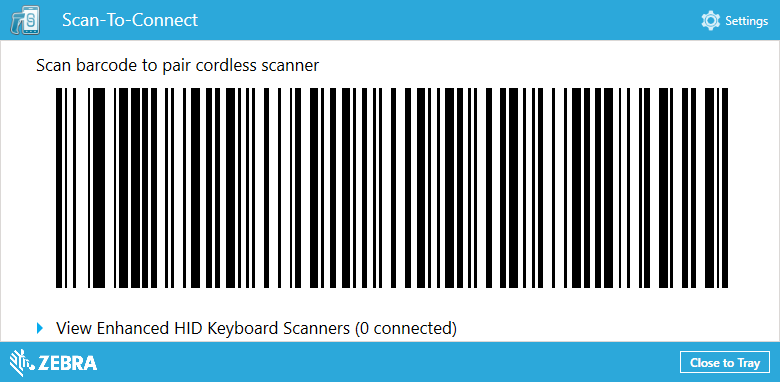
Zebra’s Scan-to-Connect (STC) feature simplifies Bluetooth pairing to just one action: scanning a barcode. This method works across Android and Windows devices and supports HID mode for seamless data entry.
Display the STC Barcode on Your Device
Open the STC utility on your target device and ensure Bluetooth is turned on. The app displays a unique STC pairing barcode on screen.
Make sure the screen is bright and free of glare. A dim or reflective display can prevent successful scanning.
Scan to Pair Instantly
Point your Zebra scanner at the barcode and pull the trigger to scan. The scanner connects automatically via Bluetooth.
Connection typically completes within 5 seconds. A confirmation tone or LED flash indicates success.
Verify Connection and Data Transmission
Open a text field such as Notepad or a browser search bar. Scan a test barcode and check if data appears.
If no input occurs, recheck Bluetooth pairing and ensure the scanner is set to HID Keyboard Emulation mode.
Set Up Your Scanner with QR Code

Newer Zebra models like the SP20 support a guided web-based setup using a QR code. This method configures both connectivity and scanning behavior in minutes.
Access Setup via QR Code
Locate the QR code on the scanner or packaging. Use a smartphone or tablet to scan it with the camera or browser. Alternatively, manually visit the setup URL provided.
The web tool loads instantly with no app download or login required.
Answer Configuration Questions
The setup assistant asks simple questions to customize your scanner. These include what type of barcodes you will scan, where scanned data should go, and whether you need prefixes or suffixes.
Answers determine the final programming barcode generated for your scanner.
Scan Programming Barcode to Apply Settings
After completing the questionnaire, the tool generates a custom configuration barcode. Use your Zebra scanner to scan this barcode to apply all settings instantly.
This process takes under 2 minutes and ensures consistent setup across multiple scanners.
Enable Auto App Launch on Android
After pairing, streamline operations by making your scanner automatically open a data capture app on Android devices.
Configure Auto Launch in STC Settings
In the STC utility, select your preferred app such as inventory management or asset tracking. Save the configuration and generate the updated STC barcode. Scan the barcode with your Zebra scanner.
The next time the scanner pairs, the selected app opens automatically.
Ensure Persistent Pairing
Keep Bluetooth enabled and the app installed on your device. Once paired, the scanner reconnects automatically when powered on. There is no need to relaunch the app or re-scan the barcode.
This feature is ideal for warehouse workers who start shifts with a single scanner power-on.
Optimize Scanning with HID Mode
Zebra scanners emulate a keyboard using HID (Human Interface Device) protocol. This ensures compatibility with nearly any app that accepts typed input.
Confirm HID Mode is Active
Most Zebra scanners default to HID mode. To verify, scan a barcode into a text editor. If characters appear instantly, HID is working correctly.
If scanning fails, scan the Set HID Keyboard barcode from the user guide or Zebra support site.
Avoid Data Entry Errors
Do not scan while the device is locked, especially on Android. Ensure no other Bluetooth keyboards are connected. Use beep on scan feedback to confirm each read.
Enable Good Decode Beep in advanced settings to distinguish successful scans from failures.
Customize with Power User Tool
For IT administrators or advanced users, Zebra’s Power User Tool unlocks full control over scanner behavior.
Adjust Scan Sensitivity and Trigger Mode
Manual Trigger requires pulling the trigger to scan. Presentation Mode scans when a barcode enters the field of view. Motion-Activated automatically wakes and scans when movement is detected.
Use Presentation Mode in retail checkout and Motion-Activated in hands-free sorting stations.
Modify Illumination and Aiming Patterns
Reduce aiming beam brightness in low-light environments. Turn off illumination to extend battery life in dark settings where it is not needed. Enable laser crosshair for precise targeting if supported.
These settings reduce eye strain and improve scan accuracy in sensitive areas like healthcare.
Add Prefixes and Suffixes
Program the scanner to prepend or append text to every scan. Add a prefix such as ITEM: and a suffix such as carriage return to simulate Enter key press.
Example: Scanning ABC123 outputs ITEM:ABC123 followed by a line break, perfect for inventory logs.
Integrate STC into Custom Apps
Developers can embed Scan-to-Connect functionality directly into enterprise applications using Zebra’s SDK.
Use Zebra SDK for Seamless Pairing
Download the Zebra OEM SDK from the developer portal. Integrate STC barcode generation into your app’s onboarding flow. Users scan once to pair and launch your app, all within your interface.
This removes reliance on third-party tools and creates a branded, frictionless experience.
Enable Bulk Deployment Scenarios
Pre-generate STC and configuration barcodes for hundreds of scanners. Print them on labels or display via tablet. Field teams scan and deploy without internet or PC access.
This approach works great for retail rollouts or pop-up logistics centers.
Troubleshoot Common Setup Issues
Even with smart tools, issues can arise. Here is how to fix them fast.
No Connection After Scanning STC Barcode
Ensure Bluetooth is on and the device supports HID. Restart both scanner and host device. Regenerate and rescan the STC barcode.
Avoid pairing in crowded wireless environments by moving away from Wi-Fi routers or other Bluetooth devices.
Scanner Pairs but No Data Appears
Confirm the scanner is in HID Keyboard Mode. Test in Notepad or Google Search because some apps block external input. Check for conflicting Bluetooth devices and disconnect others.
Some Android apps require permission for keyboard input, so check app settings.
QR Code Setup Tool Won’t Load
Scan the QR code with a browser, not a messaging app. Use Chrome or Safari because some browsers block redirects. Manually enter the setup URL if scanning fails.
If the page shows “Device not supported,” verify your model supports web setup.
Maintain and Update Your Scanner
Keep your Zebra scanner running smoothly with routine maintenance.
Update Scanner Firmware Regularly
Visit the Zebra Support Portal and search your model. Download the latest firmware. Generate a firmware update barcode and scan it with your device.
Firmware updates improve Bluetooth stability, add new symbologies, and fix bugs.
Clean Scanner Lens and Sensors
Use a soft, lint-free cloth. Gently wipe the window and sensor area. Avoid alcohol or abrasive cleaners unless specified.
Dirty lenses cause failed scans, so clean daily in dusty environments.
Real-World Deployment Scenarios
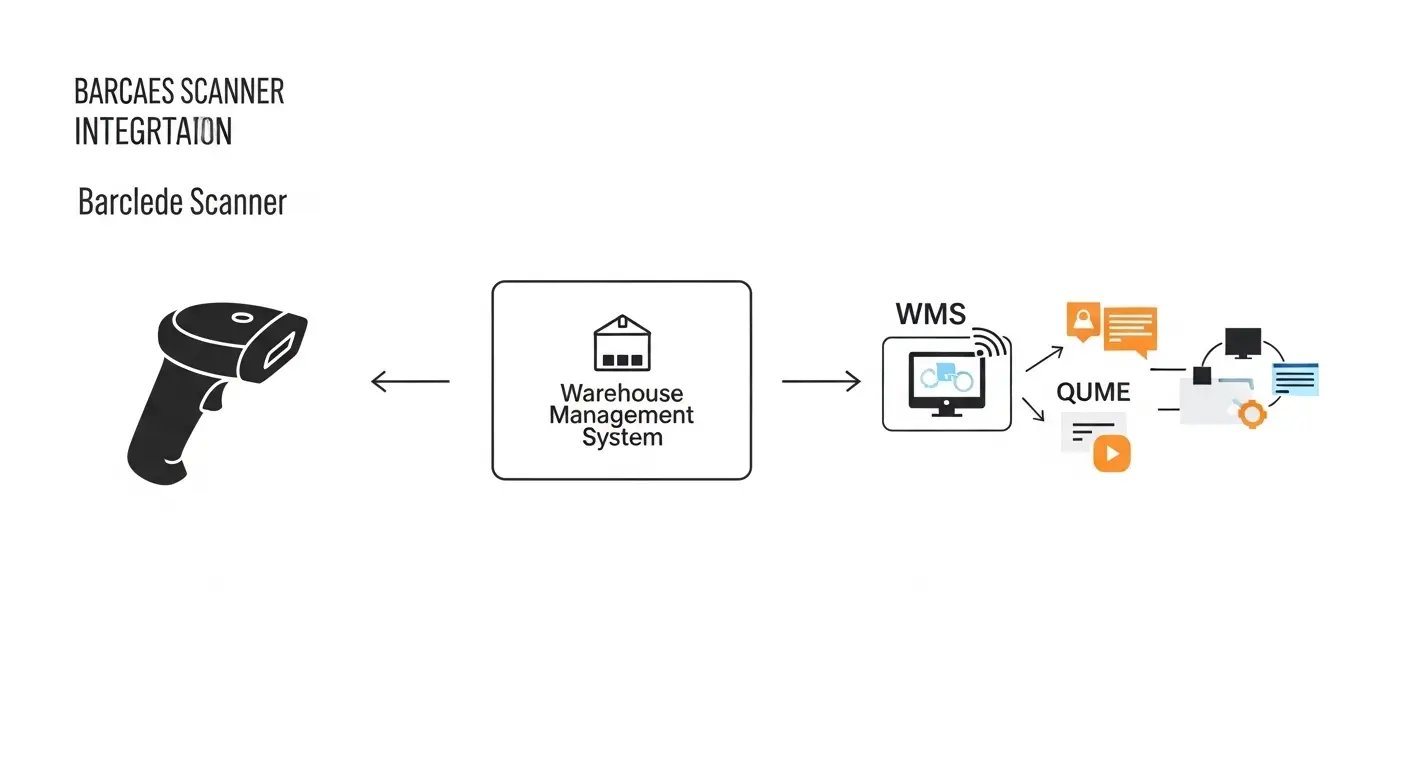
Deploy Zebra scanners across multiple environments with these proven workflows.
Retail Inventory Management
Print setup QR codes for each location. Staff scan with smartphones to access web tool. Answer prompts for UPC and Code 128 scanning. Generate and scan programming barcode. Scanners are ready with no training needed.
This method deployed 50 scanners in under an hour.
Healthcare Patient ID Workflow
Use Power User Tool to add prefix PATIENT:. Enable quiet mode for nighttime rounds. Pair via STC to Android tablets at nursing stations. Auto-launch EHR app on connection.
Scanning a wristband instantly inputs PATIENT:123456 into the correct field.
Warehouse Picking Efficiency
Configure scanners in Motion-Activated plus Presentation Mode. Pair to rugged Android tablets using STC. Auto-launch warehouse management app. Workers wave scanner over barcodes with no trigger pull needed.
This approach increases pick rate by reducing hand movements.
Final Tips for Best Results
Always test scan after setup to confirm data flow. Standardize configurations using programming barcodes for team deployments. Use OEM charging docks to avoid power issues. Label scanners with asset tags and pair records for easy management. Train staff on one-button pairing to reduce downtime during shifts.
Frequently Asked Questions About Using a Zebra Scanner
What is Scan-to-Connect on a Zebra scanner?
Scan-to-Connect is a Zebra feature that enables one-step Bluetooth pairing. You display a barcode on your device screen and scan it with your Zebra scanner. The devices connect automatically without complex manual pairing steps.
Which Zebra models support QR code setup?
The Zebra SP20 handheld imager supports QR code and web-based setup. Other Bluetooth scanners support STC but may require the STC utility app for pairing. Check your model documentation for specific capabilities.
How do I fix a Zebra scanner that is not transmitting data?
First, verify the scanner is in HID Keyboard Emulation mode. Test scanning into a simple text editor like Notepad. Check that no other Bluetooth keyboards are connected. Restart both devices if the problem persists.
Can I customize what data my Zebra scanner outputs?
Yes, using the Power User Tool, you can add prefixes and suffixes to scanned data. You can also configure trigger modes, scan sensitivity, and illumination settings. This allows customization for specific workflows like inventory or healthcare.
How do I update my Zebra scanner firmware?
Visit the Zebra Support Portal and search for your scanner model. Download the latest firmware file. Generate a firmware update barcode using Zebra tools and scan it with your device to apply the update.
Key Takeaways for Using Your Zebra Scanner
Mastering how to use a Zebra scanner means leveraging its smart tools for fast, reliable deployment. Start with Scan-to-Connect for one-step pairing or use the QR code setup for guided web-based configuration. Both methods eliminate technical barriers and get your scanner working in minutes.
Customize your scanner behavior using the Power User Tool for advanced control. Add prefixes and suffixes for formatted data output. Configure trigger modes like presentation or motion-activated scanning for specific environments. These settings optimize performance for retail, healthcare, and warehouse operations.
For enterprise deployments, use the SDK to integrate STC into custom applications. Generate programming barcodes for bulk deployment across hundreds of devices. Your scanner is ready to work the moment you are.





