

You are ready to print a favorite memory, but your HP Sprocket displays an “Out of Paper” error despite a full tray. The status light blinks red while a sheet gets stuck halfway through the feed. This common paper jam scenario stops your printing session instantly and causes unnecessary stress for many users.
This guide explains exactly how to fix HP Sprocket paper jam issues using proven troubleshooting steps. You will learn to decode error signals, reload paper with correct orientation, and perform a hard reset to clear stubborn glitches. We also cover roller cleaning techniques and signs that your device needs professional repair.
Decode Error Signals Before Attempting Repairs

Identifying the specific type of error helps you choose the right solution immediately. Misdiagnosing the problem often leads to wasted time or accidental damage to internal components.
Recognize Specific Jam Indicators
An HP Sprocket paper jam presents through distinct visual and functional cues. Look for these specific signs to confirm your diagnosis:
* Red blinking light: A flashing red status indicator signals a critical error state.
* False “Out of Paper” message: The app claims the tray is empty even when paper is loaded.
* Partial ejection: Photos emerge blank or stop moving halfway through the printing process.
* Smartsheet success only: The blue calibration card prints fine, but white photo sheets fail repeatedly.
Confirm Basic Operational Status
Rule out simple power or connection issues before assuming a mechanical jam. Ensure your device has sufficient battery charge, as low power can mimic jam behavior by stalling the rollers. Verify that your Bluetooth connection is stable and that the printer firmware is up to date. If errors persist after these checks, proceed to clear the physical obstruction.
Execute Standard Clearing Procedure for Jams

Most paper jams result from incorrect paper loading or minor misalignments within the tray. Following a strict reloading sequence resolves the majority of these feeding errors effectively.
Power Down and Access Internal Tray
Always turn off the printer completely before attempting any maintenance. This prevents the rollers from engaging while you are manipulating internal parts.
1. Turn off the HP Sprocket device entirely.
2. Slide the top cover away from the output slot to remove it.
3. Remove all paper from the input tray, including the blue Smartsheet.
Reload Paper with Correct Orientation
Improper orientation is the leading cause of feeding failures. You must reload the stack with precision to ensure smooth operation.
* Place Smartsheet at bottom: The blue calibration card must always be the bottom-most sheet.
* Face barcodes down: The back of the paper stack with the barcode must face downward.
* Face logos down: Ensure the side with HP branding faces the bottom of the tray.
* Limit stack height: Never load more than 10 photo sheets plus the single Smartsheet.
Reassemble and Test Print Function
- Slide the top cover back into the guide tracks until it clicks securely.
- Power on the printer and wait for initialization.
- Open the HP Sprocket app and tap OK to clear any lingering error messages.
- Resend your print job and watch the first sheet feed smoothly.
Perform Hard Reset to Clear Memory Errors
When standard reloading fails, a hard reset clears the internal memory and recalibrates the roller logic. This step is essential for resolving persistent jam errors that ignore correct loading.
Execute Reset Steps Precisely
- Ensure the printer is powered on before starting.
- Remove the top cover to expose the internal components.
- Locate the small recessed reset button near the battery or on the side.
- Insert a straightened paperclip and press the button firmly.
- Hold the button until the charging light turns off completely.
- Wait a few seconds before powering the device back on.
This process forces the Sprocket to reinitialize its feeding logic. It often resolves issues where the printer fails to recognize correctly loaded paper stacks.
Update Firmware to Prevent Timing Glitches
Outdated firmware can cause timing discrepancies between the print head and rollers. These discrepancies often lead to slips, stalls, or complete jams during operation.
Check for Software Updates
- Open the HP Sprocket app on your mobile device.
- Navigate to Main Menu > Sprocket > Printers.
- Select your specific device from the list.
- Tap Printer Settings and choose Firmware Update.
- Install any available updates without interrupting the process.
Updated firmware improves coordination between internal components. This reduces the likelihood of mechanical timing errors that cause paper to jam.
Clean Rollers and Paper Path Thoroughly
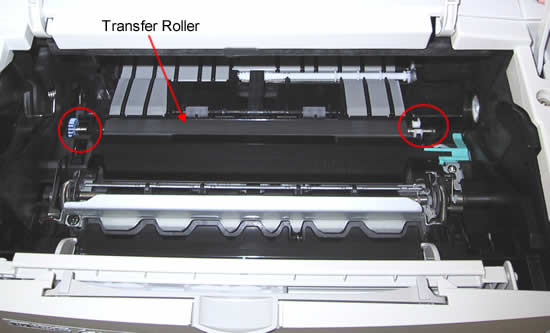
Dust, adhesive residue, or debris on the rollers reduces traction significantly. Poor traction causes paper to slip, stall, or jam inside the feed mechanism.
Inspect and Clean Safely
- Power off the printer and remove the top cover completely.
- Check the paper path visually for dust or foreign particles.
- Wipe the interior surfaces with a dry, lint-free cloth.
- For the rollers:
- Dampen a corner of the cloth slightly with water only.
- Manually rotate the rollers while wiping them gently.
- Let all parts dry completely before reloading paper.
Avoid using alcohol or harsh cleaners. These chemicals can degrade the rubber rollers and worsen feeding issues over time.
Extract Stuck Paper Without Damage
If a sheet is lodged firmly and will not eject, you must remove it by hand with extreme care. Never force the paper, as this can cause permanent damage.
Use Tweezers Properly
- Use fine-tipped tweezers for extraction tasks.
- Grasp the exposed edge and pull in the direction of the paper path.
- Stop immediately if you feel significant resistance.
- Retrieve every fragment if the paper tears during removal.
For deeply stuck paper, try gently rotating the rollers to ease the sheet out. Leaving small fragments inside guarantees future jams and potential gear damage.
Prevent Future Jams with Best Practices
Avoid recurring issues by adhering to strict operational guidelines. Consistent maintenance and proper handling extend the life of your portable printer.
Use Genuine HP Paper Only
Third-party ZINK paper often has inconsistent thickness or coating quality. Stick to HP Sprocket ZINK Photo Paper for precise feeding and heat activation.
Store Paper Properly
Keep unused sheets in a cool, dry place. Humidity causes curling or sticking, which increases the risk of multi-feed errors or jams.
Maintain Loading Discipline
Always double-check your loading technique:
* Blue Smartsheet at the bottom.
* Barcode and logos facing down.
* Stack limited to 10 sheets maximum.
Printing without the Smartsheet disrupts calibration. A weak battery also reduces roller motor strength, so charge fully before heavy print sessions.
Diagnose Recurring Sprocket 200 Jams
Some users experience a specific issue where the blue card prints but white sheets jam repeatedly at the same spot. This pattern often indicates a mechanical failure rather than a user error.
Recognize Hardware Failure Signs
This specific failure pattern suggests internal component wear:
* Worn or misaligned internal rollers.
* Damaged gear assembly within the feed mechanism.
* Faulty motor function that cleaning cannot fix.
These components are not user-replaceable. Further DIY attempts on hardware failures risk permanent damage to the unit.
Seek Professional Support
When all troubleshooting steps fail:
* Contact HP Support directly.
* Check your warranty status for repair or replacement options.
* Avoid disassembling the unit further as internal parts are fragile.
Persistent jams in the Sprocket 200 model are a known hardware limitation in some units. Professional service is the only reliable fix for these cases.
Frequently Asked Questions About HP Sprocket Paper Jams
Why does my HP Sprocket say “Out of Paper” when the tray is full?
This error usually means a sheet is stuck inside the feed path or the paper is loaded incorrectly. The sensor cannot detect the top sheet due to the obstruction or improper orientation of the barcode side.
Can I use third-party ZINK paper in my HP Sprocket?
You should only use genuine HP ZINK photo paper. Third-party options often have different thicknesses that cause feeding errors and may void your warranty if they damage the rollers.
How many sheets can I load into the HP Sprocket at once?
Load a maximum of 10 photo sheets plus the single blue Smartsheet. Overloading the tray creates friction that prevents the rollers from pulling the paper through smoothly.
What should I do if the paper tears while I am removing a jam?
You must remove every single fragment from the paper path. Even tiny pieces left inside can cause immediate repeat jams or damage the print head during the next operation.
Does the blue Smartsheet need to stay in the printer?
Yes, the blue Smartsheet must remain at the bottom of the stack until all 10 photos are printed. It is essential for color calibration and proper feeding mechanics.
Key Takeaways for Fixing Your HP Sprocket Paper Jam
Most paper jams resolve by power cycling the device and reloading the paper with the blue Smartsheet at the bottom. Ensure barcodes face down and never exceed the 10-sheet limit to prevent future feeding errors.
If standard reloading fails, perform a hard reset using a paperclip and clean the rollers with a slightly damp cloth. These steps clear memory glitches and restore traction to the feed mechanism effectively.
Contact HP Support if jams recur at the exact same spot after all troubleshooting. This pattern indicates a hardware failure in the Sprocket 200 series that requires professional repair or replacement.





