
You’ve plugged in your Honeywell barcode scanner, but nothing happens when you scan. No beeps, no data entry, just silence. This is a common issue across warehouses, retail stores, and healthcare settings. The good news? Most problems aren’t hardware failures. In fact, 80% of issues stem from simple connection errors, incorrect modes, or outdated drivers, fixes you can complete in under 10 minutes.
This guide walks you through step-by-step solutions to diagnose and resolve your scanner problems, whether it’s not scanning, typing wrong characters, or not responding at all.
Check Physical Connections First
Before diving into software settings, verify the basics. A loose cable or faulty port often mimics device failure.
Secure the USB Connection
Unplug and reconnect the scanner’s USB cable from both the computer and scanner. Plug directly into a USB port on the PC, not a hub, keyboard, or monitor. Hubs can underpower the device, causing intermittent operation.
Look for indicator lights on the scanner. If it has one, a steady or blinking light means power is received. No light? Try another USB port or cable.
Test with a Known-Good Cable
Use a different USB cable to rule out a damaged one. Even if the cable looks intact, internal breaks can prevent data transfer. Swap in a cable that works with other devices.
Test Scanner on Another Device
Isolate whether the issue is with the scanner or your computer.
Try a Different Computer or Tablet
Connect the Honeywell scanner to another PC, laptop, or even an Android tablet. If it scans successfully elsewhere, the problem is on your original system, not the scanner.
If the scanner works elsewhere, focus on drivers, OS settings, or software conflicts. If it still isn’t working, it’s likely a configuration or hardware issue with the scanner itself.
Update or Reinstall USB Drivers
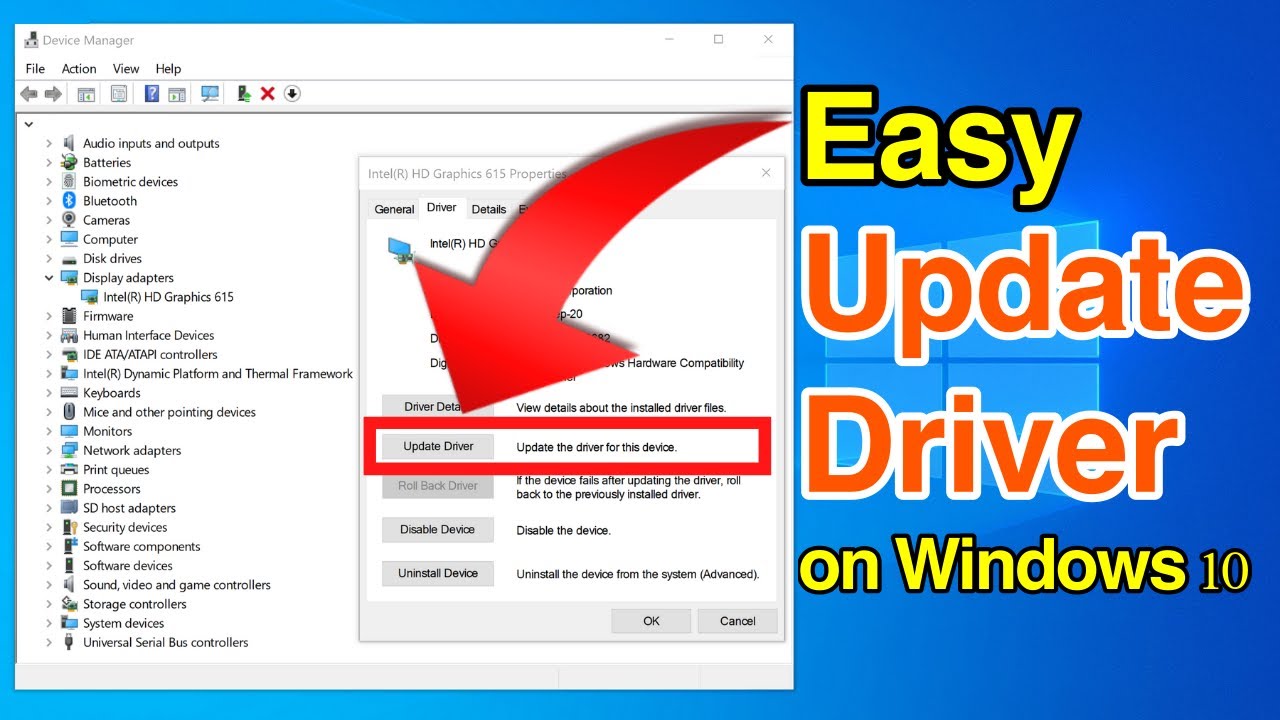
Outdated or corrupted drivers prevent Windows from recognizing the scanner properly.
Open Device Manager
- Press Windows + X and select Device Manager.
- Expand Human Interface Devices.
- Look for entries like Honeywell Scanner, USB Input Device, or HID Keyboard Device.
If you see a yellow exclamation mark, that device has a driver issue.
Update the Driver
Right-click the scanner entry and choose Update driver, then select Search automatically for updated driver software. Let Windows search and install the latest version.
Reinstall the Driver
Sometimes updating isn’t enough. A clean reinstall often works better.
- Right-click the scanner device and select Uninstall device.
- Unplug the scanner.
- Restart the computer.
- Plug the scanner back in after boot. Windows will detect it as new hardware and reinstall the driver.
Pro Tip: After reinstallation, test immediately in Notepad to confirm functionality.
Switch to Correct Scanner Mode

Honeywell scanners support multiple communication modes. If set incorrectly, the scanner may appear dead even though it’s working.
Understand Your Output Mode
Most Honeywell scanners operate in one of three modes:
- USB HID (Keyboard Emulation) acts like a keyboard and types scanned data directly.
- USB COM or Virtual COM Port is used with specialized software that reads from a serial port.
- SPP (Standard Pass-Through) is a basic USB mode for general use.
If your scanner is in COM mode but you’re using it with Excel or Notepad, it won’t output anything because those apps don’t listen to serial ports.
Scan the Correct Mode Barcode
Refer to your Honeywell user manual or download it online using your model number. Find the section labeled Interface Selection or Communication Mode.
Then scan the barcode for USB HID Keyboard Mode, which is the most common for general use, or Default Factory Settings, which resets mode along with other settings.
Don’t have the manual? Search online using your model number and scanner mode barcodes PDF.
Fix Wrong Characters or Garbled Output
If your scanner produces strange symbols instead of correct characters, or skips characters, it’s likely a keyboard layout or language mismatch.
Match Scanner Language to PC Settings
The scanner emulates a keyboard. If it’s programmed for US English but your PC uses French AZERTY, keystrokes will map incorrectly.
Solution:
- On your PC, go to Settings, then Time and Language, then Language.
- Confirm the keyboard layout matches your region, such as US QWERTY.
- Scan the Language Emulation barcode from the manual that matches your layout.
Common language barcodes include Keyboard Emulation US English, Keyboard Emulation International English, Keyboard Emulation German, and Keyboard Emulation French.
Warning: Scanning a language barcode changes how all keystrokes are sent. Always match it to your OS keyboard setting.
Reset Scanner to Factory Defaults
When settings get corrupted or misconfigured, a factory reset clears everything and restores default behavior.
Locate the Reset Barcode
In your Honeywell scanner manual, find the page titled Factory Default Settings or Restore Defaults. There will be a barcode labeled Set All Defaults or Initialize Scanner.
Perform the Reset
- Open Notepad or a blank text field.
- Scan the Factory Default barcode.
- Wait for a confirmation beep, usually two short beeps.
- Immediately scan the USB HID Keyboard Mode barcode.
- Test by scanning any barcode into Notepad.
Success Signal: Clean, correct text appears instantly in Notepad.
Verify Functionality in Notepad
Always test your scanner in a neutral, no-software environment.
Use Notepad for Testing
- Open Notepad by pressing Windows + R, typing notepad, and hitting Enter.
- Scan a barcode.
- Watch for text input.
If it works in Notepad but not in your app like Excel, Shopify, or inventory software, the issue isn’t the scanner. It’s the application or focus.
Common App-Specific Issues
- The app isn’t in focus. Click inside the correct field before scanning.
- Auto-enter is enabled. Some scanners add a Carriage Return after scan. If the app submits too fast, you won’t see the data.
- Scan speed is too high. Try scanning slowly and hold still over the barcode.
Diagnose No Sound or Beep
No beep doesn’t always mean failure, but it can help diagnose issues.
Check Beeper Settings
Your Honeywell scanner might be silenced. Some models disable beeps after repeated use or after a reset.
Re-enable Beep: Find and scan the Good Read Beep Enable barcode in the manual. It’s usually under Audio Feedback, Good Read Tones, or Beeper Settings.
After scanning, test with a barcode. A beep confirms the scanner is active and decoding.
Troubleshoot Model-Specific Issues
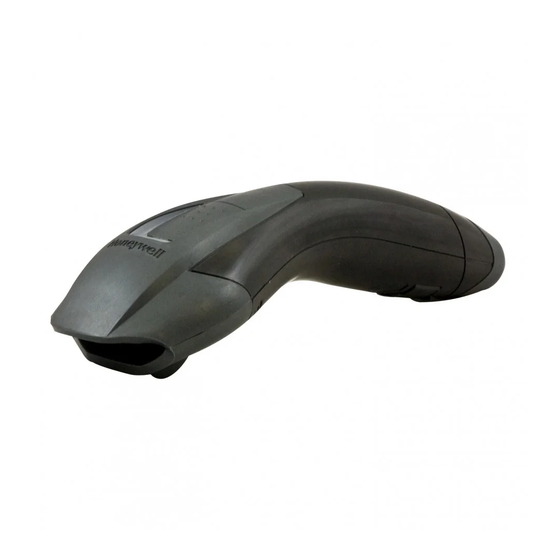
Certain Honeywell models have known quirks. Here’s how to handle common ones.
Honeywell Voyager 1200g Not Scanning
- Ensure it’s not in presentation mode, which is auto-scan. Scan the Manual Trigger Mode barcode if you want to control scanning manually.
- Check for lens dirt and clean with a soft, dry cloth.
Honeywell Xenon XP 1950g Not Connecting
- This model supports Bluetooth and USB. If previously paired, it may try connecting wirelessly. Plug in via USB and scan the USB Enable barcode.
- Disable Bluetooth on your PC to prevent connection conflicts.
Honeywell N6603 or MS7 Series Stopped Working
- These older models often fail due to failed capacitors or worn triggers. If all software fixes fail, consider hardware wear.
- Try a power cycle by unplugging for 30 seconds and then reconnecting.
When Hardware May Be Faulty
If every software fix fails, the scanner might be physically damaged.
Signs of Hardware Failure
- No power light, even with known-good cable and port.
- Continuous beeping or flashing lights.
- Trigger doesn’t respond, with no click or feedback.
- Scans intermittently or only at perfect angles.
- Lens is cracked or cloudy.
Try a Firmware Update
Some issues are resolved with updated firmware:
- Visit Honeywell Safety and Productivity Solutions Support.
- Enter your model number.
- Download the latest firmware and configuration utility.
- Follow instructions to update via USB.
Note: Firmware tools often require Windows and administrator rights.
Prevent Future Scanner Issues
Keep your Honeywell scanner reliable with simple maintenance.
Clean Regularly
Wipe the scan window with a microfiber cloth. Dust and grease block the laser or imager.
Avoid Drops and Moisture
Even rugged models have limits. Use lanyards or stands to reduce falls.
Re-Scan Mode Barcodes Periodically
Settings can reset after power loss or firmware glitches. Keep a cheat sheet of key barcodes printed and posted near your workstation.
Frequently Asked Questions About Honeywell Scanner Not Working
Why is my Honeywell scanner not responding at all?
Start by checking physical connections. Unplug and reconnect the USB cable directly to a PC port, not a hub. Verify indicator lights show power. If there’s still no response, test the scanner on another device to determine if the issue is the scanner or your computer.
How do I fix wrong characters appearing when scanning?
Wrong characters usually indicate a keyboard layout mismatch between the scanner and your PC. Go to your PC’s language settings and confirm the keyboard layout matches your region. Then scan the corresponding Language Emulation barcode from your Honeywell manual.
What scanner mode should I use for basic scanning?
For most general purposes, use USB HID Keyboard Mode. This makes the scanner act like a keyboard and types scanned data directly into any text field. Scan the USB HID barcode from your manual to switch to this mode.
How do I reset my Honeywell scanner to factory defaults?
Locate the Factory Default Settings or Initialize Scanner barcode in your user manual. Scan it while in Notepad or a text field. Wait for a confirmation beep, then immediately scan the USB HID Keyboard Mode barcode to restore proper functionality.
Why does my scanner work in Notepad but not in my software?
If the scanner works in Notepad but not in your application, the problem is the software, not the scanner. Ensure the correct field is in focus before scanning. Check if your app has auto-submit features that might be processing data too quickly.
When should I replace my Honeywell scanner instead of repairing it?
Consider replacement if the scanner shows signs of hardware failure like no power light despite trying different cables and ports, cracked or cloudy lens, continuous beeping, or if it only scans at perfect angles. Also consider replacement if all software troubleshooting steps have been exhausted.
Final Thoughts on Fixing Your Honeywell Scanner
Most Honeywell scanner not working issues are quick fixes involving loose cables, wrong modes, or driver glitches. By following this guide, you can restore scanning functionality in minutes rather than hours.
Remember to always test in Notepad first to verify the scanner hardware is functioning correctly before troubleshooting software or application-specific issues. Keep your USB drivers updated and periodically check that your scanner mode matches your use case.
If you’ve worked through every step in this guide and your scanner still isn’t working, contact Honeywell Support or your vendor for warranty service or replacement options. Keep this page bookmarked for fast troubleshooting the next time your scanner goes silent.





