
Your Honeywell barcode scanner powers on, the light is on, and it’s connected to your computer, but it just won’t scan. No beep, no data entry, no laser appears. You’re stuck, sales are slowing down, and inventory is piling up. You’re not alone. “Honeywell scanner not scanning” is one of the most common support issues across retail, warehousing, and healthcare environments.
The good news? In over 70% of cases, the problem isn’t a dead scanner. It’s usually a simple fix like a loose cable, wrong interface mode, or dirty lens. Even random characters appearing instead of scanned numbers usually point to a correctable configuration error. Only after ruling out these common causes should you suspect hardware failure.
Check Power and Connection
Before diving into complex fixes, confirm the basics. A surprising number of “dead” scanners are simply disconnected or underpowered.
Verify USB and Port Function
Unplug the scanner and reconnect it to a different USB port directly on the computer. Avoid using hubs, docks, or extension cables. Many USB hubs don’t provide stable power, especially older or low-quality ones. Try a rear port on desktops, as they’re typically more reliable than front or side ports.
If using a laptop, avoid wireless docks. Plug directly into the physical USB-A or USB-C port. Test the port by connecting another device like a mouse or flash drive to ensure it’s active.
For powered models or charging cradles, confirm the power adapter is plugged in and the LED on the cradle is lit. If the scanner sits in a dock and still won’t scan, remove it and connect via USB cable directly to the PC to isolate the issue.
Inspect Cable and Connector Damage
Look closely at the USB cable and scanner connector. Signs of wear like fraying, kinks, or bent pins can interrupt data and power flow. Wiggle the cable near the ends while the scanner is connected. If the light flickers or disconnects, the cable is failing.
For coiled cables common in retail scanners, stretch them out fully and inspect for internal breaks. These cables endure constant movement and often fail at stress points.
If your model uses a detachable cable, try a known-good replacement. Many Honeywell scanners use standard USB cables with proprietary ends, so check compatibility before swapping.
Clean the Scanner Window
A dirty scan window is the number one preventable cause of scanning failure.
Use Proper Cleaning Tools
Power off the scanner. Dampen a soft, lint-free cloth like a microfiber lens wipe with water or 70% isopropyl alcohol. Gently wipe the scan window. Do not spray liquid directly onto the device.
Avoid paper towels, tissues, or abrasive cleaners. These can scratch the lens, permanently reducing scan accuracy.
For imager-based scanners which use a camera-like sensor, even smudges from fingerprints can block the field of view. Laser scanners may still show a red line but fail to decode if the lens is foggy.
After cleaning, test with a high-contrast barcode printed on white paper. If it works, consider implementing a weekly cleaning schedule, especially in dusty or high-humidity environments.
Test on Another Device
Isolate whether the problem is with the scanner or the host system.
Try a Different Computer or Tablet
Connect the scanner to a laptop, desktop, or tablet that’s known to work with USB devices. Open Notepad or any text field and attempt to scan.
If it scans successfully, the issue is with the original computer, likely driver, software, or OS settings. If it still fails, the scanner itself is likely at fault.
This test takes less than 60 seconds and eliminates half the possible causes immediately.
For Bluetooth models, pair the scanner with a smartphone or tablet using the companion app. If it works there, the problem is with your primary system’s Bluetooth stack or drivers.
Verify Output in Notepad
Even if the scanner appears dead, it might be sending data incorrectly.
Scan into a Plain Text Editor
Open Notepad on Windows or TextEdit on Mac in plain text mode. Place the cursor in the window and scan a barcode.
Numbers or text appearing means the scanner is functional and the issue lies in your application like POS or inventory software. Nothing appearing means move to deeper diagnostics like driver, hardware, or firmware issues. Random characters like “Qm” for “123” indicate a keyboard layout mismatch, common after accidental programming scans.
Do not test in Excel, browser fields, or specialized software first. These can mask or alter input. Always use a raw text environment to verify scanner output.
Check Device Manager for Errors
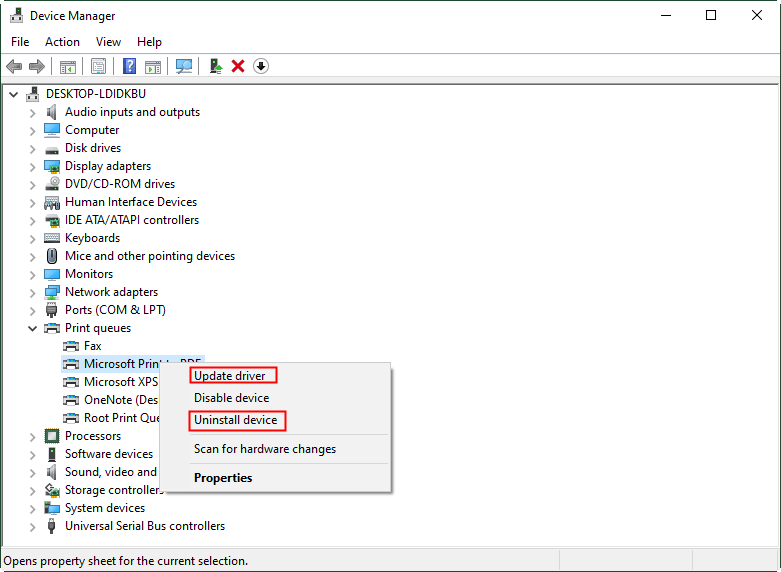
Driver conflicts are a frequent but overlooked cause of scanning failure.
Locate Scanner in HID List
On Windows, press Win + X and select Device Manager. Expand Human Interface Devices. Look for entries like “Honeywell Scanner,” “USB Barcode Scanner,” or “HID Keyboard Device.”
If you see a yellow exclamation mark, the driver is corrupted or missing.
Update or Reinstall Driver
Right-click the scanner entry and select Update driver, then choose Search automatically. If no update is found, choose Uninstall device and delete the driver software if prompted.
Then unplug and replug the scanner. Windows will reinstall the driver automatically.
For enterprise environments, avoid third-party driver tools. They often install generic or outdated drivers that cause input issues.
If the scanner doesn’t appear in Device Manager at all, it’s either not receiving power, has a hardware fault, or the USB controller is disabled.
Reset Scanner to Factory Defaults
Configuration errors are silent killers, especially if someone scanned a programming barcode by accident.
Scan the Factory Reset Barcode
Find the factory reset barcode in your scanner’s user manual or on Honeywell’s support site. Print it or display it on another device.
Scan it with your Honeywell scanner. You should hear a confirmation beep or multiple beeps depending on model.
After reset, test scanning in Notepad. Reconfigure only essential settings like adding tab suffix or disabling beep using programming barcodes.
This fixes issues caused by wrong interface mode, disabled barcode symbologies, corrupted prefix or suffix settings, or accidental entry into test or diagnostic mode.
For Bluetooth models, reset also clears pairing history. You’ll need to re-pair with your host device.
Set Correct Interface Mode
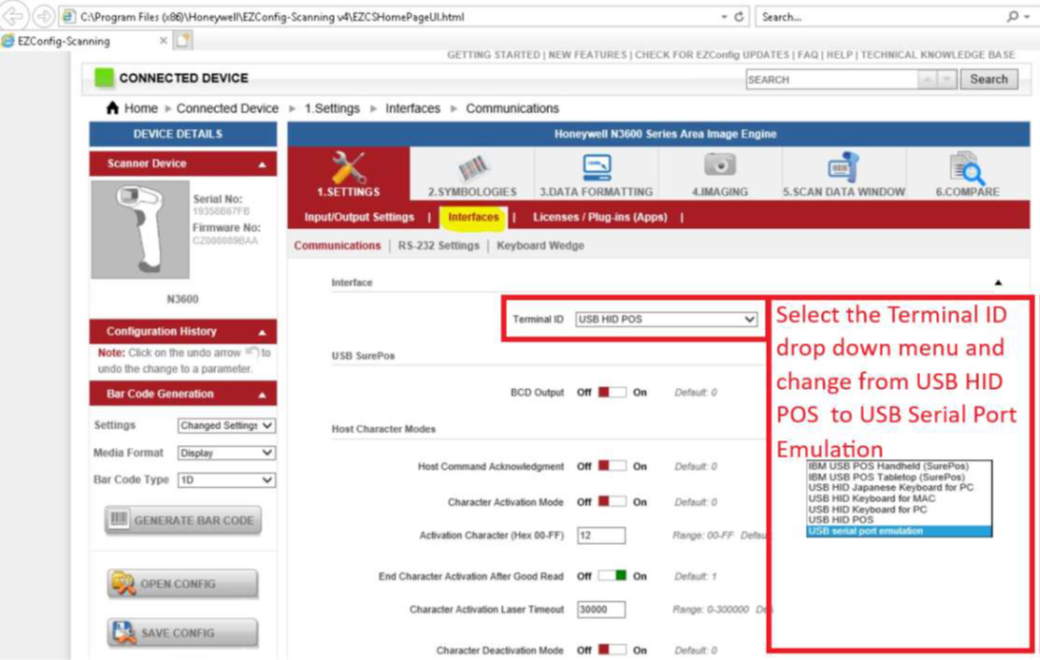
Your scanner might be speaking the wrong language to your computer.
Choose HID Keyboard Mode
Most modern systems expect the scanner to act like a keyboard. This is HID Human Interface Device Keyboard Mode.
If your scanner is set to Virtual COM Port or SPP Serial Port Profile, it won’t type into fields unless specific drivers or software are installed.
To fix, scan the HID Keyboard Emulation barcode from the manual. Reboot the scanner or unplug and replug it. Test in Notepad.
For Bluetooth scanners, ensure the mode matches your host. HID mode for tablets and POS terminals. SPP mode for legacy systems that expect serial input.
Fix Keyboard Layout Mismatch
If scanning “12345” outputs “Qmrt%”, your scanner’s keyboard language doesn’t match your OS layout.
For example, scanner set to French AZERTY but PC is US QWERTY equals garbled output.
Solution involves scanning the US Keyboard Layout barcode or your local layout from the programming guide. Confirm by scanning again in Notepad.
This is one of the most common broken scanner false alarms in multi-language environments.
Confirm Barcode Quality and Type
Not every barcode is scannable, and not every scanner reads every type.
Test with a Known-Good Barcode
Print a Code 128 or UPC-A barcode from a trusted source like Honeywell’s test barcode PDF. Avoid using barcodes from receipts, screens, or damaged labels.
Ensure the barcode is high contrast in black on white, not smudged, torn, or faded, and sized appropriately, not too small or stretched.
If the scanner reads the test barcode but not your operational ones, the issue is with your barcode generation system, not the scanner.
Verify Symbology Support
Some scanners disable certain barcode types by default to improve speed or security.
Check your model’s specs to confirm it supports 1D codes like UPC, EAN, Code 39, Code 128 and 2D codes like QR, DataMatrix, PDF417 if applicable.
To enable a disabled symbology, scan the enable barcode for that format from the manual. Test immediately.
For example, if your scanner won’t read QR codes, find and scan the Enable QR Code programming barcode.
Update Scanner Firmware
Outdated firmware can cause scanning failures, pairing issues, or random reboots.
Use Honeywell SPS or Sentinel
Go to Honeywell SPS Community, register and log in, search for your exact model number like 1952g, EDA51, or CK65. Download the latest firmware file and update tool like Honeywell Sentinel.
Follow the on-screen instructions to connect the scanner, load the firmware, and flash the device.
Never interrupt the update process. A power loss during flashing can permanently disable the scanner.
Firmware updates often fix laser timing issues, Bluetooth pairing instability, and memory leaks causing slow performance.
Inspect for Physical Damage
Even if the scanner powers on, internal damage can kill functionality.
Look for Cracks, Dents, or Loose Parts
Check the housing, trigger, and scan window. A drop can misalign the laser or damage the imager sensor. Ring scanners like 8670 and 8680 are especially prone to impact damage due to constant wear.
Listen for clicking or grinding noises when scanning, indicating motor or lens failure. Intermittent operation where it works when held at a certain angle suggests loose internal cables.
For older Voxter models, internal ribbon cables often detach from the mainboard with repeated use. This requires professional re-soldering.
If you suspect internal damage, do not open the scanner yourself. Most Honeywell devices are sealed and not user-serviceable. Opening voids the warranty.
Address Wireless Connectivity Issues
Bluetooth scanners fail to scan for different reasons than wired ones.
Re-Pair the Scanner
If your wireless scanner connects with LED solid but doesn’t transmit, delete the device from your host’s Bluetooth list. Put the scanner in pairing mode by scanning the Bluetooth Pairing barcode. Re-pair from the device menu.
Ensure the host Bluetooth is not overloaded. Many tablets and PCs support only a few HID devices at once.
Check Battery and Range
Low battery can cause weak signal or delayed transmission. Charge the scanner fully.
Keep within 30 feet or 10 meters of the host, avoiding metal obstructions or Wi-Fi interference.
For industrial environments, consider using Bluetooth Class 1 scanners for longer range.
Follow Maintenance Best Practices
Prevention is faster and cheaper than repair.
Schedule Regular Inspections
Perform weekly cleaning of scan window and check cable integrity. Monthly test all programming settings and verify firmware version. Quarterly inspect battery health for wireless models.
Use protective cases, holsters, and screen shields, especially for rugged models used in warehouses or field service.
Avoid placing scanners in direct sunlight, extreme heat, or humid areas. These conditions degrade internal components over time.
Know When to Repair or Replace
Not every scanner can be saved, and not every repair is worth it.
Signs You Need Professional Help
Seek authorized repair if the scanner powers on but no laser or illumination appears, clicking sound occurs with no scan response, intermittent function persists after reset and cleaning, or physical damage to lens or housing is visible.
Honeywell-certified technicians can replace failed imagers, reconnect internal cables, and swap out power packs like in 1952 series models.
When to Replace
Replace instead of repair if the mainboard is damaged, scanner is out of warranty and repair cost exceeds 50% of new unit price, or model is discontinued and parts are unavailable.
For new units like Orbit scanners that fail within one month, contact Honeywell support immediately. This is likely a manufacturing defect covered under warranty.
Register your device on Honeywell SPS for faster RMA processing and access to repair networks.
Final Thoughts on Fixing Your Honeywell Scanner
Most Honeywell scanner not scanning issues are fixable in under 10 minutes. Start with connection checks, cleaning, and Notepad testing. Then reset, reconfigure, and update the firmware. Only after exhausting these steps should you consider hardware failure.
Keep this guide handy for quick reference whenever scanning problems arise. Regular maintenance and proper configuration will extend your scanner’s lifespan and prevent most issues before they happen. If your scanner remains non-functional after exhaustive troubleshooting and is under warranty, contact Honeywell support or your authorized distributor for a replacement or repair.
Frequently Asked Questions About Honeywell Scanner Not Scanning
Why is my Honeywell scanner powered on but not scanning?
This could indicate several issues. First, check if the laser actually activates during scan attempts. If the laser is visible but nothing scans, the scan window may be dirty or the barcode quality may be poor. If no laser appears, this suggests internal hardware failure requiring professional repair.
How do I fix random characters when scanning?
Random characters like “Qm” instead of “123” indicate a keyboard layout mismatch. Scan the US Keyboard Layout barcode from your programming guide to match your computer’s keyboard settings. This is one of the most common configuration errors causing scanning failure.
What does resetting my Honeywell scanner do?
Factory reset restores all settings to default including interface mode, symbology settings, and prefix or suffix configurations. This fixes issues caused by accidental programming scans, corrupted settings, or wrong interface mode selections. After reset, test in Notepad and reconfigure necessary settings.
Why does my scanner work on one computer but not another?
If the scanner works on a different computer, the issue is with the original system. Check Device Manager for driver problems, ensure the correct interface mode is selected, and verify no software conflicts exist with your POS or inventory applications.
Can a dirty scan window prevent scanning?
Yes. A dirty or smudged scan window can obstruct the laser beam or imaging sensor. Clean the window with a soft, lint-free cloth dampened with water or 70% isopropyl alcohol. Avoid abrasive materials that could scratch the lens.
When should I replace my Honeywell scanner instead of repairing it?
Replace if the mainboard is damaged, repair costs exceed 50% of a new unit price, or the model is discontinued with unavailable parts. New units failing within the warranty period should be replaced through Honeywell support rather than repaired.





