

If your HP Sprocket not working, you are likely facing sudden connectivity failures, unresponsive devices, or blank prints. Thousands of users report these exact issues turning a fun instant printer into a frustrating paperweight. The good news is that most problems stem from simple power glitches or app permission errors.
This guide walks you through reviving a dead device, forcing stubborn Bluetooth connections, and eliminating app crashes. You will learn specific reset sequences, paper loading tricks, and how to identify hardware defects. By following these steps, you can determine if a simple fix will work or if you need a replacement.
Diagnose Power Failures and Charging Issues
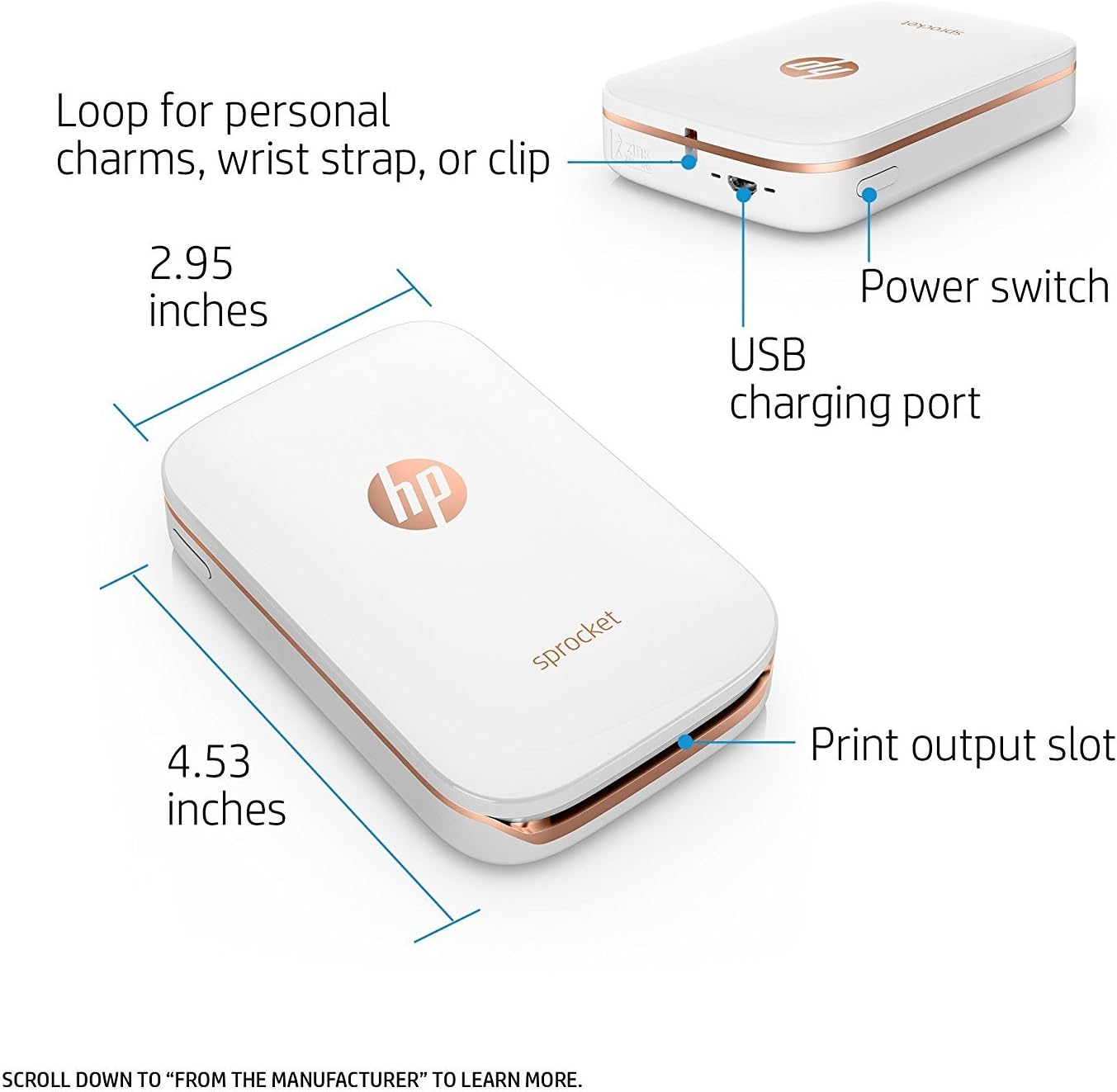
Power availability is the primary requirement for all operations. If your device shows no lights or refuses to turn on, the battery level is likely critically low. The system generally requires a minimum charge of 25% to maintain a stable connection or update firmware.
Verify Cable and Charge Duration
Start by plugging the Sprocket into a known working USB charger. Use the original micro-USB or USB-C cable if possible. You must charge the device for at least 30 minutes before attempting to turn it on again. If the charging light does not illuminate after hours, test the cable and outlet with another device like a phone.
Allow Time for Thermal Cooling
The device includes thermal protection that blocks charging if it overheats. This often happens after extended use or exposure to hot environments. Let the unit cool completely for 30 to 60 minutes before plugging it back in. Attempting to charge a hot device will result in no response.
Execute the Correct Reset Sequence

Resetting the device clears temporary glitches that cause freezing or connection drops. The method varies slightly by model, so locating the correct button is essential for success. Performing this step incorrectly can sometimes cause further unresponsiveness.
Perform the 3-Second Soft Reset
Ensure the Sprocket is turned on before beginning. Open the paper cover to locate the reset button. On Photo and Select models, it sits next to the paper tray. On Micro-USB models, look for a tiny hole near the charging port. Press and hold with a paperclip for exactly 3 seconds until the power turns off, then turn it back on.
Warning: Do not hold the button for too long. Over-resetting or performing a factory reset while the charger is partially connected can brick the device permanently.
Resolve Bluetooth Discovery Failures
If your HP Sprocket not working because it missing from the Bluetooth list, interference or OS settings are usually the cause. Different mobile operating systems require specific configurations to detect Bluetooth Low Energy devices.
Remove iOS Interference Sources
On iPhones, previously paired accessories like AirPods can block discovery. Go to Settings and select Bluetooth. Tap the “i” icon next to any paired accessories and select Forget This Device. Restart your iPhone completely before opening the HP Sprocket app to try pairing again.
Enable Location Services on Android
Android devices require Location Services to be active for Bluetooth scanning. Turn on Location in your settings menu. Grant the HP Sprocket app permissions for Bluetooth, Location, and Storage. Retry the pairing process once these permissions are active.
Force Reconnection with Extended Reset
When the printer does not show up at all, a community-tested extended reset often forces reappearance. This method bypasses standard Bluetooth lockouts that prevent the app from seeing the device.
Apply the 15-Second Reset Method
Turn on your iPhone and the Sprocket. Open the app and tap Add New Printer. When the screen says “We’re still looking,” insert a pin into the reset hole. Hold for 15 seconds until the Sprocket shuts off. Release the pin, turn the device back on, and wait for the model name with alphanumeric characters to appear.
Troubleshoot App Crashes and Permissions
A crashing app often results from missing or corrupted permissions. If the application closes immediately upon opening, your phone may be blocking essential access rights.
Clear Cache and Data Storage
On Android, go to Settings and select Apps. Find HP Sprocket and tap Storage. Select Clear Cache and Clear Data. On iOS, navigate to Privacy and Security settings. Ensure Local Network, Bluetooth, and Photos access are enabled for the app. Reopen the application to see if stability improves.
Reinstall the Application Properly
Corrupted pairing data can persist even after clearing cache. A full reinstallation ensures you start with a clean slate. This step is vital if the app crashes on launch or fails to detect the printer.
Remove and Refresh Pairing Data
Forget the printer in your Bluetooth settings first. Uninstall the HP Sprocket app from your device. Restart your phone completely to clear memory. Reinstall the app from the App Store or Google Play. Open the app and pair fresh. Always ensure you are using the latest version, as older versions fail on newer operating systems.
Update Firmware Without Connection Loops
You need a stable connection to update firmware, yet connection issues often require an update. Breaking this loop requires specific conditions to be met before starting the process.
Stabilize Connection Before Updating
Ensure the Sprocket is on and has more than 25% battery. Connect your phone to stable Wi-Fi. Open the app, go to Manage Printers, select your device, and choose Get Firmware Upgrade. Do not turn off or reset the printer while the status light is flashing. Wait for the light to become solid before using the device.
Eliminate Blank Prints and Paper Jams

Blank prints are almost always due to wrong paper orientation. Users frequently load the paper upside down or forget the quality card.
Load Paper with Logos Facing Down
Open the paper tray and place the blue or green Print Quality Card at the very bottom. Load up to 10 sheets of genuine Sprocket paper. Ensure the HP logos face down so the print side faces up. Close the cover firmly. Never use third-party thermal paper as it can damage the print head.
Clear Jams Gently
A fast-blinking red light indicates a paper jam. Clear the error message in the app and turn off the Sprocket. Open the cover and gently pull out the jammed paper without forcing it. Remove any loose scraps before reloading. If jams happen often, you may be overloading the tray or using damaged paper.
Fix Streaks and Poor Print Quality

Dust and debris inside the unit cause streaks, lines, or pinkish tints on photos. Regular maintenance prevents these issues from worsening over time.
Clean the Print Head Safely
Power off the Sprocket and open the paper cover. Use a dry microfiber cloth or compressed air to gently wipe the rollers and interior. Do not use water, alcohol, or liquids because they ruin the thermal mechanism. Store your paper in its sealed wrapper to protect it from humidity.
Confirm Hardware Defects and Contact Support
If you have tried charging, resetting, reinstalling, and testing on multiple devices without success, you likely have a hardware defect. Common failures include a dead internal battery or a failed Bluetooth module.
Initiate Warranty Claims
Find the serial number on the back or inside the paper tray. Visit the HP Support website and start a chat or call customer service. State that your Sprocket will not power on or connect and that standard fixes failed. Devices under one year old typically qualify for free repair or replacement.
Frequently Asked Questions About HP Sprocket Issues
Why is my HP Sprocket not appearing in the Bluetooth list?
Your device may be invisible due to interference from other accessories or disabled Location Services. On Android, GPS must be on. On iOS, forget other paired devices like AirPods. If it still does not appear after an extended reset, the internal Bluetooth module may be defective.
What causes the HP Sprocket to print blank photos?
Blank prints usually happen when paper is loaded upside down. Ensure the HP logos face down and the Print Quality Card is at the bottom of the stack. Using non-genuine paper can also prevent the thermal reaction needed to create an image.
How do I fix the HP Sprocket app crashing on startup?
Clear the app cache and data in your phone settings. Ensure all permissions for Bluetooth, Location, and Storage are granted. If crashes persist, uninstall the app, restart your phone, and reinstall the latest version from your app store.
Can I update firmware if the printer won’t connect?
You cannot update firmware without a stable Bluetooth connection. Try the 15-second extended reset method to force the device to appear in the app. If the device remains invisible, a firmware update is impossible, indicating a hardware failure.
What does a fast-blinking red light mean on my Sprocket?
A fast-blinking red light indicates a paper jam. Turn off the device, open the cover, and gently remove the stuck paper. Check for any small scraps left inside before reloading the paper tray correctly.
Key Takeaways for Fixing Your HP Sprocket
Most HP Sprocket not working issues resolve with a proper power cycle or the 15-second extended reset. Always ensure your battery is above 25% and that Location Services are enabled on Android devices. If the device remains invisible across multiple phones after these steps, the issue is likely a hardware defect requiring warranty support.
Start by charging your device for 30 minutes and performing the soft reset. If problems persist, proceed to app reinstallation and paper reloading checks. These targeted actions solve the vast majority of connectivity and print quality complaints reported by users.





