

Imagine capturing a moment on your phone and instantly printing it as a sticky-backed photo you can place anywhere without ink or cartridges. That is the magic of a Sprocket printer, a compact device that turns digital memories into physical keepsakes in seconds using ZINK (Zero Ink) technology.
Unlike traditional printers, these gadgets rely on heat-activated paper and seamless Bluetooth connectivity to deliver instant prints with no mess. This guide breaks down the science behind the print and explains how different models operate to turn your digital image into a tangible sticker photo in under a minute.
How ZINK Technology Creates Photos Without Ink
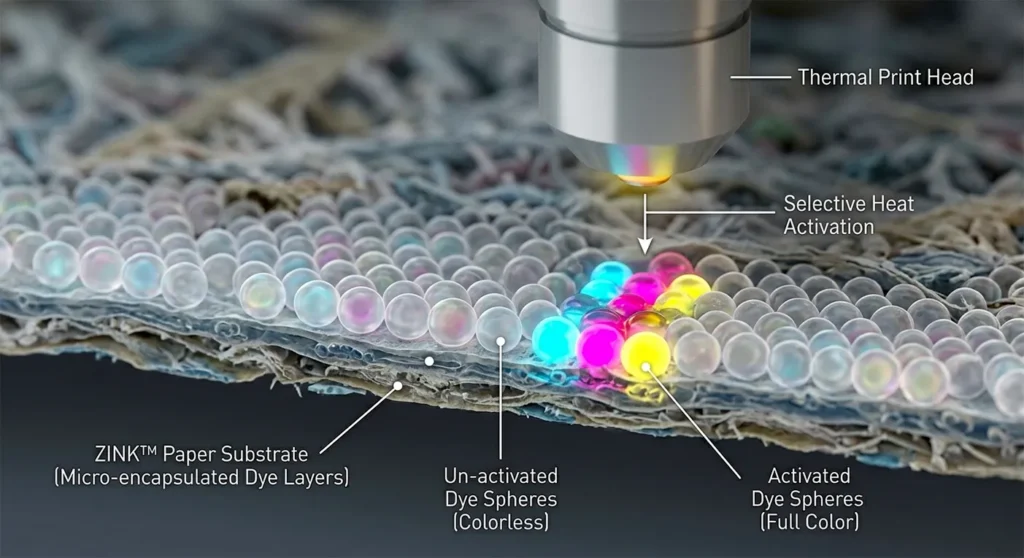
Sprocket printers eliminate ink entirely by using ZINK (Zero Ink) paper containing microscopic color crystals embedded in its layers. These crystals are pre-arranged in three distinct layers of cyan, magenta, and yellow within the paper itself.
How Thermal Printing Activates Color
The printer uses a thermal print head that applies precise heat to specific areas of the paper to reveal the image. Each temperature level activates a different color layer to form the final picture.
* Low heat triggers the yellow layer.
* Medium heat activates the magenta layer.
* High heat develops the cyan layer.
By carefully controlling the intensity and location of heat, the printer forms a full-color image pixel by pixel. This process allows the device to remain incredibly small since it requires no space for ink cartridges.
Why Prints Are Smudge-Proof and Water-Resistant
Because the color comes from the paper itself, there are no wet inks to smudge or dry. The thermal process is quick, with most prints ejecting in 30 to 45 seconds. The resulting photos are smudge-proof and water-resistant, making them ideal for travel journals or scrapbooks. While not fully waterproof, the prints can withstand light moisture without ruining the image.
Built-in Calibration for Consistent Quality
To maintain color accuracy, every new pack of ZINK paper includes a calibration card that is either blue or orange depending on the model. Before loading fresh paper, you insert this card barcode-down so the printer can read the code. This action cleans the print head and aligns color layers to ensure sharp, vibrant prints every time.
Connectivity and Power Setup Requirements
Sprocket printers connect to your smartphone or tablet via Bluetooth technology rather than Wi-Fi or USB cables for data transfer. To start, you must download the HP Sprocket app, power on the printer, and enable Bluetooth on your device.
Bluetooth Pairing Made Simple
The app detects the printer automatically and guides you through the pairing process. Once connected, you can print directly from your phone’s gallery, social media accounts, or cloud storage like Google Photos. This wireless link allows you to edit photos with filters and text before sending them to print.
Charging and Battery Life Expectations
Most portable Sprocket models run on a rechargeable battery charged via a USB or Micro USB cable. A full charge typically supports about 30 prints, which equals roughly one full pack of paper.
* The Sprocket 200 uses a Micro USB port, which may require an adapter for newer devices.
* LED lights indicate charging status, often turning white when fully charged.
* You can adjust sleep timers in the app to conserve battery life during use.
AC Power for Stationary Models
Larger models like the Sprocket Studio Plus and Photobooth plug directly into a wall outlet for constant power. The Studio Plus can also use a dedicated power bank for portability if needed. These models do not rely on internal batteries, making them ideal for events or home use where power is available.
Step-by-Step Print Process Guide
Proper paper loading is essential for smooth operation and prevents jams or poor print quality. The specific steps vary slightly between sheet-fed models and those using rolls or cartridges.
Loading Paper Correctly in Sheet-Fed Models
For Select, 200, and 3×4 models, follow these specific steps to load your paper:
1. Lift the top lid of the printer completely.
2. Insert the calibration card barcode-down into the slot first.
3. Load the photo paper with HP logos facing down behind the card.
4. Close the lid so the printer pulls in the card, cleans the head, and ejects it automatically.
Loading the Studio Plus and Panorama Models
For the Sprocket Studio Plus, open the side door to snap in the ZINK cartridge without touching the film. Load 4×6 paper shiny-side up into the tray and ensure 5 inches of clearance behind the printer for the photo to move.
For the Panorama model, install the paper roll onto the holder and twist the cap until it clicks. Feed the paper edge into the slot and wait for the printer to run a calibration barcode print that you remove with the manual cutter.
What Happens During the Printing Cycle
Once you send a photo from the app, the printer receives the image via Bluetooth and heats the thermal print head to precise temperatures. It moves the paper through rollers while applying heat pixel by pixel to develop the colors. Finally, it ejects the finished photo, which is ready to peel, stick, and share immediately.
Model-Specific Features and Differences

Different Sprocket models adapt the core ZINK technology for various needs, from pocket-sized printing to large event stations. Understanding these differences helps you choose the right device for your situation.
Sprocket Select and 200 Pocket Printing
These compact models print 2.3 x 3.4-inch sticky photos with bold colors and zero white borders on the 2×3 model. Key features include a Shared Print Queue allowing up to four users to send photos to one printer. They also include overheating protection that pauses printing after four rapid photos to let the device cool.
Sprocket Studio Plus Large Format Output
This model prints 4×6-inch photos ideal for framing or gifting. It uses a cartridge system that combines paper and processing film for larger output. The app supports tile printing, which splits one image across multiple sheets to create a large poster you can assemble.
Sprocket Panorama and Photobooth Options
The Panorama uses a continuous roll of ZINK paper to print strips from 0.5 to 9 inches long. This is perfect for photo booth strips or custom labels. The Photobooth model features a touchscreen interface and Wi-Fi connectivity for standalone event use without needing a smartphone.
App Features and Digital Enhancements
The HP Sprocket app transforms your phone into a mini photo studio with robust editing tools. You can apply filters and overlays, add text or stickers, and create collages before printing.
Edit Before You Print
Users can resize, rotate, and crop images directly within the app interface. The Photobooth Mode takes four sequential photos and arranges them on one print with a countdown timer. You can also create custom stickers by drawing doodles in the app that print as adhesive labels.
Reveal Augmented Reality Prints
Enable Reveal mode in the app to add augmented reality (AR) to your prints. When you scan a printed photo with the app, it plays videos, audio, or animations captured at the same time and location. This digital layer turns static photos into interactive memories perfect for travel logs.
Custom Stickers and ID Prints
The Photo ID Mode helps you create passport-style prints by guiding face placement and background selection. Note that these are not for official government use but work well for badges or fun IDs. The Custom Sticker feature lets your doodles print instantly as stickers.
Print Quality and Known Limitations
Sprocket printers offer a maximum resolution of 313 x 400 dpi, which is lower than professional photo printers. While prints look sharp up close, fine details may appear slightly soft when enlarged compared to lab prints.
Resolution and Color Output Variations
Colors vary slightly between models due to different print heads and calibration methods. The Sprocket 200 produces bolder tones, while the 3×4 adds a thin white border by default. Users seeking high-resolution professional photography may find the detail level limiting for large displays.
No Borderless Option on Most Models
Except for the Sprocket 2×3, most models print with a small white border around the image. True borderless printing is limited, which may disappoint users seeking a full-bleed photo effect for framing.
Connectivity and Compatibility Limits
The Bluetooth-only connection limits the range to about 30 feet from the device. There is no direct computer or laptop printing, meaning you must use a mobile device as an intermediary. Additionally, the iOS app may crash with very large photo libraries, while Android performance is generally more stable.
Maintenance and Troubleshooting Tips
If prints show streaks or faded areas, you should run a cleaning cycle immediately. For Select, 200, and 3×4 models, use the orange or blue calibration card included with every new paper pack.
Cleaning the Print Head
For Studio Plus and Panorama models, use the blue cleaning sheet separately if issues persist after normal calibration. Periodic cleaning of rollers using the provided cards is recommended for optimal quality and to prevent paper jams.
Fixing Connection and Power Issues
If the printer will not connect, ensure Bluetooth is on and the printer is powered. Restart the printer by holding the power button until lights turn off and then on again. Update the app to the latest version and try to forget and re-pair the device in your Bluetooth settings.
Preventing Overheating During Use
Avoid printing more than four photos in rapid succession to prevent heat buildup. If the printer displays a “High Temperature” warning, wait two to three minutes for it to cool before continuing your print job.
Consumables and Cost Analysis
You only pay for ZINK paper since there is no ink or toner to purchase. A 30-pack of 2×3 sheets costs around $20, averaging $0.67 per print. While convenient, this is more expensive per unit than traditional photo printing methods.
Paper Sizes and Compatibility Rules
- 2.3 x 3.4 inches: Compatible with Sprocket Select, 200, and 3×4.
- 4 x 6 inches: Specific to the Studio Plus model.
- Continuous Roll: Exclusive to the Panorama printer.
- 3 x 4 inches: Used by the Photobooth kiosk.
Never mix paper types or use non-ZINK paper, as using the wrong size or brand can jam the printer or damage the print head permanently.
Ideal Use Cases and User Tips
Sprocket printers shine in on-the-go scenarios where portability matters most. They are perfect for travel journals where you can print and stick daily memories directly into a notebook.
Best For Travel and Social Events
Use these printers at weddings and parties with Shared Queue or Photobooth mode for instant guest photos. In a classroom or office, you can create labels, badges, or visual aids quickly thanks to the adhesive backing on every print.
Pro Tips for Better Results
- Use natural light when capturing photos to ensure the best print quality.
- Enable calibration with every new paper pack to maintain color accuracy.
- Conserve battery by adjusting sleep settings in the app when not printing.
- Carry a power bank for extended outdoor use where outlets are unavailable.
Frequently Asked Questions About Sprocket Printers
Does the Sprocket printer require ink cartridges?
No, Sprocket printers use ZINK (Zero Ink) technology where color crystals are embedded in the paper. The printer uses heat to activate these crystals, eliminating the need for ink, toner, or ribbons entirely.
How long does it take to print a photo?
The thermal printing process is very fast, with most photos ejecting in 30 to 45 seconds. The print is ready to handle immediately since there is no wet ink that requires drying time.
Can I print directly from my computer?
No, Sprocket printers do not support direct computer printing. You must use a smartphone or tablet with the HP Sprocket app to send images via Bluetooth connectivity.
Why is my Sprocket printer not connecting to Bluetooth?
Ensure the printer is powered on and within 30 feet of your device. Try restarting the printer, updating the app, or forgetting and re-pairing the device in your Bluetooth settings to resolve connection issues.
How many photos can I print on one charge?
Most portable Sprocket models can print approximately 30 photos on a full charge, which equals one full pack of paper. Battery life may vary based on usage patterns and ambient temperature.
Key Takeaways for Understanding Sprocket Printer Mechanics
Sprocket printers work by combining ZINK thermal paper, Bluetooth connectivity, and a mobile app to deliver instant, adhesive-backed photos without ink. From the tiny Sprocket 200 to the event-ready Photobooth, each model uses heat to activate color crystals in the paper for smudge-proof results.
While print resolution and cost per sheet are limitations, the convenience and portability make them unique tools for sharing memories. To get the best results, always use the calibration card with new paper packs and allow the device to cool between rapid print sessions.





