
If your Symbol barcode scanner is not responding, you’re not alone. A “symbol scanner not working” issue can halt operations in retail, libraries, and logistics fast. Whether the laser won’t fire, barcodes fail to decode, or data doesn’t reach your system, most problems stem from power, configuration, connectivity, or scanning environment issues. This guide provides precise troubleshooting steps for Symbol (now Zebra) LS4278 and LS2208 models, the two most widely used scanners facing this problem.
You’ll learn how to diagnose LED signals, re-enable disabled symbologies like Codabar, fix pairing issues, and ensure proper host communication. No fluff, just actionable fixes that get your scanner back online in minutes.
Check Power and Battery Status
A Symbol scanner that won’t turn on usually has a dead battery or power connection issue. Before assuming hardware failure, verify the power supply and battery condition using these steps.
Verify Battery Is Charged
Plug the LS4278 or LS2208 into its charging cradle and wait at least 15 minutes. Look for LED feedback: a solid or blinking light means charging has started. No light indicates the cradle lacks power. Test the power adapter and outlet with a multimeter, or swap with a known-working unit if available.
Inspect Battery Compartment
Even with a charged battery, a loose end cap or misaligned cover can break the power connection. Remove the battery and check for corrosion or debris. Reinsert it firmly, ensuring the latch clicks into place. A scanner may appear powered but fail to respond to triggers if the battery isn’t making full contact.
Address Battery Temperature Errors
If the LED flashes red or shows a temperature warning, the battery is too hot or cold. The LS4278 shuts down outside safe thermal limits. Move the scanner to a climate-controlled area between 50 and 95 degrees Fahrenheit. Let it stabilize docked for 30 minutes before retrying. Never force charge an overheated battery.
Test for Physical Response
If the scanner has power but doesn’t respond to trigger pulls, the issue may be a disabled device or host system lockout rather than a hardware failure.
Trigger Pulls But Nothing Happens
Pressing the scan button produces no laser, no beep, and no response. This indicates the scanner may be disabled or misconfigured. First, confirm power by checking the LED. If lit, the device has power but may be locked out by the host system.
Scanner Powered But Unresponsive
On IBM-468x or Synapse host systems, scanners can be remotely disabled. Access the host terminal and verify the scanner is enabled. Reboot the host if needed. If using a PC, unplug the cradle and reconnect to reset the interface.
Diagnose Laser and Scanning Issues
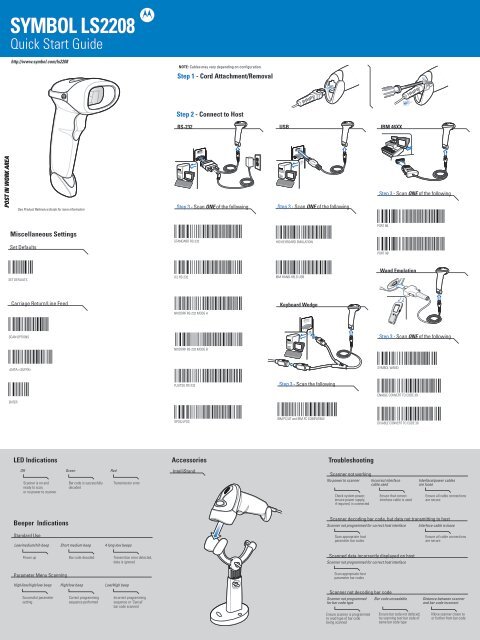
The scanner may power on and emit a laser beam but still fail to read barcodes. This typically points to symbology settings, barcode quality problems, or scanning distance issues.
Laser On But No Decode
The beam activates and sweeps across the barcode, but no data is read. This means the scanner sees the barcode but cannot interpret it. Three main causes exist: wrong symbology settings, poor barcode quality, or incorrect scanning distance.
Enable Required Symbologies
The Symbol LS2208 disables Codabar by default. If scanning library books or internal codes, this is likely your issue. Scan the Codabar enable barcode from Zebra’s programming guide. Use the 123Scan tool to generate one if the barcode is unavailable.
Validate Barcode Quality
Printed barcodes must be clean, high-contrast, and undamaged. Smudges, tears, or low-ink labels cause read failures. Test with a known-good barcode. Never scan from a computer screen because Symbol scanners cannot read digital displays due to refresh rates and pixel density.
Adjust Scanning Distance and Angle
Hold the scanner 1 to 6 inches from the barcode. Too close or too far reduces focus. Keep the scanner perpendicular to the label. Avoid reflective surfaces or angled scans. The LS4278 works best on flat, matte surfaces.
Fix Data Transmission Failures
The scanner successfully decodes a barcode but the data never appears on your host system. This points to interface, pairing, or cabling problems that block communication.
Beep But No Data on Host
You hear the success tone, but nothing appears on screen. The scanner decoded the barcode but failed to send it. This indicates interface, pairing, or cabling issues are blocking transmission.
Confirm Host Interface Settings
The scanner must match the host’s communication protocol. Common modes include Keyboard Wedge (HID) which acts as a USB keyboard, RS-232 Serial for legacy systems, and USB COM for virtual serial ports. Scan the correct configuration barcode to set the mode. For RS-232, match baud rate (typically 9600), parity (none), data bits (8), and stop bits (1), commonly called 8N1.
Re-Pair Wireless Scanner to Cradle
If using an LS4278, Bluetooth pairing between scanner and cradle can drop. Find the Pairing barcode on the cradle’s surface. Scan it with the LS4278 to re-establish the link. A solid green LED confirms success.
Inspect and Reconnect Cables
Loose or damaged cables break the data path. Check the scanner to cradle connection if wired, the cradle to PC connection via USB or serial, and the power adapter to cradle connection. Unplug and firmly reconnect each connection. Replace frayed or bent cables immediately.
Reset Cradle-to-Host Connection
If data stops mid-use, reset the cradle using these steps. First, unplug power and host cable. Second, wait three seconds. Third, reconnect host cable first, then power. This clears communication lockups.
Resolve Incorrect Data Output
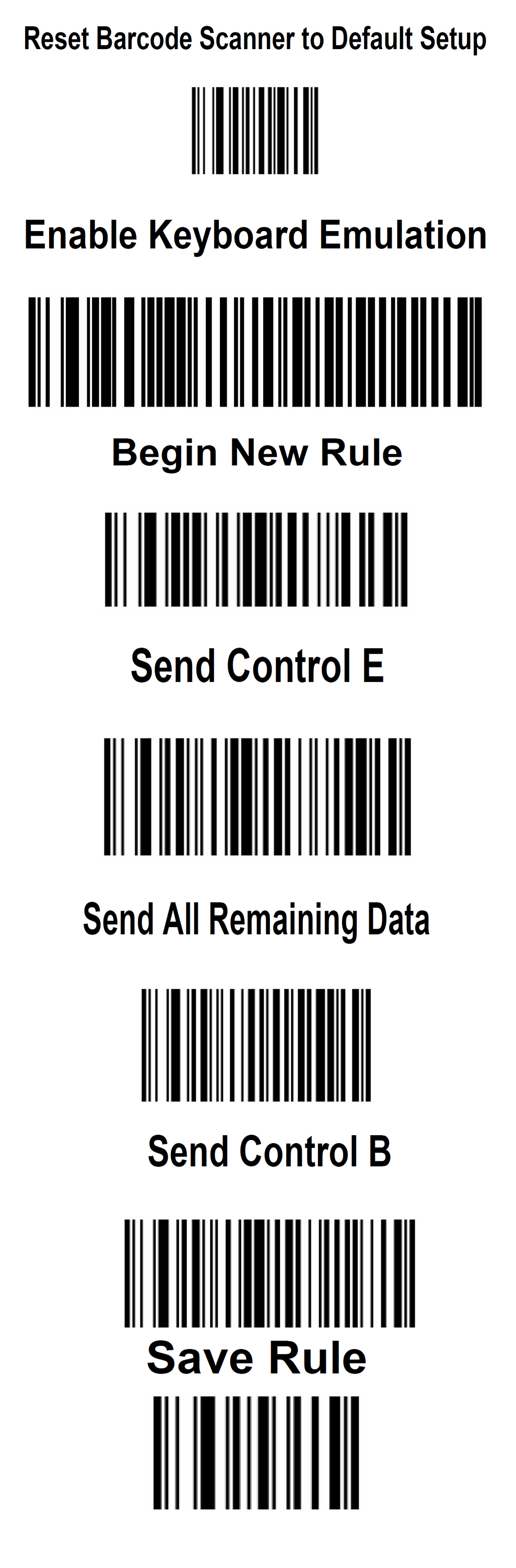
Scanned data appears garbled, missing characters, or includes unwanted symbols. This stems from configuration mismatches or data editing rules that alter the output before transmission.
Garbled or Missing Characters
Scanned data shows extra symbols, wrong letters, or truncated numbers. This indicates configuration mismatches or unwanted data editing rules are active.
Match Keyboard Emulation Settings
If the scanner appears as a keyboard, it must match the host’s layout. A US-English scanner on a UK system inserts wrong characters. Scan the Host Type barcode for your operating system and region. Ensure CAPS LOCK is off because Symbol scanners transmit uppercase if enabled.
Disable Unwanted Data Editing
Some scanners modify data before sending. For example, UPC-E expands to UPC-A, check digits are added or removed, or Codabar start/stop letters are stripped. To send raw Codabar data including A/B/C/D, avoid the NOTIS editing barcode. To strip letters and send only numbers, scan the NOTIS enable barcode.
Verify OS and Driver Recognition

The scanner has power but the computer doesn’t recognize it as an input device. This commonly happens with HID mode misconfiguration or missing drivers.
Scanner Not Detected in Windows
Even with power, the PC may not recognize the scanner. This often happens with HID mode misconfiguration. Plug in the scanner and open Control Panel, then Devices and Printers. Look for the scanner under Devices with a keyboard icon. If listed under Unspecified or missing, install Zebra’s 123Scan utility. Launch it, go to Data tab, select the scanner by double-clicking, set interface to HID Keyboard Emulation, apply, and retest.
Fix Bluetooth Input Issues
If the scanner pairs but doesn’t type, remove the existing Bluetooth device. Reset the scanner to factory defaults using the Default Factory Settings barcode. Re-pair using the cradle’s pairing barcode. Confirm it appears as a keyboard, not just a generic device.
Use 123Scan for Advanced Fixes
Zebra’s free 123Scan tool provides precision control for complex configuration issues that simple barcode programming cannot resolve.
Generate Custom Configuration Barcodes
Zebra’s free 123Scan tool lets you create tailored programming sheets. This is ideal for enabling Codabar, MSI, or other disabled symbologies, setting data formatting rules, configuring wireless pairing, and exporting scannable PDFs for field technicians. Download the tool from Zebra’s website. It works on Windows only.
Apply Settings Remotely
Some models support batch programming. Use 123Scan to save configurations and apply them across multiple scanners. Always test on one device first before deploying to others.
Prevent Future Failures
Regular maintenance and proper configuration management prevent most symbol scanner not working issues from recurring.
Audit Configuration Regularly
Every 30 days, verify the host interface mode is correct, enabled symbologies match your needs, and data editing rules are appropriate. Print and store a copy of your current settings barcode sheet for quick recovery.
Schedule Physical Inspections
Monthly checks prevent downtime. Clean the scanner lens with a soft, lint-free cloth. Inspect battery contacts for corrosion. Test cradle charging function. Replace worn cables proactively before they fail.
Train Users on Best Practices
Teach staff to always scan printed barcodes, never from screens. Store scanners in the cradle when idle. Report LED warnings immediately. Avoid dropping scanners or exposing them to extreme temperatures.
Model-Specific Troubleshooting Tips
Different Symbol scanner models have unique quirks and common failure points that require specific approaches.
Fix LS4278 Wireless Issues
The LS4278 is Bluetooth-dependent. If data stops transmitting, confirm pairing with the cradle is active. Check battery level because low power weakens signal. Avoid interference from Wi-Fi routers or metal enclosures. Reset the scanner if connection drops frequently.
Enable Codabar on LS2208
The LS2208 ships with Codabar disabled. For library or internal tracking use, scan the Codabar Enable barcode first. Test with a physical Codabar label. If letters A/B/C/D appear in the output, scan NOTIS enable to strip them. Confirm numeric-only output in your application.
Frequently Asked Questions About Symbol Scanner Not Working
Why does my Symbol scanner turn on but not scan?
If the scanner has power (LED is lit) but won’t scan, the issue is likely a disabled symbology, poor barcode quality, or incorrect scanning distance. Enable the correct symbology in settings, ensure the barcode is clean and printed (not on a screen), and hold the scanner 1 to 6 inches from the barcode.
How do I enable Codabar on my LS2208?
The LS2208 disables Codabar by default. Scan the Codabar Enable barcode from Zebra’s programming guide, or use the 123Scan tool to generate a custom programming sheet. Test with a physical Codabar label after enabling.
Why does my scanner beep but not send data to the computer?
This indicates the scanner decoded the barcode but cannot transmit it. Check host interface settings match your system, verify Bluetooth pairing if wireless, and inspect all cables for loose connections. Reset the cradle-to-host connection if needed.
Can I scan barcodes from my computer screen?
No, Symbol scanners like the LS2208 and LS4278 cannot read barcodes from digital displays. The screen refresh rate and pixel density prevent successful scans. Always use printed barcodes for testing and operation.
How do I reset my Symbol scanner to factory defaults?
Scan the Default Factory Settings barcode from Zebra’s programming guide. This resets all configurations to original factory defaults. Reconfigure your specific settings after resetting.
Why does my scanner show garbled characters when scanning?
Garbled output stems from keyboard layout mismatches or enabled data editing rules. Scan the Host Type barcode to match your operating system and region. Check data editing settings to ensure unwanted conversions are disabled.
Key Takeaways for Fixing Your Symbol Scanner
A “symbol scanner not working” problem is rarely hardware failure. Over 90% of cases resolve with power checks, symbology reprogramming, or interface reconfiguration. Start with the basics: charge the battery, check for loose connections, scan the correct setup barcodes, and verify host recognition.
Use Zebra’s 123Scan for precision control when simple programming barcodes won’t suffice. Keep printed configuration sheets on hand for quick recovery. Address issues proactively by auditing settings monthly, inspecting physical connections, and training users on proper scanning techniques.
With these steps, you’ll restore scanning capability in under 15 minutes, every time.





