
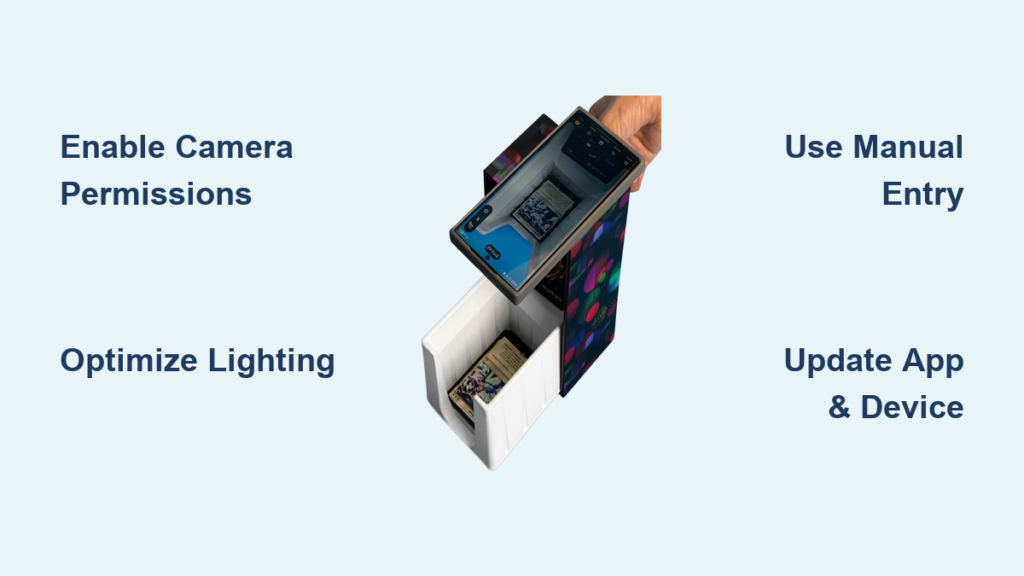
If you’re using the TCGplayer Quicklist scanner and your device isn’t recognizing cards, you’re not alone. The tcgplayer scanner not working issue affects Pro Sellers during inventory uploads, leading to delays and inaccuracies. While the scanning software is highly accurate, problems can stem from lighting, device settings, similar-looking cards, or app glitches. This guide walks you through proven troubleshooting steps to fix scanning failures, correct misreads, and keep your listing process smooth.
You’ll learn how to manually add cards, edit scans, delete errors, and when to contact support for help. Whether you’re scanning in poor lighting or dealing with foil card reflections, these solutions will get your inventory workflow back on track.
Enable Camera Permissions
The scanner relies on your device’s camera. If it’s not activating, permissions may be blocked.
Check App Camera Access
Go to your device’s Settings, then Apps, then TCGplayer, and open Permissions. Ensure Camera is turned on. After enabling access, restart the app completely. On iOS devices, go to Settings, then Privacy and Security, then Camera, and confirm TCGplayer is listed and permitted.
Test Camera Functionality
Open your phone’s native camera app and verify it focuses and captures clear images. If the camera fails or shows errors, resolve your device issues before retrying the scanner. A malfunctioning camera will always prevent scanning from working.
Optimize Scanning Environment

Poor lighting or glare can prevent the scanner from reading card text and art. Creating the right environment is essential for accurate scans.
Use Bright, Even Lighting
Scan in a well-lit area with natural or soft white light. Avoid direct sunlight or harsh overhead bulbs that create glare on card surfaces. Use a desk lamp positioned to eliminate shadows on the card.
Reduce Reflections and Glare
Hold the card at a slight angle to minimize shine. Remove foil cards from protective sleeves if reflection occurs. Consider using a matte sleeve to prevent light bounce on glossy surfaces.
Position the Card Correctly
Hold the card steady under the camera and ensure the set symbol and card name are fully visible. Keep fingers out of the frame. Maintain a distance of 6 to 12 inches for best focus and clarity.
Address Common Scan Failures

Some cards fail to scan due to design similarities or condition issues. Understanding these limitations helps you work around them.
Handle Look-Alike Cards
Cards with similar art or layout like reprints and promo versions may confuse the scanner. If the wrong card appears, select Edit, then search manually for the correct one. Use filters like set, rarity, and language to differentiate between versions.
Scan Damaged or Altered Cards
Heavily scratched, bent, or marked cards may not register in the system. Try scanning a different copy if available. If unsuccessful, add the card manually with full details to ensure accurate inventory.
Avoid Foil and Reflection Issues
Foil cards often reflect light, breaking scan recognition. Turn off flash and adjust room lighting before scanning. Try scanning at a steeper angle to reduce glare on holographic surfaces.
Use Manual Entry When Needed
When the tcgplayer scanner not working issue persists, bypass it with manual input. The app provides robust manual entry tools for these situations.
Add Cards Manually
Tap Add if the scanner fails to recognize a card. Enter the card name, set, and condition in the form. Select the correct listing from search results. Confirm pricing and quantity before saving to your Quicklist.
Edit Incorrectly Scanned Cards
Tap the misidentified card in your list and press Edit to correct details. The form pre-fills with scanned data, so adjust only what needs changing. Click Save to replace the original entry with correct information.
Save as New Variant
While editing, tap Save as new to add a different version of the card. This feature is useful for alternate conditions like Near Mint versus Played, foil versus non-fil, or foreign language prints. It keeps your inventory accurate without creating duplicates.
Remove and Adjust Scanned Items
Mistakes happen. Quickly clean up your list with built-in tools to maintain accurate inventory.
Delete Unwanted Scans
Tap the incorrect card in your Quicklist and select Delete. Confirm removal to keep inventory precise. This prevents pricing or fulfillment errors from appearing in your store.
Update Quantities Post-Scan
After scanning or manual entry, adjust quantities in your Seller Portal. Go to Inventory, then Quicklist or Manage Listings. Edit quantity fields directly and changes sync automatically to your storefront.
Keep App and Device Updated
Outdated software is a common cause of the tcgplayer scanner not working problem. Regular updates ensure compatibility and bug fixes.
Update the TCGplayer App
Visit the App Store on iOS or Google Play on Android. Search for TCGplayer and tap Update if a new version is available. Restart the app after installation to apply changes.
Upgrade Device OS
Old operating systems may not support camera features required for scanning. Go to Settings, then System, then Software Update on Android. On iOS, go to Settings, then General, then Software Update. Install the latest OS version for full compatibility.
Restart and Reinstall When Stuck
Sometimes a simple reset fixes persistent scanner issues that won’t resolve through troubleshooting.
Force Close and Restart App
Swipe away the TCGplayer app from your recent apps list. Reopen it from your home screen and try scanning again. This clears temporary glitches that may be blocking camera access.
Reinstall the App
Uninstall TCGplayer from your device completely. Reboot your phone to clear cache. Download the latest version from the official store. Log back into your Pro Seller account and test scanning functionality.
Contact TCGplayer Support
If the scanner still won’t work after trying all troubleshooting steps, get help from the source.
Submit a Support Request
Visit help.tcgplayer.com and click Submit a request. Include your device model like iPhone 14 or Samsung Galaxy S22. Provide your app version and a description of the issue. Attach screenshots of failed scans or error messages.
Explain Your Troubleshooting Steps
List what you’ve already tried including camera permissions, lighting adjustments, and app updates. This speeds up diagnosis and support response time. Detailed information helps support agents identify the root cause faster.
Request Pro Seller Assistance
If you’re a Pro Seller, mention your status when submitting the request. Pro accounts receive priority support with faster response times. Ask about known outages or scanner bugs in recent updates that may affect your device.
Frequently Asked Questions About TCGplayer Scanner Not Working
Why does my TCGplayer scanner keep failing to recognize cards?
The scanner may fail due to poor lighting, camera permission issues, or similar-looking cards that confuse the识别 system. Foil cards with reflections and damaged cards with scratches also commonly cause scanning failures.
How do I fix camera permission issues on my phone?
Go to Settings, then Apps, then TCGplayer, and enable Camera permissions. On iOS, check Settings, then Privacy and Security, then Camera. Make sure TCGplayer is listed and permitted to access your camera.
Can I add cards manually when scanning fails?
Yes. Tap the Add button when scanning fails and manually enter the card name, set, and condition. Select the correct listing from search results and save it to your Quicklist.
Why do foil cards scan incorrectly more often?
Foil cards reflect light, breaking scan recognition. Turn off your flash, adjust room lighting, and try scanning at a steeper angle to reduce glare on holographic surfaces.
How do I edit a incorrectly scanned card in my Quicklist?
Tap the misidentified card in your list and press Edit. The form pre-fills with scanned data, so adjust only the incorrect fields. Click Save to replace the original entry with correct information.
What should I do if nothing fixes the scanning issue?
Contact TCGplayer support at help.tcgplayer.com with your device model, app version, and a description of the issue. Include screenshots of failed scans and list troubleshooting steps you’ve already attempted.
Key Takeaways for Fixing Your TCGplayer Scanner
The tcgplayer scanner not working issue is often fixable with simple adjustments to lighting, permissions, or app settings. Always start with camera access and environment checks before moving to manual entry or reinstallation. Use the Add, Edit, and Delete functions to maintain accurate inventory when scans fail. For ongoing problems, TCGplayer support can provide model-specific fixes based on your device and app version.
Keep your app updated and follow best practices like using even lighting and avoiding foil card reflections to minimize future scanning issues. When all else fails, manual entry and Pro Seller support ensure your inventory workflow continues without major delays.





