
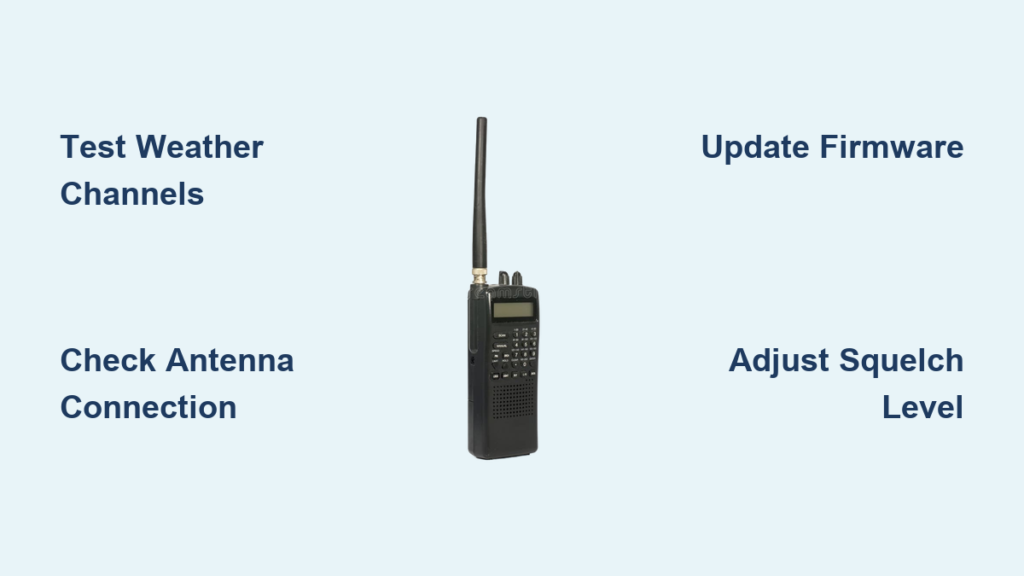
You’re not alone if your police scanner suddenly goes silent. A scanner that once picked up nearby police, fire, and EMS chatter but now delivers nothing, no static, no voices, no signals, can be frustrating. The good news: most reception issues stem from fixable causes, not broken hardware. Whether you’re using a Uniden BCD436HP, BCD536HP, TRX1, or another digital scanner, this guide walks you through every possible reason your scanner isn’t picking up and how to fix it fast.
Start here: If your scanner isn’t picking up police transmissions, first verify it can receive any signal at all. Tune to a National Weather Service frequency like 162.400 MHz or 162.550 MHz. These channels broadcast constantly across the U.S. If you hear weather alerts, your scanner works and the problem is likely programming, signal, or antenna related. If you hear nothing, the issue could be hardware, settings, or environment. This article covers all angles so you can get back to monitoring public safety radio.
Test Scanner with Weather Channels First
Before assuming a major failure, confirm your scanner is actually receiving signals. Using known-active frequencies eliminates guesswork and points you directly to the root cause.
Tune to NWS Frequencies
Use these seven National Weather Service frequencies to test basic function. They broadcast 24/7 from nearby transmitters, often within line-of-sight range of most locations.
• 162.400 MHz
• 162.425 MHz
• 162.450 MHz
• 162.475 MHz
• 162.500 MHz
• 162.525 MHz
• 162.550 MHz
If your scanner picks up any of these, it’s functional and the issue lies elsewhere in programming, antenna, or local signal changes. If none produce audio, the scanner may be defective or severely misconfigured.
Verify Audio and Power
Check basic functions before moving to advanced diagnostics. Does the display turn on? Can you adjust volume? Do menu options respond? A scanner with power but no sound may have a failed speaker, muted settings, or corrupted firmware, especially if bought used. Test with headphones to rule out speaker issues.
Check Antenna Connection and Type

The antenna is the number one cause of poor or no reception. Most scanner problems traced to antenna issues get overlooked because the antenna “looks fine” on closer inspection.
Secure the BNC Connector
Most handheld and base scanners use a BNC antenna connector. Ensure the antenna is fully inserted and the locking ring is tightened, but do not over-tighten. Check for visible damage to the plug or port. A loose or partially connected antenna can cause total signal loss. Wiggle the connection while scanning. Intermittent noise means a faulty link.
Upgrade from Stock Antenna
Stock antennas like those on Uniden BCD436HP are short-range and easily blocked. They work best near windows or outdoors. If you’re indoors, especially in basements or metal-framed buildings, upgrade to a better antenna.
• Center Fire Antenna: Compact, high-gain, ideal for indoor and outdoor use
• Roof-mounted vehicle antenna: Superior reception, especially in cities
• Attic or rooftop external antenna: Best for permanent indoor setups
Even a 20 dollar external antenna can restore reception where a stock whip fails.
Optimize Antenna Placement
Try these moves to improve signal capture. Place scanner near a window facing the city center. Move to an upper floor. Test outside on a porch, balcony, or in your car. If signals return in a new location, local obstructions like buildings, hills, or trees are blocking reception.
Confirm Local System Is Still Active

Just because a frequency worked yesterday doesn’t mean it’s still live. Public safety agencies frequently migrate to new systems, and your scanner may be looking in the wrong place.
Agencies Change Systems Frequently
Many police and fire departments have switched to new digital networks, especially P25 trunked systems. Recent transitions have occurred in Ohio, Indiana, South Carolina, Illinois, Missouri, Michigan, Colorado, Louisiana, Mississippi, and Northern Arizona. One user reported hearing transmissions over the weekend, then on Monday they were completely gone. The department had quietly migrated to a new P25 system not yet in public databases.
Check for P25 or Trunking Changes
P25 Project 25 is a digital standard requiring digital decoding capability, correct talkgroup programming, and strong signal strength. Weak signals won’t decode. Older scanners or improperly programmed ones may not lock onto P25 signals even if they’re broadcasting nearby. The Atlanta Public Safety P25 is a known system where users lost reception after a backend upgrade despite correct programming.
Use RadioReference to Verify Frequencies
The most reliable source for up-to-date scanner data is RadioReference.com. This database is maintained by scanner enthusiasts and updates frequently as systems change.
Search by Location
Visit RadioReference.com and enter your city or county. Look for active frequencies, system type like conventional, trunked, or P25, talkgroup lists, and coverage maps. If your saved system no longer appears or shows a migrated note, that’s your answer.
Monitor Forum Reports
RadioReference forums are goldmines for real-time updates. Search for no signal followed by your city, scanner stopped working, or new radio system. One Northern Arizona PD switch was first reported in a forum thread weeks before official database updates.
Update Firmware and Reload Database
Outdated software can block access to modern signals. Scanner manufacturers release firmware updates to support new digital standards and fix decoding bugs.
Install Latest Firmware
For Uniden BCD436HP and BCD536HP, firmware version 1.28.14 is the latest confirmed update. To check, go to Menu System Info. If below 1.28.14, update via Uniden’s website using a USB cable. New firmware often adds support for updated P25 features or fixes decoding bugs.
Refresh SD Card Database
Even with good firmware, your database may be stale. Open Uniden Sentinel Software, sync with RadioReference database, export to SD card, then insert into scanner and reboot. Ensure files copied correctly. Corrupted or incomplete transfers cause silent scanners. Never use third-party or pirated databases. They often include dead frequencies or malware.
Adjust Squelch and Scan Settings
Misconfigured settings mimic hardware failure. Many users spend hours troubleshooting only to discover a single setting was wrong.
Set Correct Squelch Level
Squelch controls how strong a signal must be to unmute the speaker. Too high blocks weak but usable signals. Too low lets in constant noise. For most areas, use squelch 10 to 11 on TRX1. You can go as low as 9 for more sensitivity or as high as 13 for less noise. One user had squelch set to 2, extremely sensitive, yet heard nothing. This ruled out over-filtering and pointed to signal or hardware failure.
Expand Scan Range
If set to 2 miles, your scanner may ignore distant but active towers. Increase the radius if you’re on the edge of coverage or nearby agencies transmit from farther away. Use local maps or RadioReference coverage tools to estimate optimal range.
Clear Avoids and Lockouts
Hidden lockouts can silence entire departments. Perform a factory reset, re-add systems manually, and avoid using Lockout during scanning. A factory reset clears corrupted settings and hidden avoids that may have been programmed previously, common with second-hand units.
Diagnose Receiver Desense
Strong nearby signals can drown out weaker ones. Understanding desense helps you identify if your scanner is being overwhelmed by local RF energy.
What Is Desense
Receiver desensitization happens in high-RF areas like downtown Atlanta where powerful transmitters overload your scanner’s front end. Symptoms include intermittent reception, garbled audio, and failure to decode digital signals. But complete silence is rare. You’d usually still hear fragments. Desense is more common in base stations near cell towers or broadcast antennas. If you’re in a dense urban area and other fixes fail, consider a filter or preselector to block out-of-band interference.
Force Signal Acquisition with Hold Function
Use the Hold function to jumpstart reception when your scanner struggles to find the first signal.
Manually Tune to Active System
Navigate to your local system like Atlanta Public Safety P25. Press Hold. Wait 10 to 30 seconds for a hit. Press Scan. Once the scanner locks onto a control channel or transmission, it often resumes normal scanning. This bypasses weak signal acquisition issues. One user confirmed, as soon as the scanner got its first hit it would work flawlessly.
Upgrade Your Setup for Reliable Reception
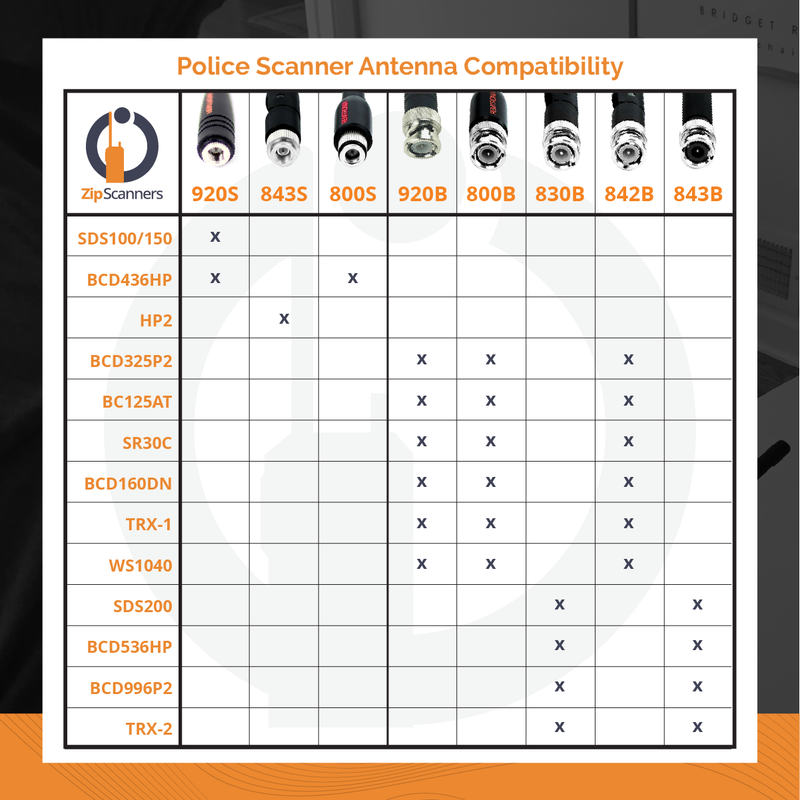
Don’t rely on stock gear for consistent monitoring. A few strategic upgrades transform a problematic scanner into a reliable monitoring tool.
Use an External Antenna
Best options include Center Fire at 30 dollars with high gain and easy window mount, Diamond X50A at 100 dollars for rooftop use and superior UHF VHF performance, or a vehicle mount for mobile scanning. Even a simple magnetic roof antenna can outperform indoor whips.
Install a Preamplifier
For weak signal areas, add a mast-mounted preamp. It boosts signal before cable loss and compensates for long coax runs. Works with attic or rooftop antennas. Avoid indoor amplifiers. They often amplify noise more than signal.
Consider a Scanner Upgrade
If your model lacks P25 Phase 2 support, NXDN decoding, or modern firmware updates, it may be time to upgrade. Newer models like the Uniden SDS200 or Whistler WS1040 offer better sensitivity and broader digital support.
Quick Fix Checklist: Resolve Scanner Issues Fast
Run through these steps in order to systematically isolate and fix the problem.
• Test NWS channels. Can you hear weather?
• Check antenna connection. Is BNC tight?
• Try external antenna. Move near window or outside.
• Visit RadioReference. Has your system changed?
• Update firmware and database. Use latest version.
• Adjust squelch. Try 9 to 11 for balance.
• Expand scan range. Do not limit to 2 miles.
• Factory reset. Clear hidden lockouts.
• Use Hold function. Force signal acquisition.
• Contact local agency. Ask if they switched systems.
Frequently Asked Questions About Police Scanner Reception
Why is my police scanner not picking up any signals?
Start by testing with National Weather Service frequencies between 162.400 and 162.550 MHz. If you hear weather broadcasts, your scanner works and the issue is likely antenna placement, programming, or local system changes. If you hear nothing, the scanner may be defective or severely misconfigured.
How do I know if my local police switched to a new system?
Check RadioReference.com for your area and look for migrated notes or system changes. Monitor forum posts for real-time reports. You can also contact the local agency directly or check city council meeting minutes for radio system procurement announcements.
What squelch setting should I use for best reception?
For most digital scanners like TRX1, start with squelch at 10 to 11. Lower values like 9 increase sensitivity but may let in more noise. Higher values like 13 filter out weak signals. Adjust based on your local RF environment.
Can a stock antenna cause complete signal loss?
Yes. Stock antennas are short-range and perform poorly indoors or in areas with obstructions. A loose or damaged stock antenna can cause total signal loss. Upgrading to an external antenna often restores reception immediately.
Do I need to update my scanner firmware?
Yes, especially for Uniden models. Firmware updates add support for new digital standards like P25 and fix decoding bugs. Check your model on the manufacturer’s website for the latest version.
Key Takeaways for Restoring Police Scanner Reception
A police scanner not picking up is rarely one single issue. It’s usually a combination of weak signal, stock antenna limitations, digital system migration, and scanner sensitivity. By testing systematically from weather channels to firmware to antenna placement, you’ll isolate the cause and restore reception. Start with the NWS test to confirm scanner function, then check antenna connections and placement. Verify local systems haven’t migrated to P25 or new trunked networks using RadioReference. Update firmware and reload your database regularly. Adjust squelch and scan range settings to ensure they’re not filtering out valid signals. If all else fails, use the Hold function to force initial signal acquisition, then consider upgrading to a better antenna or scanner model. Stay proactive by monitoring RadioReference monthly and investing in external antennas. With the right setup, your scanner can keep you informed for years.





