
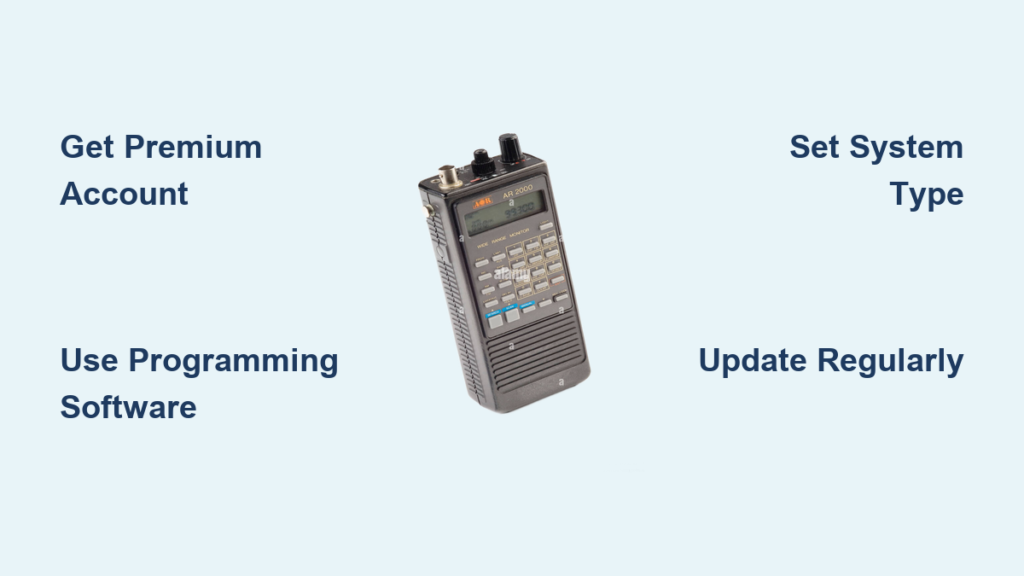
You just bought a radio scanner, turned it on, and heard nothing. No police chatter, no fire dispatch, no train crews. Why? Because your scanner is not programmed. Out of the box, most scanners only contain limited default frequencies or none at all. To monitor real-time emergency, transportation, or utility communications, you need to program it with the right frequencies and system configurations.
This guide walks you through every step, from choosing the right tools to troubleshooting silent channels. We cover both manual and computer-aided methods, explain analog versus digital systems, and give model-specific tips for Uniden and Whistler scanners.
Essential Tools for Scanner Programming
Before programming begins, gather the necessary hardware, software, and access credentials. Skipping any of these can block progress, especially when dealing with modern digital systems.
Get a RadioReference Premium Account
RadioReference.com is the primary source for up-to-date frequency data across the U.S. and Canada. While free accounts let you browse, only Premium subscribers can connect directly to programming software like Uniden’s Sentinel or Whistler’s EZ Scan.
The cost is approximately $25 per year with instant activation via credit card. The key benefit is real-time database sync with scanner software. Without a Premium account, you will be limited to manual entry or outdated third-party lists. For efficient, accurate programming, especially for trunked systems, this subscription is essential.
Choose the Right Programming Software
The software you use depends on your scanner brand and model. Sentinel works with Uniden scanners like the SDS100, BCD536HP, and BCD436HP, and it is free. EZ Scan supports Whistler scanners like the TRX-1 and TRX-2, also free. BuTel ARC is a paid option for advanced users, while FreeSCAN offers open-source compatibility.
Prepare Hardware Connections
You will need one of two ways to transfer data. A USB programming cable provides direct connection and allows real-time sync. An SD card reader lets you transfer files by removing the memory card. Ensure drivers are installed. If your PC does not recognize the scanner, visit the manufacturer’s support page to download updated USB drivers.
Understand Radio System Types

Your programming method depends on the type of system you want to monitor. Misidentifying it leads to silence or garbled audio.
Program Conventional Analog Systems
Conventional systems use fixed frequencies and are common in rural areas, volunteer fire departments, and railroads. These operate on single frequencies without dynamic assignment.
Simplex vs. Repeater Systems
Simplex communication uses one frequency for both transmit and receive. The range is typically 5 to 10 miles, and it is common in fireground tactical channels. Repeater systems use two frequencies. Handheld radios transmit on the input frequency, and the repeater retransmits on the output frequency. This is what you program into your scanner.
Always program the output frequency unless tracking input signals specifically.
Decode Trunked Digital Systems
Modern public safety agencies use trunked digital systems like Project 25 (P25). These require more complex setup than simple frequency entry. The frequencies change dynamically based on traffic, and communications are grouped into talkgroups. A control channel directs the scanner where to listen, and you need a digital-capable scanner.
Analog-only scanners will only hear noise on digital systems.
Required Components
You must identify the system type, such as P25, DMR, or NXDN. You need the site, which is the geographic coverage area. The NAC filters valid transmissions, and talkgroup IDs represent logical groupings like Police Dispatch. The structure must follow System, Site, Department, Talkgroup.
Step-by-Step: Program Using Computer Software
For digital or large-scale monitoring, computer programming is faster and more accurate than manual entry.
Connect Scanner to PC
The USB method is recommended. Plug the USB cable into the scanner and computer, then power on the scanner. Wait for the PC to recognize the device and open Sentinel or EZ Scan.
If the scanner is not detected, try another USB port or reinstall drivers from the manufacturer site. The SD card method serves as a fallback. Remove the SD card from the scanner, insert it into the PC card reader, modify files via software, and reinsert into the scanner.
Log Into RadioReference Web Service
Open Sentinel or EZ Scan and go to Settings, then Web Service. Enter your RadioReference username and password and click Login. Double-check credentials if you receive an error. Free accounts cannot authenticate.
Search and Download Local Systems
Enter your zip code, city, or county to browse results. Filter by agency type like police, fire, or EMS. Check the system mode like P25 or Analog. Avoid systems marked as encrypted or OpenSky.
Select the systems you want to monitor and choose a destination, either a new Favorites List or an existing System Folder. Click Add to Scanner or Download. Note that simulcast systems may cause audio distortion.
Manual Programming Guide
No computer? No problem. You can program most scanners manually using the keypad.
Program a Channel on Uniden BCD536HP
Press Menu and go to Manage Favorites, then New Favorites List. Name it like City PD. Choose Review, Edit System, then New System. Select Conventional or Trunked. Name the system like Downtown PD.
Add a Department like Police Dispatch. Select New Channel and enter the frequency like 155.31000. Rename the channel to Main Tac. Set the Audio Type. For Analog, set CTCSS if needed or use Search. For Digital, set to Digital, enter NAC if known, or use Search.
Enable Your Custom List
Press Menu and go to Set Scan Selection. Turn Full Database OFF. Turn your Favorites List ON. Exit the menu. The scanner now scans only your programmed channels.
Digital System Setup (P25, DMR, NXDN)
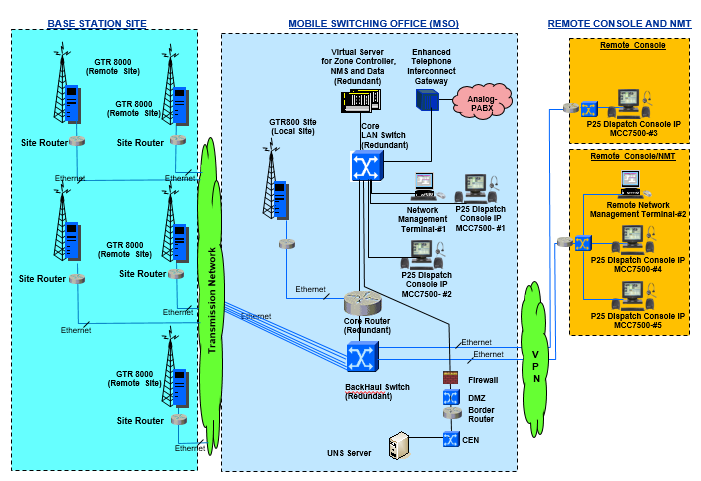
Digital systems require structured programming, not just frequencies.
Build a P25 System
Create a new Favorites List. Add New System and select P25. Add a Department like Fire Dispatch. Add Talkgroups by entering known TG IDs manually or enabling ID Search Mode to auto-discover active ones.
Create a Site and assign a frequency. Assign the Control Channel. Save and activate. Without correct hierarchy, the scanner will not follow conversations.
Modulation Settings Matter
The default is Auto. For railroads, NFM is recommended. To set it, press Function and navigate to Set Modulation. Choose NFM. This improves clarity and reduces interference.
Optimize Scanner Performance
Fine-tune settings to improve reception and usability.
Adjust Squelch Properly
Squelch cuts background noise without blocking weak signals. Press Function and enter Squelch Mode. Turn the knob counter-clockwise until static appears. Rotate clockwise until noise stops. Set three clicks above the silence point. Re-adjust when moving locations.
Set Up Priority Monitoring
Pause scanning every few seconds to check a critical channel. On Uniden scanners, while on the desired channel, press E/Yes twice. Go to Manage Favorites, Review/Edit System. Select the channel, Set Priority. Enable Priority Scan in Scan Selection.
On Whistler TRX-1/2, tune to the channel and press Pause. Press Menu and scroll to Priority. Enable Priority Scan. Press SEL to save.
Backup and Restore Configurations
Prevent data loss after resets or battery swaps.
Backup with Uniden Sentinel
Open Sentinel and insert the scanner’s SD card into the PC. Click Scanner, Read from Scanner. Select the drive and click OK. Go to File, Save. Save as an .sdf file.
Restore Configuration
Open File, Open. Load the .sdf file. Click Write to Scanner.
Whistler EZ Scan Backup
Open EZ Scan and connect via USB or SD card. Click Copy Configuration from Scanner Memory/SD Card. Go to File, Save Current Configuration to Archive. Save as an .arc file. Restore via Restore Configuration From Archive.
Find Local Frequencies Fast
Use RadioReference.com Effectively
Visit radioreference.com and enter your zip code. Click Retrieve and select your county. Review the system details. Check the Mode like Analog or P25. Note the Encryption status. Systems marked DE cannot be monitored. Watch for Simulcast notes, which may cause audio distortion.
Handle Common Limitations
Avoid Programming Encrypted Systems
Federal law prohibits decoding encrypted signals. No consumer scanner can legally decode encrypted audio. The workaround is to monitor non-encrypted ancillary systems like public works, schools, or parks.
OpenSky Systems Are Undecodable
These systems use 9600 baud protocol with no control channel. They act like encryption in practice, and there is no legal way to monitor them.
System Rebanding Causes Silence
After public safety upgrades, old frequencies go dark and new systems may not be in the database yet. Wait one to two weeks for contributors to update RadioReference. Monitor local forums for reports.
Model-Specific Tips
Uniden BC346XTC
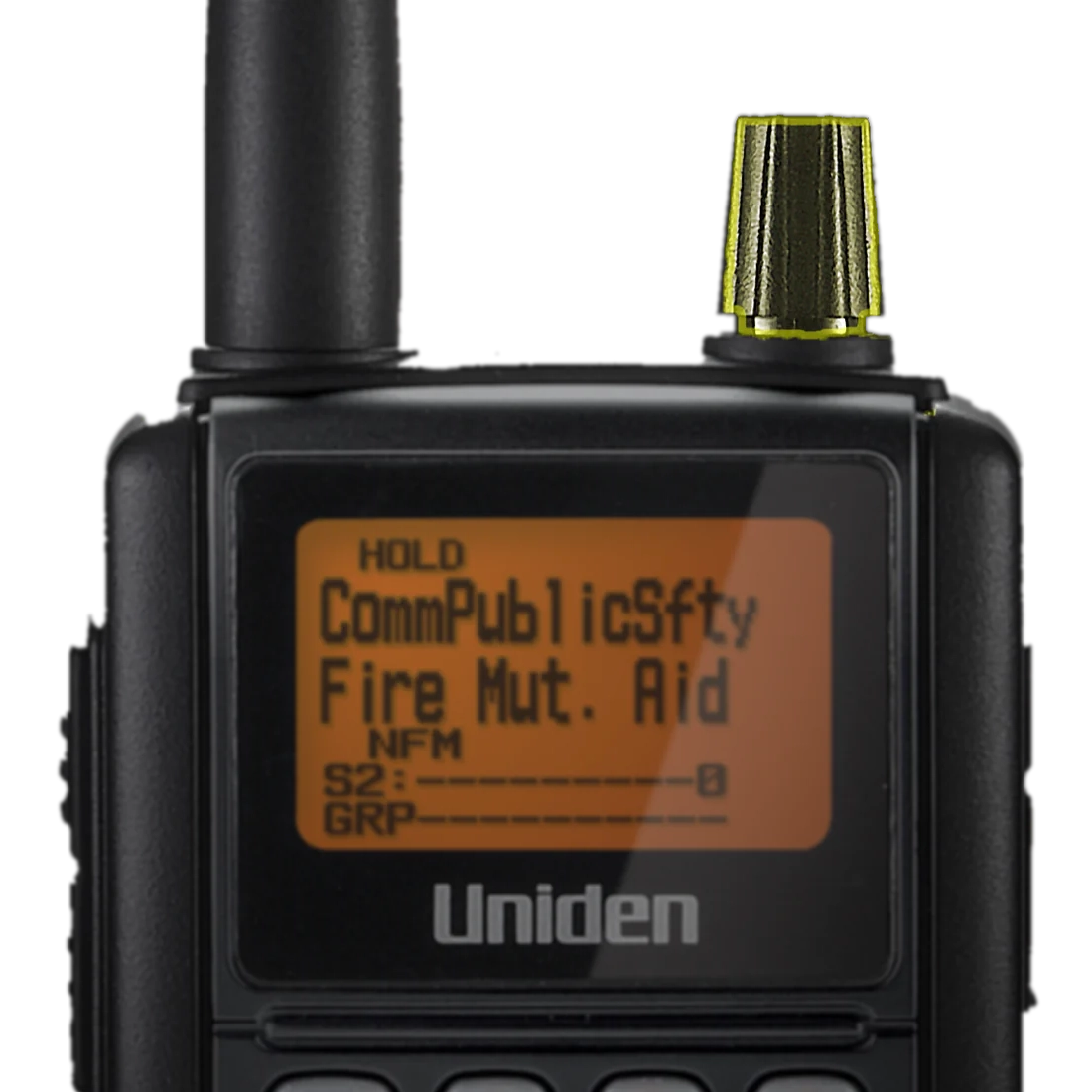
This is an analog-only scanner. It supports analog trunking like Motorola, EDACS, and LTR. It cannot decode P25, DMR, or NXDN. Entering digital frequencies results in silence or static.
Uniden HomePatrol-1/2
These are digital-capable scanners requiring Sentinel Software. They are ideal for structured monitoring and use system-based programming. You must define System, Site, Department, Talkgroup.
Uniden BC125AT
This is a railfanning favorite with a 97-channel AAR railroad band plan. It supports NFM modulation and has simple frequency entry. It costs around $120 and has no digital or trunking support.
Troubleshoot Silent or Skipping Channels
| Problem | Likely Cause | Fix |
|---|---|---|
| No audio | Outdated frequencies or system upgrade | Update via RadioReference |
| Garbled audio | Simulcast interference | Try different site or wait for optimization |
| Skips channels | Wrong CTCSS, DCS, or NAC | Set channel to Search mode |
| PC not recognizing scanner | Driver issue or bad cable | Reinstall drivers or test new USB port |
| Login fails in software | Non-premium account | Upgrade to RadioReference Premium |
| Priority not working | Feature disabled | Enable in Scan Selection menu |
Maintain and Update Regularly
A one-time setup is not enough. Systems evolve over time.
Follow Best Practices
Use clear naming like North County Fire or EMS Dispatch. Organize Favorites Lists by agency type. Update every three to six months. Monitor RadioReference forums for outage alerts.
Backup After Every Major Change
Save .sdf or .arc files after programming updates.
Frequently Asked Questions About Programming a Radio Scanner
What is the easiest way to program a radio scanner for beginners?
The easiest method for beginners is using computer-aided programming with Sentinel or EZ Scan software. These programs connect directly to RadioReference’s database, allowing you to download frequencies for your area automatically. You will need a RadioReference Premium subscription, a USB cable, and a computer.
Can I program a scanner without a computer?
Yes, you can program most scanners manually using the keypad. This works best for simple analog systems with a limited number of channels. Navigate through the menu to create Favorites Lists and enter frequencies directly. Digital trunked systems are much more difficult to program manually.
Why is my scanner not receiving any transmissions?
The most common reasons are outdated frequencies, wrong system type selected, or programming an analog scanner for a digital system. Check RadioReference for recent system changes in your area. Verify your scanner supports the system mode you are trying to monitor.
What is the difference between analog and digital scanner programming?
Analog programming involves entering fixed frequencies. Digital trunked programming requires setting up a hierarchy of System, Site, Department, and Talkgroup. You must also identify the control channel. Digital systems like P25 require a digital-capable scanner.
Do I need a RadioReference Premium account to program my scanner?
You do not need Premium for basic manual programming, but it is highly recommended for computer-aided programming. Free accounts cannot connect to the Web Service that allows Sentinel and EZ Scan to download live frequency data. The $25 yearly cost is worth it for accurate, up-to-date programming.
How often should I update my scanner programming?
Update your programming every three to six months, or immediately after hearing about system changes in your area. Public safety agencies frequently upgrade or reband their systems. RadioReference’s crowdsourced database updates regularly, so checking frequently ensures you do not miss active communications.
Key Takeaways for Programming Your Radio Scanner
Programming a radio scanner requires the right tools, understanding of system types, and proper configuration. Start by getting a RadioReference Premium subscription and downloading the appropriate software for your scanner brand. Choose between computer-aided programming for complex digital systems or manual entry for simple analog setups.
Always verify your scanner matches the system type you want to monitor. Analog-only scanners cannot decode P25 digital signals. For digital trunked systems, you must program the complete hierarchy of System, Site, Department, and Talkgroup. Set modulation to NFM for railroads and adjust squelch properly for optimal reception.
Back up your configuration regularly and update programming every few months. If you encounter silent channels, check for system rebanding, encryption, or outdated frequencies. With proper setup and maintenance, your scanner will provide years of reliable monitoring.





