
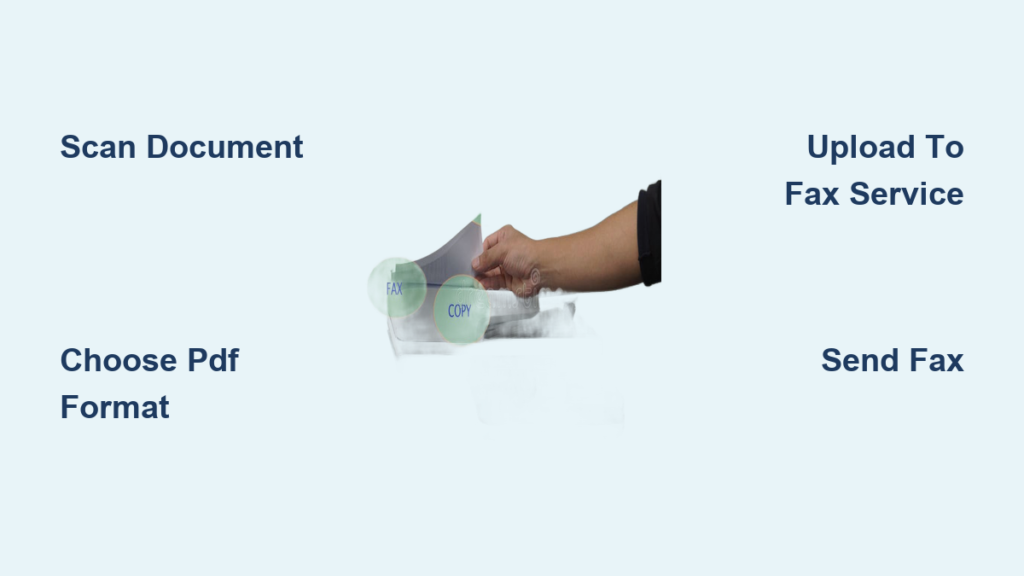
Sending a fax from a scanner is faster, more flexible, and more secure than using a traditional fax machine. With just a few steps, you can scan a document, save it digitally, and transmit it through an online fax service without ever touching a physical fax machine. This guide walks you through exactly how to fax from a scanner, covering the essential tools, settings, and services you need to get the job done right.
You’ll learn how to prepare your documents, choose the right file formats, select a reliable fax provider, and avoid common mistakes that can ruin your transmission. Whether you’re using a standalone scanner, a multifunction printer, or your smartphone, this process works across all devices.
Essential Requirements for Scanner Faxing
Before sending your first fax from a scanner, you need to gather the right equipment and understand what each component does. Unlike old-school fax machines that handled everything in one device, modern scanner faxing splits the process into two distinct steps: scanning and transmitting.
Compatible Scanner or All-in-One Device
Any scanner can prepare documents for faxing, but certain features make the process smoother. Look for a device with at least 300 DPI resolution for clear text transmission, or 600 DPI if you’re faxing detailed images or small fonts. Your scanner should connect via USB, Wi-Fi, or Ethernet so files transfer easily to your computer or cloud storage.
Key features to prioritize include an automatic document feeder for multi-page faxes and preview functionality to check alignment before scanning. If you only have access to a smartphone, many apps let you photograph documents and treat them as scanned files.
Internet Connection and Fax Service
A scanner digitizes paper but cannot transmit anything on its own. To actually send a fax, you need a stable internet connection and an online fax service. Providers like eFax, FaxBurner, and HelloSign Fax act as virtual fax machines, accepting your scanned files and delivering them to the recipient’s fax number over the internet.
This approach, often called internet faxing or e-faxing, eliminates the need for phone lines while offering better security, delivery tracking, and digital storage options.
Supported File Formats
Not all file types work equally well when faxing. Use formats that preserve quality and ensure compatibility with most fax services.
| Format | Best For |
|---|---|
| Standard documents, contracts, forms | |
| TIFF | Traditional fax standard with efficient compression |
| JPEG/PNG | Image-heavy pages when necessary |
| DOCX/XLSX | Editable files that most services convert automatically |
Avoid low-resolution images or corrupted files, as these often fail to transmit or arrive unreadable.
Step-by-Step: How to Fax from a Scanner
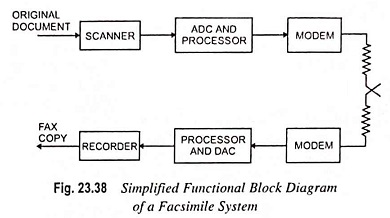
Follow this proven process to send clear, professional faxes using any scanner and online service combination.
Step 1: Prepare and Scan Your Document
Place your document face-down on the scanner glass, aligning it with the guide marks to prevent skewing. Ensure the paper is clean, flat, and free of creases or smudges that could cause transmission errors.
In your scanning software, set resolution to 300 DPI for text or 600 DPI for images. Choose grayscale unless color is essential, and select PDF or TIFF as your output format. Use the preview function to check alignment and clarity before clicking scan.
Step 2: Save and Optimize the Scanned File
After scanning, name your file clearly using a logical format like Invoice_ClientName.pdf. Keep file size under 10 MB, as most fax services impose limits that could block larger transmissions.
For multi-page documents, combine all pages into a single PDF using free tools like Adobe Acrobat, Preview on Mac, or online file mergers. Verify page order before uploading, as scrambled pages can confuse recipients.
Step 3: Upload to an Online Fax Service
Log in to your fax provider through their web portal, desktop app, or mobile application. Navigate to the Send Fax feature and click Attach File to browse for your scanned document. Many services also support drag-and-drop uploads or direct integration with Google Drive and Dropbox.
The eFax mobile app offers a handy shortcut: you can photograph a document with your phone camera and send it directly without ever touching a physical scanner.
Step 4: Enter Recipient Details and Send
Input the recipient’s full fax number, including the country code for international transmissions. Add an optional cover page with sender and recipient names, the subject, and a brief message. Include a confidentiality notice if sending sensitive information.
Review everything carefully, then click Send. Wait for confirmation through an on-screen success message, email delivery receipt, or transmission report. Always keep delivery confirmations for legal or time-sensitive documents.
Can You Fax Directly from a Scanner?
A standalone scanner cannot send a fax independently. It only converts physical paper into digital files. Transmission requires a separate system, whether that’s an online fax service, email-to-fax functionality, or a multifunction printer with built-in fax capabilities.
However, multifunction printers with fax functionality can handle both scanning and sending from the same device. These machines scan the document, dial the fax number via phone line or internet, and transmit automatically from the control panel. For standalone scanners, you must use a third-party fax service to complete the process.
Top Online Fax Services for Scanner Users
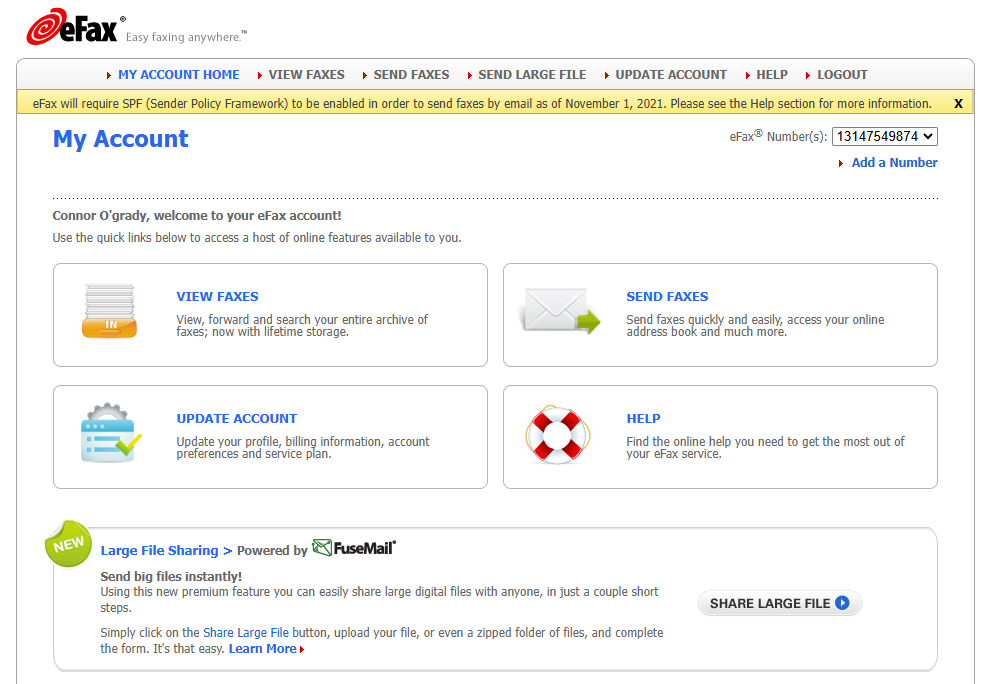
Choosing the right fax service ensures fast, secure delivery of your scanned documents. Here are the top options for scanner-based faxing.
eFax
eFax supports over 170 file types, including Microsoft Office documents and emails. You can attach up to 10 files per fax and benefit from encrypted transmission that meets HIPAA and GDPR compliance standards. The service works across web, desktop, and mobile platforms, sending automatic email confirmations after successful delivery. This makes eFax ideal for healthcare, legal, and finance professionals who need audit trails and regulatory compliance.
FaxBurner
FaxBurner offers a free tier suitable for light users, with limited monthly pages available at no cost. The email-to-fax feature lets you attach a scanned file and send it to number@faxburner.com for quick transmission. Real-time sending notifications and a simple mobile app interface make this service great for occasional users or remote workers who need fast, uncomplicated faxing.
Best Practices for Clear, Professional Faxes
Follow these guidelines to ensure your scanned faxes arrive legibly, securely, and successfully every time.
Optimize Scan Settings
Use 300 DPI with grayscale for text-only documents like invoices and letters. Switch to 600 DPI with color enabled for forms, charts, or any document containing images. Avoid unnecessary color usage, as it increases file size and slows transmission without adding value for text-heavy documents.
Ensure Readability
Use clear, printed text rather than handwriting whenever possible. If handwriting is required, write in dark ink with consistent, deliberate strokes. Maintain one-inch margins around all content to prevent edges from being cut off during transmission.
Maintain Your Scanner
Clean the scanner glass weekly using a lint-free cloth to remove dust, smudges, and debris that can create streaks. Keep the lid closed during scanning to reduce glare and ambient light interference. Update your scanning software regularly to benefit from bug fixes and performance improvements.
Manage File Size
Large files often exceed service limits and may fail to send. Reduce file size by lowering resolution to 300 DPI when acceptable, converting color scans to grayscale, or using PDF compression tools like Smallpdf or ILovePDF. Split files larger than 10 MB into smaller batches to ensure successful transmission.
Troubleshooting Common Scanner Fax Issues
When your fax doesn’t go through as expected, these solutions address the most frequent problems.
Blurry or Faint Text
Dirty scanner glass, low contrast settings, or poor original document quality typically cause this problem. Clean the glass with a microfiber cloth, increase brightness and contrast in your scan settings, and rescan with higher DPI between 300 and 600.
Skewed or Cropped Image
Misaligned documents on the scanner bed cause this issue. Use the preview function to adjust positioning before scanning, align edges with corner guides, and enable auto-crop if your software offers it.
Failed Transmission
Incorrect fax numbers, oversized files, or internet connectivity problems prevent successful delivery. Double-check the recipient’s number, compress or split large files, test your internet connection, and retry during off-peak hours if the service seems slow.
No Confirmation Received
Service glitches or email filtering sometimes hide delivery reports. Check your spam and junk folders for confirmations, log in to your fax portal to view sent items history, and restart the app or clear browser cache if problems persist.
Always retain proof of delivery for contracts, medical records, and legal filings where documentation matters.
Industry-Specific Benefits of Scanner Faxing
Digital faxing via scanner delivers unique advantages across key sectors.
Healthcare
HIPAA-compliant services like eFax enable secure transmission of patient records, prescriptions, and insurance claims. Digital workflows eliminate paper trails while maintaining proper audit logs and compliance documentation.
Legal
Court filings, affidavits, and notarized documents can be sent with delivery confirmation for verification. Digital copies store easily for quick retrieval, reducing reliance on physical couriers and overnight delivery services.
Finance and Accounting
Invoices, tax forms, and contracts distribute securely through encrypted connections. Cloud integration automates workflows and prevents the lost faxes that plague traditional methods.
Remote Work and Small Business
Employees can fax from home using only a scanner and internet connection. No dedicated fax line or machine maintenance is required, and usage scales easily with pay-per-fax or subscription pricing models.
Frequently Asked Questions About Faxing from a Scanner
Can I fax from a scanner?
Yes, but not directly. You must first scan the document into a digital file like PDF or TIFF, then use an online fax service to send that file to the recipient.
How do I fax a scanned document?
Scan the document to PDF or TIFF format, save the file, log in to your fax service, upload the file, enter the recipient’s fax number, and click send.
What file types can I fax from a scanner?
Most services accept PDF, TIFF, JPEG, PNG, DOCX, and XLSX formats. PDF works best for preserving layout and formatting across all devices.
Do I need a fax machine to fax from a scanner?
No. A scanner combined with an online fax service completely replaces the need for a physical fax machine.
Can I fax directly from the scanner?
Only if your scanner is part of a multifunction printer with built-in fax capability. Standalone scanners require external transmission through software or an online service.
Is there a scan-to-fax app?
Yes. Apps like eFax and FaxBurner let you photograph documents with your phone camera, edit and organize pages, and send as a fax from anywhere without a desktop scanner.
Final Tips for Reliable, Secure Faxing
Faxing from a scanner is smarter, faster, and more secure than traditional methods when executed properly. Always preview your scans before sending to catch errors early and avoid wasted transmissions. Use cover pages to organize information and mark confidentiality clearly.
Stick with PDF format for universal compatibility and formatting control across all devices. Choose a reputable service offering encryption and delivery tracking to protect sensitive documents. Keep digital backups of all sent faxes for records, compliance, and easy reference.
By combining a quality scanner with a trusted online fax service, you gain full control over document quality, security, and delivery. Whether you work in healthcare, law, finance, or remote business operations, this method streamlines communication and supports a fully paperless office. Start faxing smarter today without needing any fax machine hardware.





