
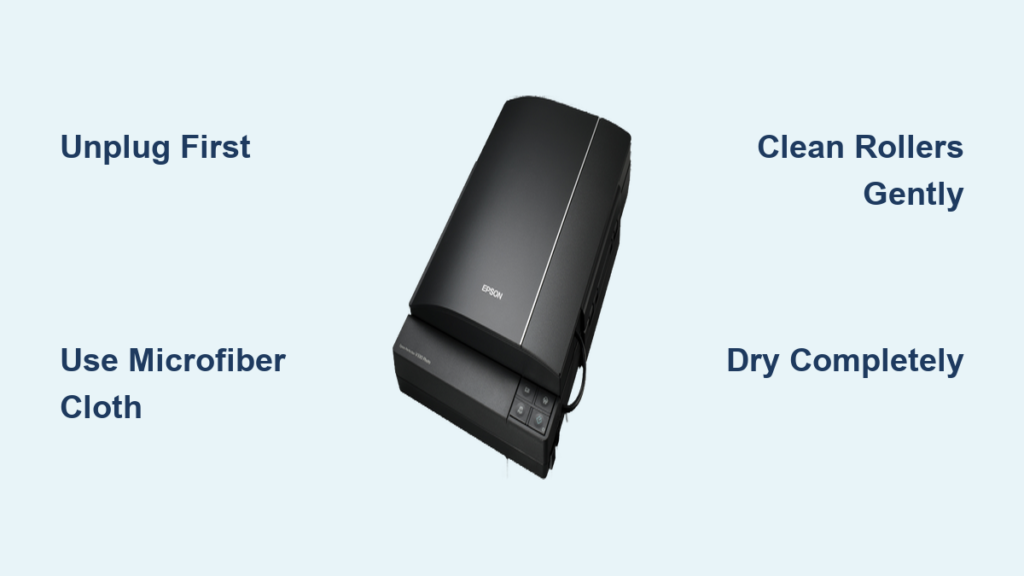
If your Epson scanner is producing streaky, blurry, or inconsistent scans, the culprit is likely dust, grime, or debris on internal components. Regular cleaning of the glass, rollers, and sensors is essential to maintain high-quality scanning performance and extend your device’s lifespan. Whether you’re using a document scanner like the DS-530 II or a photo scanner such as the FastFoto FF-680W, this guide provides model-specific, step-by-step instructions to safely clean every critical part. You’ll learn exactly how to clean your Epson scanner without damaging sensitive parts using only recommended tools and techniques straight from Epson’s official guidelines.
By following this guide, you’ll fix common issues like black lines, paper jams, and image distortion while keeping your scanner running smoothly for years.
Essential Safety Steps Before Cleaning Your Epson Scanner
Working on a powered device risks electric shock and accidental movement that could damage internal mechanisms. Always unplug the power cord and disconnect all cables before opening the scanner cover. This simple step protects you from electrical harm and prevents damage to sensitive internal components.
Never use alcohol, ammonia-based cleaners (unless specified), paint thinner, oil, or lubricants on your scanner. These chemicals can degrade rubber rollers and etch glass surfaces. Use only ammonia-free glass cleaner when needed, and apply it to a cloth rather than directly on the scanner. Stick to microfiber cloths, dry cotton swabs, and compressed air used upright. Avoid hard brushes, paper towels, or abrasive materials that can scratch glass or leave residue.
Gather Required Cleaning Tools for Epson Scanner Maintenance
Having the right tools ensures you clean effectively without causing damage. The essential supplies include a microfiber cloth for wiping glass, rollers, and lid interior. You’ll need ammonia-free glass cleaner for stubborn marks, applied only to the cloth. Compressed air helps dislodge dust from crevices, while cotton swabs work best for sensors. Consider using genuine Epson cleaning kits for an all-in-one solution.
The microfiber cloth included with models like the FF-680W is designed specifically for scanner use. Do not use it on photos or other devices. Using improper cloths can leave lint or residue that creates new problems.
Open Your Epson Scanner Cover Safely
Locate the cover release lever, usually found near the front or side of the scanner. Pull gently to release the lid, then raise the scanner cover fully to expose internal components including glass plates, rollers, and sensors. Keep the lid open during cleaning but avoid placing pressure on hinges.
Look for pickup rollers, separation rollers, and glass strips under the lid and base. Some models like the T5470M have three separate glass plates that require individual attention. Understanding your specific model’s layout helps you clean thoroughly without missing areas.
Clean the Scanner Glass for Crystal-Clear Scans
Use a dry microfiber cloth to gently wipe each glass surface in one direction. Avoid circular motions that may spread debris. For models like the T5470M, clean each of the three glass plates individually. This prevents streaking and ensures consistent scan quality.
If smudges or grease remain, spray one fingertip-sized drop of ammonia-free glass cleaner onto a corner of the microfiber cloth. Gently wipe the affected area without scrubbing. Use a dry section of the cloth to buff away residue, then blow away lint with short bursts of compressed air held upright. Never spray liquid directly on glass because excess moisture can seep into sensors and cause permanent damage.
Clean Rollers Using Proper Rotation Technique
Enter roller rotation mode by plugging in the scanner and powering it on. Press and hold the Scan button for at least 2 seconds. The rollers will start rotating intermittently, allowing full access to all surfaces. If rollers don’t turn, ensure the scanner is powered and the lid is closed properly during rotation.
While rollers are spinning, use a soft cloth slightly dampened with water or an Epson cleaning sheet. Gently touch the cloth to each roller, including pickup, separation, and transport rollers. Rotate manually by pressing the Scan button again to expose new sections. Never use a dry cloth on rollers because Epson warns this can damage the rubber surface and lead to paper feed issues.
Some models like the DS-575W II and FF-680W have rollers inside the lid. Wipe them the same way using a moist cloth while powered and rotating if accessible.
Clean Optical Sensors Without Causing Damage

Sensors are fragile and must not get wet. Use a dry cotton swab to clean optical sensors. Gently swipe across the sensor strip, usually located near the glass, using light pressure. Do not press hard. Replace the swab if it picks up debris.
Never apply cleaner or moisten the swab because liquid contact can destroy the sensor. On models like the ES-400, release the manual roller lever first to fully expose internal components before cleaning sensors. This ensures you can reach all areas without damaging surrounding parts.
Wipe Interior of Scanner Cover Thoroughly
The inside of the lid often contains pickup and separation rollers that collect dust and oil from paper. These must be cleaned regularly. Dampen a microfiber cloth with water and wipe roller surfaces, glass strips if present, and any visible dust buildup.
Avoid dripping moisture into hinges or electrical parts. Some scanner lids have additional glass strips or sensors that need attention. Check your model’s documentation to identify all components inside the cover.
Dry and Reassemble Your Scanner Properly
Allow 10 to 15 minutes after cleaning to ensure all components are dry, especially glass and rollers. Residual moisture causes streaks and can damage electronics. Close the cover gently and ensure it latches. Do not force it shut if resistance is felt.
Reattach USB, power, and any other disconnected cords. Ensure everything is properly connected before powering on. A secure connection prevents communication errors and ensures optimal performance.
Run Test Scan and Reset Counter for Optimal Performance
Scan a blank white page or test document to verify image quality. Look for black lines, white streaks, or shadows. Repeat cleaning if defects persist. A test scan confirms your cleaning efforts were successful.
On models like the DS-575W II or DS-770 II, reset the internal scan counter after cleaning. Open Epson Scan 2 Utility on your computer, navigate to maintenance settings, and reset the counter. This helps track maintenance intervals and ensures optimal performance alerts work correctly.
Fix Common Post-Cleaning Issues

Streaks or lines in scans usually mean dust or moisture remains on glass or sensor. Re-clean glass with dry microfiber and inspect sensor with a flashlight. Paper jams or misfeeds typically indicate dirty or damaged rollers. Re-enter roller rotation mode and clean with a slightly damp cloth.
If the scanner won’t turn on, moisture may be in internal circuits. Unplug for 24 hours to dry completely and check the power outlet. Rollers not rotating usually result from incorrect button press. Power on, close the lid, and hold the Scan button for at least 2 seconds. Persistent dark spots may indicate damaged sensor or scratched glass. Contact Epson support rather than attempting DIY repair.
Maintain Peak Scanner Performance Long-Term
Epson recommends a full internal cleaning every 5,000 scans to prevent buildup and maintain image fidelity. Set calendar reminders or use Epson Scan 2 Utility to track usage. This proactive approach prevents problems before they affect scan quality.
Close the lid when not in use and store in a low-dust environment. Avoid touching glass with bare fingers and use dedicated cleaning cloths. For photo scanners like the FF-680W, clean photos with a separate dry cloth before scanning to prevent debris transfer. Remove staples and paper clips from documents and avoid scanning oily or damp paper.
When to Seek Professional Service
While most cleaning can be done at home, some issues require expert help. Scratched or cracked glass, frayed or hardened rollers, persistent electrical faults, and sensor failure (dark bands in every scan) all need professional attention. Do not attempt to replace parts unless authorized. Contact Epson Support or visit an approved service center for these issues.
Frequently Asked Questions About Cleaning Epson Scanners
How often should I clean my Epson scanner?
Clean your Epson scanner every 5,000 scans for optimal performance. Perform quick dust removal before large scanning jobs and clean immediately if image defects appear.
Can I use alcohol to clean my Epson scanner glass?
No, never use alcohol, ammonia-based cleaners, paint thinner, or lubricants on scanner components. These chemicals damage rubber rollers and etch glass surfaces. Use only ammonia-free glass cleaner applied to a cloth.
Why aren’t my scanner rollers rotating during cleaning?
Ensure the scanner is powered on and the lid is closed properly. Press and hold the Scan button for at least 2 seconds to enter roller rotation mode. If rollers still don’t turn, check your model’s documentation.
What causes black lines in scanned documents?
Black lines usually indicate dust or debris on the glass or sensors. Clean both thoroughly with a dry microfiber cloth and compressed air. Inspect sensors with a flashlight to ensure complete removal.
Can I replace damaged rollers myself?
Do not attempt to replace parts unless authorized. Contact Epson Support for damaged rollers, scratched glass, or sensor failures. Professional service ensures proper repairs without voiding warranties.
Key Takeaways for Cleaning Your Epson Scanner

Regular cleaning every 5,000 scans prevents dust, oil, and debris from causing white lines, blurred images, and paper feeding problems. Always unplug before cleaning and use only soft, lint-free materials like microfiber cloths and dry cotton swabs. Never apply liquids directly to components. Rotate rollers during cleaning for full coverage and allow complete drying time before powering on. Following these model-specific steps ensures your Epson scanner delivers crisp, consistent scans for years to come.





